Workflows
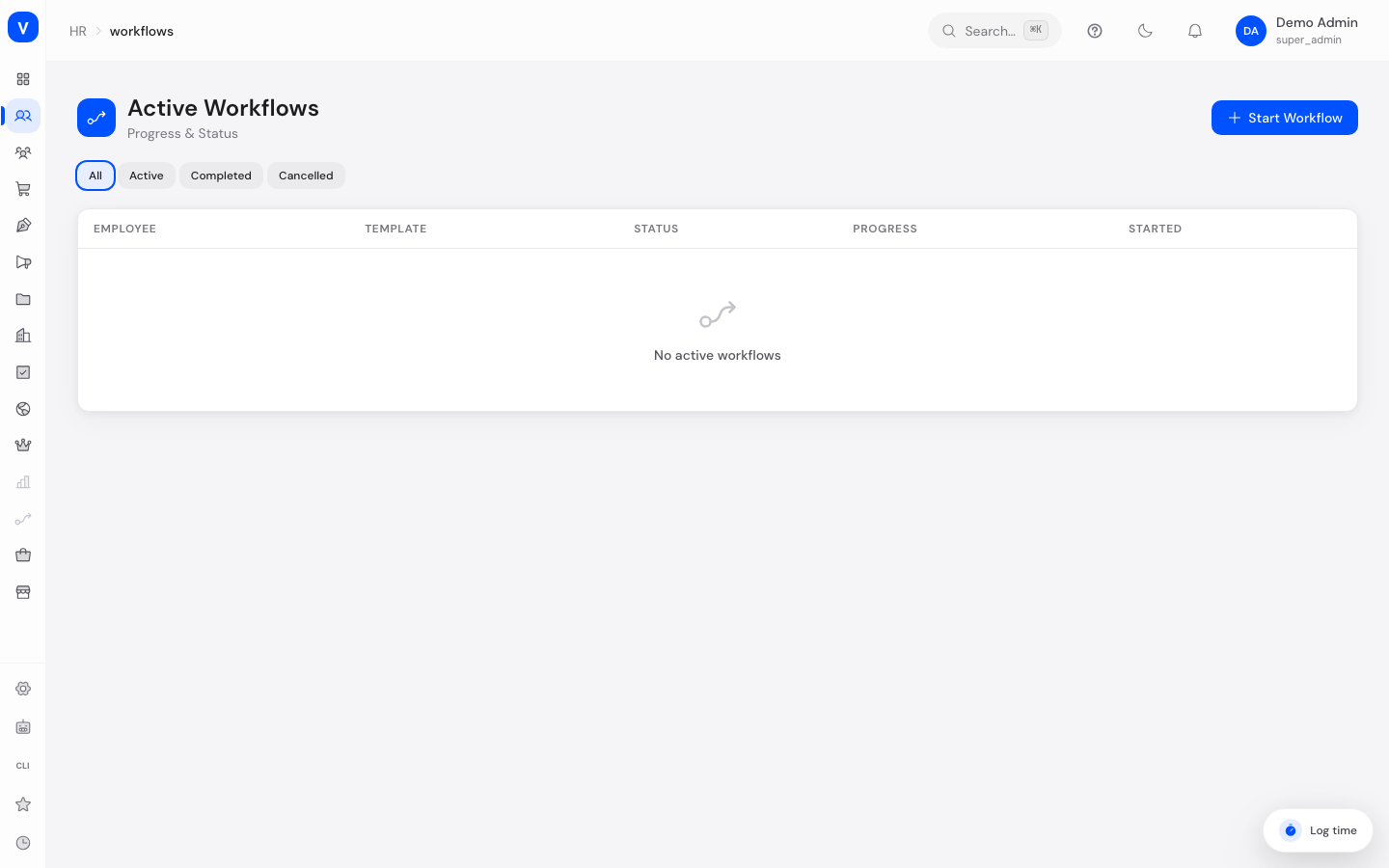
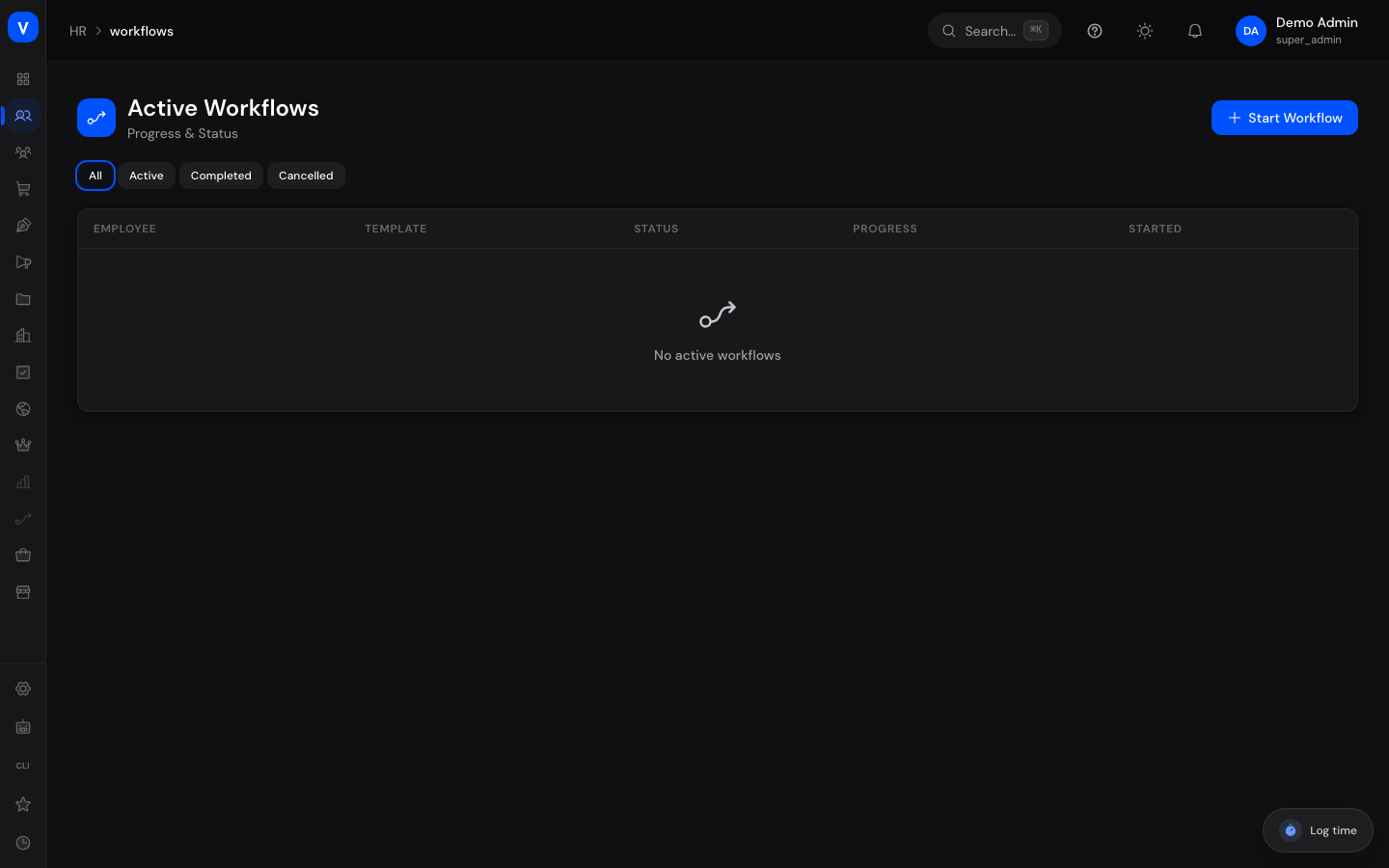
This page shows every workflow run, active or finished — for example a new employee's onboarding, or an offboarding process. Every workflow is created from a template (see Workflow Templates) and guides one specific employee step by step through a checklist of tasks.
/hr/workflowsWhat can I do here?
- Filter all workflows by status (active, completed, cancelled)
- Start a new workflow for an employee from an existing template
- Open a workflow and see the progress of each step
- Mark individual steps complete or skip them
- Approve or reject steps that have approval levels configured
- Supply instance data at start time that configured conditions are evaluated against
- Cancel a running workflow
- View the reminders scheduled for a workflow and add new ones
Step by step
Start a workflow
- Click "Start Workflow" in the top right corner.
- Choose a template (only active templates are offered) and the relevant employee.
- Optional: under "Instance data", enter one field per line in the form
name=value, for examplelevel=senior. These values are what the conditions configured in the template are evaluated against later. Without instance data no condition matches and the workflow runs strictly in order. - Click "Start Workflow". All steps from the template are copied into the new workflow as tasks, all starting as "Pending".
Complete or skip a task
- Open a workflow from the list by clicking its row.
- Click "Mark Complete" or "Skip" on the task you want to update.
- Once every required task is completed or skipped, the workflow automatically switches to "Completed".
Give an approval
- Open the workflow and find the step showing an "Approval chain" section. It only appears for steps that have approval levels configured in the template.
- The chain shows every level with its state: already approved, or how many of the required approvals have been recorded so far.
- Click "Approve" or "Reject". The decision is always recorded under your signed-in account - entering an identifier by hand is neither needed nor possible.
- The task completes automatically only once the last level has reached its required number of approvals.
Four-eyes principle: If you started the workflow yourself, or it concerns you as an employee, the "Approve" and "Reject" buttons are not clickable for you. A hint below the approval chain says why. Another authorized person has to decide instead. The block applies regardless of your permissions - even with "Manage HR" you do not approve your own case.
While any level is still outstanding, the step cannot be finished via "Mark Complete" - the attempt is refused with a hint naming the missing level.
Add a reminder
- Open a workflow from the list by clicking its row.
- Scroll down in the side panel to the "Reminders" section (below the task list).
- Click "Add Reminder", choose the reminder type (Upcoming, Overdue, or Escalation) and the date/time, then save.
- The new reminder appears in the list right away - shown with a clock icon while it hasn't been sent yet. Reminders you no longer need can be removed again via the trash icon.
Cancel a workflow
- Open the running workflow.
- Click "Cancel Workflow" at the bottom of the side panel and confirm.
- All remaining open tasks are automatically marked as skipped; the workflow status changes to "Cancelled".
Fields explained
| Field | Meaning | Notes/Effect |
|---|---|---|
| Employee | The person the workflow runs for | Set when the workflow starts and cannot be changed afterward |
| Template | The workflow template the tasks were copied from | Also shows the template type (Onboarding/Offboarding/Custom) |
| Status | Current state of the whole workflow | See the status list below |
| Progress | Share of completed/skipped tasks out of all tasks | Shown as a progress bar |
| Started At | When the workflow was created | — |
| Completed At | When every required task was finished | Only shown for completed workflows |
| Assignee (per task) | Who is responsible for the individual task | HR, Manager, IT, or Employee |
| Due (per task) | Deadline for the task | Calculated automatically at start time from the template's "Due After (Days)" |
| Notes (per task) | Free text on the task | Optional |
| Instance data | Fields in the form name=value supplied at start time |
The basis for evaluating configured conditions; cannot be changed after the start |
| Approval chain (per task) | The approval levels configured for the step, with their state | Only shown when the template defines levels for that step |
| Approver | Taken automatically from your sign-in | Each person counts once per level - two required approvals mean two different people, each of whom has to sign in |
| Started by | Taken automatically from your sign-in when the workflow starts | Cannot be entered. This value later helps decide who may approve the case |
Values & statuses
Workflow status
| Value | Meaning | What happens |
|---|---|---|
| Active | The workflow is running, at least one task is still open | Tasks can be worked on |
| Completed | Every required task is completed or skipped | Set automatically once the last required task is done; no further changes possible |
| Cancelled | The workflow was cancelled manually | Any still-open tasks were automatically skipped |
Task status
| Value | Meaning | What happens |
|---|---|---|
| Pending | The task hasn't been started yet | Can move to "In Progress", "Completed", or "Skipped" |
| In Progress | The task has been started | Can move to "Completed" or "Skipped" |
| Completed | The task is done | Final state, no further change possible |
| Skipped | The task was deliberately skipped (e.g. not applicable) or automatically skipped when the workflow was cancelled | Final state, no further change possible |
Frequently asked questions
Can I start a workflow for an employee if there's no matching template?
No. You can only start from an already-created, active template. If a suitable template is missing, create it first under Workflow Templates.
What happens if I skip a required task?
It counts as done for the automatic completion check — the workflow can still switch to "Completed" automatically even though the task wasn't actually fulfilled.
Can I reopen a completed or cancelled workflow?
No, tasks can only be edited while the workflow is active.
Where do I define which steps a workflow contains?
Not here — that's done in Workflow Templates. This page only shows already-started, employee-specific runs.
When does a workflow branch instead of running in order?
As soon as you complete a step that has a condition with a follow-up step configured, that condition is evaluated against the instance data. If it matches, every open step in between is marked "Skipped by branching" and the follow-up step becomes the next open item. If no condition matches, the workflow simply continues in order.
Can branching send the workflow round in circles?
No. A branch only ever moves forward to a step that has not been decided yet. A condition pointing back at a step that is already completed or skipped is not executed; the workflow then continues in order and stays in a valid state.
Why can a step not be completed even though I have every permission?
When the step has approval levels configured, any level that is not yet satisfied blocks completion. The hint below the approval chain names the level that is up next. Skipping remains possible - that is the deliberate decision to drop the step.
Can the second level approve before the first has decided?
No. Levels are decided in order. An approval out of order is refused, because otherwise the second signature would say nothing about the first.
Why can I not approve here even though I hold the permission?
Because you are party to the case yourself: you started the workflow, or it concerns you as an employee. The four-eyes principle requires a different authorized person to decide. Ask a colleague holding the same permission to take the decision.
We are a small team - can this block hold us up?
No. The four-eyes principle can be switched off for the whole tenant; the setting lives under "Approval settings". It then applies uniformly to absences, expenses and workflows. Without an explicit opt-out the block is active - that is the secure default.
What does a rejection do?
The rejection is recorded but does not count as an approval. The level therefore stays open and the task remains editable until an approval is given or the step is skipped.
What happens to a reminder once its due date arrives?
Due reminders are checked automatically and delivered through the notification bell to everyone holding the "Manage HR" permission - nobody has to have the page open. The check runs in the background on a recurring interval; a reminder that was already delivered is not sent twice.