Workflow Templates
Workflow templates are the blueprints for automated HR processes — for example an onboarding checklist with all the steps that need to happen when someone new joins. A template by itself doesn't do anything; it only describes which steps a process consists of. Only when you start a workflow for a specific employee (see Workflows) are the template's steps copied into tasks for that person and worked through.
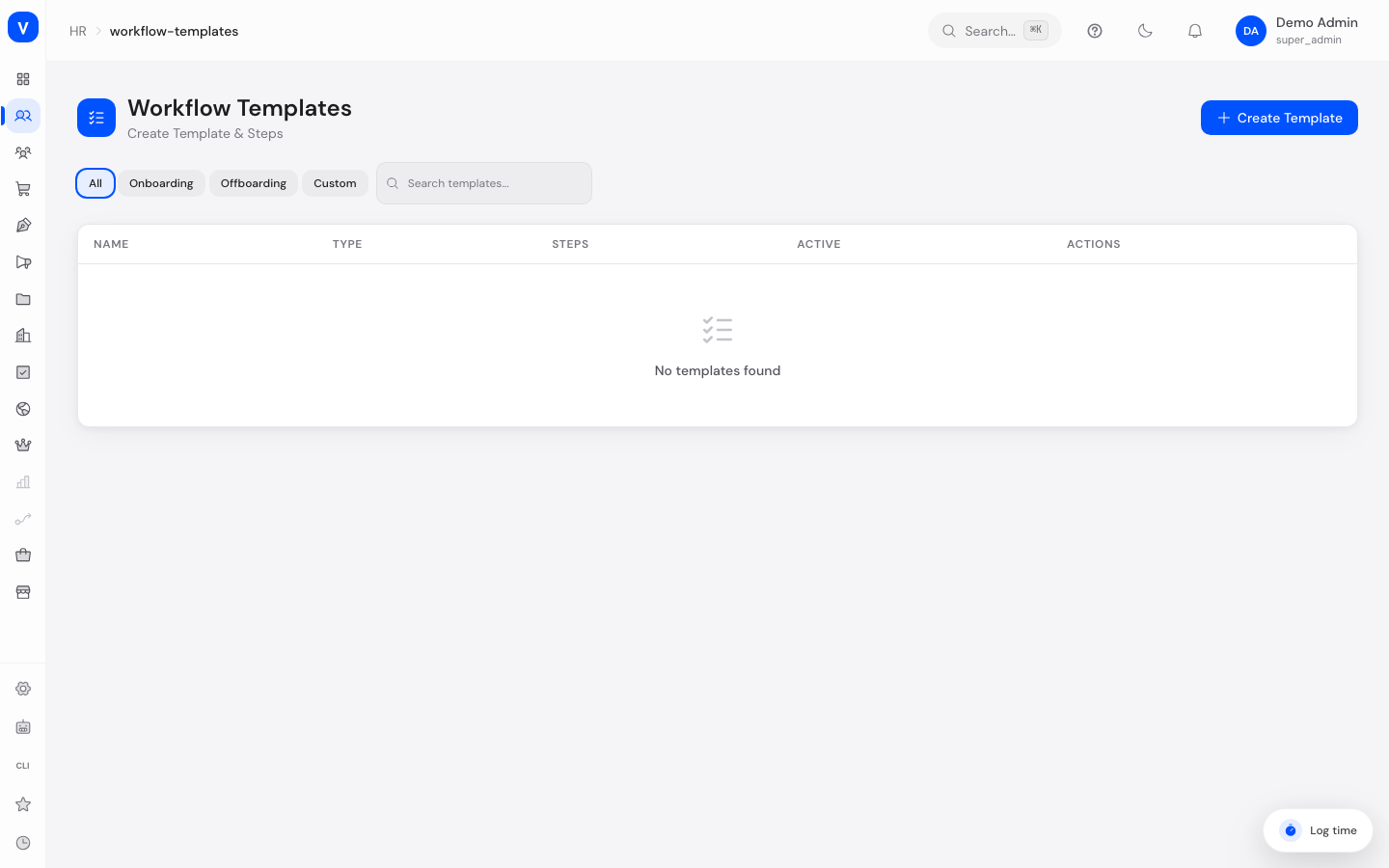
/hr/workflow-templatesWhat can I do here?
- Filter all templates by type and search by name
- Create a new template (name, description, type)
- Open a template and add, edit, reorder, or delete individual steps
- Attach conditions (branching logic) or a multi-level approval chain to a step
- Configure triggers that automatically start a workflow from this template (e.g. on a new hire)
- Deactivate a template (soft delete)
Step by step
Create a new template
- Click "Create Template" in the top right corner.
- Enter a template name, optionally a description, and pick the type (Onboarding, Offboarding, or Custom).
- Click "Create Template".
Add steps to a template
- Open the template by clicking its row.
- In the "Steps" tab, click "Add Step".
- Fill in step title, optionally a description, the assignee type, whether the step is required, and due after (days), then save.
- Use the arrow icons to reorder the steps afterward.
Add conditions or an approval chain to a step
- Open the template and, in the "Steps" tab, pick the step type "Condition" or "Approval" for a step from the dropdown.
- Click the icon that now appears next to the step to expand the Conditions or Approval Chain panel.
- For "Conditions", set: field name, operator, comparison value, and optionally which step to jump to when the condition matches.
- For "Approval Chain", add approval levels: level, approver type (e.g. direct supervisor, department head, HR manager, specific user, or role), and how many approvals are required at that level.
Set up a trigger
- Open the template and switch to the "Triggers" tab.
- Click "Add Trigger", choose the event type (e.g. "Employee Hired") and a days offset (e.g. 3 days after or 5 days before).
- Save. The trigger can then be activated or deactivated.
Delete a template
- Open the template.
- Click "Delete Template" at the bottom of the side panel and confirm.
- The template is deactivated (soft delete) and no longer appears in the template picker when starting a new workflow. Workflows already running from this template are not affected.
Fields explained
| Field | Meaning | Notes/Effect |
|---|---|---|
| Template Name | Name of the template | Required |
| Description | Free text about the template | Optional |
| Type | Category of the template | Onboarding, Offboarding, or Custom |
| Active | Whether the template can be picked when starting new workflows | Automatically set to "No" on delete |
| Step Title | Name of the individual step | Required |
| Assignee | Who works on this step during a running workflow | HR, Manager, IT, or Employee |
| Required | Whether the step must be completed or skipped for the workflow to auto-complete | Non-required steps don't block automatic completion |
| Due After (Days) | Number of days after workflow start when the step becomes due | Converted into an actual date when the workflow starts |
| Condition Type | Kind of condition, e.g. a field comparison, department, position, seniority, amount, or custom | See the value list below |
| Field Name / Operator / Value (Condition) | What a stored data field's value is compared against | Operators: equals, not equals, greater than, less than, greater/equal, less/equal, contains, in list |
| Go To Step (Condition) | Target step to jump to when the condition matches | Optional |
| Level (Approval Chain) | Order of the approval stage | Sequentially numbered, unique per step |
| Approver Type | Who must approve at this level | Direct supervisor, department head, HR manager, specific user, or role |
| Required Approvals | Number of approvals needed at this level | — |
| Event Type (Trigger) | The HR event that fires the trigger | See the value list below |
| Days Offset (Trigger) | Time distance from the event, positive = after, negative = before | 0 = immediately when the event occurs |
Values & statuses
Template type
| Value | Meaning | What happens |
|---|---|---|
| Onboarding | Process for new employees | Typically started automatically via the "Employee Hired" trigger |
| Offboarding | Process for departing employees | Typically started automatically via the "Employee Terminated" trigger |
| Custom | Freely defined process for other purposes | No automatic tie to hiring/termination |
Step type
| Value | Meaning | What happens |
|---|---|---|
| Task | A normal, manually checked-off task | Shows up as a task in the running workflow |
| Approval | A step with a stored approval chain | Opens the "Approval Chain" panel to configure approval levels |
| Condition | A step with stored branching logic | Opens the "Conditions" panel; allows jumping to a different step |
| Notification | A step that sends a notification | — |
| Wait | A step that inserts a waiting period | — |
Condition type
| Value | Meaning |
|---|---|
| Field Equals | A data field must exactly match the comparison value |
| Field Greater | A numeric data field must be greater than the comparison value |
| Department Is | The employee's department must match the comparison value |
| Position Is | The employee's position/role must match the comparison value |
| Seniority Above | The employee's tenure (in years) must be above the comparison value |
| Amount Above | A monetary amount must be above the comparison value |
| Custom | A freely defined condition with no fixed preset |
Event type (trigger)
| Value | Meaning |
|---|---|
| Employee Hired | A new employee record was created |
| Employee Terminated | An employee was terminated |
| Absence Approved | A time-off request was approved |
| Contract Expiring | A contract is approaching its expiry date |
| Probation Ending | An employee's probation period is ending |
| Birthday | An employee's birthday |
| Anniversary | Work anniversary |
Frequently asked questions
What's the difference between a template and a workflow?
The template is the reusable blueprint with the steps. A workflow is the concrete, employee-specific execution of that blueprint — with its own progress and status. You see running workflows on the separate Workflows page.
Does an already-running workflow change if I edit the underlying template afterward?
No. The steps are copied into their own tasks once, when the workflow starts. Changes to the template only affect workflows started afterward.
What is a trigger for?
A trigger automatically starts a new workflow from this template as soon as the configured event occurs (e.g. a new hire) — without you having to manually start the workflow on the Workflows page.
Can I permanently delete a template?
No, "Delete Template" only deactivates it (soft delete). It stays in the system but can no longer be selected for new workflows.