Project Time Tracking
Project Time Tracking assigns working time to specific projects and clients — including budget monitoring, tasks and approval. Unlike the Time Tracker or Time Tracking, this isn't about attendance — it's about which project an hour of work belongs to, which matters for project budgets and billing clients.
/hr/project-timeWhat can I do here?
- Create projects (name, code, client, budget hours, billable) and change their status (pause/activate/complete)
- Add or remove members on a project
- Create and delete tasks within a project
- Book time against a project/task, submit bookings, approve or reject them — individually or in bulk
- See a project's budget usage at a glance (progress bar)
- View a weekly timesheet for a person
- View statistics per project: total/billable hours, hours per member
- Export a research allowance record over a freely chosen period and several employees (CSV or print view)
Step by step
Create a project
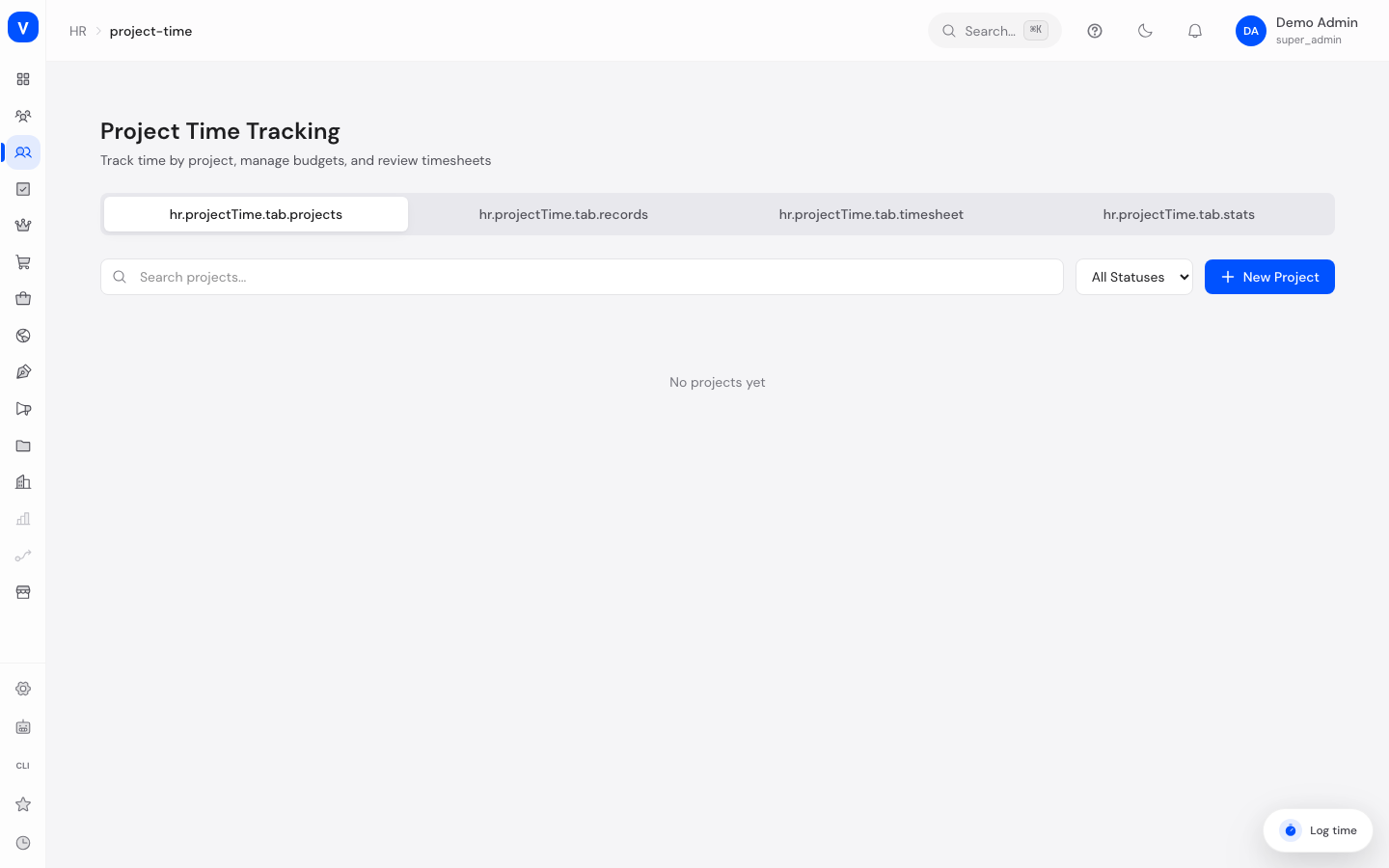
- Open the "Projects" tab and click "New Project".
- Enter a name, optionally a code and client. Optionally set budget hours and tick "Billable" if the time is invoiced to a client.
- Save — the project automatically gets the status "Active".
Book time against a project
- Open the "Time Records" tab and click "Log Time".
- Enter employee ID, date and hours, optionally choose the project (and a task) and add a description.
- Save — the entry starts out in "Draft" status.
Submit and approve time records
- In the "Time Records" tab, select the entries you want using the checkboxes.
- Employees submit their drafts with "Submit" for approval.
- Managers/HR approve or reject the selected entries via "Approve" or "Reject" — also for several entries at once.
Check project progress
- Click a project in the list to open its detail view.
- See the budget usage (bar), the key stats, and hours per member.
- Add more members or tasks here as needed.
Export the research allowance record
A research allowance application (FZulG) needs a different statement than the monthly timesheet: not "worked 160 hours" but "spent X hours on a subsidised project" - over a freely chosen period and summed across several employees.
- Mark the projects involved first: tick "Subsidised research project (FZulG)" when creating a project and enter the project reference or certificate as soon as you have it. Without that mark, a project does not appear in the export.
- Open the "R&D Allowance" tab.
- Choose From and To. The current calendar year is preselected.
- Narrow it down to specific employees or projects if needed. Leaving a field empty means all of them.
- The two checkboxes control the scope: "Only projects marked as research" (preselected) and "Only approved hours".
- The preview shows the total hours per employee for the period, with the individual projects underneath. Above it stand period, generation time and data source - the same details end up in the file.
- Use "Download CSV" for the file, or open the print view to produce a PDF from it.
If the selected period holds no hours, no file is produced on purpose. You get a hint instead. A file with nothing under its header row looks like a finished record and would be attached to an application as one.
Who may do this? The export requires the "HR read" permission - the project permissions alone are not enough, because the working time of every selected person becomes visible here. Every call, preview or download, is recorded in the audit trail with user, time and exported period.
Where the numbers come from: the source is the project time on this page, not the attendance hours in time tracking. Only project time carries the reference to a project. Rejected records are always left out.
Fields explained
| Field | Meaning | Notes/Effect |
|---|---|---|
| Project name | Display name of the project | Required |
| Code | Short code for the project | Optional, shown next to the name |
| Client | Which client the project is for | Optional |
| Budget hours | Planned hour budget | Basis for the budget usage display |
| Billable | Whether time on the project is billed to a client | Affects the "Billable Hours" stat |
| Employee ID | Who the time record applies to | Entered as text |
| Date / Hours | When and how long work was done | Hours in 0.25 increments, max. 24 per entry |
| Project / Task | What the time is booked against | Task is optional |
| Description | Short description of the work | Optional |
| Task name | Name of a task within a project | — |
| Subsidised research project (FZulG) | Whether the project is claimed in a research allowance application | Only marked projects appear in the export; unset means "normal project" |
| Project reference / certificate | File reference of the research certificate or the application's project code | Optional, travels into the exported file |
Values & statuses
Project status
| Label | Plain meaning | What happens then |
|---|---|---|
| Active | Project is running | Time can be booked |
| Paused | Project temporarily on hold | Time can still be booked |
| Completed | Project finished | Stays visible in reports |
| Archived | Project no longer actively used | View only |
Task status
| Label | Plain meaning | What happens then |
|---|---|---|
| Open | Task not yet started | — |
| In Progress | Task is being worked on | — |
| Completed | Task finished | Counts toward the task's progress indicator |
| Cancelled | Task discarded | — |
Time record status
| Label | Plain meaning | What happens then |
|---|---|---|
| Draft | Recorded but not yet submitted | Only drafts can be edited or deleted |
| Submitted | Presented for approval | Manager/HR can approve or reject |
| Approved | Confirmed | Counts in project statistics |
| Rejected | Declined | Stays documented, does not count as worked time |
Frequently asked questions
What happens when a project's budget is exceeded?
The budget usage bar turns yellow at 75% and red at 90%. This is a visual indicator only — time can still be booked afterwards.
Can I still edit a time record I already submitted?
No, only entries in "Draft" status can be edited or deleted.
Are hourly rates visible to everyone?
Hourly rates are treated as sensitive compensation data, like other salary figures, and are stored accordingly protected.
How do I see the weekly timesheet for a person?
Open the "Timesheet" tab and enter the employee ID — it shows the current week (Monday to Sunday) with the hours booked per day.
How is this different from the Time Tracker?
The Time Tracker records general activity types (tickets, calls, meetings) with no approval step. Project Time Tracking assigns time specifically to projects/clients and goes through an approval workflow.