Calendar & Holidays
This page bundles everything time-related about your team in one place: who is away and when, who is on shift, when public holidays, birthdays, and anniversaries fall. It consists of three tabs — Team, Shared Calendars, and Holidays. The addresses /hr/holidays, /hr/team-calendar, and /hr/shared-calendars automatically lead here and open the matching tab directly.
/hr/calendarWhat can I do here?
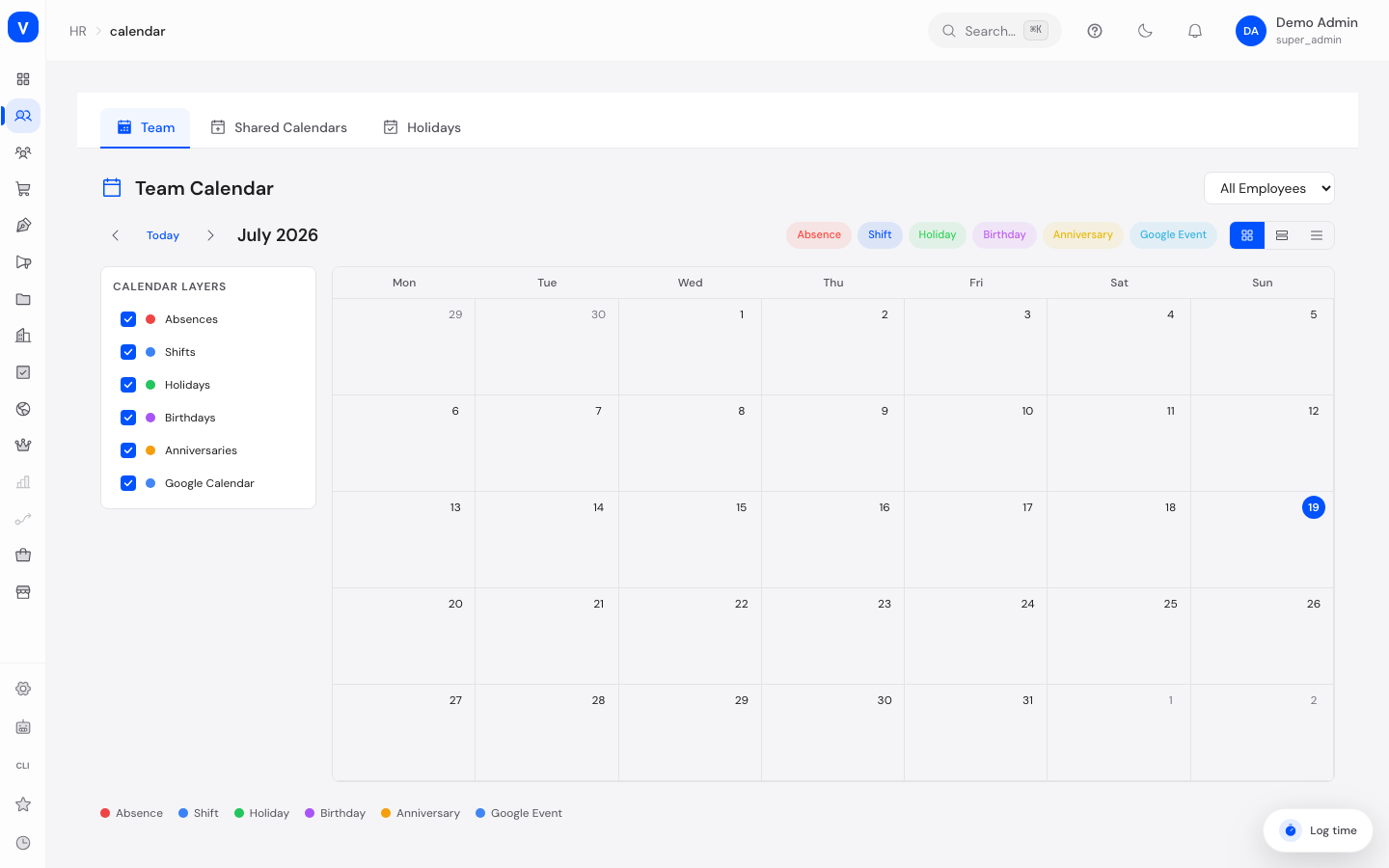
"Team" tab: A joint calendar for the whole team with month, week, and list views. It shows six kinds of entries you can toggle individually: absences, shifts, holidays, birthdays, anniversaries, and Google events. The sidebar additionally filters by individual employees, the selector at the top by department. Clicking an entry opens a detail panel. A day marked red as an absence is always an actual working day: weekends and full-day public holidays inside a requested period stay unmarked, or show up in green as a holiday - never as the person's vacation day. Holidays are resolved per employee from their own country or assigned holiday calendar, not applied uniformly to the whole workforce. The month and week views also highlight the day itself: weekends carry a slightly offset background colour, public holidays a distinct one of their own. Which holidays show depends on the people currently in view - filter the sidebar down to one colleague and you see exactly their holidays. With the whole team shown, a day is marked as soon as it is a day off for at least one visible person; the day's tooltip names who that is, and screen readers read it out as well. Weekend, holiday, and absence stay three different things: the first two tint the day, an absence remains an entry inside the day.
"Shared Calendars" tab: Create and manage shared Google calendars for teams — e.g. a "Marketing Team" calendar. Each calendar has a color, an optional description, and members with roles (Reader, Writer, Owner). Clicking a calendar card shows its events directly in SELLERLOGIC Commerce Services (month/week/list), lets you check member availability, and create new events. A shared calendar can also serve as the absence sync target: approved absences are then automatically written into that Google calendar as all-day events (see Absences). Only one calendar can be the target, and it must be linked to Google.
Transfer starts the moment you flip the switch - every new approval then travels into the calendar on its own. For absences approved before that, use the Catch up existing absences button: it pushes every approved absence that still lies ahead. Pressing it again does no harm - what is already in the calendar is not created twice.
"Holidays" tab: Holiday management with three sub-tabs:
- Public Holidays - view public holidays per country and year and import them at the click of a button ("Seed Holidays"). Every holiday is labelled National or Regional; for regional holidays you see which states/regions it applies to. Use Add holiday to create your own entries - including municipal holidays that only apply in certain municipalities (e.g. Corpus Christi in parts of Saxony and Thuringia) and therefore do not count automatically for the whole region but are assigned to individual employees. Every manual holiday can additionally be marked half day off (counts as only 0.5 instead of 1.0 working days in leave calculation) or suspended - a suspended holiday stays visible and is labelled as such but is not counted as a day off (typical for holidays suspended due to war or by the authorities). The per-row actions let you edit or suspend/reactivate an entry at any time. Verify against official source compares the stored data with government-fed holiday data; differences appear as a review report above the list (the same check also runs automatically every night). Manually created, edited or suspended holidays are never overwritten by automatic updates and flow into the holiday list, team calendar and leave calculation through the same path as automatic holidays.
- Calendars — create state/region-specific holiday calendars (e.g. "Bavaria") and assign them to employees. Country and region are picked from dropdown lists — the region list contains the official regions of all countries (e.g. German states, Spanish autonomous communities such as Catalonia). One calendar can be marked as the default.
- Carry-Over — centrally define when unused carried-over vacation days from the previous year expire (expiry month/day, e.g. March 31), whether expiry runs automatically, and the maximum number of days that may be carried over. "Process Expiry Now" triggers the processing manually.
Why holidays by state? Public holidays differ within a country: All Saints' Day is a day off in Bavaria but not in Berlin. When calculating leave, SCS automatically applies the holidays that match each employee's country and state — so an employee in Munich does not lose a vacation day on All Saints' Day, while an employee in Berlin does.
Step by step
Check team absences for a month
- Open the Team tab.
- Optionally pick a department at the top right and use the filter buttons to show only the entry types you need (e.g. only "Absence").
- Page through the months with the arrows or jump to the current date with Today; switch to Week or List as needed.
- Click an entry to see its details (e.g. the period and type of an absence).
Load holidays for a country
- Open Holidays → sub-tab Public Holidays.
- Pick the country (e.g. Germany) and the year.
- Click Seed Holidays. The list fills with all holidays of the year including the National/Regional label.
- If needed, narrow down to a single state via the region selector.
Create a municipal holiday and assign it to an employee
Example: Corpus Christi (June 4) is a public holiday in Saxony and Thuringia only in certain municipalities (Saxon Corpus Christi ordinance, Thuringian public holidays act) — so it must not automatically count for every employee of the state.
- Open Holidays → sub-tab Public Holidays and click Add holiday.
- Enter name (e.g. "Corpus Christi"), date, country and region and enable Municipal holiday (assignment only).
- Save. The holiday appears in the list with the Municipal label but does not count for anyone yet.
- Open the affected employee (page Employees) → tab Vacation → section Holidays and assign the holiday via Assign holiday manually….
- From now on the day counts as a day off for exactly this employee — in leave calculation and in the year view. The assignment carries the Manual label and always survives automatic updates.
Mark a holiday as half day or suspended
Half-day example: Christmas Eve is a half day off at your company. Suspension example: a religious holiday is suspended due to war ("(призупинено)") but should remain visible.
- Open Holidays → Public Holidays sub-tab and pick country and year.
- For a new entry click Add holiday; for an existing one click the edit icon in the row.
- Tick Half day off if only half the day is granted - leave calculation then deducts 0.5 instead of 1.0 working days.
- Tick Suspended if the holiday should stay visible but not count as a day off. Alternatively use the suspend icon in the list; reactivate lifts the suspension.
- Save. The entry shows the Half day or Suspended label in the list. Half-day holidays automatically count as half a day off for the affected employees; suspended holidays still cost a full working day.
Verify data against the official source
- Open Holidays → sub-tab Public Holidays and select country and year.
- Click Verify against official source. SCS compares the stored data with government-fed holiday data (the same check also runs automatically every night).
- If there are differences, the section Differences vs. official source appears above the list — with missing or surplus days per country and year.
- Review the report, add or correct holidays if needed (e.g. via Add holiday) and close the report with Reviewed. Nothing is ever overwritten automatically; manually maintained entries are always protected.
Create a shared calendar
- Open Shared Calendars and click New Calendar.
- Enter a name (e.g. "Marketing Team"), optionally a description, and pick a color.
- Click Create Calendar. Then open the calendar by clicking its card to see its events; manage members with the roles Reader, Writer, or Owner.
Configure carry-over expiry
- Open Holidays → sub-tab Carry-Over.
- First maintain the "Default for all types" section: set the expiry month and expiry day (e.g. month 3, day 31 = March 31), optionally Max Carry-Over Days, and enable Auto-Expire. This default applies to every absence type that has no configuration of its own.
- For rules that differ per absence type, click Add Configuration, pick the type, and set the same fields. Type-specific settings take precedence over the default.
- Save. From now on, remaining days calculated during the yearly carry-over get this expiry date; after the cut-off they lapse automatically. Process Expiry Now triggers processing immediately.
Note on the cut-off date: Invalid date combinations are prevented — the expiry day automatically adjusts to the selected month (February at most 29, April/June/September/November at most 30). February 29 is allowed; in non-leap years, February 28 applies automatically.
flowchart LR
    A[Year-end:<br/>Calculate carry-over<br/>on the Absences page] --> B[Remaining days move into<br/>next year's entitlement as carry-over]
    B --> C{Expiry configuration<br/>with auto-expire active?}
    C -->|Yes| D[Carried-over days get a cut-off date,<br/>e.g. March 31]
    D --> E[After the cut-off, unused<br/>carried-over days lapse]
    C -->|No| F[Carried-over days do not lapse]
Fields explained
| Field | Meaning | Notes/Effect |
|---|---|---|
| Department view (Team) | Filters the team calendar to one department | "All employees" shows everyone |
| Calendar layers (Team) | Toggle entry types and individual employees | See "Values & statuses" below |
| Month / Week / List | View mode of the calendar | List shows all entries of the period stacked |
| Country | Country whose holidays are loaded/shown | e.g. Germany, Austria, Switzerland |
| Region/State | Regional narrowing within a country | Only visible when regional holidays exist |
| Date (holiday) | Calendar day of the holiday | For "Transferred" holidays the substitute date is shown, the original struck through |
| Name / Name (English) | Holiday name in both languages | — |
| Type (holiday) | Kind of holiday | See "Values & statuses" below |
| Scope (holiday) | National, Regional or Municipal | For Regional, the affected states are listed; municipal holidays only count after manual assignment |
| Municipal holiday (assignment only) | Option when adding a holiday manually | The day does not apply automatically to the whole region — only to manually assigned employees |
| Half day off (holiday) | Option when adding/editing a holiday | The day counts as only 0.5 instead of 1.0 working days in leave calculation |
| Suspended (holiday) | Option when adding/editing, or a per-row action | The holiday stays visible and is labelled as suspended but is not counted as a day off |
| Actions (holiday) | Edit and Suspend/Reactivate per row | Every change permanently protects the entry from the automatic source sync |
| Differences vs. official source | Review reports of the daily comparison against government-fed holiday data | For review; close with "Reviewed" — nothing is overwritten automatically |
| Name (holiday calendar) | Calendar label, e.g. "Bavaria" | Appears in the employee assignment |
| Country / Subdivision (holiday calendar) | Which country or region the calendar represents | e.g. DE / DE-BY |
| Employees (holiday calendar) | Number of assigned employees | — |
| Default (holiday calendar) | Preselection for employees without an assignment | Only one calendar can be the default |
| Name / Description / Color (shared calendar) | Display properties of the calendar | The color marks its events in the views |
| Members (shared calendar) | People with access to the calendar | With the role Reader/Writer/Owner |
| Absence sync target (shared calendar) | Approved absences automatically land in this Google calendar as all-day events | Only one calendar can be the target; requires a Google link. "Catch up existing absences" pushes earlier approvals that still lie ahead |
| Expiry Month / Expiry Day (carry-over) | Cut-off date on which carried-over days lapse | Stamped onto the days during the yearly carry-over; default March 31 |
| Max Carry-Over Days (carry-over) | Cap on the days that can be carried over | Empty = unlimited |
| Auto-Expire (carry-over) | Whether expiry is processed automatically | Can additionally be triggered manually via "Process Expiry Now" |
| Field | Meaning | Notes/Effect |
| -------------------------------------------- | ------------------------------------------------------------------------------ | ------------------------------------------------------------------------------------ |
| Department view (Team) | Filters the team calendar to one department | "All employees" shows everyone |
| Calendar layers (Team) | Toggle entry types and individual employees | See "Values & statuses" below |
| Month / Week / List | View mode of the calendar | List shows all entries of the period stacked |
| Country | Country whose holidays are loaded/shown | e.g. Germany, Austria, Switzerland |
| Region/State | Regional narrowing within a country | Only visible when regional holidays exist |
| Date (holiday) | Calendar day of the holiday | For "Transferred" holidays the substitute date is shown, the original struck through |
| Name / Name (English) | Holiday name in both languages | — |
| Type (holiday) | Kind of holiday | See "Values & statuses" below |
| Scope (holiday) | National or Regional | For Regional, the affected states are listed |
| Name (holiday calendar) | Calendar label, e.g. "Bavaria" | Appears in the employee assignment |
| Country / Subdivision (holiday calendar) | Which country or region the calendar represents | e.g. DE / DE-BY |
| Employees (holiday calendar) | Number of assigned employees | — |
| Default (holiday calendar) | Preselection for employees without an assignment | Only one calendar can be the default |
| Name / Description / Color (shared calendar) | Display properties of the calendar | The color marks its events in the views |
| Members (shared calendar) | People with access to the calendar | With the role Reader/Writer/Owner |
| Absence sync target (shared calendar) | Approved absences automatically land in this Google calendar as all-day events | Only one calendar can be the target; requires a Google link. "Catch up existing absences" pushes earlier approvals that still lie ahead |
| Expiry Month / Expiry Day (carry-over) | Cut-off date on which carried-over days lapse | Stamped onto the days during the yearly carry-over; default March 31 |
| Max Carry-Over Days (carry-over) | Cap on the days that can be carried over | Empty = unlimited |
| Auto-Expire (carry-over) | Whether expiry is processed automatically | Can additionally be triggered manually via "Process Expiry Now" |
Values & statuses
Entry types in the team calendar (calendar_event_type)
| Label | Plain meaning | What happens then |
|---|---|---|
| Absence | Approved absence of an employee | Comes from the Absences area; click shows details |
| Shift | Planned shift from the shift planner | Comes from the shift planner |
| Holiday | Public holiday | Comes from the holiday management |
| Birthday | An employee's birthday | From the employee data |
| Anniversary | An employee's work anniversary | From the employee data |
| Google event | Event from a connected Google calendar | Requires the calendar integration; private events appear only as "Busy" |
Holiday types (holiday_type)
| Label | Plain meaning | What happens then |
|---|---|---|
| Public | Statutory public holiday | Counted as a day off in the leave calculation |
| Bank | Bank holiday | Label in the list |
| School | School-free day | Label in the list |
| Optional | Optional or not universally binding holiday | Label in the list |
Scope of a holiday (holiday_scope)
| Label | Plain meaning | What happens then |
|---|---|---|
| National | Applies in the whole country | Counts for all employees of the country |
| Regional | Applies only in certain states/regions | Counts only for employees with a matching state |
| Municipal | Applies only in certain municipalities (e.g. Corpus Christi in parts of Saxony/Thuringia) | Does NOT count automatically — only for employees it was manually assigned to in the Vacation tab |
| Manual | Entry created or edited in the admin | Never overwritten by automatic updates or the official-source comparison |
| Label | Plain meaning | What happens then |
| -------- | -------------------------------------- | ----------------------------------------------- |
| National | Applies in the whole country | Counts for all employees of the country |
| Regional | Applies only in certain states/regions | Counts only for employees with a matching state |
Roles in a shared calendar (shared_calendar_role)
| Label | Plain meaning | What happens then |
|---|---|---|
| Reader | May view events | No creating/editing |
| Writer | May view and create events | — |
| Owner | Full control over the calendar | Incl. member management |
Frequently asked questions
Where do the holidays come from?
They are imported automatically via "Seed Holidays" for the selected country and year. The data comes from machine-readable mirrors of official holiday data; a daily verification job additionally compares the stored data with a second, government-fed source and reports differences for review — nothing is ever overwritten automatically.
An employee is missing regional holidays (e.g. Thuringia or Catalonia) — why?
Usually the region was stored as free text (e.g. "Thuringia" instead of the official code). The region is now picked from a dropdown list everywhere — on the employee, in the holiday calendar and for the approved residence; existing free-text values were converted automatically. Check that both country and region are set in the employee's personal details, or assign a matching holiday calendar in the Vacation tab. For Spain: regional holidays such as those in Catalonia only count when the region is selected accordingly — otherwise only the national Spanish set applies.
Corpus Christi only applies in certain municipalities for us — how do I model that?
Create the day as a municipal holiday ("Add holiday" with the "Municipal holiday" option enabled) and assign it manually to the affected employees in the Vacation tab. It then counts only for those employees — exactly as the Saxon Corpus Christi ordinance and the Thuringian public holidays act require.
Substitute holidays (e.g. in Ukraine) - do they appear automatically?
Yes. For countries with a statutory weekend transfer (e.g. Ukraine, Art. 73 of the Labour Code) SCS automatically moves a holiday that falls on a Saturday or Sunday to the next working day and shows this substitute day everywhere - in the holiday list of the employee file, the team calendar and the leave calculation (example: Women's Day Sun 08.03.2026 → Mon 09.03.2026). A leave request spanning such a substitute Monday consumes no vacation day. This holds regardless of whether the employee has an assigned holiday calendar: both cases calculate the same days off. Holidays suspended due to war or by the authorities ("(призупинено)", e.g. Orthodox Easter on Sun 12.04.2026 and Trinity on Sun 31.05.2026) appear automatically visible and labelled "Suspended", but do not count as days off. Important: a suspended holiday produces no substitute Monday - the suspension applies at the statutory holiday date, that is, before the weekend transfer runs at all. The Monday after it (Mon 13.04.2026 and Mon 01.06.2026) is therefore an ordinary working day and is deducted from the leave entitlement. If such a day should still be a day off at your company, add it manually via Add holiday; a manual entry always wins. If a day the source does not know is still missing, add it manually via Add holiday - a manual entry always wins over the automatic derivation and survives every reconciliation. If a day only needs half the time off, enable Half day off (0.5 working days).
The calendar dropdown in the employee file only shows the wrong (German) calendars - why?
The assignment dropdown on the "Vacation" tab of the employee file now offers only holiday calendars for the employee's country. A person with country Ukraine is therefore no longer offered the German federal-state calendars. If no calendar has been created for the country yet, "No calendar" remains - the holidays of the country stored on the employee then apply automatically (the same chain as the leave calculation).
What is the difference between a "holiday" and a "holiday calendar"?
A holiday is a single day (e.g. May 1). A holiday calendar is a named combination of "country + state" (e.g. "Bavaria") that can be assigned to employees so the correct regional holidays apply to them automatically.
Why does my colleague in Bavaria get more days off than I do in Berlin?
Public holidays are partly a state matter: Bavaria has more statutory holidays than Berlin. SCS calculates with each employee's state holidays — visible via the National/Regional label in the holiday list.
What does "Transferred" mean on a holiday?
Some holidays are moved to a substitute day. The list then shows the original date struck through with the actual substitute date next to it.
Why isn't Saturday/Sunday shown as red in a vacation request spanning a weekend?
That's intentional: weekends and full-day public holidays never count as a vacation day, so the team calendar never shows them as an absence either - even when the requested period includes them (e.g. Thursday through Tuesday). If a holiday falls inside the period, it stays recognizable as a holiday instead of being colored as the person's vacation day, and the displayed day counts don't include it.
I don't see any Google events in the team calendar — why?
Either the "Google event" entry type is hidden via the filters, or the Google Calendar connection has not been set up yet (see Calendar Integration).
Why does a Google event only say "Busy"?
The event is marked private or confidential in Google. For privacy reasons, SCS then shows neither title nor location — only that the person is busy.
I picked a target calendar but it stays empty - is something broken?
No. Transfer starts the moment you flip the switch; anything approved before that is unknown to the calendar. Press Catch up existing absences once, below the switch: SCS then pushes every approved absence that still lies ahead and tells you how many there were. You can press it again at any time - absences already transferred are not created twice. Note that appointment booking was never affected. It reads absences straight from the HR area, so approved leave blocks the times even when the calendar does not know about it.
Does a sick note carry its reason into the calendar?
No - and that holds for the catch-up as well. For a sick note SCS transfers only that the person is away ("Name - abwesend"), never the absence type. The shared calendar is readable company-wide; a sick note is health data and does not belong there. Every other absence type still appears with its name so the team can keep planning around it.
Where do I configure when carried-over vacation days expire?
In the "Holidays" tab under "Carry-Over" — set the central cut-off date (day and month) and optionally a maximum number of days there. The carry-over calculation itself is started on the Absences page.
Related topics
- Absences — requests, entitlements, carry-over, and expiry
- Calendar Integration — connect Google Calendar
- Shift Planner — source of the shift entries
- Employees — maintain the employee's country/state