Calendar Integration
This address takes you to the central management of SCS's Google Calendar connection. The /hr/calendar-integration page no longer shows content of its own — it automatically redirects you to the integration settings (Settings → Integrations, "Google Calendar Integration" section), where all calendar connections are maintained in one place.
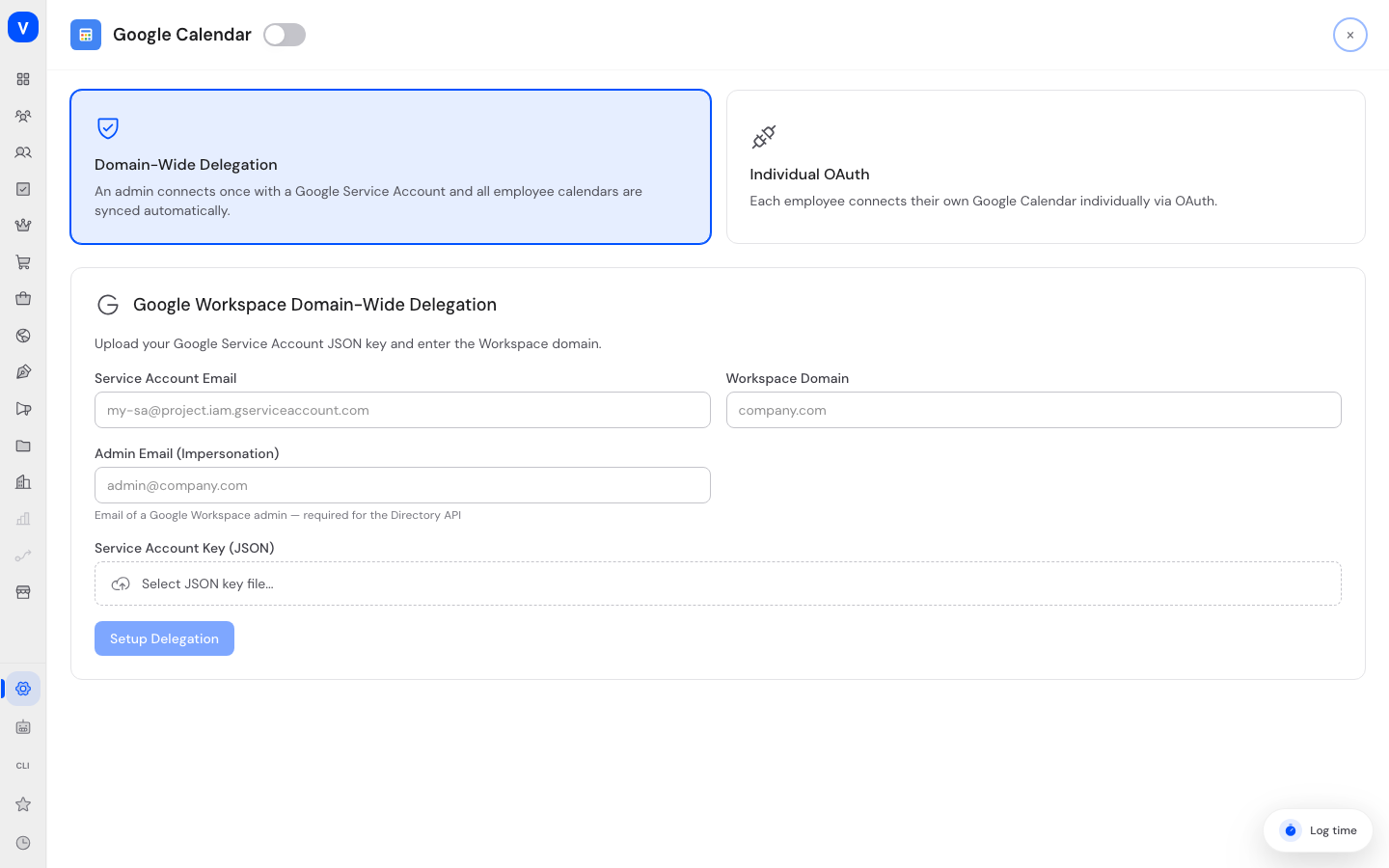
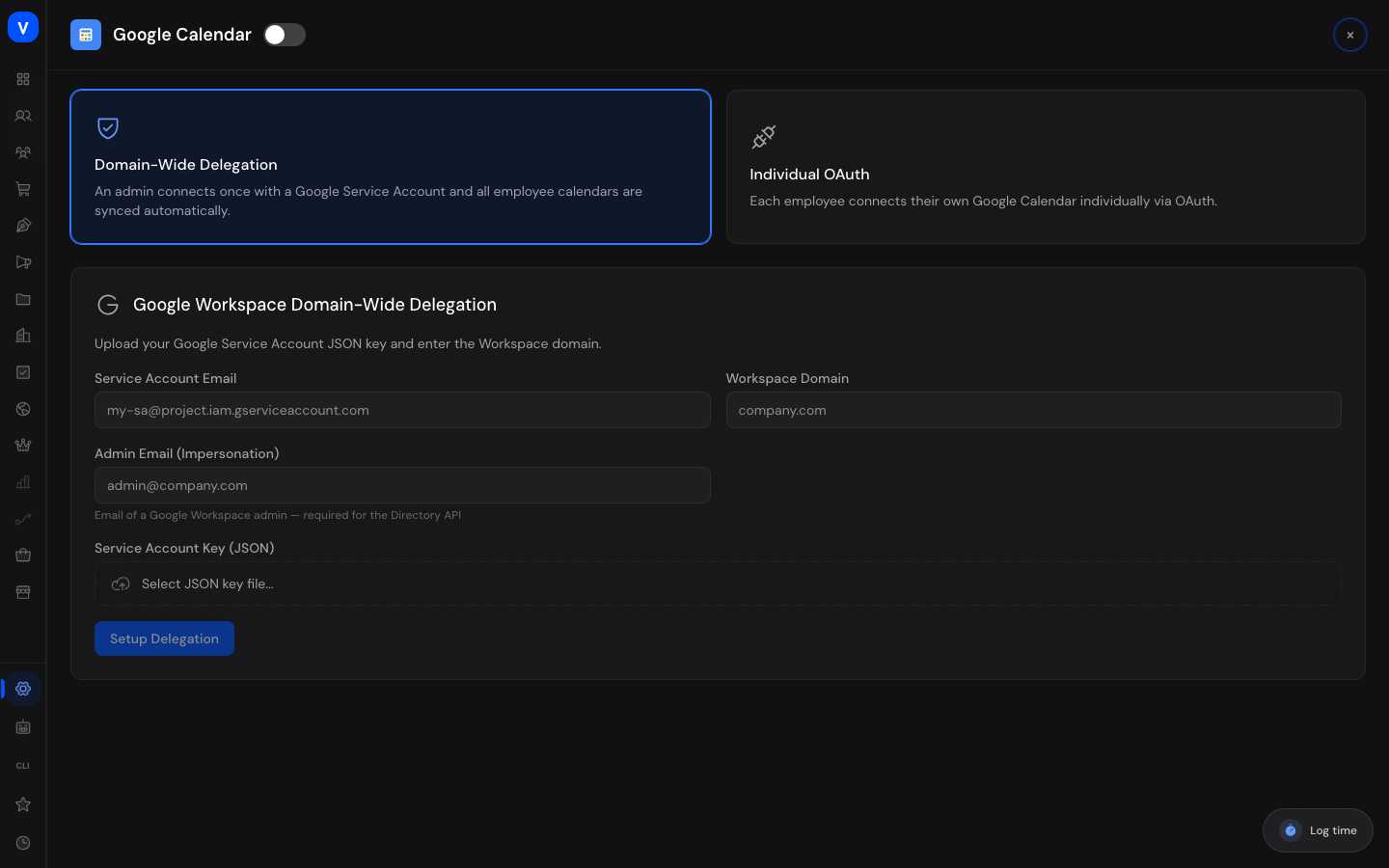
/settings/crm/integrations?integration=google-calendarWhat can I do here?
On the redirect's target page you set up and monitor the Google Workspace connection. It has three tabs:
- Settings — choose and configure the connection mode (see "Values & statuses" below): either an administrator connects one central Google account for the whole company once, or each employee connects their own Google calendar. This is also where you test the connection.
- Dashboard — sync status at a glance: how many employees are matched, how many calendars are already synced, how many are still pending, and whether errors occurred. You also see whether real-time updates are active or syncing is manual.
- Employees — assignment of individual employees to the sync.
What does the connection give you? Events from the connected Google calendars appear in the team calendar as the entry type "Google event". Events marked private or confidential stay protected: SELLERLOGIC Commerce Services shows only "Busy" — without title or location. The absence sync (approved absences as events in the shared Google calendar, see Absences) also uses this Google connection.
Step by step
Get to the Google Calendar setup
- Open
/hr/calendar-integration(or navigate directly to Settings → Integrations). - You are automatically redirected to the integration settings with the Google Calendar connection already opened.
- In the Settings tab, choose the connection mode and follow the input fields there; then test the connection.
Monitor the sync
- Open the Dashboard tab.
- Check the key figures (matched / synced / pending / errors) and whether real-time updates are active.
- If needed, trigger the renewal of the real-time connection or a manual sync.
- After a manual sync via Sync all, read the result line "Synced: … / Failed: …". The number behind Failed counts every employee whose calendar could not be synced; when there are failures the first reason is shown alongside it. A single failed calendar does not abort the run - the remaining employees are synced regardless. Which employee is affected is shown on the Employees tab in the Status column; "Show error" reveals the full text.
Fields explained
The /hr/calendar-integration page itself has no form fields — the setup (e.g. client ID, client secret, or service-account details and admin email) happens on the redirect's target page and depends on the chosen connection mode.
Values & statuses
Connection mode (calendar_integration_mode)
| Label | Plain meaning | What happens then |
|---|---|---|
| Domain-wide delegation | An admin connects one central Google service account for the whole company once | All employee calendars are synced automatically, with no action needed from individual employees |
| Individual OAuth connection | Each employee connects their own Google calendar individually | Only connected employees are synced |
Frequently asked questions
Why do I end up on a different page when I open "Calendar Integration"?
This feature was centralized: instead of its own HR sub-page, there is now one shared place for all integration settings, and you are redirected there automatically.
Which connection mode should I choose?
Domain-wide delegation is the convenient company-wide solution: set it up once and all employee calendars sync automatically. The individual OAuth connection suits situations where only some employees want to share their calendar.
Will the team see my private appointments?
No. Events marked private or confidential in Google appear in SCS only as "Busy" — without title and without location.
Where do I see the synced events?
In the team calendar ("Team" tab) as the entry type "Google event", and in the shared calendars.
Why does "renew real-time connection" often report that nothing was renewed?
That is the normal case and a good sign. A real-time connection to Google is valid for seven days. As long as it is still valid for more than a day it is deliberately left alone - renewal happens shortly before it expires. The response therefore names three numbers: how many connections were newly established, how many were skipped (because they are still valid), and how many old connections were stopped at Google in the process. Only for newly added employees is a connection established immediately.
Related topics
- Calendar & Holidays — team calendar and shared calendars
- Absences — absence sync into the Google calendar