Tasks (HR)
This page is where you manage simple HR tasks — for example "get the employment contract signed" or "request IT access". Every task has a title, an assigned person, a priority, and an optional due date. This task list is HR's own and is separate from the larger, automated workflow processes (see Workflows).
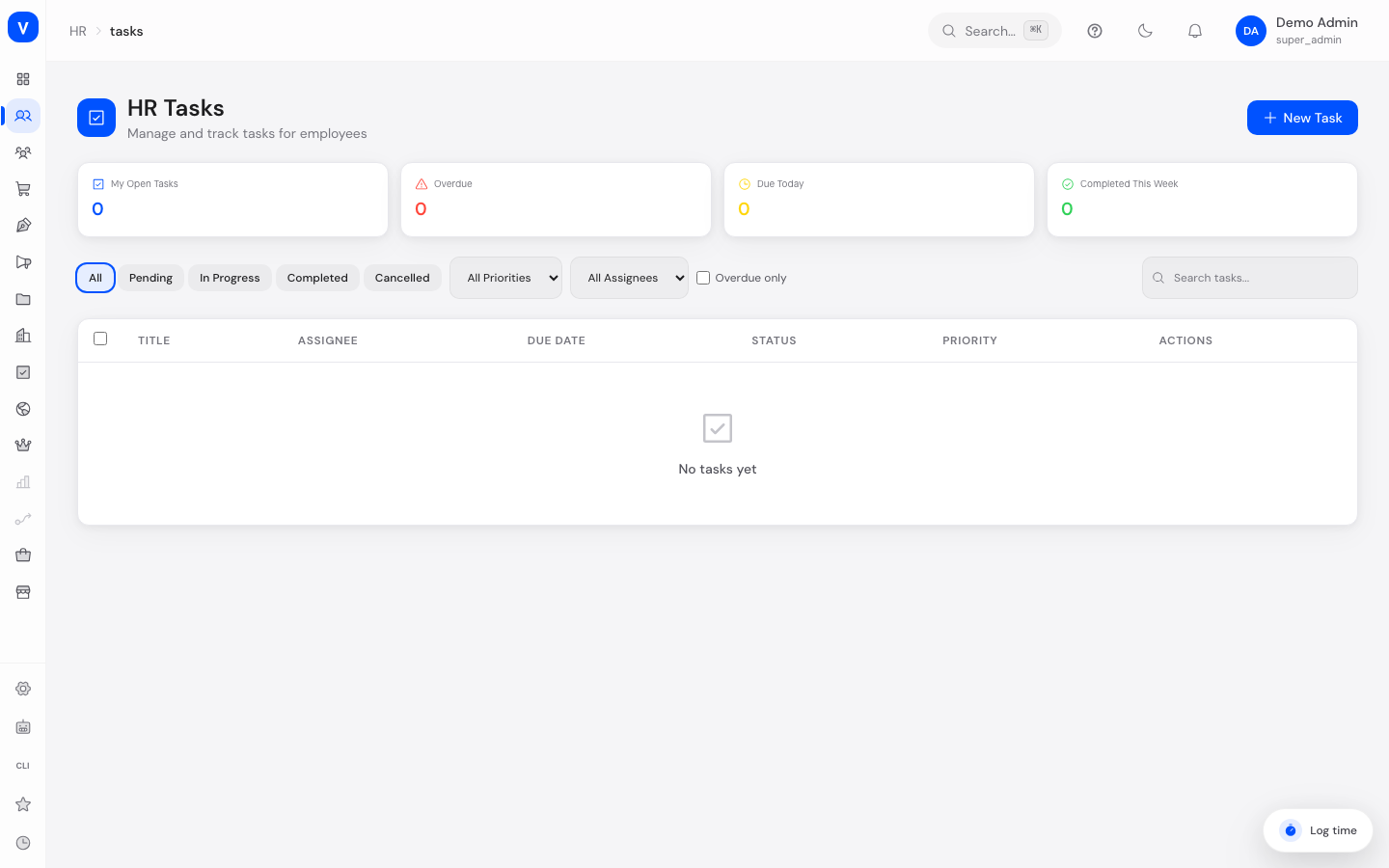
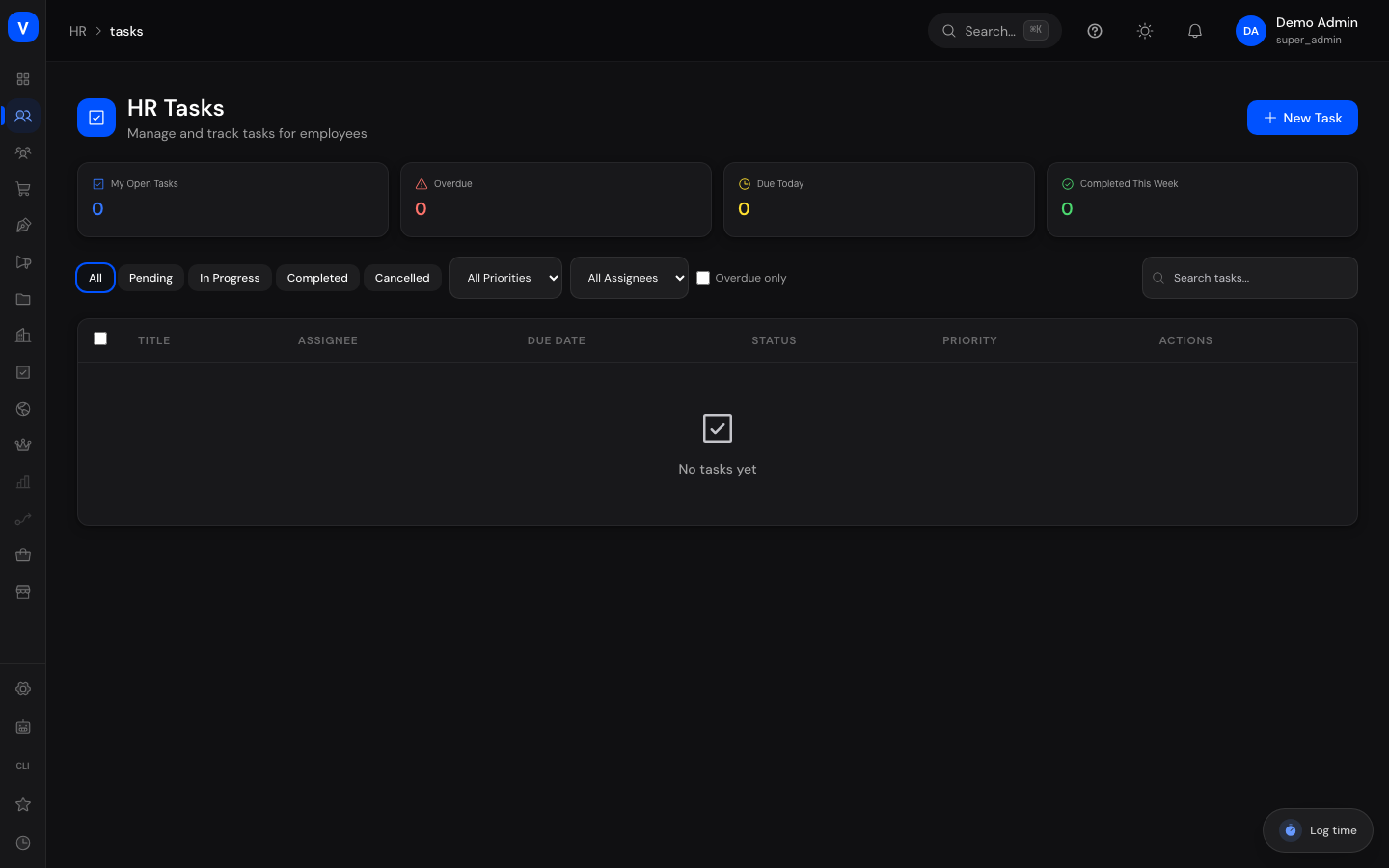
/hr/tasksWhat can I do here?
- Filter and search all tasks by status, priority, assignee, and due date
- Create a new task and assign it to a person
- Add other people as collaborators
- Select several tasks at once and mark them complete
- Open, edit, and comment on an individual task
- See key numbers at a glance (your own open tasks, overdue ones, due today, completed this week)
Step by step
Create a new task
- Click "New Task" in the top right corner.
- Fill in at least the title; optionally description, assignee, collaborators, due date, priority, category, and tags.
- Save the task.
Complete a task
- Click the green checkmark icon next to the task in the list, or
- select several tasks using the checkboxes and click "Complete Selected".
Filter and find a task
- Use the status and priority filters and the "All Assignees" dropdown above the list.
- Enable the "overdue only" checkbox if needed.
- Type a search term into the search field — it searches both title and description.
Fields explained
| Field | Meaning | Notes/Effect |
|---|---|---|
| Title | Name of the task | Required |
| Assignee | The person responsible | By default only this person (plus the creator and collaborators) can see the task |
| Collaborators | Other people with access to the task | Can view or edit the task depending on their role |
| Due Date | Deadline for the task | Overdue, still-open tasks are highlighted in red |
| Priority | Importance of the task | Low, Normal, High, Urgent — urgent tasks are highlighted with color in the list |
| Status | Progress state of the task | See the status list below |
| Category | Topic area of the task | Onboarding, Offboarding, HR General, IT, Compliance, Other |
| Tags | Free-form keywords | Comma-separated, shown as small badges in the list |
| Comments | Communication history on the task | Only visible to people with access to the task |
Values & statuses
Status
| Value | Meaning | What happens |
|---|---|---|
| Pending | The task hasn't been started yet | Default status for newly created tasks |
| In Progress | The task is currently being worked on | — |
| Completed | The task is finished | Shown with strikethrough; the completion time is recorded |
| Cancelled | The task is no longer being pursued | — |
Priority
| Value | Meaning |
|---|---|
| Low | Low urgency |
| Normal | Default priority |
| High | Elevated urgency |
| Urgent | Highest urgency — highlighted with color in the list |
Category
| Value | Meaning |
|---|---|
| Onboarding | Tasks related to onboarding new employees |
| Offboarding | Tasks related to an employee's departure |
| HR General | General HR tasks with no specific tie-in |
| IT | Tasks with an IT component (e.g. access, devices) |
| Compliance | Tasks related to regulations/policies |
| Other | Anything else |
Frequently asked questions
Who can see a task I created?
By default only the assignee, the task's creator, and explicitly added collaborators. People with the "hr:manage" permission can see every task.
Can I delete a task?
Yes, as long as you created the task or hold the "hr:manage" permission.
What does the red highlight on a due date mean?
The task is overdue — it's not yet done and the due date has already passed. Still-open tasks due today are highlighted in yellow instead.
Is this the same as the tasks in the platform's big Tasks module?
No, this is a separate, HR-specific task manager with its own visibility rules.