Benefits Management
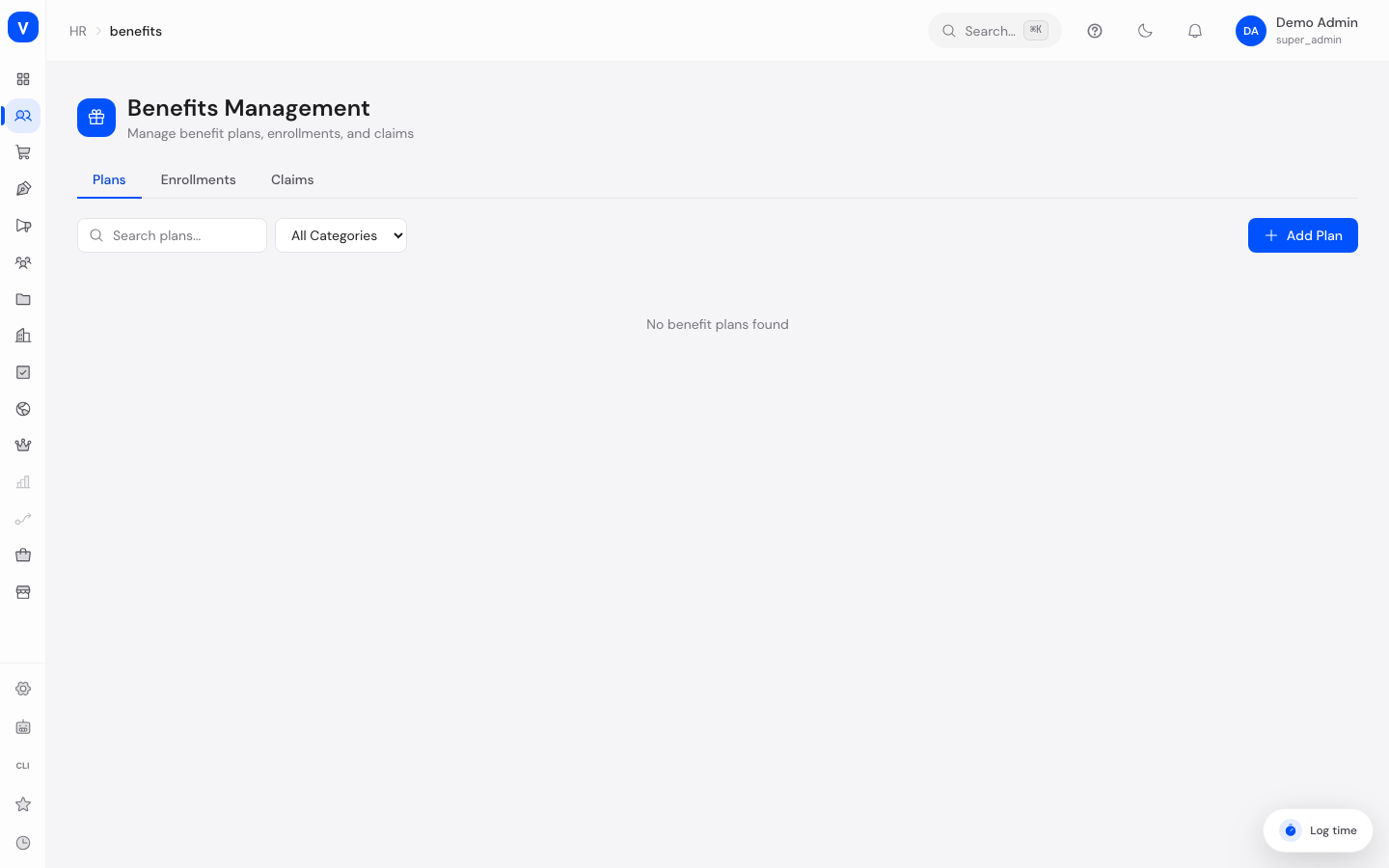
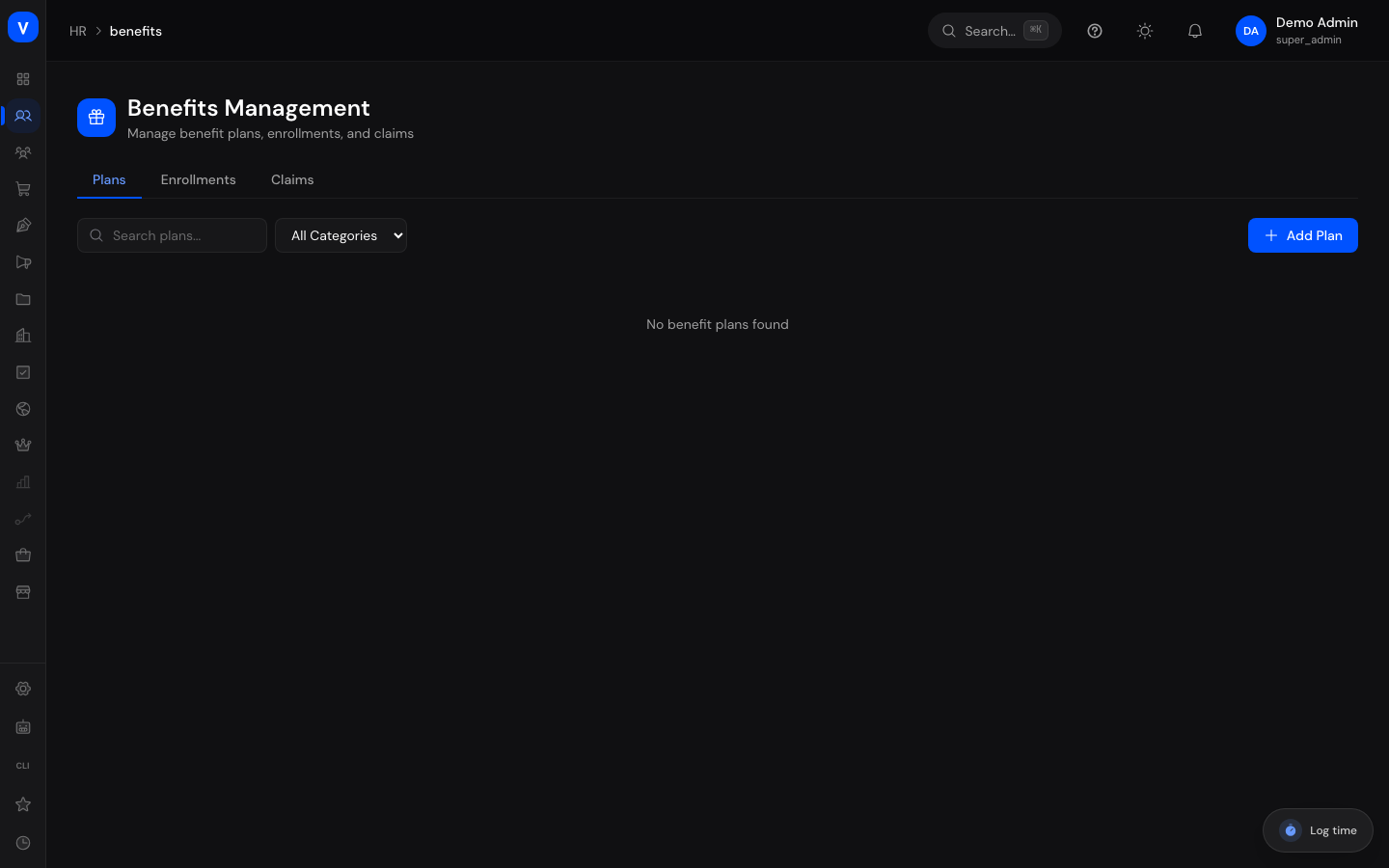
On this page you manage your company's employee benefits — for example gym subsidies, meal vouchers, or pension schemes. You can see which benefit plans exist, which employees are enrolled in them, and which reimbursement requests (claims) have been submitted. Four stat tiles at the top show the current situation at a glance: Active Plans, Active Enrollments, Pending Claims, and Total Paid.
/hr/benefitsWhat can I do here?
- Create, edit, and delete benefit plans (Plans tab)
- Search plans by name/provider and filter by category
- View employee enrollments and cancel them if needed (Enrollments tab)
- Approve, reject, or mark as paid the submitted claims (reimbursement requests) (Claims tab)
Note: The buttons for creating, editing, approving etc. are only visible to people who have the required permission for benefits management.
Step by step
Create a new benefit plan
- Open the Plans tab and click Add Plan.
- Enter a Name (required) and optionally a Description.
- Choose a Category (e.g. Health, Gym, Meal Voucher) and enter the Provider if applicable.
- Enter the monthly costs: Cost (Employer) = the company's share, Cost (Employee) = the employee's share.
- Keep the Active checkbox ticked if the plan should be usable right away, then click Save.
Approve and pay out a claim
- Open the Claims tab. If needed, use the status filter to show only Submitted claims.
- Review the entry (employee, claim type, amount) and click the check icon (Approve) or the cross icon (Reject).
- Once a claim is approved, a coin icon (Mark Paid) appears. Click it after the reimbursement has actually been paid out.
Cancel an enrollment
- Open the Enrollments tab and find the entry in question (you can filter by status).
- Click Cancel in the row. The button only appears for enrollments with the status Enrolled.
- The enrollment changes to Cancelled and no longer counts toward the plan's active enrollments.
Fields explained
| Field | Meaning | Notes/Impact |
|---|---|---|
| Name | Name of the benefit plan | Required; shown everywhere the plan appears |
| Description | Free text describing what the benefit includes | Optional |
| Category | Type of benefit (e.g. Health, Transport) | Determines the colored category badge in the list and serves as a filter |
| Provider | External provider of the benefit (e.g. insurer, gym chain) | Optional; included in search |
| Cost (Employer) | Monthly cost share paid by the company, in euros | Optional; shown as "–" when not set |
| Cost (Employee) | Monthly cost share paid by the employee, in euros | Optional; shown as "–" when not set |
| Enrollments | Number of currently enrolled employees | Counts only enrollments with status Enrolled |
| Active | Whether the plan is currently usable | New enrollments are only possible for active plans |
| Employee | Name of the enrolled or claiming person | — |
| Plan | The benefit plan the enrollment refers to | — |
| Enrolled At | Date the enrollment was made | — |
| Effective From | Date from which the benefit applies | "–" when not set |
| Claim Type | Type of reimbursement being requested | Free-text entry by the person submitting |
| Amount | Requested reimbursement amount in euros | Approved and paid amounts feed into the Total Paid tile |
| Submitted At | Date the claim was submitted | — |
Values & status
Categories (benefit plans)
| Value | Meaning | What happens then |
|---|---|---|
| Health | Benefits related to healthcare | Display/filter only — the category does not change any workflow |
| Dental | Additional dental benefits | Display/filter only |
| Vision | Benefits for glasses/vision aids | Display/filter only |
| Life Insurance | Life insurance offerings | Display/filter only |
| Pension | Company pension scheme | Display/filter only |
| Gym | Sports and fitness subsidies | Display/filter only |
| Meal Voucher | Meal subsidies | Display/filter only |
| Transport | Commuting/mobility benefits | Display/filter only |
| Childcare | Childcare subsidies | Display/filter only |
| Education | Training and development offerings | Display/filter only |
| Remote Work | Benefits related to working from home | Display/filter only |
| Other | Anything that fits no other category | Display/filter only |
Enrollment status
| Value | Meaning | What happens then |
|---|---|---|
| Pending | The enrollment is not yet finalized | No action available on this page |
| Enrolled | The person actively participates in the benefit | Counts toward the plan's enrollment number; can be ended here via Cancel |
| Declined | The enrollment was not accepted | No action available on this page |
| Cancelled | Participation has been ended | Final state; an already cancelled enrollment cannot be cancelled again |
| Expired | The validity period has passed | No action available on this page |
Claim status
| Value | Meaning | What happens then |
|---|---|---|
| Submitted | The claim is awaiting review | Can be approved or rejected — only in this status |
| Approved | The claim has been granted | Can then be marked as paid |
| Rejected | The claim was not granted | Final state, no further actions |
| Paid | The reimbursement has been paid out | Final state; the amount counts toward the Total Paid tile |
flowchart LR
    A[Submitted] -->|Approve| B[Approved]
    A -->|Reject| C[Rejected]
    B -->|Mark Paid| D[Paid]
FAQ
Why don't I see the "Add Plan" or "Approve" buttons?
These actions require a special permission for benefits management. Contact your administrator if you need these rights.
Can I approve a rejected claim later?
No. Approving and rejecting are only possible while the claim has the status Submitted. A rejected claim would have to be submitted again.
What happens when I delete a plan?
After a confirmation prompt ("Really delete this plan?"), the plan is removed permanently. Check the Enrollments column first to see whether employees are still enrolled.
How do I enroll a person in a plan on this page?
There is no button for that on this page — here you view and cancel existing enrollments. Enrollment is only possible for active plans.
Why can't I reject an approved claim?
After approval, the only remaining step is Mark Paid. Rejecting is only possible in the Submitted status.
What does the "Total Paid" tile mean?
It shows the sum of all claims that have already reached the Paid status.