Employee Surveys
The Employee Surveys page is where you create and manage surveys for your team — for example about employee satisfaction, quick mood check-ins (pulse surveys), or eNPS (how likely employees are to recommend SELLERLOGIC as an employer). You define the questions, launch the survey, and once answers come in you see fully evaluated results right inside SELLERLOGIC Commerce Services — no external survey tool needed.
What can I do here?
- Create a new survey with a title, description, and survey type.
- Add or remove questions while the survey is still a draft.
- Launch (activate) a survey so employees can respond, and close it again later.
- Review the results of a running or closed survey, including response rate, averages, and the eNPS score.
- Use ready-made survey templates to create a new survey with questions already filled in.
- See an overall picture of all surveys and the current eNPS value on the Dashboard tab.
Step by step
Create a new survey
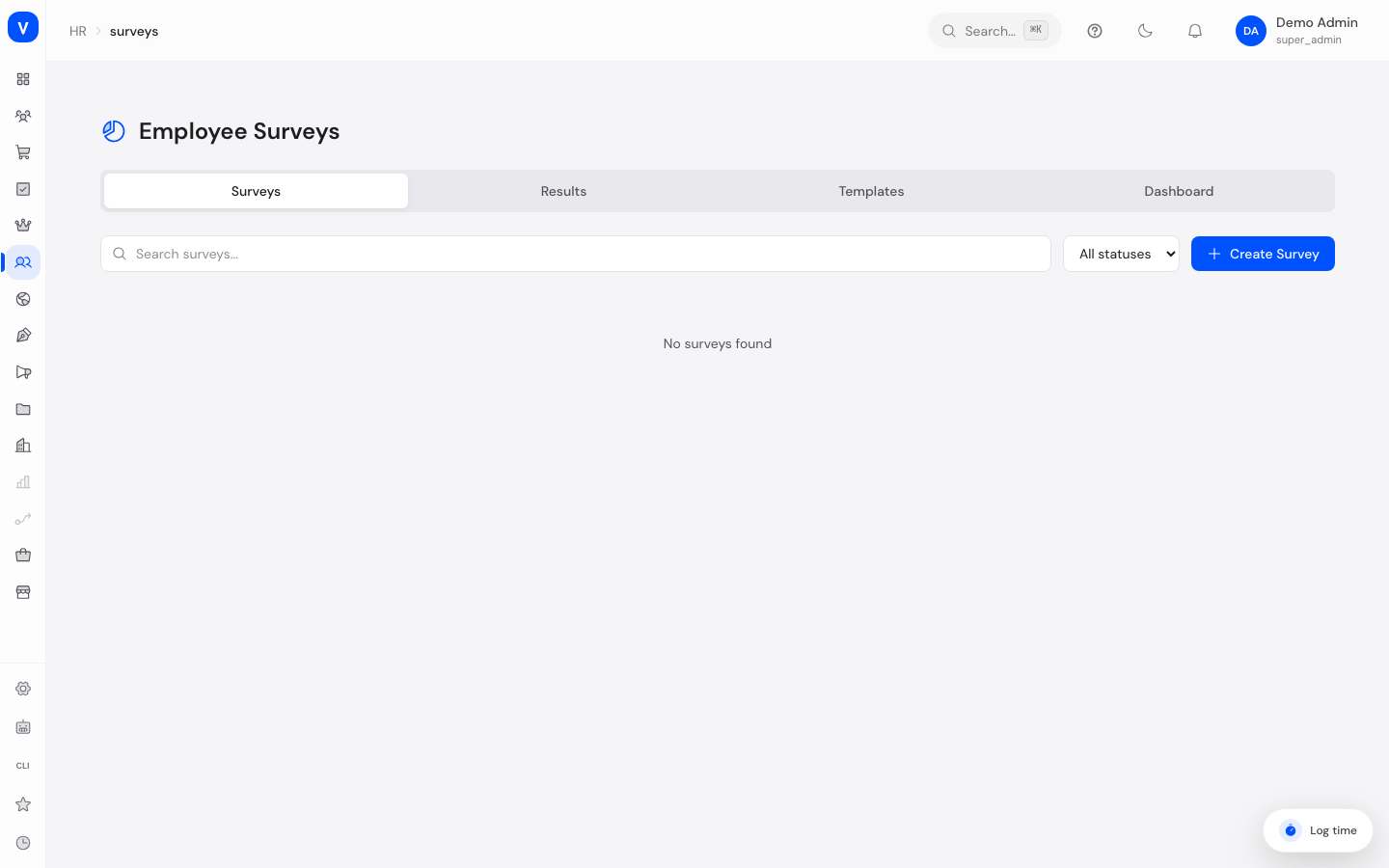
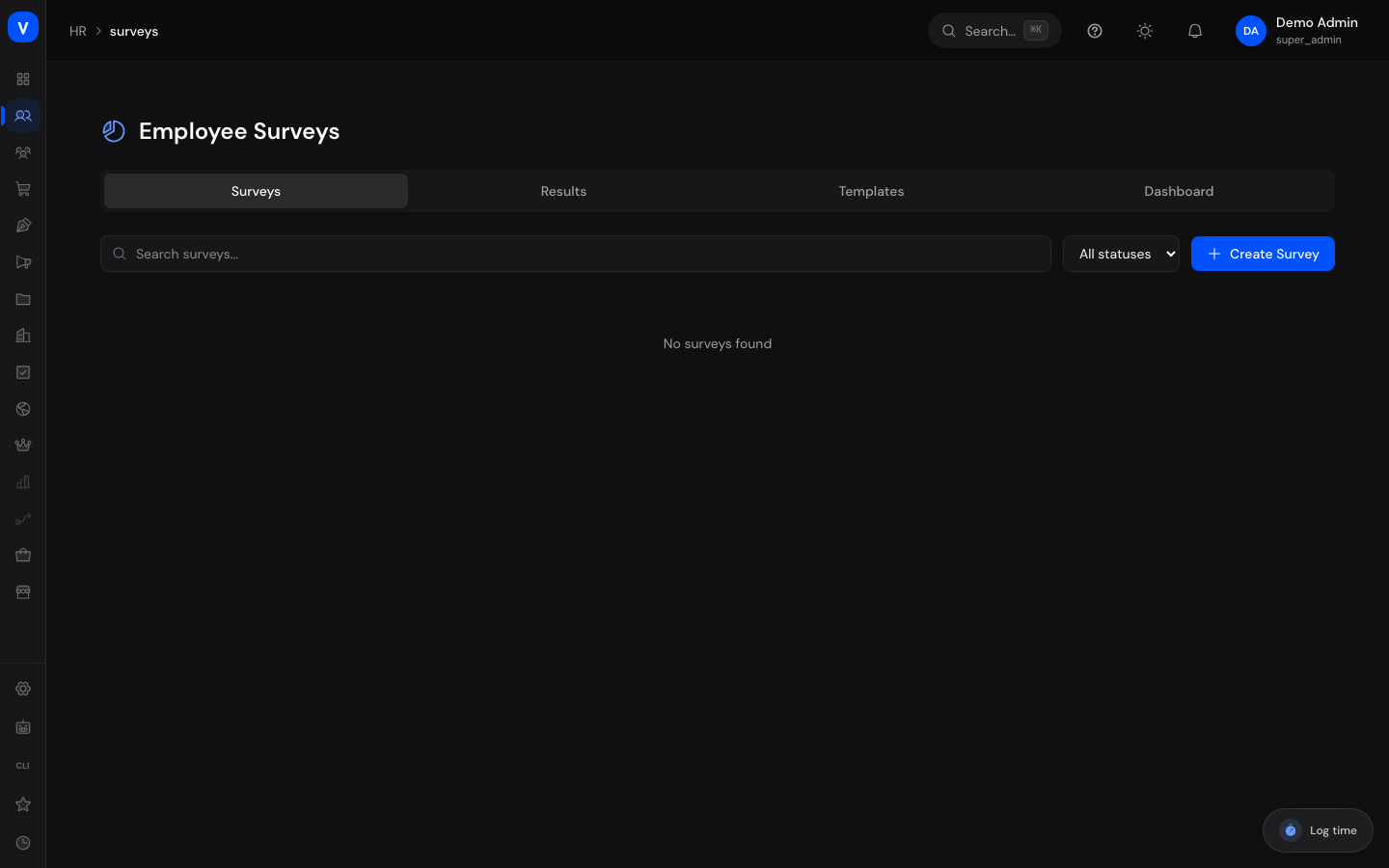
- Go to HR → Employee Surveys and switch to the Surveys tab.
- Click Create Survey.
- Enter a Title and, optionally, a Description.
- Choose the Survey Type (e.g. Engagement, Pulse Survey, eNPS).
- Decide whether the survey should be Anonymous survey (default: yes).
- Click Create — the survey is created as a Draft.
/hr/surveysAdd questions and launch the survey
- In the list, click the title of a survey that is still in Draft status to open it.
- Click Add Question, enter the question text, and pick a question type (e.g. Rating Scale, NPS, Yes/No).
- Repeat for all questions you want. Questions can also be deleted again at this stage.
- Once all questions are set up, click the play icon next to the survey in the list to activate it. From this point on employees can respond, and questions can no longer be changed.
- When the response period is over, click the stop icon to close the survey. Afterwards you can archive it if needed.
View results
- Switch to the Results tab.
- Pick a running or closed survey from the dropdown.
- You'll see the Response Rate, Total Responses, and, per question, the matching breakdown: an NPS gauge, a rating average with distribution, a distribution of chosen answer options, or the individual free-text answers.
/hr/surveysCreate a survey from a template
- Switch to the Templates tab.
- Click Use Template on the template you want.
- Enter a title for the new survey and confirm with Create. All of the template's questions are copied over automatically, and the new survey starts as a draft.
Fields explained
| Field | Meaning | Notes/Impact |
|---|---|---|
| Title | The survey's name, shown in the list and to employees | Required |
| Description | Short explanatory text about the survey | Optional, shown in the detail view |
| Survey Type | Category of the survey (see "Values & status") | Drives the colored label in the list; eNPS surveys feed into the eNPS value on the Dashboard |
| Anonymous survey | Controls whether answers are linked to the respondent | When enabled, answers cannot be traced back to a specific person |
| Questions | The list of questions a survey contains | Can only be added or removed while the survey is in "Draft" status |
| Question type | The kind of individual question (see "Values & status") | Determines how the answer is captured and evaluated |
| Response Rate | Share of active employees who have already responded | Calculated from completed responses relative to the number of active employees |
Values & status
Survey status
| Label | Meaning | What happens then |
|---|---|---|
| Draft | The survey is being prepared | Questions can be added or deleted; the survey can be activated or deleted; employees don't see it yet |
| Active | The survey is live and collecting responses | Each employee can respond once; questions can no longer be changed; the survey can be closed but no longer deleted |
| Closed | The response period has ended | No new responses are accepted; results can still be reviewed; the survey can be archived |
| Archived | Final state of the survey | Kept only for record-keeping/history |
Survey type
| Label | Meaning | What happens then |
|---|---|---|
| Engagement | General survey about employee satisfaction/engagement | Shown with a blue label in the list |
| Pulse Survey | Short, frequently repeated mood check-in | Shown with a purple label |
| Onboarding | Survey for new employees | Shown with a teal label |
| Offboarding | Survey for departing employees | Shown with a rose label |
| Custom | Freely designed survey without a fixed purpose | Shown with a gray label |
| eNPS | Survey about likelihood to recommend the employer (Employee Net Promoter Score) | NPS answers from eNPS surveys feed into the eNPS value on the Dashboard tab |
Question type
| Label | Meaning | What happens then |
|---|---|---|
| Rating Scale | Rating on a scale (shown as 1–5) | Results show an average value and the distribution across each rating level |
| Free Text | Open text answer | Results show a list of all submitted texts |
| Single Choice | One answer option selectable | Results show the distribution of chosen options |
| Multiple Choice | Several answer options selectable | Results show the distribution of all chosen options |
| NPS (0-10) | Rating from 0 to 10 on likelihood to recommend | Answers of 9–10 count as promoters, 7–8 as passives, 0–6 as detractors; the NPS score is calculated from these |
| Yes/No | Binary answer option | Results show the split between Yes and No |
flowchart LR
    A[Draft] -->|Activate| B[Active]
    B -->|Close| C[Closed]
    C -->|Archive| D[Archived]
    A -->|Delete| E[Deleted]
FAQ
Can I still edit a survey after it has been launched?
Questions can only be added or removed while the survey is in "Draft" status. Once a survey is active, its questions are locked.
Can I delete a survey?
Only while it's still in "Draft" status. Active surveys must be closed first.
What exactly does "anonymous" mean?
When a survey is marked anonymous, the response is not linked to the respondent's name — the system only ensures each person can participate once.
How is the eNPS score calculated?
From the answers to NPS questions (0–10 scale) within eNPS surveys: the share of promoters (9–10) minus the share of detractors (0–6) gives the score.
Where does the response rate come from?
It compares the number of completed responses to the total number of active employees in the system.
What are templates for?
Templates contain a ready-made set of questions for common use cases. Clicking "Use Template" creates a new, independent survey from it in one step.
How the eNPS score is calculated
The eNPS score (Employee Net Promoter Score) sums up in a single number how willingly your employees would recommend SELLERLOGIC as an employer. It is based on the answers to NPS questions (a 0 to 10 scale) within surveys of type eNPS. Other question types and other survey types do not feed into this value.
Each submitted NPS answer is placed into one of three groups:
- Promoters: answer 9 or 10 — convinced advocates.
- Passives: answer 7 or 8 — generally satisfied, but not enthusiastic.
- Detractors: answer 0 to 6 — critical to dissatisfied.
The score is the share of promoters minus the share of detractors (each as a percentage of all counted answers). Passives therefore don't count directly, but they lower the share of the two other groups.
For example: out of 100 answers, 50 are promoters, 30 passives, and 20 detractors. The eNPS score is then 50% − 20% = +30.
- The score can range from −100 (all answers are detractors) to +100 (all are promoters). It is rounded to a whole number.
- If no counted answers exist yet, SCS shows 0.
- The NPS gauge for a single survey on the Results tab uses the same calculation but only looks at that one survey's answers. The eNPS value on the Dashboard tab, by contrast, pools the NPS answers from all eNPS surveys.
Where the response rate comes from
The response rate shows how representative a result is. It compares the number of completed responses for a survey to the number of active employees, shown as a percentage (rounded to a whole number). Example: 30 completed responses with 60 active employees give a response rate of 50%.
How to improve the eNPS score
The eNPS score reflects your team's real sentiment — it isn't a target to be gamed. It only improves when the actual employee experience improves. Proven levers:
- Act on the feedback. Use the free-text and rating answers to identify concrete causes, and turn them into visible action. Nothing erodes honest participation faster than the impression that answers lead nowhere.
- Close the loop. Tell your team what you learned from a survey and what you'll change as a result. This feedback builds trust and raises participation in the next round.
- Raise the response rate. A score built on a handful of answers means little. Announce surveys, give enough time, and emphasize anonymity so that as many people as possible respond — and answer honestly.
- Measure regularly, not once. Recurring eNPS or pulse surveys make trends visible. A single number says less than how it develops across several surveys.
Important: the goal isn't the highest possible number, but an honest read on sentiment that you can act on.