Document Templates
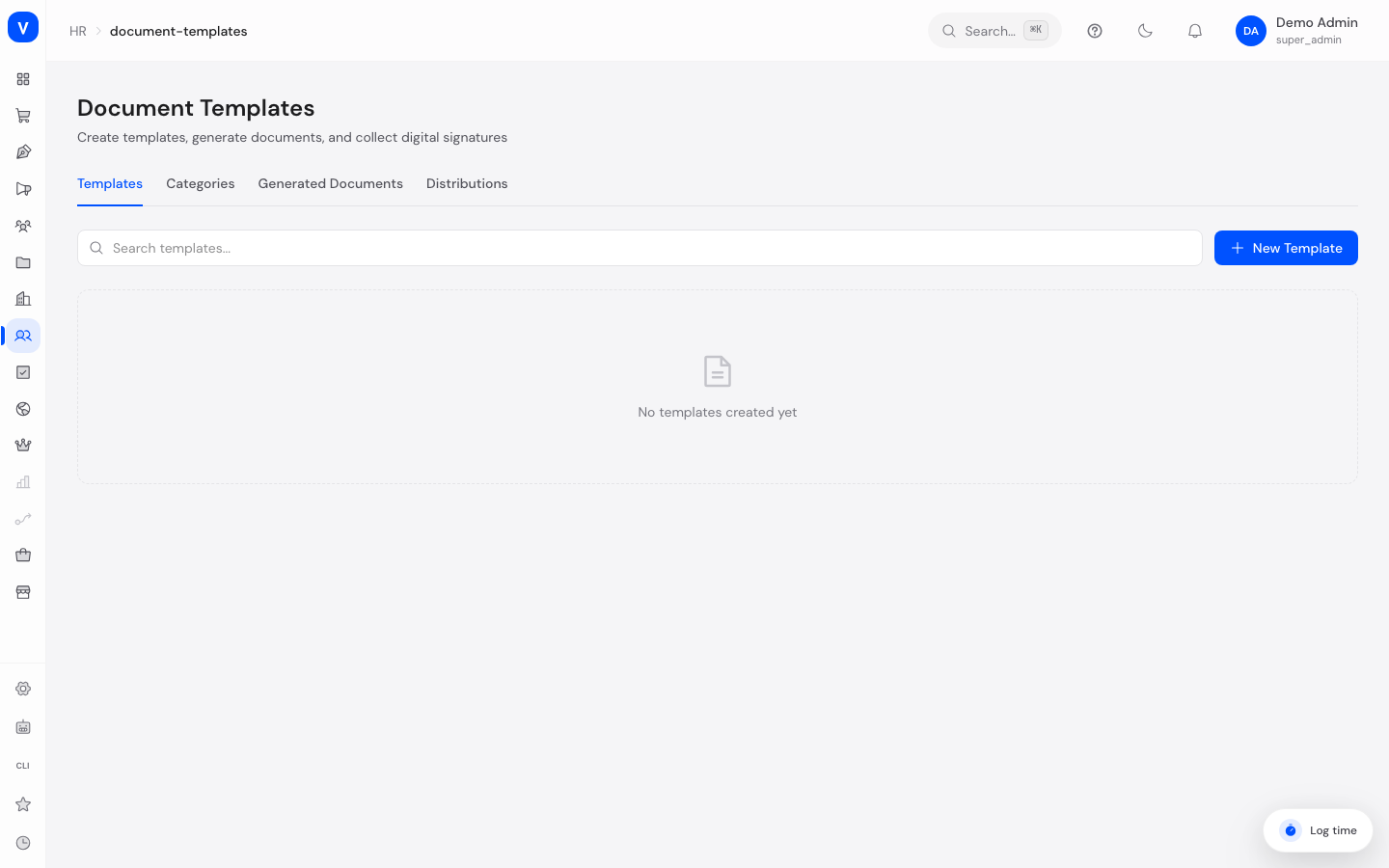
On this page you create and manage templates for recurring HR documents – for example certificates, agreements, or information letters. From a template you can generate a finished, personalized document for an individual employee with one click, which can then be signed digitally. You can also see which documents have already been generated and how far distributions to multiple employees have progressed.
/hr/document-templatesWhat can I do here?
The page is divided into four tabs:
- Templates – create, edit, search, and delete templates. While writing a template you can insert placeholders (e.g. "First Name" or "Start Date") that are filled automatically with the respective employee's data when a document is generated.
- Categories – add and remove categories used to group templates.
- Generated Documents – view all documents that have been generated, search by name, and filter by status (e.g. "Pending Signature").
- Distributions – track how far the delivery of a template to multiple employees at once has progressed (progress "done / total").
Step by step
Create a new template
- Open the Templates tab and click New Template.
- Enter a Template Name and optionally a Description and Category.
- Write the template text into the HTML Content field. Use Insert Variable to add placeholders at the desired position, e.g. "Full Name" or "Today's Date". These placeholders are replaced automatically with the employee's real data later.
- Keep the Active checkbox ticked so the template can be used, then click Save.
/hr/document-templatesEdit or delete a template
- Find the template in the Templates tab (search field at the top).
- Click the pencil icon to edit the template. Every save automatically increases the Version by one.
- Click the trash icon and confirm the safety prompt to delete the template. The template is deactivated and can no longer be used for new documents; documents already generated from it remain untouched.
Maintain categories
- Open the Categories tab.
- Type a name into the New category name... field and click Add.
- Your own categories can be removed via the trash icon. Categories marked System are built in and cannot be deleted.
Review generated documents and distributions
- Open the Generated Documents tab to see all generated documents. Use the search field and the status filter (e.g. Pending Signature) to narrow down the list.
- Open the Distributions tab to check bulk deliveries. The Progress column shows for how many of the target employees the document has already been generated (e.g. "8/10").
Fields explained
| Field | Meaning | Notes/Impact |
|---|---|---|
| Template Name | Internal name of the template | Required; shown in lists and used as the default document name |
| Description | Short explanation of what the template is for | Optional; shown below the name in the template list |
| Category | Assignment to a grouping category | Optional; "No Category" is allowed |
| Active | Switch controlling whether the template may be used | Inactive templates show the status "Inactive" |
| HTML Content | The actual text of the template including placeholders | Required; placeholders are filled automatically on generation |
| Insert Variable | Menu for inserting a placeholder at the current position | Inserted placeholders also appear under "Used Variables" |
| Used Variables | Overview of all placeholders used in the template | Individual placeholders can be removed from this list |
| Version | Running version number of the template | Increases automatically with every save |
| Status (template) | Active or Inactive | Display only; controls usability |
| Updated | Time of the last change | The list is sorted by this date (newest first) |
| Document Name | Name of a generated document | Default: template name plus the employee's name |
| Employee | Person the document was generated for | – |
| Progress | Completed / planned documents of a distribution | e.g. "8/10" |
Values & status
Status of a generated document
| Value | Meaning | What happens then |
|---|---|---|
| Draft | The document has been generated but not yet sent out for signature | Signatures can still be requested |
| Pending Signature | At least one requested signature is still missing | Once everyone has signed, the status changes to "Signed" |
| Signed | All requested signatures have been collected | The document is complete |
| Expired | The deadline for a signature has passed | The document was not signed in time |
| Cancelled | The document was cancelled – e.g. because a signer declined to sign | No further signatures are possible |
Status of an individual signature
| Value | Meaning | What happens then |
|---|---|---|
| Pending | The signature has been requested but not yet given | A reminder can be sent |
| Signed | The person has signed | Once all signatures are in, the whole document counts as "Signed" |
| Declined | The person refused to sign and gave a reason | The entire document is set to "Cancelled" |
| Expired | The set deadline has passed | The signature can no longer be given |
Status of a distribution
| Value | Meaning | What happens then |
|---|---|---|
| Pending | The distribution has been created but not yet started | Processing starts shortly |
| Processing | Documents are currently being generated for all target employees | The progress counter increases |
| Completed | The document was generated successfully for every target employee | Nothing left to do |
| Failed | The document could not be generated for any of the target employees | Please investigate and start the distribution again |
Available placeholders (variables)
| Value | Meaning | What happens then |
|---|---|---|
| First Name / Last Name / Full Name | The employee's name | Inserted automatically from the personnel file |
| The employee's email address | ditto | |
| Position / Department | The employee's role and department | ditto |
| Start Date / Birth Date | Hire date and date of birth | ditto |
| Street / City / ZIP Code / Country | The employee's address | ditto |
| Today's Date / Today's Date (formatted) | The date the document is generated | "formatted" uses the German notation (DD.MM.YYYY) |
| Current Year | The current year | – |
Digital signature flow
flowchart LR
    A[Draft] -->|request signature| B[Pending Signature]
    B -->|everyone signs| C[Signed]
    B -->|someone declines| D[Cancelled]
FAQ
Is a template removed permanently when I delete it?
No. Deleting deactivates the template and removes it from active use. Documents already generated from it remain unchanged.
What happens if an employee declines to sign?
The refusal is recorded together with the given reason, and the entire document is set to Cancelled. If needed, generate a new document from the template.
Where does the data in the placeholders come from?
From the respective employee's personnel file (name, address, department, etc.). If a value is missing there, that spot in the document stays empty.
Are generated documents stored securely?
Yes. Since generated documents contain personal data (e.g. date of birth and address), they are stored encrypted.
Where do employees see their documents?
In their personal area under "My Documents". They can also complete requested signatures there themselves. See My Documents.
What does a progress like "8/10" mean on a distribution that is not "Completed"?
The document was generated for 8 of 10 target employees; an error occurred for the remaining ones. Failed cases are logged so you can follow up.