Performance Reviews
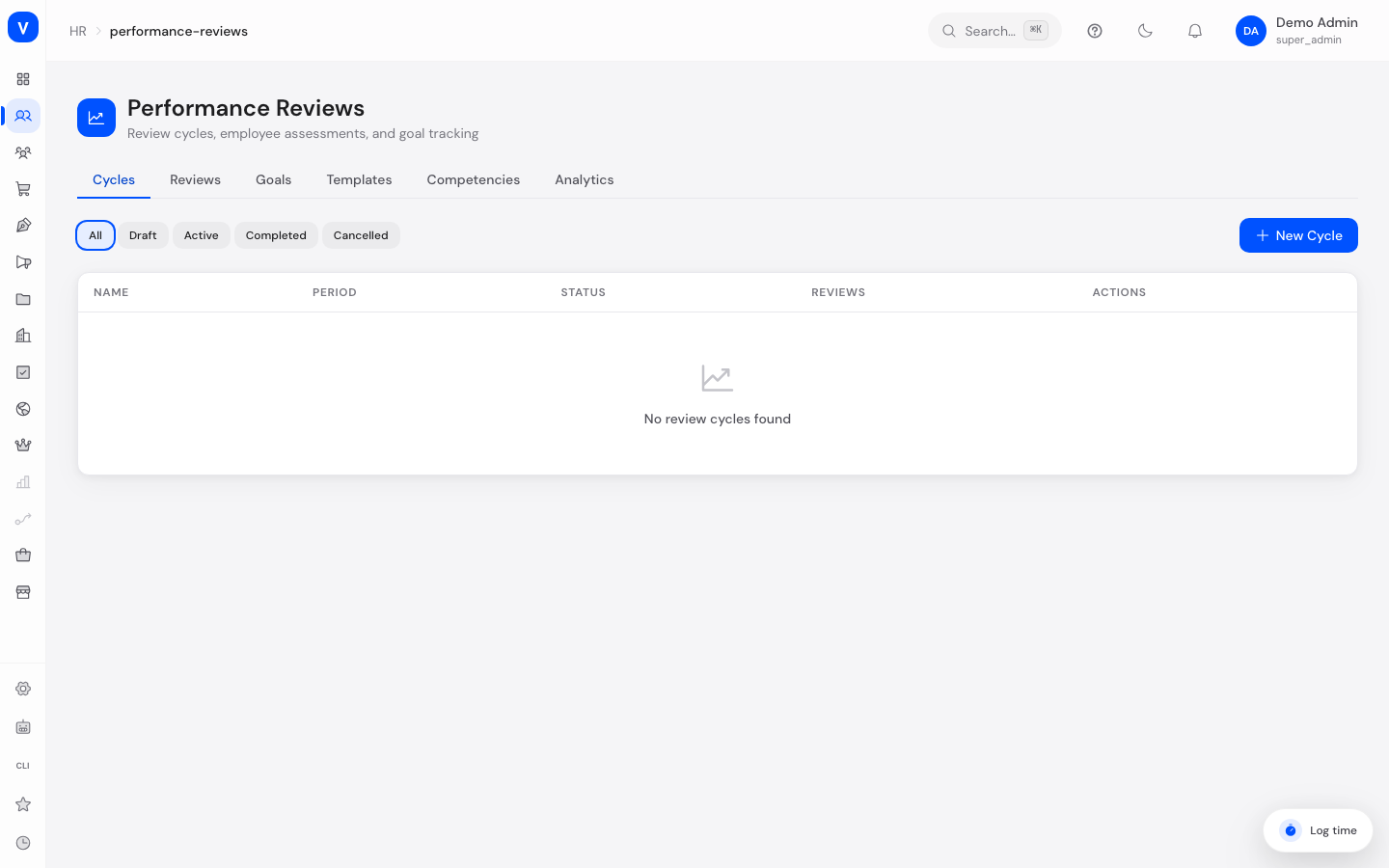
This page is where you organize the performance review process for your employees: you set up review cycles (for example "Mid-Year Reviews 2026"), create individual reviews for employees within a cycle, track their goals (OKRs), and analyze the results — including templates and a competency catalog for 360-degree feedback.
What can I do here?
- Create review cycles with a time period and evaluation criteria, then activate, complete, or cancel them
- Create individual reviews for employees within an active cycle
- Track the status of each review (pending → self-assessed → manager-reviewed → acknowledged) and acknowledge it once the manager review is in
- Create goals (OKRs) for employees, update their progress, and manage their status
- Manage review templates with sections and questions for 360-degree feedback
- Maintain a competency catalog (e.g. Leadership, Technical, Communication) used in 360-degree evaluations
- View the analyzed results of an individual review as a spider chart and breakdown table (Analytics tab)
/hr/performance-reviewsStep by step
Start a review cycle
- Go to the "Cycles" tab and click "New Cycle".
- Enter a name, description, and the start and end of the review period.
- Add at least one evaluation criterion with a name and an optional weight — a cycle cannot be activated later without at least one criterion.
- Save the cycle. It is created with the status "Draft".
- Open the cycle's action menu and choose "Activate" once you are ready to start creating reviews in it.
Create a review for an employee
- Go to the "Reviews" tab and click "New Review".
- Select an active cycle and enter the employee ID and, optionally, the manager ID.
- Save the review. It starts in the status "Pending".
- Once the self-assessment and then the manager review are submitted, the status updates automatically.
- Click on a review in the list to open it and see the self-assessment and manager review, including comments and the overall rating.
- Once the review reaches the status "Manager-Reviewed", you can complete it using the "Acknowledge" button. After that it becomes locked and can no longer be changed.
Create a goal and track progress
- Go to the "Goals" tab and click "New Goal".
- Enter the employee ID, title, optionally a related cycle, target value, unit, and due date.
- Save the goal — it appears in the list with a progress bar.
- Click on the goal to update its current value. The progress bar updates automatically.
- If the current value reaches the target value, the goal is automatically marked as "Completed".
Analyze review results
- Go to the "Analytics" tab.
- Select a review from the list at the top.
- You'll see the overall score, average scores by reviewer type (Self Assessment, Manager, Peer Review, Direct Report), and a spider chart of competency scores.
Fields explained
| Field | Meaning | Notes/Impact |
|---|---|---|
| Name (cycle) | Name of the review cycle | Required |
| Description | Free-text explanation for the cycle or goal | Optional |
| Period Start / Period End | Start and end date of the review period | End must be after start, otherwise the cycle is rejected |
| Criteria | List of evaluation points with a name and optional weight (0–100) | A cycle cannot be activated without at least one criterion |
| Employee | The employee being reviewed (by ID) | Only one review per employee per cycle is allowed |
| Manager | The manager responsible for the review (by ID) | Optional |
| Overall Rating | The review's overall score (1–5 stars) | Set as part of the manager review |
| Title (goal) | Name of the goal | Required |
| Target / Current | Target value and current value of the goal | Progress = Current ÷ Target as a percentage |
| Unit | Unit of measure for the goal (e.g. percent, units) | Free text |
| Due Date | Date by which the goal should be reached | Optional |
| Name (competency) | Name of a competency in the catalog | Used in 360-degree evaluations |
| Category (competency) | Topic area of the competency | See value list below |
| Name (template) | Name of a review template | Contains sections with questions |
| Type (template) | Kind of review the template is intended for | 360, Self Assessment, Manager, Peer Review, Upward Review |
Values & status
Cycle status
| Label | Plain-language meaning | What happens then |
|---|---|---|
| Draft | The cycle has been created but is not yet active | No reviews can be created in this status yet; only a draft can be deleted |
| Active | The cycle is running | Reviews can now be created |
| Completed | The cycle has been finished | No further reviews can be created |
| Cancelled | The cycle was cancelled | The cycle is considered finished without being completed normally |
Review status
| Label | Plain-language meaning | What happens then |
|---|---|---|
| Pending | The review has been created but not yet worked on | Waiting for the self-assessment |
| Self-Assessed | The self-assessment has been submitted | Waiting for the manager review |
| Manager-Reviewed | The manager review, including the overall rating, has been submitted | Can now be acknowledged by the employee |
| Acknowledged | The review has been acknowledged | The review is locked and can no longer be changed |
Goal status
| Label | Plain-language meaning | What happens then |
|---|---|---|
| Active | The goal is currently being tracked | Progress can keep being updated |
| Completed | The goal has been reached | Set automatically once the current value reaches the target value |
| Cancelled | The goal was cancelled | No longer tracked |
Competency categories
| Label | Meaning |
|---|---|
| Leadership | Leadership skills |
| Technical | Technical / job-specific skills |
| Communication | Communication skills |
| Teamwork | Ability to work well in a team |
| Problem Solving | Analytical, solution-oriented skills |
| Adaptability | Flexibility in the face of change |
| Creativity | Ability to innovate |
| Customer Focus | Focus on customer needs |
| Strategic Thinking | Foresight and strategic approach |
| Other | Anything that doesn't fit another category |
FAQ
Why can't I create a review for a cycle?
The cycle must be in the "Active" status. No new reviews can be created in a Draft, Completed, or Cancelled cycle.
Why won't my cycle activate?
A cycle needs at least one evaluation criterion before it can be activated.
Can I still edit an acknowledged review?
No. Once a review has been acknowledged, it is locked and can no longer be changed.
Why can't I delete a cycle?
Only cycles in the "Draft" status can be deleted. Active, completed, or cancelled cycles remain in place.
Where do employees fill out their self-assessment?
Employees submit their self-assessment and acknowledge their review from the "My Performance" self-service area, where they see and work with their own reviews and goals.
What does the spider chart on the Analytics tab show?
For a selected review, it compares the average competency scores by reviewer type (e.g. Self Assessment, Manager, Peer) so you can quickly spot patterns and differences.