Absences
On this page you manage everything related to vacation, sickness, and other employee absences in SELLERLOGIC Commerce Services — from the request through approval to an overview of who is away and when. This is also where you define how many days off each employee is entitled to (entitlements), which rules apply (policies), and what happens to unused vacation days at the end of the year (carry-over and expiry).
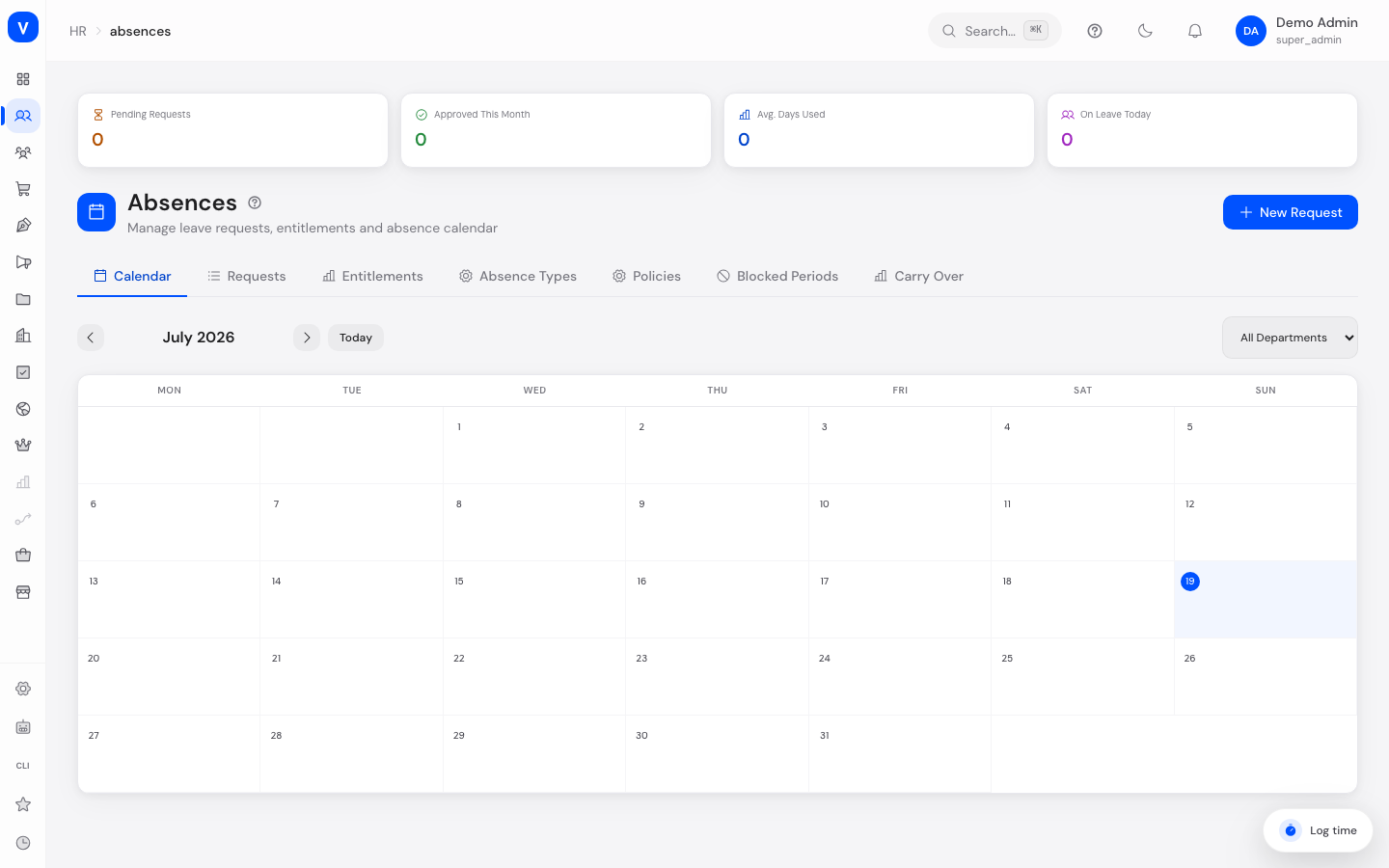
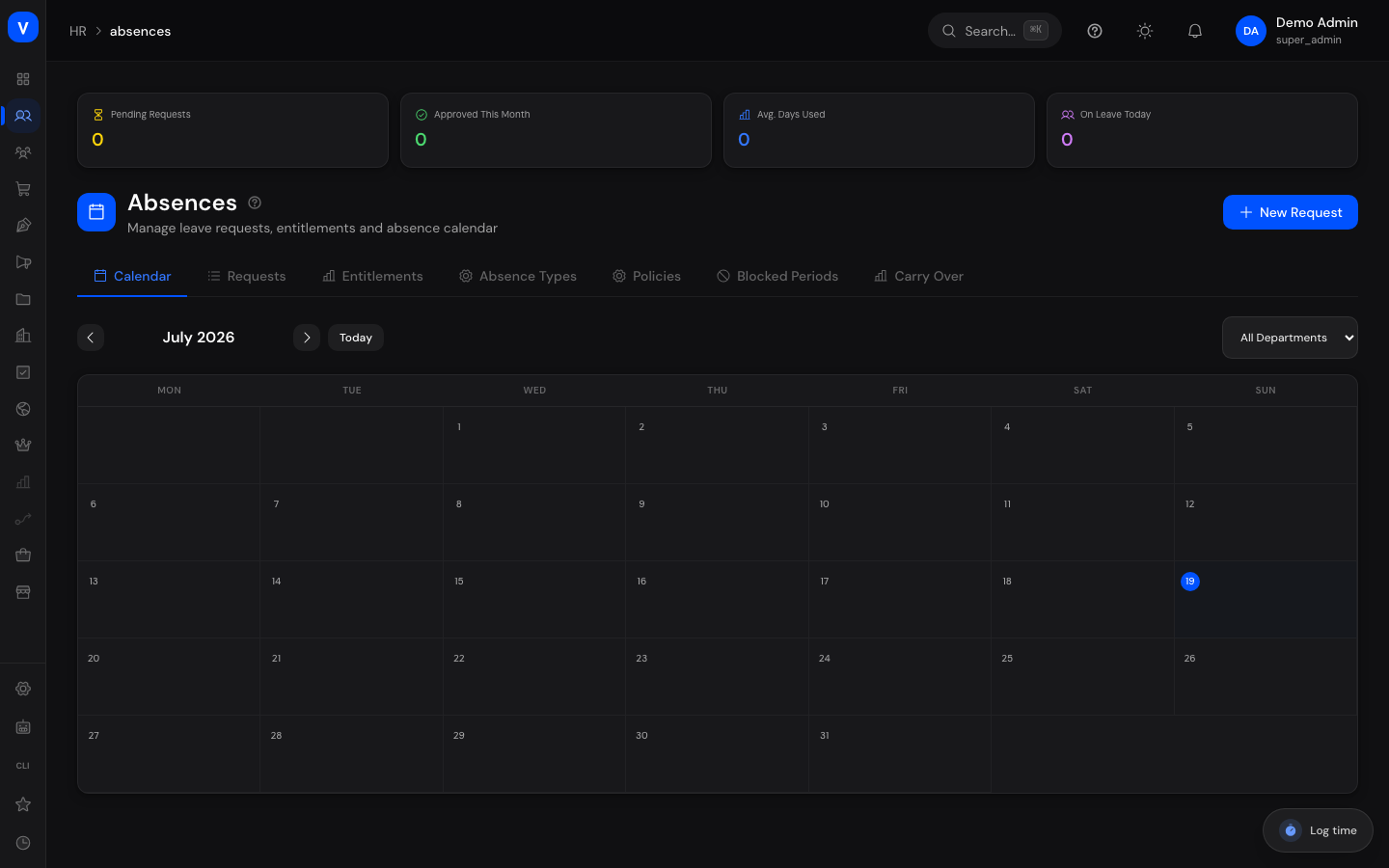
/hr/absencesWhat can I do here?
The page is split into seven tabs:
- Calendar — monthly overview: who is away and when? Colored bars show approved absences per day, filterable by department.
- Requests — list of all absence requests with search and filters (status, type, employee). This is where you submit new requests, approve, reject, or cancel.
- Entitlements — how many days each employee is entitled to per year and absence type, how many are used, how many were carried over. This is also where you set up individual entitlements: every employee can get their own number of total days and carry-over days per absence type — e.g. 30 vacation days for long-tenured employees, 26 for new hires.
- Absence Types — define your own types (e.g. vacation, sickness, parental leave) with a color, approval requirement, paid/unpaid flag, and an optional yearly cap.
- Policies — rule sets you can assign to employees: days per year, minimum notice, maximum consecutive duration, whether half days and carry-over are allowed.
- Blocked Periods — periods during which no absence can be requested (e.g. stocktaking week, peak season) — for all or only specific absence types.
- Carry Over — per employee, see how many leftover days were taken over from the previous year, how many of those are used, and when they expire. The Calculate carry-over button triggers the yearly calculation.
At the top of the page you see four key figures: Pending Requests, Approved This Month, Avg. Days Used, and On Leave Today.
There is also a year view per employee (on the employee profile under "Vacation" and in self-service): at the top the allowance cards showing Accrued / Available / Approved and planned and - on wide screens directly to their right - the lists of current/upcoming and of past absences, below them a 12-month calendar with color-coded absences, holidays and non-working days. On narrow screens the blocks stack underneath each other. Requests that have not been decided yet are visible there too: in the calendar as outlined days in the colour of the absence type (approved days are filled in solid), in the list marked "Pending"; the legend calls them "Requested". When such a request appears in the "Past absences" list its period has already elapsed without anyone deciding it - the list therefore marks it "Pending (overdue)". A public holiday stays red even when a request runs across it. This explicitly includes public holidays that fall on a non-working day (for example 3 October on a Saturday): they stay red and additionally carry the non-working-day hatching; the legend calls them "Holiday on a non-working day". Hovering the day shows the holiday name plus the state in the exact wording of the legend, for example "German Unity Day - Holiday on a non-working day". Such a day never changes the balance - a day that is free anyway never costs a vacation day. Requested days are not deducted from the balance - "Available" and "Approved and planned" still count approved days only. So that the number and the list below it cannot contradict each other, the metric now says so itself: it is labelled "Approved and planned", and whenever undecided requests are still open, a "+ N requested" line appears underneath it.
The legend and the calendar read from one single source. Each of the six states has exactly one appearance, identical in the legend swatch and in the calendar cell. The meaning never rests on colour alone - every state additionally carries a pattern and a wording:
| State | Appearance in the calendar |
|---|---|
| Absence | solid fill in the absence type's colour |
| Requested | pale fill with a border in the type's colour |
| Absence on a non-working day | lightened fill with hatching and a border in the type's colour |
| Holiday | solid red fill with a light border |
| Holiday on a non-working day | solid red fill with hatching and a light border |
| Non-working day | grey fill with hatching |
Hatching always means "no work is scheduled on this day under the contract"; a border in the type's colour always means "an absence is booked or requested here". Hovering a day shows the state in words - exactly as it appears in the legend; screen readers announce the same text. The colour carries the absence type (vacation, sick leave, …), the pattern carries the state. So a yellow sick-leave day is still findable in the legend by its pattern, even when the legend swatch shows another type's colour. Each card's info tooltip breaks the numbers down: used until today, planned for the future, total taken, of which requested, and how the prior-year carry-over splits into "of which taken" and "still available". If an expiry date is set for the carry-over, the tooltip additionally shows "Expires on …" with the exact date; if no expiry rule applies, the note "Does not expire" is shown instead.
Step by step
Create an absence request
- Click New Request in the top right.
- Search for the employee by name, pick the absence type, and enter From/To. The remaining entitlement is shown right below the type.
- Optional: tick Half Day (only possible when From and To are the same day) and choose Morning or Afternoon; enter a reason.
- Click Submit Request. The request gets the status "Pending".
When submitting, SCS automatically checks: no overlap with the same employee's existing requests, no active blocked period in the date range, minimum notice and maximum duration according to the assigned policy, and sufficient remaining entitlement. Only working days are counted — the employee's non-working weekdays per their contract (Saturday and Sunday by default, "Time" tab on the employee profile) and the public holidays that apply to them (depending on country and state) are deducted automatically.
Who hears about a new request?
Since 24 August 2026 a submitted request goes to the requester's direct supervisor and appears there as a process in the bell - with the period, how long it has been waiting, a deadline marker and the action "Review request". It disappears on its own once the request is approved, rejected or cancelled - including when somebody else decided it.
Before that it was a broadcast: every holder of the "Manage HR" permission received every request. With five holders, five people saw the same request and nobody owned it.
What you need to maintain: every employee's personnel record must name a supervisor under Organisation, and that supervisor needs an active admin account. If either is missing, the request is not sent to everybody as a fallback - the system reports a defect to the operator instead, so the master data gets completed.
Who may see a request does not change: the Requests tab still shows every request to everybody with the permission. What changes is only whose worklist a request lands on.
Since 24 August 2026 a real task is created as well. The process therefore lives not only in the bell but also under Tasks → My Tasks of the supervisor - with the period, a link to the decision, and a due date three days after submission. The task closes itself as soon as the request is approved, rejected or cancelled; it never has to be ticked off, and it never stays open because somebody else decided. The request itself is still decided here in the Requests tab - the task takes you there but does not replace the decision.
If the responsible person is not linked to an employee record, no ownerless task is created: the system reports a defect to the operator, and the bell entry is unaffected. To fix it, link the account to an employee under Settings → Staff & roles.
Since 24 August 2026 the supervisor also receives an email. The bell entry and the task are unaffected by it. Anyone who does not want these emails can switch them off per process kind under Settings → Process notifications - the worklist entry always remains; only the email can be unsubscribed.
What happens after approval
Since 24 August 2026 an approved request does not end in the archive - it changes hands. As soon as the supervisor has approved it, the request disappears from their worklist and appears as a new process "Absence of … is approved" for the employee's HR owner - with the period and the action "Process approval". If a tenant has several HR owners, each of them gets their own entry; that is explicitly not a fault but the normal case in larger organisations.
A rejection or a cancellation creates no follow-up process. There is nothing for HR to do in that case, and an entry nobody can work off would be exactly the chronicle the worklist replaced.
How the follow-up disappears again: it is done when the HR owner ticks it off - unlike the request, there is no automatic event that could close it, because an approved request stays approved. One exception: if the request is cancelled later, the follow-up disappears on its own without anybody having to remember it.
The chain is exactly two steps long and cannot run in circles. The follow-up spawns no further process of its own; that is not a setting but fixed in the system and checked at startup.
If no HR owner can be found - for example because nobody holds the "Manage HR" permission - the follow-up is not sent to everybody as a fallback: the system reports a defect to the operator. The approval itself is never affected; it stands regardless of whether the notification could be delivered.
Approve or reject a request
- Open the Requests tab and click the request (or use the check/cross icons directly in the row).
- Review the period, type, and days in the detail panel.
- Click Approve or Reject.
Rejecting asks for a reason. A window opens with the Rejection reason field; only the Reject button inside it sends the decision. The reason is optional - a rejection without one is still a valid decision and breaks nothing. If you enter one, two places show it: the requester sees it in the employee portal directly beneath their request, and you see it in the Decision section of the detail panel. If you leave the field empty, neither place shows a reason section at all - no empty box. Up to 2000 characters are accepted.
Approving and cancelling keep the plain confirmation without a text field.
Who decided is recorded on the request: Once a request has been approved, rejected or cancelled, the detail panel shows a Decision section with the name and timestamp - plus the stored comment on a rejection. If an already approved request was cancelled later, both events are listed: the approver and the person who cancelled. If the employee cancelled it themselves in the employee portal (a standalone application for staff, in preparation), it is marked "employee themselves". For requests cancelled before this was recorded, the panel shows "not recorded" - the actor cannot be reconstructed after the fact.
On approval, the days are immediately deducted from the employee's entitlement (for requests spanning New Year, they are automatically split correctly across both years) and the absence appears in the calendar. If a shared Google Calendar is set up as the sync target, an all-day event is created there automatically. Important: nobody can approve or reject their own request (four-eyes principle) — the buttons are grayed out on your own request; only cancelling remains possible. A request cannot be approved without a stored entitlement for the absence type; create it first in the Entitlements tab.
Who is allowed to decide at all? The permission alone is no longer enough - what matters is
whether the person is responsible for the requester. There are two levels:
| Role | Permission | Reach |
|---|---|---|
| HR department | "Manage HR" (hr:manage) |
Decides for all employees of the tenant. HR is nobody's direct line manager and needs that reach. |
| Line manager | only "Approve absences" (hr:absences:approve) |
Decides only for their own people - everyone for whom they are entered in the Position tab as Line manager or as Absence deputy. On somebody else's request the message "This request is not yours to decide" appears. |
For a line manager to be recognised at all, their user account must be linked to their employee
record - this happens automatically when you invite the employee via HR → Employees. Without
that link the system cannot establish who the person manages and refuses on the safe side. In that
case, first check whether the employee has received and accepted an invitation.
Responsibility therefore follows from the fields in the employee's Position tab, not from a
separate approver field. Whoever should decide for an area is entered there as the line manager;
whoever should decide only as a stand-in is entered as the absence deputy.
flowchart LR
    A[Submit request] --> B{Automatic checks:<br/>overlap, blocked period,<br/>policy, remaining balance}
    B -->|Check fails| X[Request is refused<br/>with a message]
    B -->|OK| C[Status: Pending]
    C -->|Approve<br/>not by the requester| D[Status: Approved]
    C -->|Reject| E[Status: Rejected]
    D --> F[Days are deducted<br/>from the entitlement]
    F --> G[Visible in the absence<br/>and team calendar]
    G --> H[Event in the shared<br/>Google Calendar, if set up]
    D -->|Cancel| I[Status: Cancelled —<br/>days are credited back,<br/>calendar event removed]
    C -->|Cancel| I
Record an absence that already happened (backdated entry)
Sometimes an absence is only entered afterwards - the holiday was in April, it gets recorded in August. SCS calls this a backdated entry and recognises it by one fact: the end date already lies in the past when the entry is created.
What happens next depends on who records it:
- You may approve absences (permission "Manage HR" or "Approve absences"; owners and super administrators anyway) - the entry is created as "Approved" straight away, the days are deducted from the entitlement in the same step, and the absence appears in the calendar immediately. Waiting for an approval on a period that is long over serves no purpose. The entry permanently carries the marker "Backdated", and the event is logged separately - so a backdated entry can later be told apart from a regular approval.
- You may not approve absences - the familiar flow stays exactly as it was: the request is created as "Pending" and an authorised person has to review it. There is deliberately no self-approval loophole here. For the approver, though, the request is clearly marked in the Requests tab: next to the status it reads "Backdated entry - lies in the past", both in the list and in the detail panel.
/hr/absences?tab=requestsTwo limits are deliberate:
- Requests for the future do not change. They go through the approval flow as before - even when the requester would be allowed to approve.
- If an absence type explicitly requires the four-eyes principle, a backdated entry for your own period still needs an approval. When you record one for somebody else, two people are involved anyway and the immediate approval applies.
Requests for past periods that are already pending stay untouched and can be approved as usual. A backdated entry does not change how days are counted: weekends and public holidays are deducted exactly as before.
Set up an individual entitlement for an employee
- Open the Entitlements tab and pick the year at the top.
- Click Add Entitlement.
- Pick the employee via the searchable picker (live search by first name, last name, or position), enter the absence type, total days, and any existing carry-over days, then save.
Afterwards, the table shows per employee and type: Total Days, Used, Remaining, and Carry Over. To filter the table for a specific employee, use the same searchable picker above the table.
There is exactly one entitlement per employee, absence type, and year. If you add a second one for the same combination, SCS refuses it and tells you that an entitlement already exists and that you should edit the existing entry. Change the existing row in the table instead of adding a new one - that is the only way the already used days are preserved.
Total days 0 with a carry-over is allowed. An entitlement with 0 total days and a positive carry-over is a valid case: the employee has no new allowance for this year but takes remaining days from the previous year along.
Remaining can be negative. If more days were approved than the entitlement covers (for example 31 used days against 27 total days), the "Remaining" column shows the negative value in red. The list stays fully readable; correct the allowance via the total days or via an entitlement adjustment in the employee profile.
Automatic derivation of total days: If an employee does not yet have a yearly entitlement for the vacation type, SCS creates it automatically (e.g. on the year's first request or during the year-end carry-over calculation). The total days come from the first matching source:
- Vacation days from the employee's active contract (employee profile → "Leave" tab),
- assigned policy (days per year),
- default value of the absence type.
If you change the vacation days on the active contract, SCS automatically updates the current year's entitlement — but only as long as its total days still match the previously derived value. Manually maintained entitlements are never overwritten; carry-over and already used days remain untouched in any case.
Calculate the carry-over into the next year (year-end)
- Open the Carry Over tab and select the ending year.
- Click Calculate carry-over. For every employee with an assigned policy that allows carry-over, SCS determines the unused remaining days (capped at the policy's maximum) and credits them to next year's entitlement as carry-over.
- Then select an employee to see their carry-over rows: days carried, of which used, remaining, and Expires on.
Expiry: The expiry date (e.g. March 31) is configured centrally in the holidays area — see Calendar & Holidays, "Holidays" tab → "Carry-Over". If "Auto-Expire" is enabled there, unused carried-over days lapse automatically after that cut-off date; expired rows are shown struck through in the carry-over table. Without an active expiry configuration, carried-over days do not lapse. When days are consumed: carry-over days are used up first, only then the fresh annual allotment.
flowchart LR
    A[Year-end:<br/>calculate carry-over] --> B[Determine unused remaining<br/>days from the old year,<br/>capped at the policy maximum]
    B --> C[Separate carry-over balance<br/>in the new year]
    C --> D{New request<br/>in the new year}
    D --> E[Consumed from the<br/>carry-over balance first]
    E -->|Carry-over used up| F[Then consumed from the<br/>fresh annual allotment]
    C -->|Cut-off date reached,<br/>auto-expire enabled| G[Unused carry-over<br/>remainder lapses]
Default absence types
Every workspace starts out with eight absence types. You do not have to create anything before submitting the first request - the types are already there in the Absence Types tab.
| Type | Color | Paid | Approval required | Max. days/year |
|---|---|---|---|---|
| Vacation | green | yes | yes | 30 |
| Sick Leave | yellow | yes | no | unlimited |
| Special Leave | purple | yes | yes | 5 |
| Parental Leave | orange | yes | yes | unlimited |
| Unpaid Leave | grey | no | yes | unlimited |
| Training | blue | yes | yes | 10 |
| Remote Work | turquoise | yes | no | unlimited |
| Business Trip | pink | yes | no | unlimited |
The default list is a starting point, not a rule. You can rename, recolor, deactivate or delete any of these types and add your own. SCS never resets your changes: a type you have adjusted stays exactly as you left it, and a deleted type does not come back.
Two exceptions, each happening only once, and only in workspaces that existed before this default list:
- The missing types are added once. If you had already deleted one of them there, it reappears a single time - delete it again and it stays gone.
- Two default values are pulled forward once: Vacation gets the cap of 30 days per year, and Sick Leave becomes approval-free. This only happens where the value is still the untouched shipping value. If you entered 25 days for Vacation, or changed Sick Leave yourself, your value stays as it is.
The maximum number of days is only a suggestion held on the type. What an individual employee actually has available is their quota (Quotas tab); the number on the type is only used while no quota exists for that employee yet.
Fields explained
| Field | Meaning | Notes/Effect |
|---|---|---|
| Employee | Person the absence applies to | Search by name; active employees only |
| Type | Absence type (e.g. vacation, sickness) | Color appears in the calendar; the type determines approval requirement and entitlement |
| From / To | First and last day of absence | Both days count; weekends and holidays are not deducted |
| Half Day | Only half a working day (morning/afternoon) | Only for single-day requests; deducts 0.5 days |
| Reason | Free-text justification (optional) | Visible to approvers |
| Status | Processing state of the request | See "Values & statuses" below |
| Total Days (entitlement) | The employee's annual allowance for this type | Individual per employee, type, and year |
| Used | Days already deducted | Increases on approval, is reduced again on cancellation |
| Remaining | Total days + carry-over − used | Green when positive, red at 0 or below |
| Carry Over | Leftover days taken over from the previous year | Consumed first; may lapse at the cut-off date |
| Expires on (carry-over) | Cut-off date on which carried-over days lapse | Comes from the central carry-over configuration; empty = no expiry |
| Requires Approval (type/policy) | Whether requests of this type must be approved | — |
| Paid Leave (type) | Whether the absence is paid | Flag, e.g. for reporting |
| Max Days/Year (type) | Yearly cap for this type | Empty = unlimited |
| Accrual Type (policy) | How the entitlement accrues | See "Values & statuses" below |
| Days per Year (policy) | Number of days the policy grants per year | — |
| Min. Notice (Days) (policy) | How many days in advance a request must be made | Short-notice requests are refused |
| Max. Consecutive Days (policy) | Longest permitted absence in one block | Longer requests are refused |
| Allow carry-over (policy) | Whether leftover days move to the next year | With "Max. Carry-Over Days" as the cap |
| Expires After (Months) (policy) | Older policy field for expiry | Actual expiry is now governed solely by the central cut-off date under "Calendar & Holidays" → Carry-Over |
| Blocked period (name, reason, from, to, type) | Period with no request option | Applies to all types or one specific type; only active blocked periods take effect |
Values & statuses
Request status (absence_request_status)
| Label | Plain meaning | What happens then |
|---|---|---|
| Pending | Request was submitted but not yet decided | Waits for approval/rejection; can be cancelled; does not yet count in the calendar. If the period has already elapsed, "Pending (overdue)" appears next to it - in the year view as well as in the request list. The request stays "Pending": SCS never decides on its own, because an automatic rejection would be a decision without a decider |
| Approved | Request was granted | Days are deducted from the entitlement; the absence appears in the calendar and, if set up, in the Google Calendar; can still be cancelled |
| Rejected | Request was declined | No days deducted; no further action possible |
| Cancelled | Request was withdrawn or revoked | Days already deducted are credited back; a Google Calendar event is removed |
Policy accrual type (absence_accrual_type)
| Label | Plain meaning | What happens then |
|---|---|---|
| Fixed | The full annual allowance is available from the start of the year | The usual variant for vacation days |
| Monthly Accrual | The allowance grows month by month | Label on the policy |
| Yearly Accrual | The allowance is credited once per year | Label on the policy |
| Unlimited | No fixed day limit | No entitlement check via the policy |
Half day — period (absence_half_day_period)
| Label | Plain meaning | What happens then |
|---|---|---|
| Morning | Away during the first half of the day | 0.5 days are deducted |
| Afternoon | Away during the second half of the day | 0.5 days are deducted |
Overdue requests: reminder and overview
A request that is neither approved nor rejected is worse for the applicant than a rejection: they cannot plan, and nobody feels responsible. SCS therefore makes this state visible in three places.
1. The "Overdue requests" metric. It sits at the top of the page, next to "Pending requests". It counts every request still waiting for a decision although its period is already over - across all years, not only the selected one. The difference between the two numbers is exactly the backlog.
2. The "Overdue only" filter. In the "Requests" tab it is the first entry of the status dropdown. It shows only those requests that are still open and whose period has elapsed. The choice is kept in the address bar (?status=overdue), so the list can be linked or bookmarked.
3. The reminder for the approver. When the period of an undecided request is about to start, the applicant's direct supervisor receives an item in their worklist (the bell in the top right). The reminder goes out exactly once per request and disappears again as soon as anybody decides the request - even if that was somebody else.
If no supervisor is recorded for the applicant, the reminder is not broadcast to every HR manager. The missing master data is reported as a defect instead, so it can be filled in - a notice everybody receives is one nobody reads.
Setting the lead time
How many days before the start the reminder goes out is set in the Policies tab under "Decision deadline". The default is 3 days; 0 means "on the start day itself". The setting applies to the whole tenant.
/hr/absences?tab=policiesFrequently asked questions
Why can't I approve a request even though I have the permission?
It is probably your own request — the four-eyes principle prevents self-approval. Or no entitlement for this absence type and year has been stored for the employee yet; create it first in the "Entitlements" tab.
Do weekends and public holidays count as vacation days?
No. SCS counts only that employee's working days and additionally deducts the public holidays that apply to them. Which weekdays count as working days is set in the employee profile on the Time tab ("Working days") — Monday to Friday by default. Someone who works Saturdays under their contract therefore does spend a vacation day on a Saturday off, while a part-timer who has Wednesdays off spends none on a Wednesday. For public holidays, country and state decide: an employee in Bavaria does not "spend" a vacation day on All Saints' Day, while an employee in Berlin does.
How does SCS know which public holidays apply to an employee?
In this order: holidays assigned to the employee manually, then the holiday calendar assigned to them, otherwise the country (and state) stored in their profile. A holiday calendar is therefore not a prerequisite — with none assigned, the employee's country applies automatically. The Leave tab of the employee profile shows a note to that effect above the holiday list.
What happens to a request that spans New Year (e.g. Dec 28 – Jan 5)?
The days are automatically split across the correct years: the December days come off the old year's entitlement, the January days off the new one.
How do leftover vacation days get into the new year?
Via the "Carry Over" tab using the "Calculate carry-over" button. This requires a policy assigned to the employee that allows carry-over. The transferred days then appear as "Carry Over" in the new year's entitlement and are consumed before the new annual allowance.
When do carried-over days expire?
At the cut-off date from the carry-over configuration (area Calendar & Holidays → Holidays → Carry-Over), e.g. on March 31 — provided "Auto-Expire" is enabled there. If no configuration is stored, the days do not lapse.
What happens to a request nobody decided whose period is over?
It stays "Pending" and is additionally marked "overdue". SCS does not move it to "Rejected" automatically - that would be a decision without a decider, and the personnel record would then carry a rejection nobody ever pronounced. This way it stays traceable that simply nobody decided. Decide the request after the fact, or cancel it.
Can I take back an absence that was already approved?
Yes, via "Cancel" (in the request row or in the detail panel). The deducted days are credited back to the entitlement, and any Google Calendar event that was created is deleted.
Why does the year view show more numbers than just "Available"?
The allowance card's tooltip breaks it down: used until today, planned for the future, total days taken, and the prior-year carry-over (of which taken / still available). This shows at a glance how your leave account is made up.
Sickness: sick-note requirement, quota and unpaid overflow
For sick leave, SCS lets you control three things — each individually per employee, with sensible defaults. The same cascade applies everywhere: the employee value wins, otherwise the absence type's default, otherwise the tenant default. An empty field means "inherit" — the inherited value is shown as a "Default: …" placeholder in the form.
Sick-note requirement ("Sick note from day N")
Decide from which calendar day of an absence a doctor's sick note is required.
- Default per type: In the Absence types tab, edit a type and set "Sick note from day" in the "Sickness / Sick note / Quota" section. Empty = no requirement.
- Override per employee: In the employee profile under Vacation → Sickness you can set a different value for individual employees. Leave empty = the type default applies (shown as the placeholder "Default: 3").
- Effect: Once an absence of that type reaches or exceeds the configured number of calendar days, the request is automatically flagged "Sick note required". Until a note is attached, the request list shows a red "Sick note missing"; after upload it turns into a green "Sick note submitted".
- Sickness types only: The employee value and the tenant default apply exclusively to absence types SCS recognises as sickness (code
sick,sickness,krank,krankheit,sick_leave, or a name containing "krank" or "sick"). Vacation and all other types never trigger a sick-note requirement - there, only a threshold you set explicitly on the type itself counts (e.g. for a rehab stay).
Sickness quota
Optionally track a sickness quota per employee and year (e.g. "10 paid sick days").
- Default quota per type: the "Default quota (days/year)" field on the absence type. On the first request, SCS auto-provisions a quota row from it.
- Override per employee: a dedicated quota row in the Quotas tab takes precedence over the type default.
- Without a quota the type stays "unlimited" — sick leave is then approved without any deduction (existing behaviour).
Overflow → unpaid
Once the quota is used up, excess days can be marked unpaid automatically.
- Default per type: the "Overflow unpaid" field (On / Off / Default). For sickness types the tenant default is On; other types (e.g. vacation) keep the hard quota limit.
- Override per employee: toggle it on/off per employee under Vacation → Sickness.
- Effect: On approval the request is split — paid days up to the quota limit, the rest as unpaid days. These show on the request (an "Unpaid" badge), in the year view, and are passed to the payroll export (not compensated). With "Overflow unpaid" off, the hard limit applies again: a request beyond the quota is rejected.
/hr/absencesRelated topics
- Calendar & Holidays — team calendar, public holidays by country/state, and carry-over expiry
- Calendar Integration — connect Google Calendar
- Employees — employee file with the vacation year view
- Approval Settings — configure the four-eyes principle
- HR Dashboard — overview with upcoming absences