Shift Planner
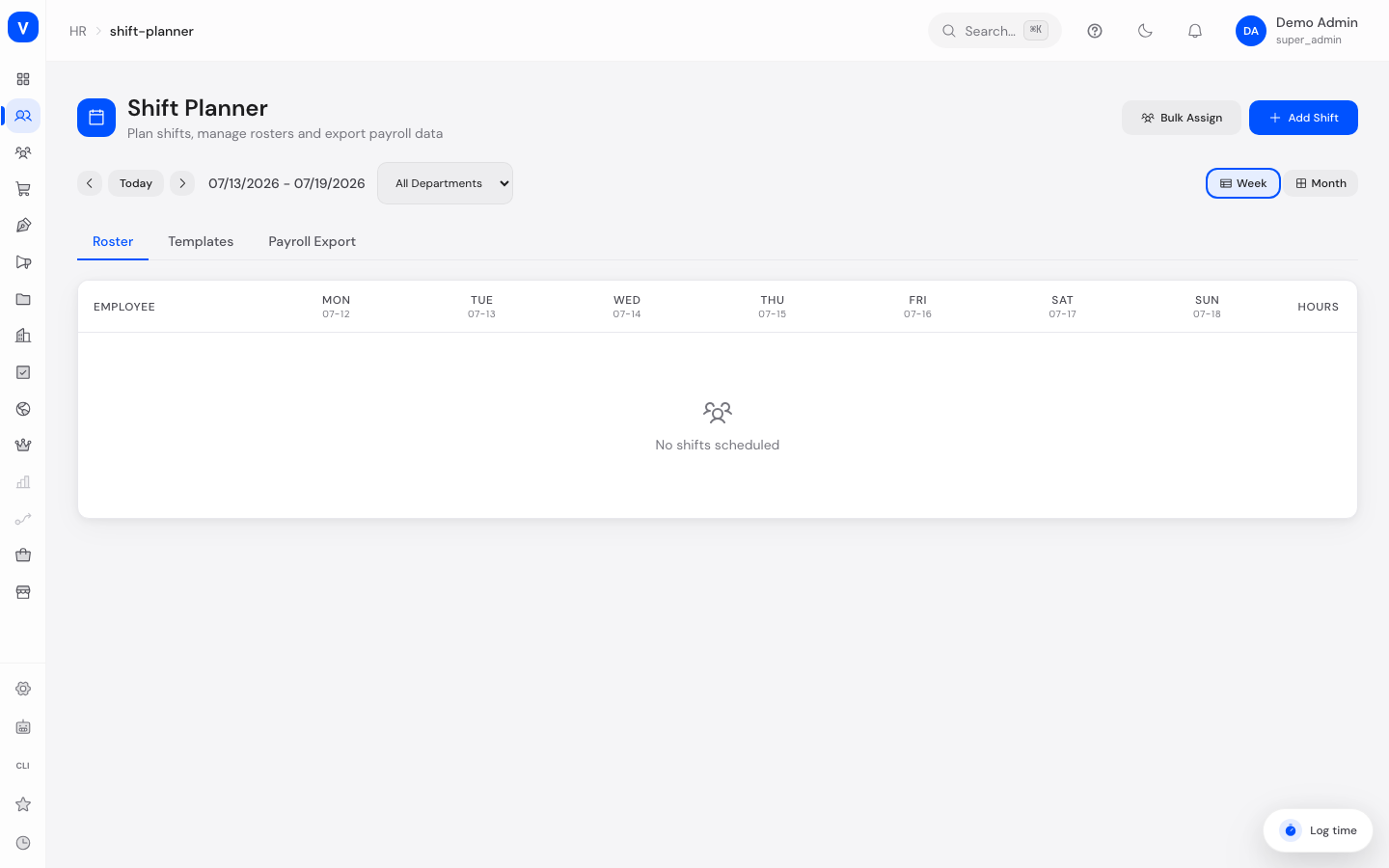
The Shift Planner is the duty roster for teams that work shifts. You create shift templates (e.g. "Early shift", "Late shift"), assign them to individual employees or to several at once, and export the payroll data for completed shifts at the end.
/hr/shift-plannerWhat can I do here?
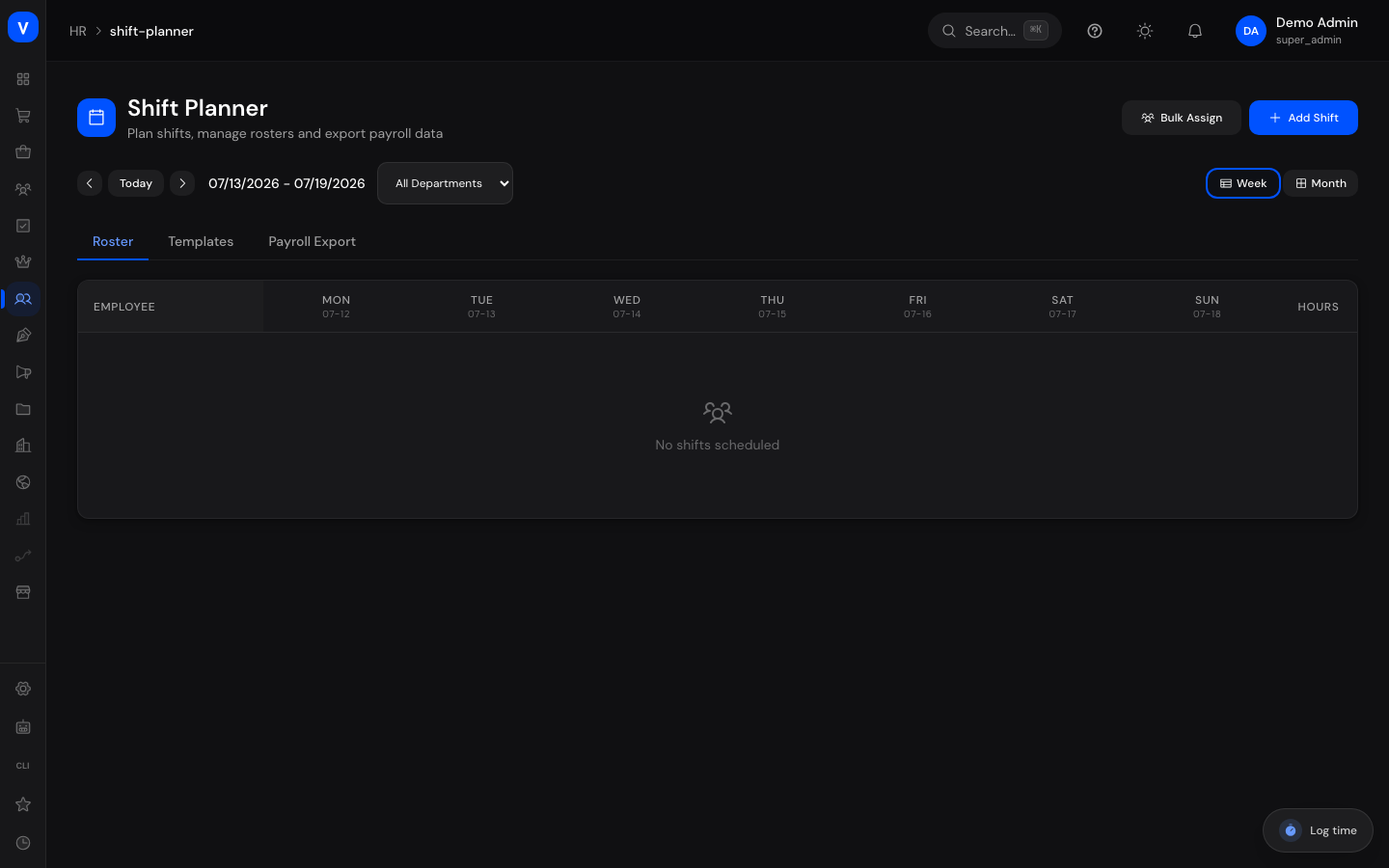
- View the roster in week or month view, filter by department
- Assign a single shift to a person on a day – click an empty cell in the week grid or use "Add Shift"
- Distribute several shifts at once via bulk assign: one template, several employees and a date range, optionally excluding weekends
- Create, edit and delete shift templates (name, start/end time, break, colour)
- Generate and download payroll exports for a period (DATEV, CSV or PDF)
Step by step
Create a shift template
- Open the "Templates" tab and click "Create Template".
- Give it a name (e.g. "Early shift"), a start and end time, and the break in minutes.
- Pick a colour so it's recognisable in the roster and save.
Assign a shift
- Click the empty cell of a day for the person you want in the week view (or use "Add Shift").
- Choose employee and date. Optionally choose a template – start, end and break are then filled in automatically, but can still be adjusted.
- Add notes if needed and save.
Assign several shifts at once
- Click "Bulk Assign".
- Choose a shift template, add several employees, and set a start and end date. Optionally: "Exclude Weekends".
- Check the preview (number of shifts for the number of people) and click "Assign".
Create a payroll export
- Open the "Payroll Export" tab and click "Create Export".
- Choose a period and export format (DATEV, CSV or PDF).
- Click "Generate Export". The export then appears in the list for download.
Fields explained
| Field | Meaning | Notes/Effect |
|---|---|---|
| Template name | Label of the shift template | Shown as the caption in the roster |
| Start / End | Start and end time of the shift | Filled in automatically when a template is chosen |
| Break (minutes) | Break time for the shift | Subtracted from the total duration |
| Colour | Colour marker of the template | For quick recognition in the grid |
| Employee | Person the shift is assigned to | Selection from active employees |
| Template (optional) | Pre-fills the shift times | Without a template you enter times freely |
| Notes | Free text for the shift | Optional |
| Date range (bulk assign) | Start and end date shifts are spread across | "Exclude Weekends" skips Saturday/Sunday |
Values & statuses
Payroll export status
| Label | Plain meaning | What happens then |
|---|---|---|
| Draft | Export was created | Being processed by the system |
| Processing | Hours and gross pay are being calculated | Please wait a moment |
| Completed | Export is ready | Download available via the icon in the row |
| Failed | Export could not be created | Try again or contact IT/HR |
The payroll export only counts shifts that are already completed within the selected period; the gross pay total is calculated from the employment contract on file for each person.
Frequently asked questions
Why can't I delete a shift?
Only shifts that are not yet confirmed or completed can be deleted. If a shift is further along, contact your manager or HR.
Can a person have two shifts on the same day?
Yes. All shifts of a day are shown stacked as separate coloured blocks in the week grid.
What determines the payroll total in the export?
The hours worked in completed shifts within the selected period, combined with the salary on file in the person's employment contract.
What is the colour on a template for?
Purely for quickly telling different shift types apart in the roster at a glance – it has no other effect.