IT Asset Management
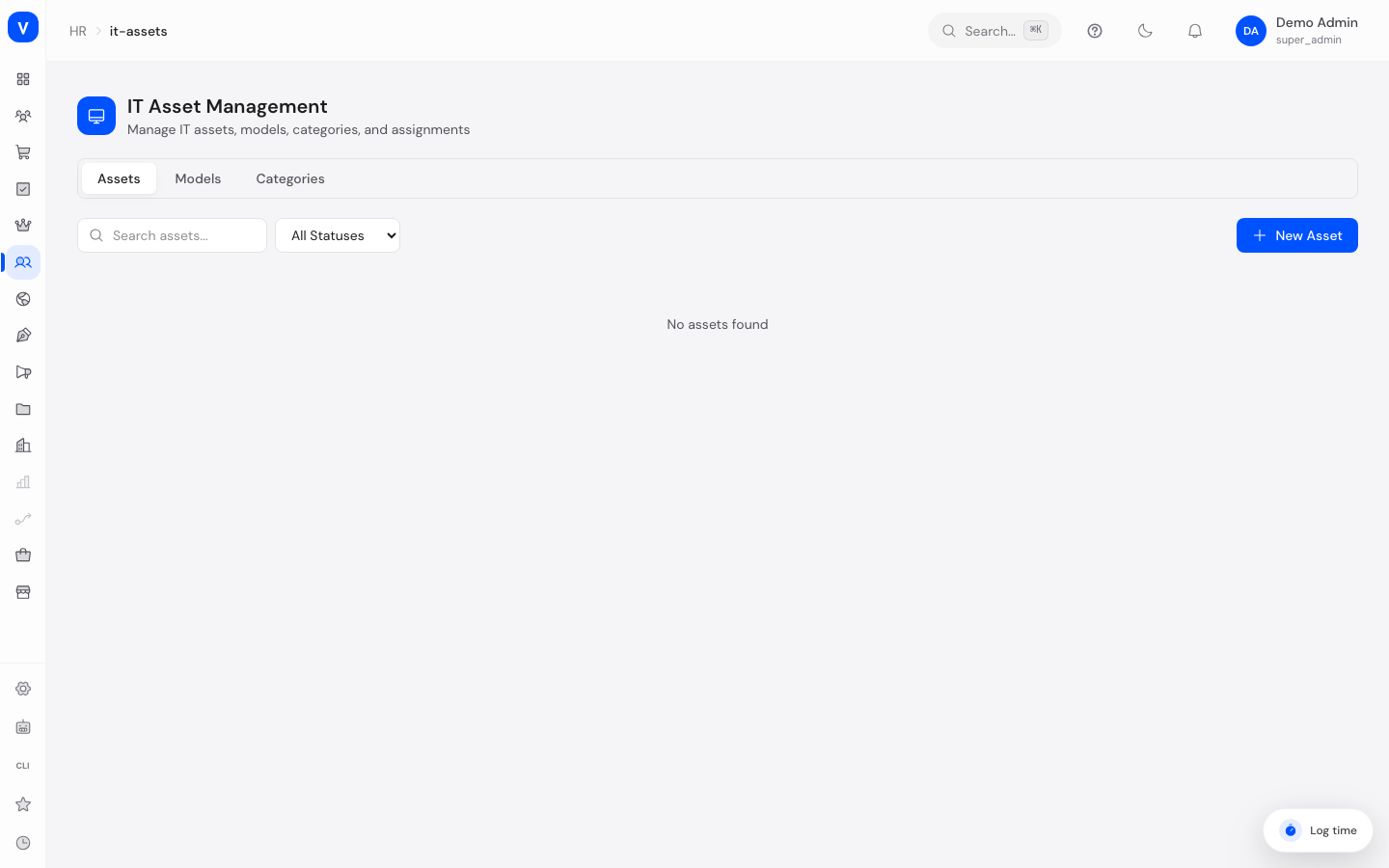
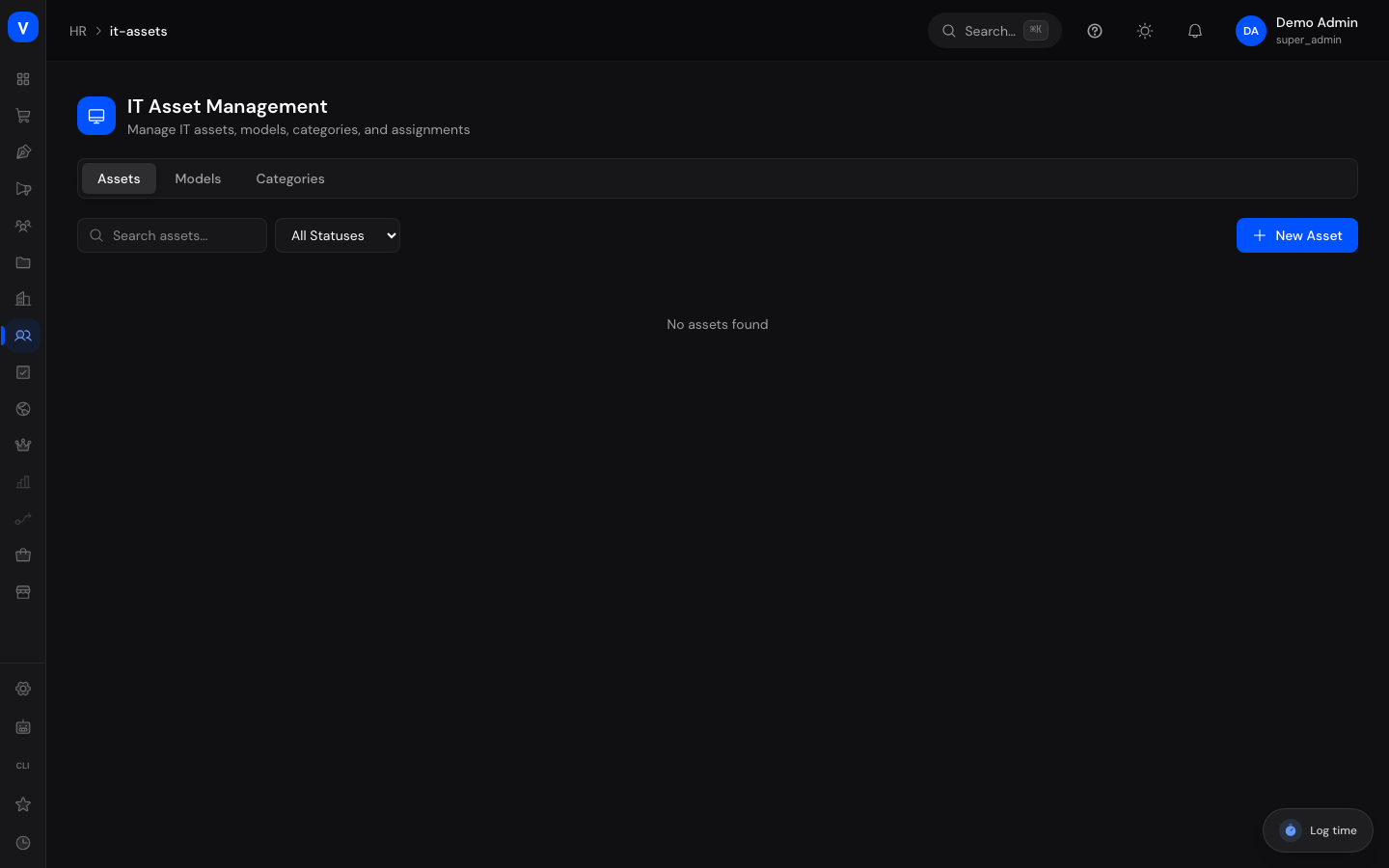
This page manages the company's IT equipment — for example laptops, monitors, or phones — their models and categories, and their assignment to employees.
What can I do here?
- Create, edit, and delete IT assets
- Assign assets to employees and unassign them again
- Put assets into maintenance or retire them
- Maintain device models (e.g. "MacBook Pro 14" by Apple) and categories
- Search by name and filter by status
/hr/it-assetsStep by step
- Create a new asset: In the "Assets" tab, click "New Asset", enter at least the name (Asset Tag, Serial Number, Purchase Price, Purchase Date, Warranty Expiry, and Notes are optional), then save.
- Assign an asset to someone: For an asset with status "Available", choose "Assign" from the action menu and enter the employee ID of the person receiving the device.
- Unassign an asset: For an assigned asset, choose "Unassign" from the action menu to mark it as available again.
- Put an asset into maintenance or retire it: Choose "Maintenance" from the action menu if the device is going for repair/servicing, or "Retire" if it is being permanently removed from inventory.
| Model Name | Manufacturer | Category |
|---|---|---|
| MacBook Pro 14" | Apple | Laptops |
| ThinkPad T14 | Lenovo | Laptops |
| UltraSharp U2723QE | Dell | Monitors |
/hr/it-assetsFields explained
Assets:
| Field | Meaning | Notes/Impact |
|---|---|---|
| Name | Description of the device | Required |
| Asset Tag | Internal inventory number of the device | Optional |
| Category | Assigned device category | Shown in the table if present |
| Status | Current condition of the asset (see Values & status) | Determines which actions are available in the menu |
| Assigned To | Person currently using the device | Only set when status is "Assigned" |
| Serial Number | Manufacturer's serial number | Optional |
| Purchase Price | Acquisition cost of the device | Optional |
| Purchase Date | Date of acquisition | Optional |
| Warranty Expiry | Date until which the manufacturer warranty applies | Optional |
| Notes | Free text for additional information | Optional |
Models:
| Field | Meaning | Notes/Impact |
|---|---|---|
| Model Name | Name of the device model | Required |
| Manufacturer | Manufacturer of the model | Optional |
| Category | Assigned device category | Shown in the table if present |
Categories:
| Field | Meaning | Notes/Impact |
|---|---|---|
| Name | Name of the category | Required |
| Icon | Optional icon for the category | Optional |
Values & status
Asset status
| Label | Meaning | What happens then |
|---|---|---|
| Available | Device is in stock and can be assigned | Can be assigned or put into maintenance |
| Assigned | Device is currently in use by a person | Can be unassigned or put into maintenance; cannot be assigned to someone else without unassigning first |
| Maintenance | Device is being repaired/serviced | Can be retired |
| Retired | Device has been permanently removed from active inventory | No further status changes are available via this page's actions |
| Lost | Device is considered lost | Appears as a filter option; not set via the actions on this page |
| Name | Icon |
|---|---|
| Laptops | 💻 |
| Monitors | 🖥 |
| Phones | 📱 |
/hr/it-assetsFAQ
Why can't I assign an already-assigned asset directly to another person?
An asset must first be set back to "Available" via "Unassign" before it can be assigned to someone else. This keeps a clear record of who last had a device.
Can I reactivate a retired asset?
Not through this page: retired assets can neither be assigned nor put into maintenance.
How do I enter the employee ID when assigning?
Clicking "Assign" opens a prompt where you enter the employee ID of the person who should receive the device.
What are models and categories for?
They help structure your device inventory (e.g. "Laptops" as a category, "MacBook Pro 14"" as a model), independently of the individual physical devices in the "Assets" tab.