Time Tracking
Time Tracking is the official clock-in/clock-out system for working hours: employees clock in and out or enter times after the fact, managers review and approve these entries, and the end result is an exportable, payroll-ready record including a working-time account and timesheets. It is independent from the personal Time Tracker, which records WHAT the time was spent on.
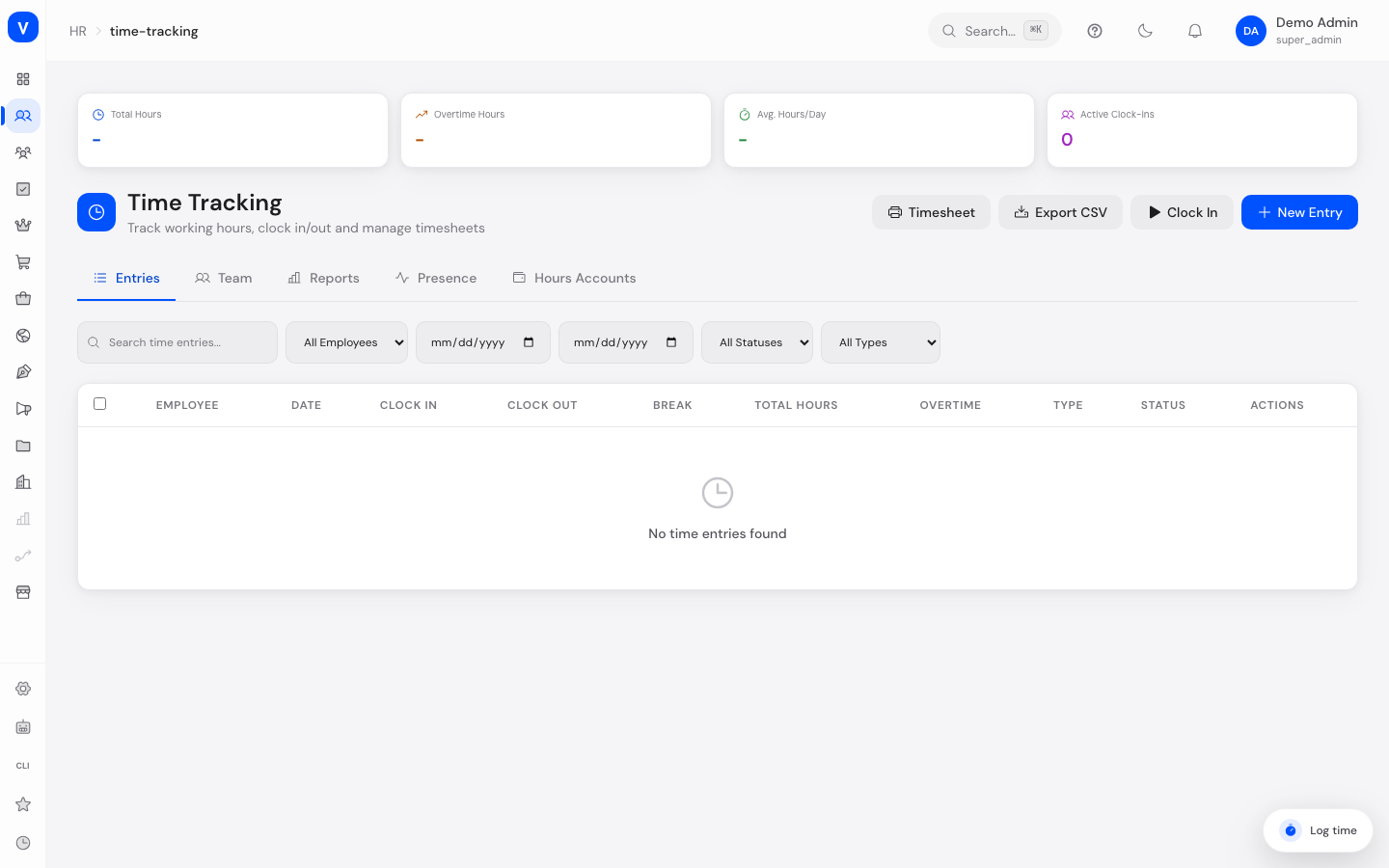
/hr/time-trackingWhat can I do here?
- Entries: View all time entries, filter them (search, status, type, employee, date range), create a new entry, clock in/out, approve or reject entries
- Team: Team overview with total hours, overtime, active clock-ins
- Reports: Overtime analysis for the selected month
- Presence: Live view of who is currently clocked in
- Hours account: Overview of credit/deficit hours per employee
- Timesheet: The proof of working hours for one employee and one month, day by day: in, out, break, hours worked and planned, balance. Days that deviate are highlighted. This is also where the planned hours per weekday are maintained, the timesheet is filled automatically, and a period is approved.
- Print or open a timesheet as a PDF for an employee/month
- Export time entries as CSV
Step by step
- Clock in: Click "Clock in" — the start is recorded immediately.
- Clock out: On the active clock-in, choose "Clock out" to complete the entry.
- Add a manual entry: Click "Add entry", choose employee, date, times and type, then save.
- Approve an entry: Open a submitted entry in the list and click the checkmark or cross (bulk approval for several entries is also possible).
- Print a timesheet: Click "Timesheet", choose employee, year and month.
- Read a timesheet on screen: Open the "Timesheet" tab and choose employee, year and month. The selection is kept in the address bar, so the link always returns to the same period.
- Maintain planned hours: In the "Timesheet" tab click "Planned hours", pick a date under "Valid from", enter the hours per weekday and save. "Valid until" normally stays empty - the period then runs until a later one begins. Without a maintained period the timesheet assumes 8 hours from Monday to Friday and says so.
- Change or delete planned hours: In the "Maintained periods" list click "Edit" - the period is loaded back into the form and can be corrected. "Delete" removes it after a confirmation; the preceding period then takes over its end date so that no gap appears.
- Fill the timesheet automatically: In the "Timesheet" tab click "Fill automatically" and confirm the question. Every working day of the chosen month that has nothing recorded yet is filled with the maintained planned hours. Days that already carry an entry stay unchanged, days in the future are skipped. You need the "Write time tracking" permission for this.
- Approve a period: In the "Timesheet" tab click "Approve period". Afterwards the time entries of that month can no longer be created, changed or deleted. Who approved it and when is shown in the card above the list and recorded in the audit trail. To correct something, lift the approval again via "Lift approval". Both need the "Approve time tracking" permission.
Planned hours are a chain, not a stack
The planned hours of an employee live in periods: a "Valid from", the hours per weekday, and an end that usually stays open. These periods follow each other without a gap and never overlap. Every day therefore belongs to exactly one planned value.
That is not a formality. The working-time account, the overtime and the absence calculation all stand on the planned hours. If two different planned values applied to one day, the order of a query would decide which one ends up in your report - and the same timesheet could show two different numbers on two visits, without any error message appearing anywhere.
What you will observe:
- A new period closes the preceding one. Create a period starting 2026-07-01 and the previous one automatically ends on 2026-06-30. You do not have to end it yourself.
- The same "Valid from" does not create a second period, it corrects the existing one. A typo in the hours can simply be overwritten that way.
- "Valid until" normally stays empty. The period then runs until a later one begins. If you do enter an end and it reaches into a later period, saving is refused - stating from when the period it collides with begins. What you entered is never silently shortened.
- Deleting closes the gap. Remove a period and the preceding one takes over its end date. Only when there is no preceding period does a gap remain - for those days the assumption of 8 hours from Monday to Friday applies again.
Both creating and deleting need the "Write time tracking" permission.
Filling automatically - and why it is not an automatism
In everyday work nobody confirms their working time every day. So that the record comes into existence anyway, there is the "Fill automatically" button: it writes the maintained planned hours as day entries - on the day itself or at the end of the month.
A timesheet is a legal record. That is why it does not come into existence by itself here:
- The fill never runs in the background. Somebody has to trigger it.
- Who triggered it, when, and for which period is in the audit trail.
- Auto-filled days carry the permanent note "auto-filled" in the "Origin" column - on the printout too. That keeps it distinguishable later on what somebody confirmed and what was a default.
- Days that are already recorded are never overwritten.
- A filled day nominally starts at 09:00 and contains the statutory rest break (30 minutes above six hours, 45 minutes above nine). The number of hours comes from the planned hours; the clock times are an assumption and do not claim that anybody arrived at nine.
Status of a period
A period is one employee plus one month. It carries one of three states:
| Value | Meaning | What happens then |
|---|---|---|
| Open | The month is still running | Time entries can be created and changed |
| Pending | The month is over and waits to be checked | Time entries can still be changed |
| Approved | Somebody signed the period off | The time entries of that month are locked |
As long as nobody has decided anything, the state is derived from the calendar: a running month is "Open", a past one is "Pending". Opening the timesheet changes nothing about that and creates no data either - a record does not change because somebody looked at it.
Statutory limits on the timesheet
Planned hours and the law are two different yardsticks. The "Deviation" column compares a day with what was agreed for it; the "Statutory limit" column next to it compares the same day with the German working time act (ArbZG). They are reported apart because they mean different things: somebody who works 10 hours with 10 hours planned deviates nowhere - and can still run into a statutory ceiling.
Every day row is measured against three limits:
| Limit | What is checked | Wording in the row |
|---|---|---|
| Maximum working time (section 3 ArbZG) | At most 8 hours per working day, 10 as long as the average stays at 8 | "Maximum working time exceeded" or "Average above the limit" |
| Rest break (section 4 ArbZG) | At least 30 minutes above 6 hours of work, at least 45 above 9 | "Break too short" |
| Rest period (section 5 ArbZG) | At least 11 hours between leaving and starting the next day | "Rest since the previous day too short" |
Every finding names the measured value and the limit in plain words - with an icon and text, never by colour alone, so it survives a black-and-white printout. The number of affected days of the month is stated above the list.
The timesheet blocks nothing and rejects no entry: it states what the law says about this month. The judgement stays with you, because the list knows nothing about exceptions (collective agreements, on-call duty, emergencies).
Two boundaries of the check are worth knowing:
- The average is taken over the working days (Monday to Saturday) of the displayed month. The statutory compensation window reaches further - up to 24 weeks - but a monthly sheet can only compute the month itself.
- The rest period on the first of the month is not checked, because the previous day lives on a different sheet.
Fields explained
| Field | Meaning | Notes/Effect |
|---|---|---|
| Employee | Who the entry belongs to | — |
| Date | Day of the entry | — |
| Clock-in/out time | Start and end time of the work period | Open while a clock-in is active |
| Type | Regular, overtime, remote, business trip, or on-call (see values below) | — |
| Status | Draft, Submitted, Approved, or Rejected (see values below) | Only approved entries count for payroll/reports |
| Total hours (KPI) | Sum of hours worked in the selected month | — |
| Overtime hours (KPI) | Sum of overtime in the selected month | — |
| Avg hours/day (KPI) | Average hours worked per working day | — |
| Active clock-ins (KPI) | How many employees are currently clocked in | — |
| Hours account | Balance of target vs. actual working time per employee | Shows surplus/deficit hours |
Values & statuses
Entry status
| Value | Meaning | What happens |
|---|---|---|
| Draft | Entry recorded but not yet submitted | Can still be freely edited |
| Submitted | Presented for approval | Awaiting the manager's decision |
| Approved | Approved | Counts toward reports/payroll |
| Rejected | Declined | May need correcting and resubmitting |
Entry type
| Value | Meaning |
|---|---|
| Regular | Normal working time |
| Overtime | Additional time worked beyond regular hours |
| Remote | Work performed away from the location |
| Business trip | Working time during a business trip |
| On-call | On-call standby time |
Frequently asked questions
What's the difference from the personal Time Tracker page?
This page (Time Tracking) records official clock-in/clock-out with manager approval, for payroll purposes. The Time Tracker, by contrast, records activity-based data — WHAT the time was spent on (tickets, meetings, ...) — with no approval workflow.
How do I get a timesheet for the accountant/payroll office?
Via "Print timesheet" or the CSV export at the top right.
What does the hours account mean?
It shows whether an employee has worked more or less than their contractually agreed working time (surplus/deficit hours).
Where do the planned hours in the timesheet come from?
From the planned hours per weekday that you maintain in the "Timesheet" tab. They apply from the date under "Valid from"; a later change opens a new period and leaves the past untouched. If no period is maintained for an employee, the timesheet assumes 8 hours from Monday to Friday and states this above the list.
A day shows no deviation but a statutory limit. How can that be?
That is exactly what the second column is for. Planned hours are an agreement; the working time act is a ceiling above it. With 10 hours planned and 10 hours worked the deviation is zero - the statutory check still looks at the day on its own.
Why is a day without an entry marked as a deviation?
Because the timesheet is a legal record. A working day with nothing recorded is exactly the case that has to stand out - otherwise it disappears between the days that were filled in.
How do I tell that a day was auto-filled?
By the "Origin" column: it says "auto-filled" or "recorded". On the printed timesheet the note appears in the "Remark" column. The marking stays on the entry permanently and cannot be dismissed.
I approved a period by mistake. What now?
Lift the approval again via "Lift approval". The original approval stays in the audit trail, together with the note of who lifted it.
Why can I no longer change a time entry?
The period is probably approved. The card above the day list tells you. Lift the approval, correct the day and approve again.
Is the marking recognisable without colour?
Yes. Every deviation carries an icon and the words "worked more than planned" or "worked less than planned". The row colour is only an addition and is not lost on a black-and-white printout.