Salary Bands
The Salary Bands page lets you define salary ranges for your company — for example "Junior Developer: €45,000 to €60,000". At a glance you can see whether your employees' salaries fall within their intended range, and spot outliers below or above it. This supports fair, transparent pay decisions.
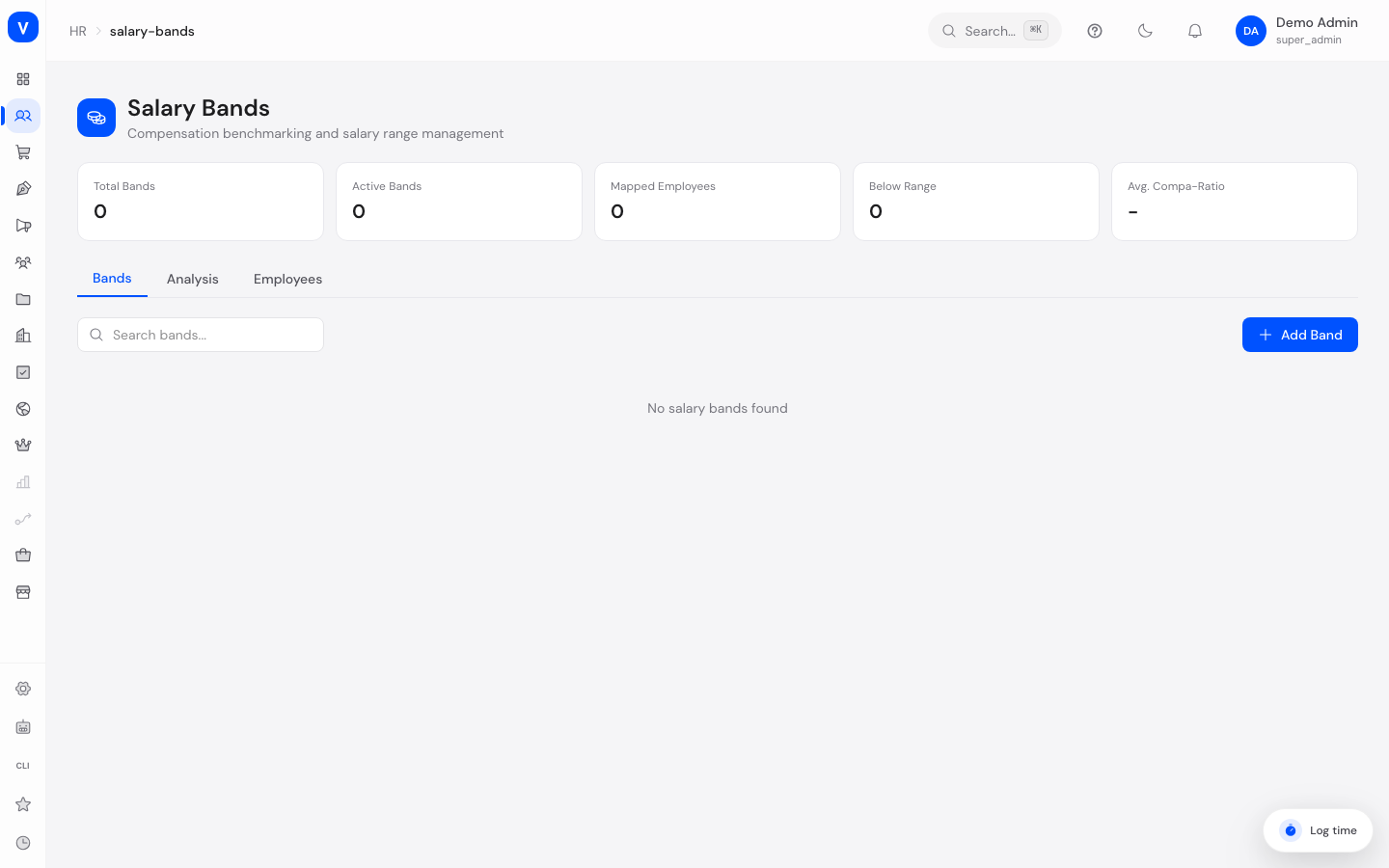
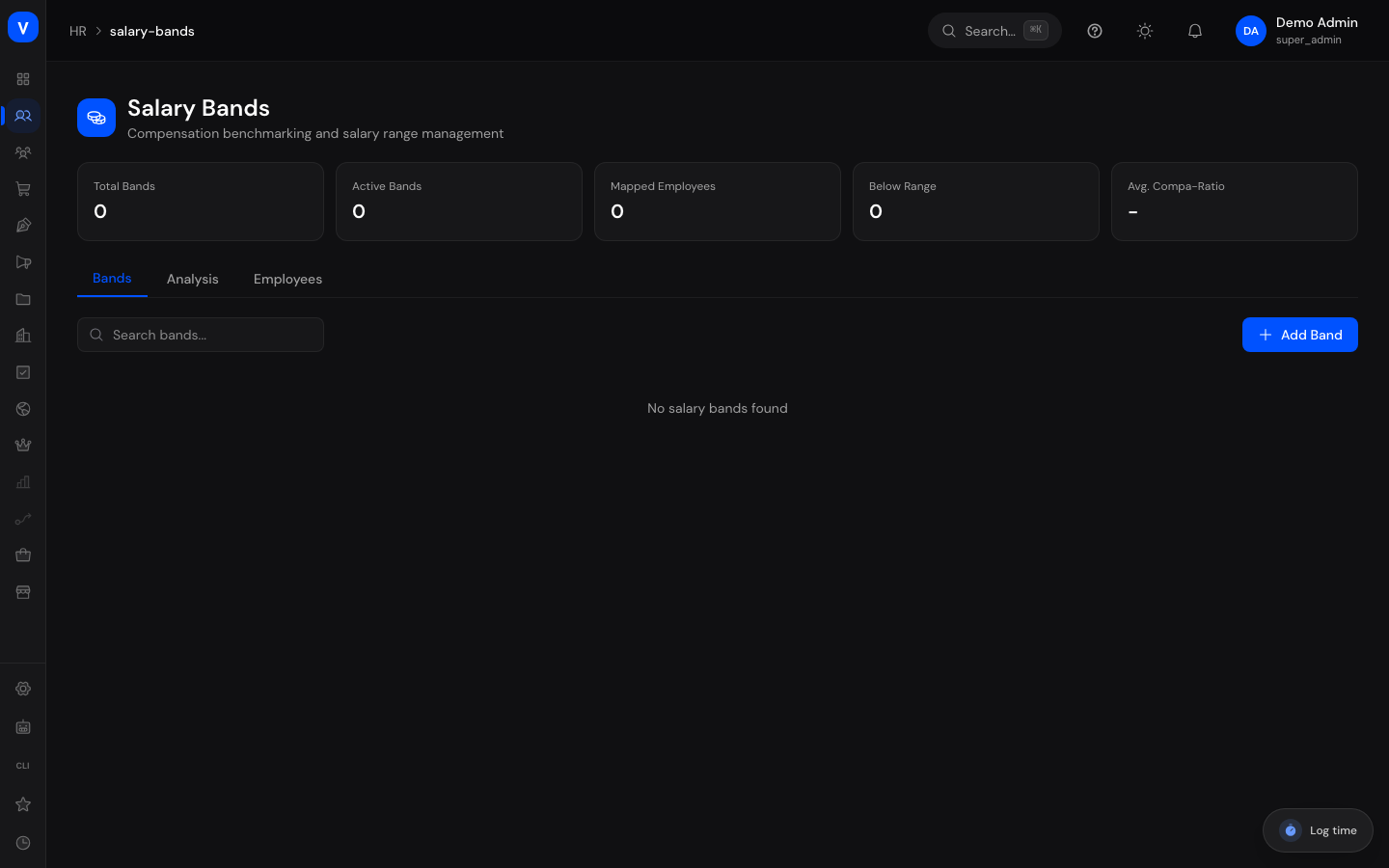
/hr/salary-bandsWhat can I do here?
- Create, edit, and delete salary bands (the Bands tab)
- See key figures at a glance: Total Bands, Active Bands, Mapped Employees, Below Range, Avg. Compa-Ratio
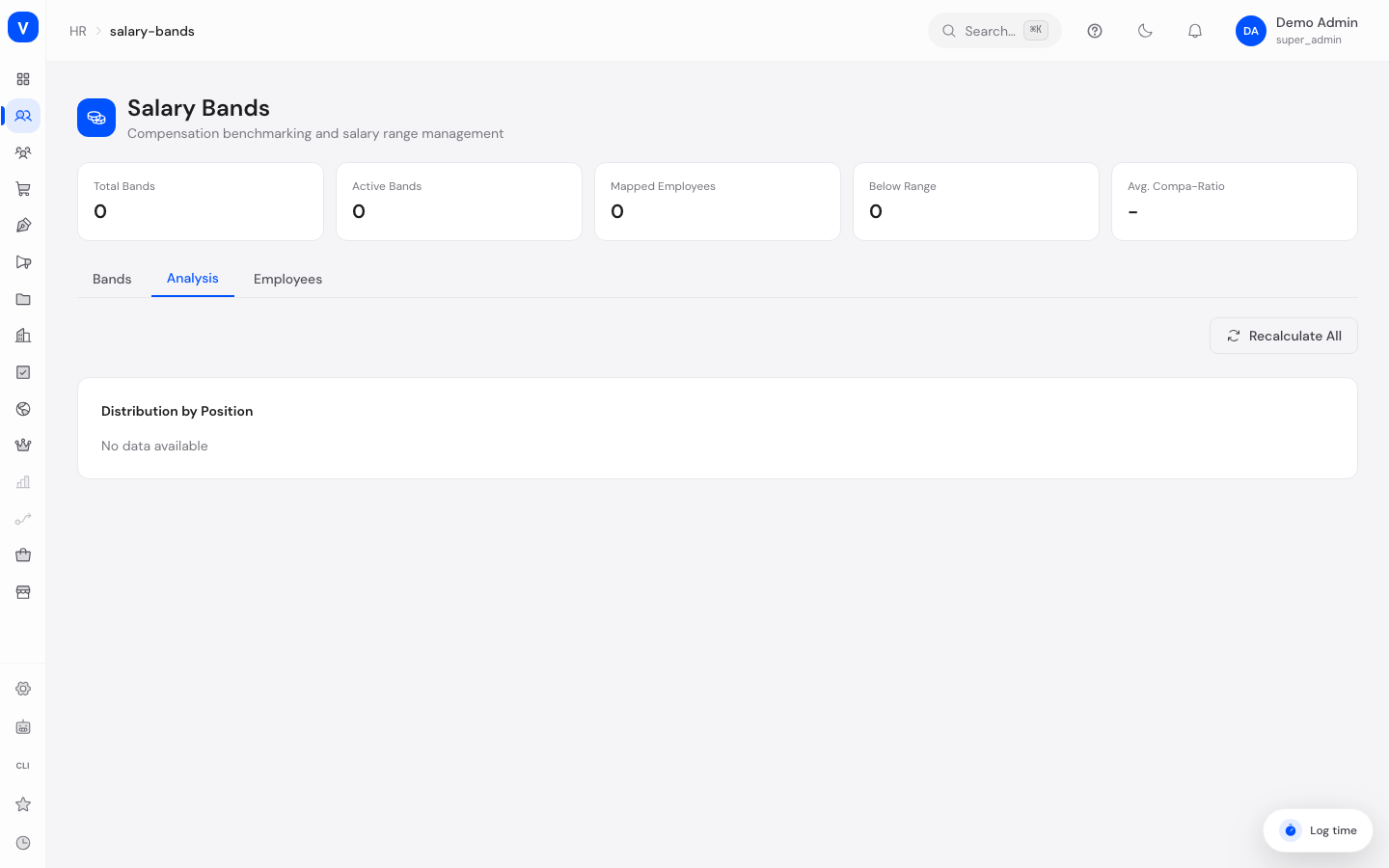
- Analyze how mapped employees are distributed across their bands and find outliers (the Analysis tab)
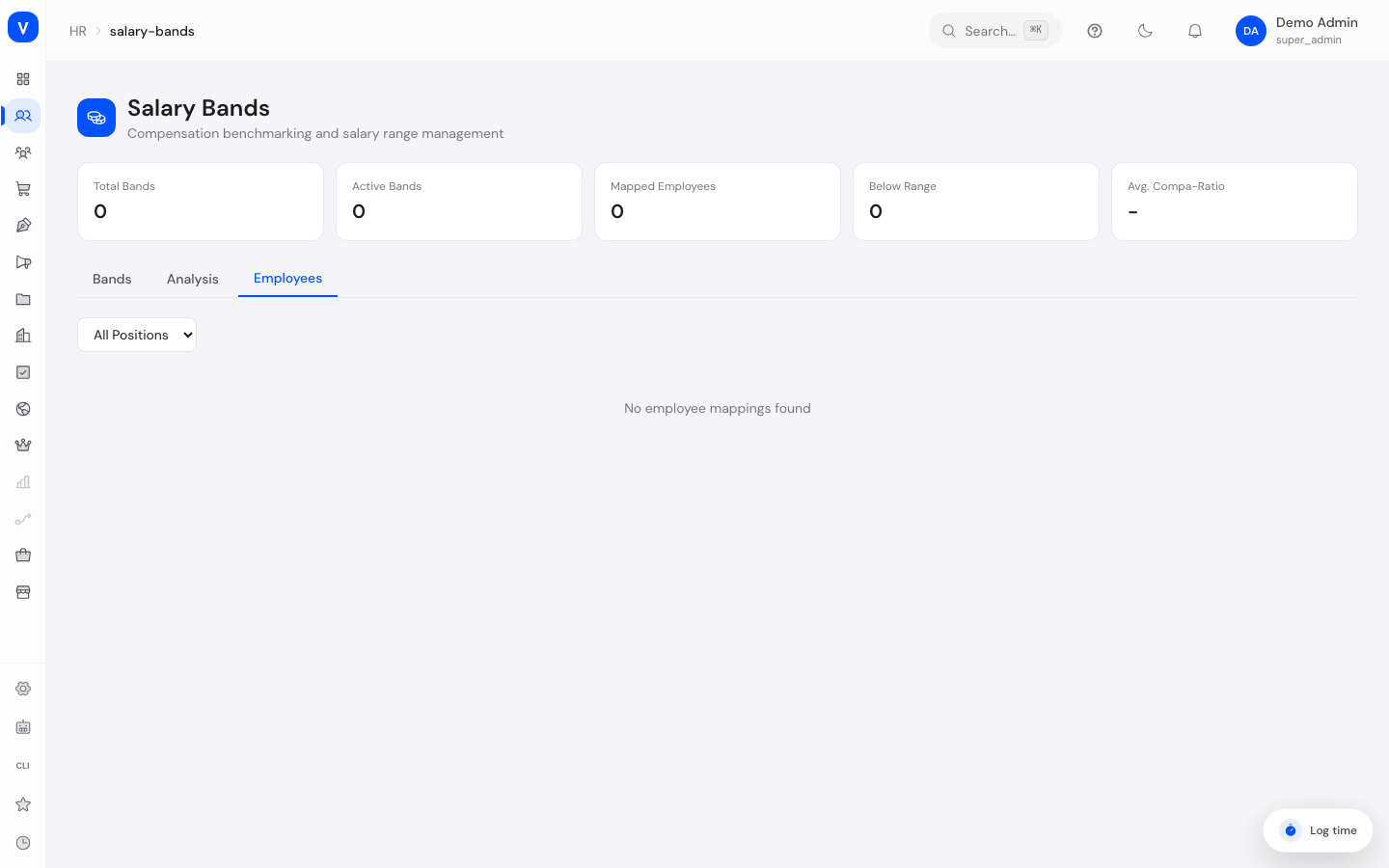
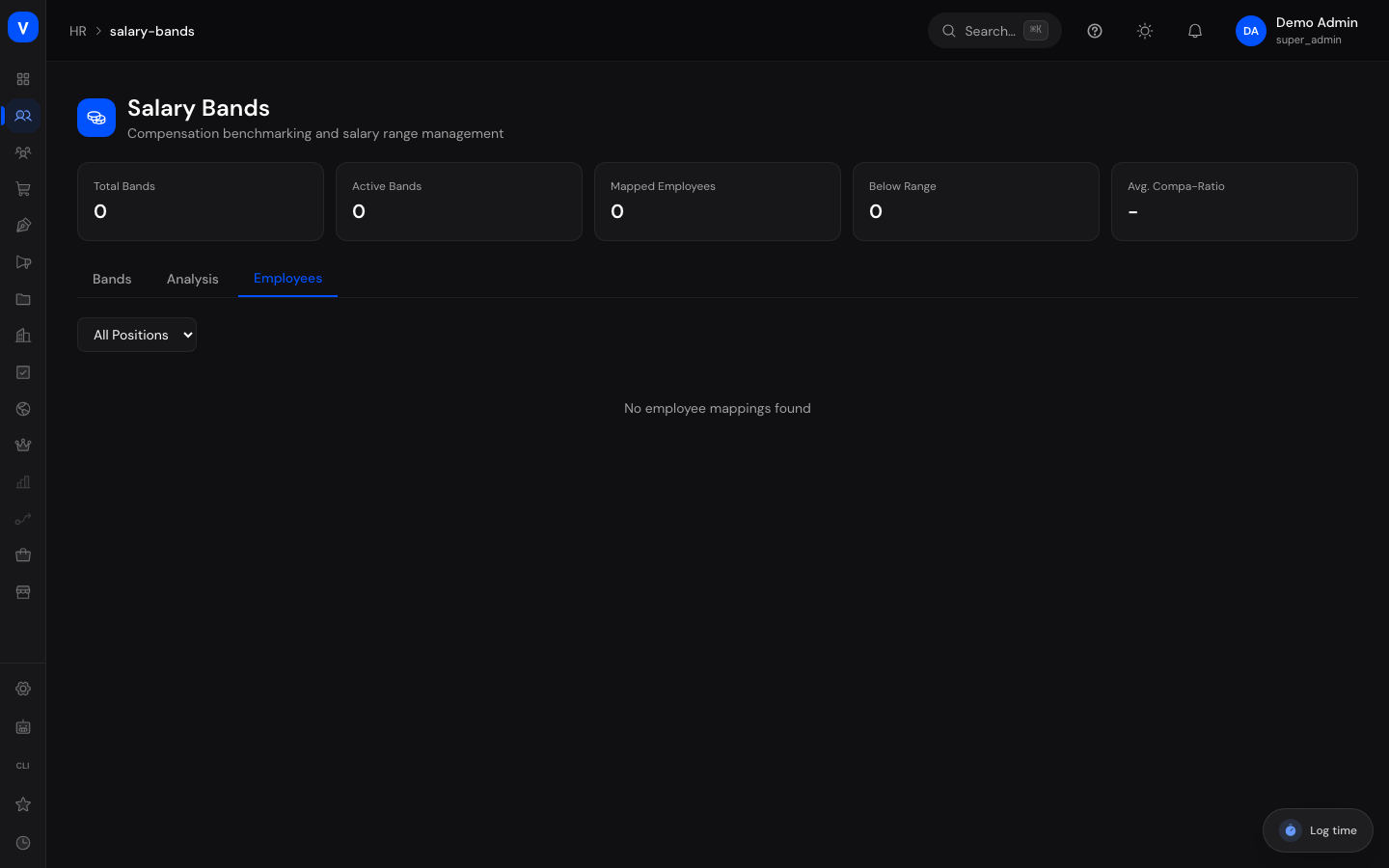
- View and filter all employee mappings with salary, band range, and position in band (the Employees tab)
- Refresh all calculated values after salary changes with one click (Recalculate All)
Creating, editing, and deleting require the salary band management permission; without it the page is read-only.
Step by step
Create a new salary band
- Open the Bands tab and click Add Band.
- Enter a Name (e.g. "Senior Developer"), optionally a Career Level and Location.
- Choose the Currency (EUR, USD, GBP, or CHF) and enter the salary limits Min, Mid, and Max. The minimum must not be higher than the maximum.
- Leave the Active checkbox ticked and click Save.
/hr/salary-bandsCheck for outliers
- Switch to the Analysis tab.
- Check the Below Range and Above Range figures — they count employees whose salary falls outside their band.
- The Outliers (Below / Above Range) section lists the affected employees individually with band, salary, and compa-ratio.
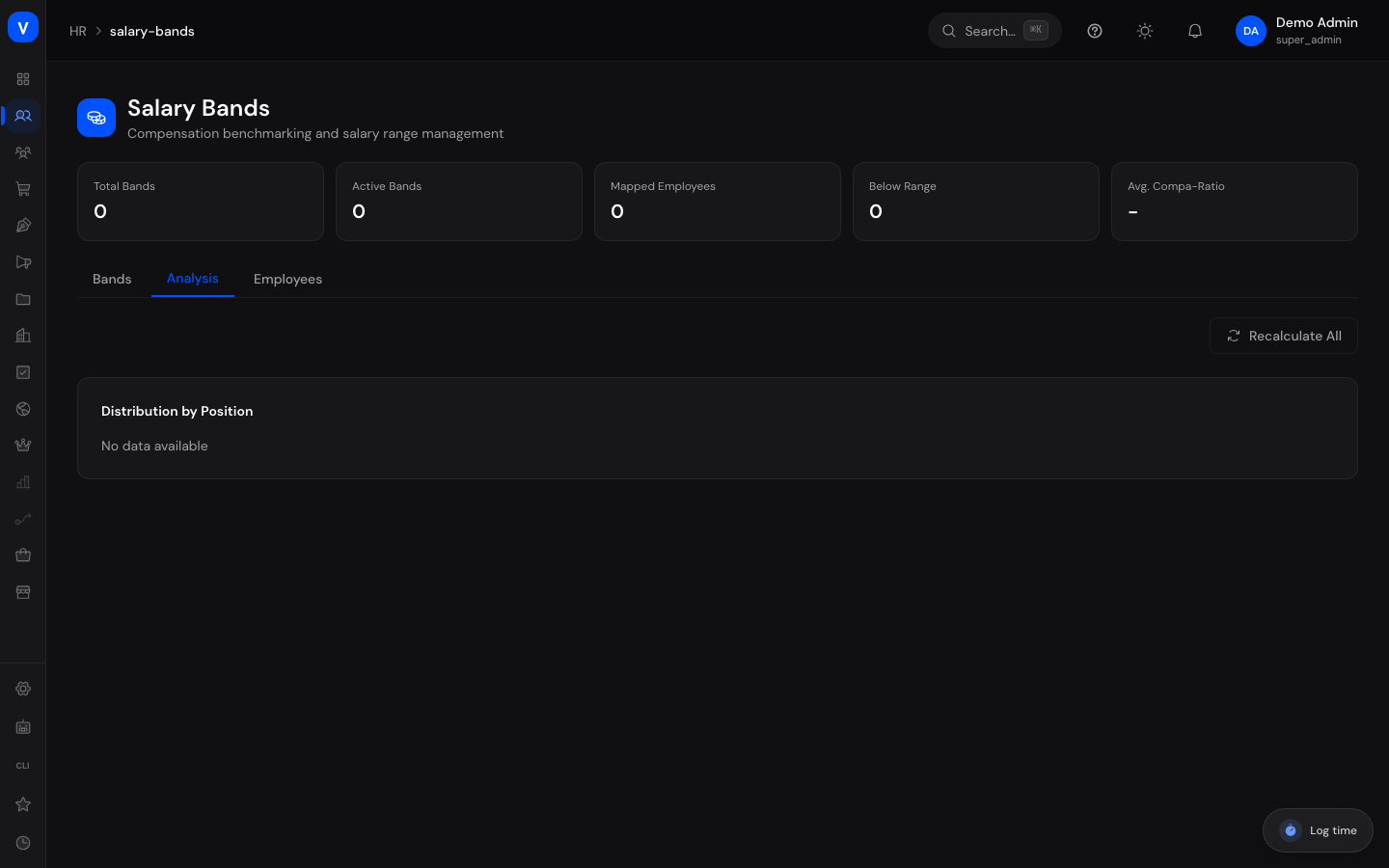
/hr/salary-bands?tab=analysisRefresh values after salary changes
- Switch to the Analysis tab.
- Click Recalculate All. The system recalculates the compa-ratio and position in band for every mapping.
Review employee mappings
- Switch to the Employees tab.
- Filter by position in band if needed (e.g. only Below) to focus on cases that need attention.
- The small bar graphic in the Band Range column shows where the employee's salary sits within their band. Use the trash icon to remove a mapping (confirmation prompt: "Remove employee from this band?").
/hr/salary-bands?tab=employeesFields explained
| Field | Meaning | Notes/Impact |
|---|---|---|
| Name | Label of the salary band | Required, e.g. "Junior Marketing" |
| Department | Department the band belongs to | Shown in the table; "-" if none is set |
| Career Level | Seniority level the band applies to | Free text, e.g. "Senior" |
| Location | Location the band applies to | Optional; also considered by the search |
| Currency | Currency of the salary limits | EUR, USD, GBP, or CHF |
| Min | Lower limit of the salary band | Required; must be less than or equal to Max |
| Mid | Target value at the middle of the band | Optional; basis for the compa-ratio calculation |
| Max | Upper limit of the salary band | Required |
| Active | Whether the band is currently in use | Inactive bands are kept but don't count as "Active Bands" |
| Range | Span from Min to Max | Shown in the bands table |
| Employees | Number of employees mapped to the band | Shown in the bands table |
| Salary | Current salary of the mapped employee | Shown in the Employees tab and in the outliers list |
| Compa-Ratio | Ratio of the salary to the band midpoint | 1.00 = exactly at the midpoint; 0.90 = 10% below; "-" if the band has no midpoint |
| Band Range | Graphic showing where the salary sits in the band | Dot red = below Min, green = within band, purple = above Max |
| Position | Where the salary sits within the band | See "Position in band" below |
Values & status
Position in band
| Label | Plain-language meaning | What happens then |
|---|---|---|
| Below | The salary is beneath the band's lower limit | Highlighted red, counted in "Below Range", and listed under outliers |
| Lower | The salary is within the band but well below the midpoint | Amber highlight; not an outlier |
| Mid | The salary is around the band midpoint | Green highlight — the target zone |
| Upper | The salary is within the band but well above the midpoint | Blue highlight; not an outlier |
| Above | The salary is above the band's upper limit | Purple highlight, counted in "Above Range", and listed under outliers |
Status (band)
| Label | Plain-language meaning | What happens then |
|---|---|---|
| Active | The band is in use | Counted in the "Active Bands" figure |
| Inactive | The band is currently not used | Stays visible and editable but doesn't count as active |
FAQ
What does the compa-ratio mean?
It shows how an employee's salary compares to the midpoint of their salary band. A compa-ratio of 1.00 means: exactly on target. 0.85 means: 15% below the midpoint. If the band has no midpoint, "-" is shown.
Why is an employee marked as "Below"?
Their current salary is beneath the lower limit (Min) of their salary band. Such cases also appear in the outliers list on the Analysis tab — a signal to review the salary or the band assignment.
I changed a band's salary limits — why do the employees' positions look outdated?
Position in band and compa-ratio are not automatically refreshed on every band change. Click Recalculate All on the Analysis tab to bring all values up to date.
Can I delete a band that still has employees mapped to it?
Deleting always asks for confirmation ("Really delete this salary band?"). If you only want to retire a band temporarily, untick Active instead — that keeps all data intact.
Who can create and edit bands?
Only users with the salary band management permission (or the general HR management permission). Everyone else sees the page read-only — the add, edit, and delete buttons are hidden.