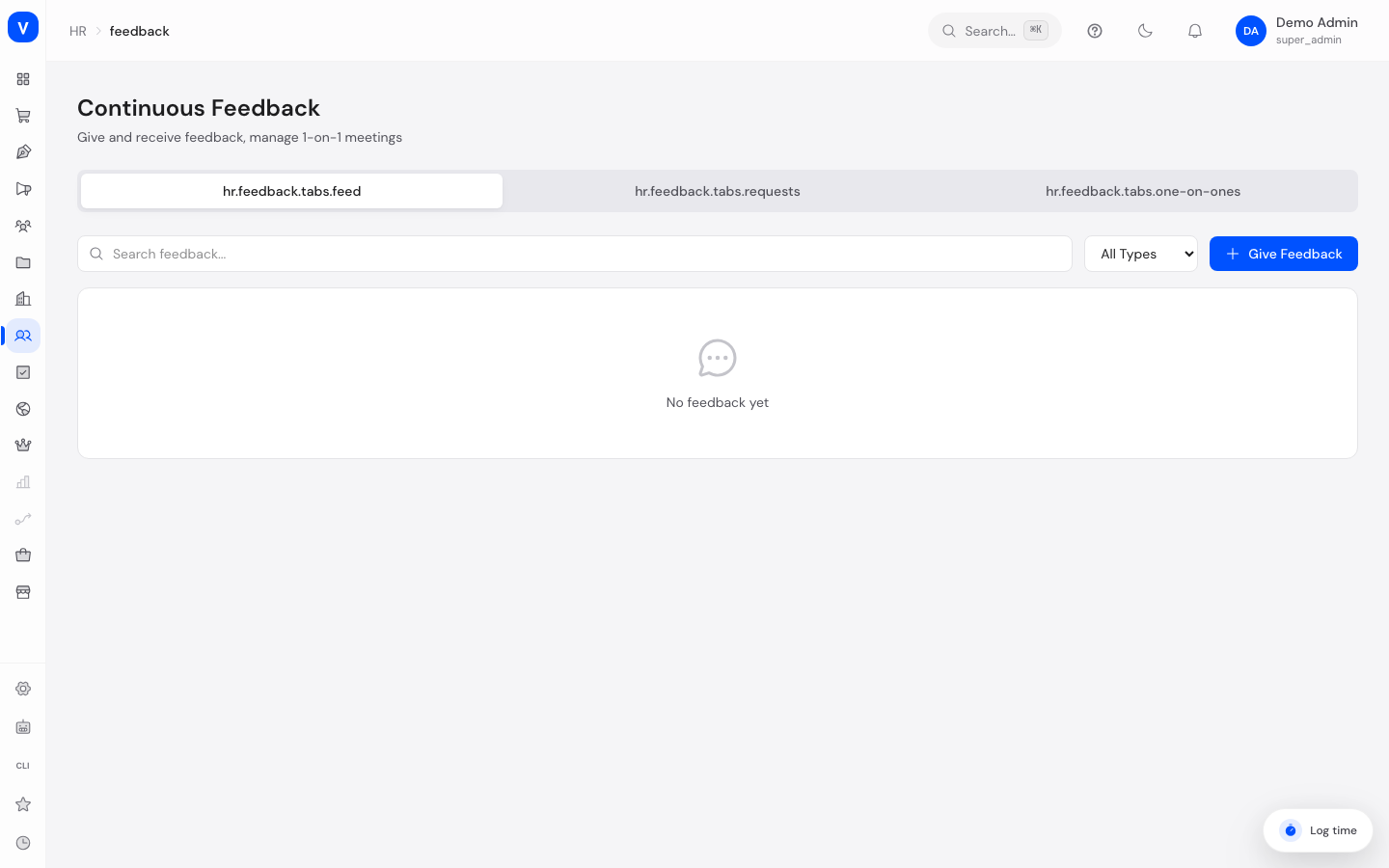
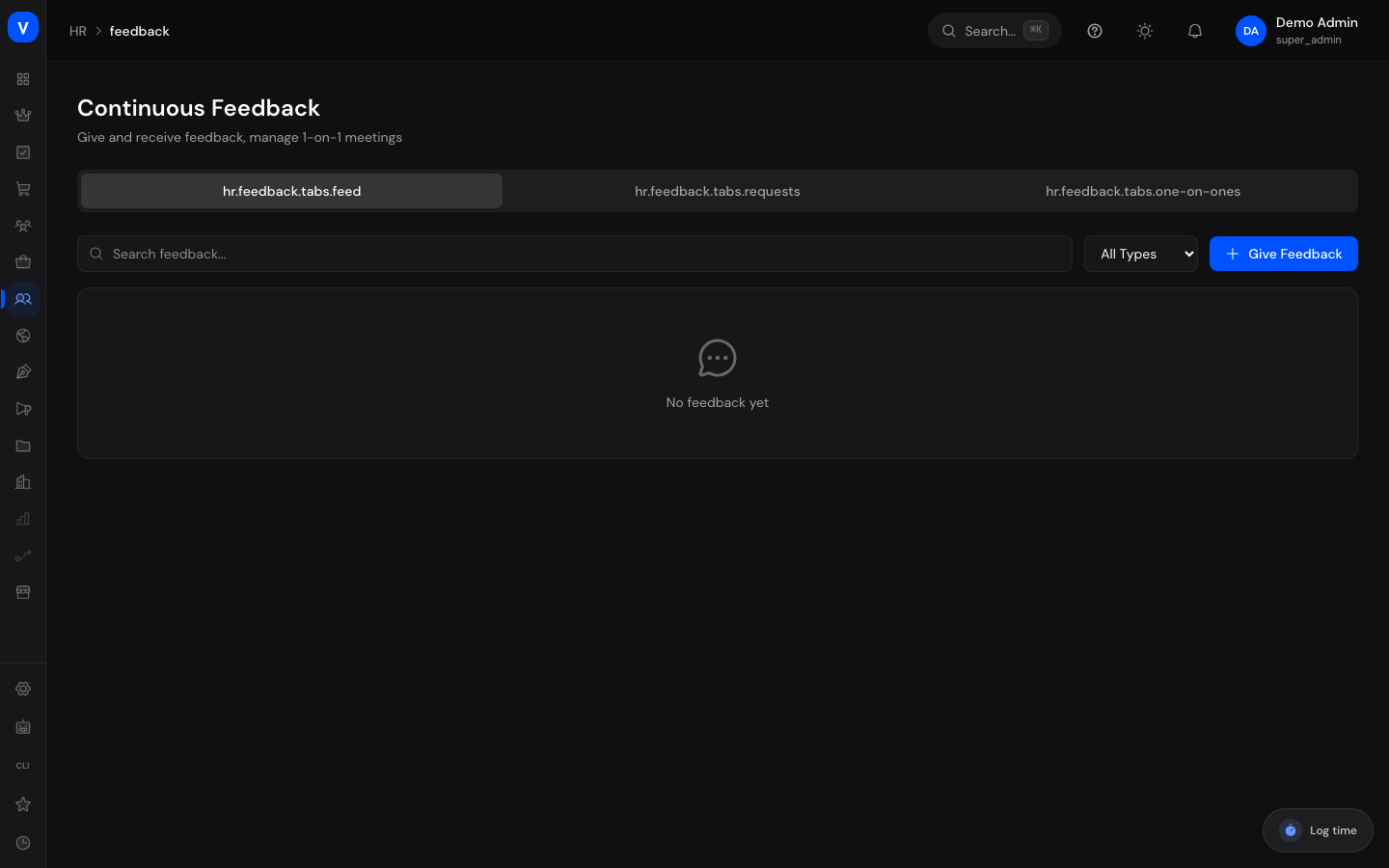
Continuous Feedback
This page is where you manage ongoing feedback between employees — separate from the annual performance review. You can see all feedback that has been given, any open requests for feedback, and scheduled 1-on-1 meetings between managers and their team members, all in one place.
What can I do here?
- Send feedback to a specific person (praise, a suggestion, a coaching note, or general feedback)
- Search and filter the whole feedback feed by type
- Delete a piece of feedback you gave
- Request feedback about one person from another person
- Mark open feedback requests as completed or declined
- Schedule 1-on-1 meetings between a manager and an employee
- Mark a scheduled 1-on-1 as completed, or delete it
- Filter every list by status; the current view stays in the link so you can share it
/hr/feedbackStep by step
Give feedback
- Open the Feed tab.
- Click Give Feedback.
- Enter the employee ID of the person who should receive the feedback.
- Choose the type (Praise, Suggestion, Coaching, General) and the visibility (Private, Visible to Manager, Public).
- Write the feedback text.
- Optionally turn on Send anonymously if you don't want your name shown.
- Click Send.
Note: you cannot give feedback to yourself — the system blocks that attempt.
Request feedback
- Open the Requests tab.
- Click Request Feedback.
- Enter the employee ID of the person you want feedback from (From whom?).
- Optionally add a message.
- Click Send.
- Once the requested person responds, use the green/red buttons to mark the request as Completed or Declined.
A request can only be answered once — once it is completed, declined, or expired, the action buttons disappear.
Schedule a 1-on-1
- Open the 1-on-1s tab.
- Click Schedule 1-on-1.
- Enter the employee ID, the date/time, and the duration in minutes (5–480 minutes).
- Click Schedule.
- After the meeting, click the green checkmark to mark it as Completed, or the trash icon to delete it.
You cannot schedule a 1-on-1 with yourself — the system blocks that attempt too.
flowchart LR
    A[Request feedback] --> B{Status: Pending}
    B -->|Person responds| C[Mark as Completed]
    B -->|Person declines| D[Mark as Declined]
    B -->|Deadline passes| E[Expired]
Fields explained
| Field | Meaning | Notes/Impact |
|---|---|---|
| Recipient | Employee ID of the person receiving the feedback | Required when giving feedback |
| Type | Category of the feedback (Praise, Suggestion, Coaching, General) | Determines the icon and color shown in the feed, and the filter |
| Visibility | Who is allowed to see the feedback (Private, Visible to Manager, Public) | Controls how widely the feedback is visible |
| (Feedback text) | The actual feedback content | Up to 5000 characters |
| Send anonymously | Hides the sender's name | When on, the feed shows "Anonymous" instead of a name, and the sender's identity is not stored linked to the feedback |
| From whom? | Employee ID of the person feedback is requested from | Required when requesting feedback |
| Message | Optional note attached to the request | Shown to the requested person along with the request |
| Employee (for 1-on-1) | Employee ID of the person the meeting is with | Required when scheduling a 1-on-1 |
| Scheduled At | Date and time of the 1-on-1 meeting | Required |
| Duration (min) | Planned length of the meeting in minutes | Must be between 5 and 480 minutes |
Values & status
Feedback type
| Label | Meaning | Impact |
|---|---|---|
| Praise | Positive recognition for an achievement or behavior | Highlighted in green in the feed |
| Suggestion | A constructive improvement idea | Highlighted in amber in the feed |
| Coaching | A targeted development note | Highlighted in the brand color in the feed |
| General | Any other feedback that doesn't fit the other categories | Highlighted neutrally (gray) in the feed |
Visibility
| Label | Meaning | Impact |
|---|---|---|
| Private | Only the recipient can see the feedback | Default when creating feedback |
| Visible to Manager | The recipient's manager can also read it, in addition to the recipient | Commonly used for coaching feedback |
| Public | Visible to everyone with feedback access | Widest visibility, e.g. for public praise |
Request status
| Label | Meaning | Impact |
|---|---|---|
| Pending | The request is still waiting for a response | Shows the Complete/Decline buttons |
| Completed | The requested person responded and the request was confirmed | No longer editable; the completion time is recorded |
| Declined | The requested person declined the request | No longer editable |
| Expired | The request wasn't answered in time | No longer editable |
1-on-1 status
| Label | Meaning | Impact |
|---|---|---|
| Scheduled | The meeting hasn't happened yet | Shows the Complete button |
| Completed | The meeting has taken place | Set via the green checkmark button |
| Cancelled | The meeting will not take place | Available as a filter option |
| Rescheduled | The meeting was moved to a different time | Available as a filter option |
FAQ
Can the recipient see who sent them anonymous feedback?
No. When feedback is sent anonymously, the feed shows "Anonymous" instead of a name, and the sender's identity is not stored linked to that feedback entry.
Can I give myself feedback or schedule a 1-on-1 with myself?
No, the system prevents this both when giving feedback, requesting feedback, and scheduling a 1-on-1 meeting.
Can I change a feedback request after it has been answered?
No. Once a request is completed, declined, or expired, its status can no longer be changed.
Where do employees see their own feedback?
Employees see their own given and received feedback, plus their 1-on-1 meetings, in the self-service area ("My Feedback") — this admin page is for the HR/manager perspective.
What happens when I delete a piece of feedback?
It is permanently removed from the feed and is no longer visible afterward.
Can I filter by more than one thing at once?
In the feed you can filter by search text and type at the same time; requests and 1-on-1s each have their own status filter. Your chosen filters stay in the address bar, so you can share them as a link.