Recruitment
This page manages the entire hiring process: from posting a job opening through the candidate pipeline to converting a candidate into an employee. You create openings, move candidates through the hiring stages, evaluate them with forms, and communicate with them directly.
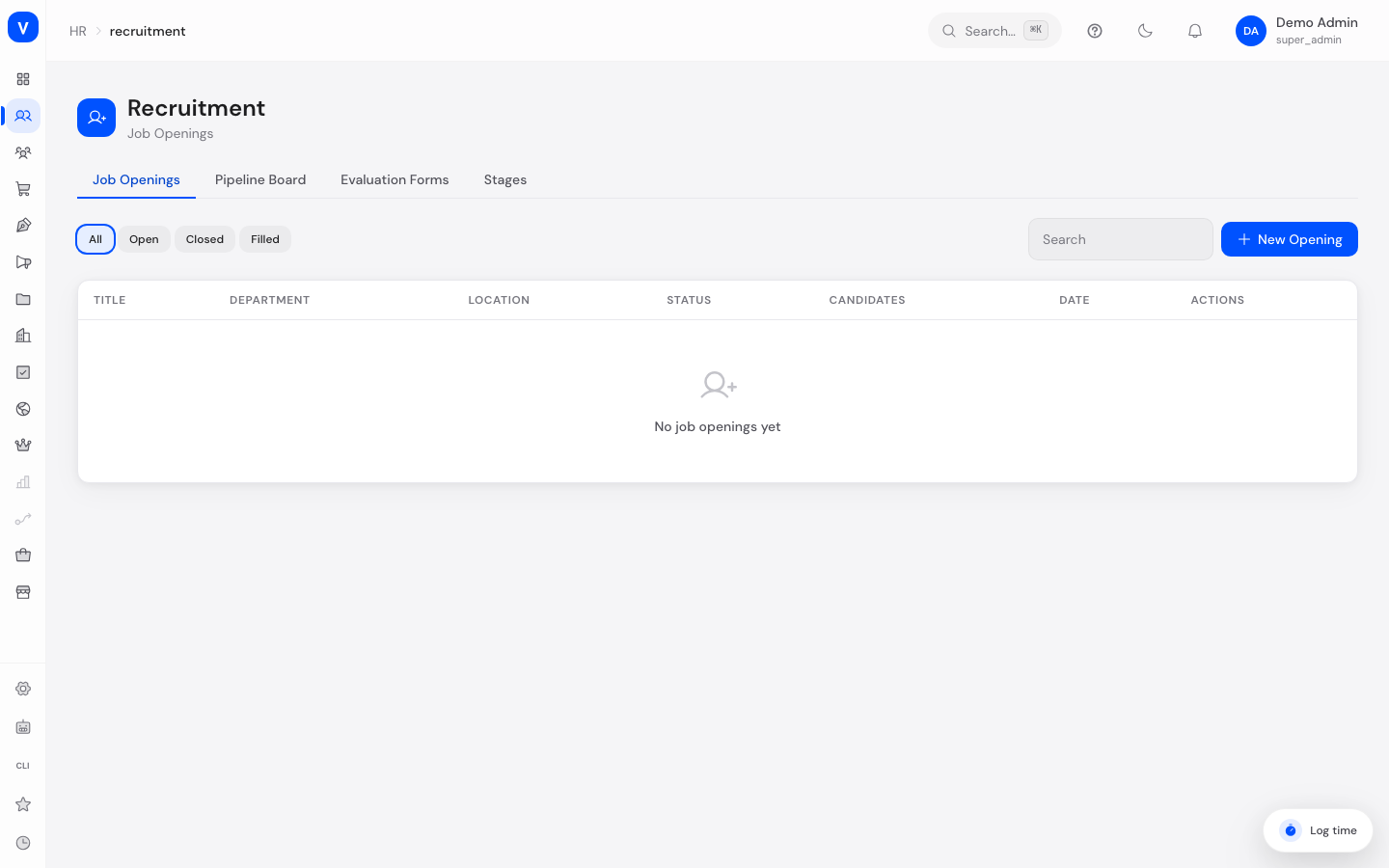
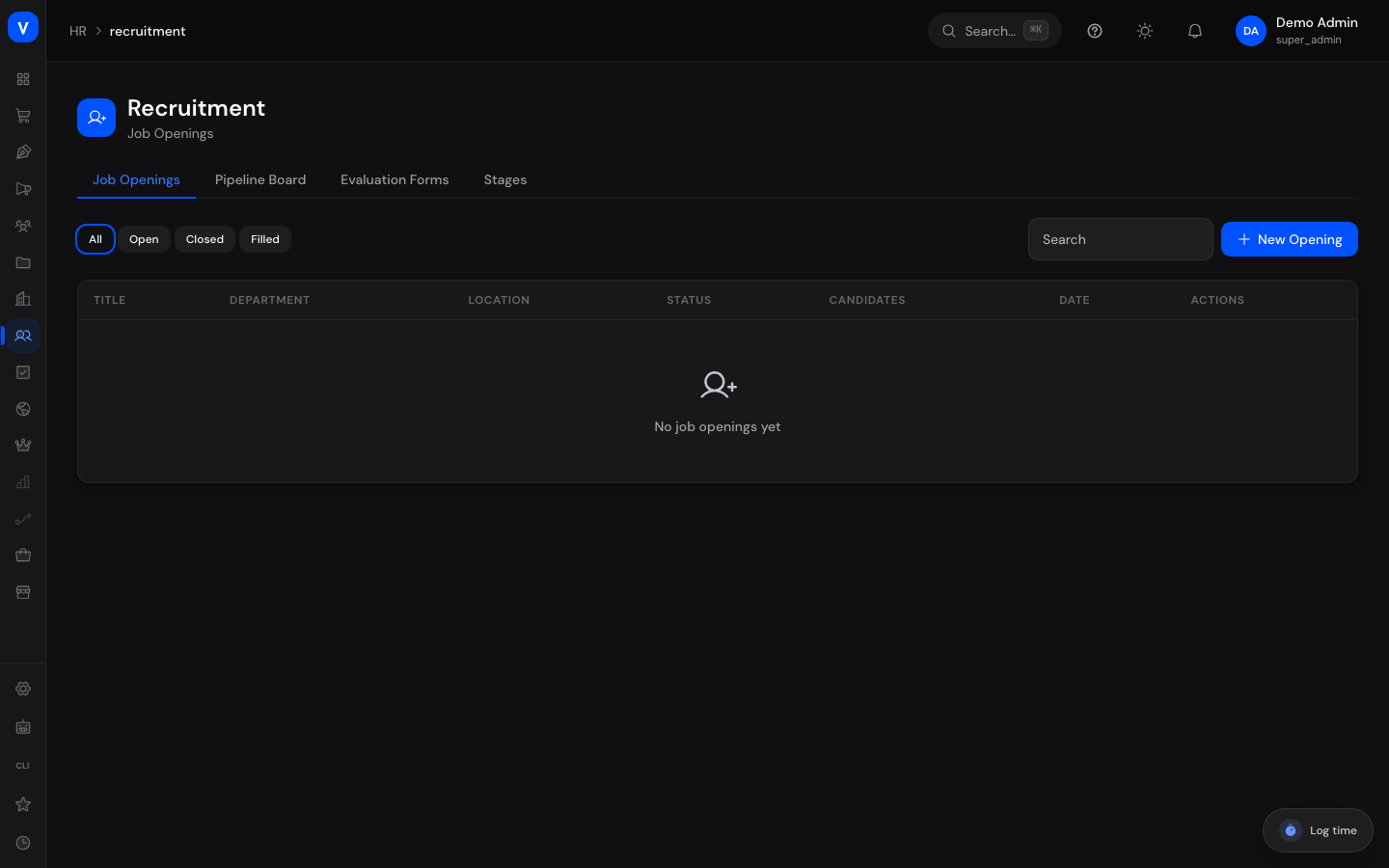
/hr/recruitmentWhat can I do here?
- Create, edit, delete job openings and manage their status (open/closed/filled).
- Add candidates to an opening and upload/download their CV.
- Move candidates through a pipeline board by hiring stage (Applied → Screening → Interview → Offer → Hired/Rejected).
- Reject candidates, with an optional rejection reason and comment.
- Create evaluation forms with custom criteria for interviews and record evaluations with an overall rating and recommendation.
- Configure hiring stages (including your own additional custom steps).
- Communicate with candidates through a messaging feature.
- Keep internal notes on a candidate.
- Convert a candidate in the "Offer" stage into a real employee record.
Step by step
- Post an opening — In the "Job Openings" tab, click "New Opening" and enter title, department, location, and description.
- Add candidates — Click an opening to open its pipeline, then add new candidates with name, email, and phone number.
- Move through the stages — On the pipeline board (tab "Pipeline Board"), move candidates to the next stage, or use "Move to Stage" in the candidate detail view.
- Evaluate and decide — For candidates in the interview stage, submit an evaluation using an evaluation form; then, for candidates in the "Offer" stage, either click "Convert to Employee" once they accept, or reject them.
Fields explained
| Field | Meaning | Notes/Impact |
|---|---|---|
| Title (opening) | Name of the job opening | Shown in the list and when adding candidates |
| Department | Department the opening belongs to | Optional |
| Location | Work location for the opening | Optional |
| Description (opening) | Free-text job description | Optional |
| Status (opening) | Open, Closed, or Filled | Controls whether the opening is treated as active |
| First/Last name (candidate) | Candidate's name | Required when adding a candidate |
| Candidate's contact email | Required, also used for messaging | |
| Phone | Candidate's phone number | Optional |
| Stage | Candidate's current hiring stage | See "Hiring stage" below |
| CV | Uploaded résumé file | PDF, office document, or image, up to 10 MB |
| Note | Internal remark about a candidate | Visible internally only, never sent to the candidate |
| Message | Direct communication with the candidate | Optional subject |
| Evaluation form | Template with criteria used for an evaluation | Can be set as the default form per opening |
| Criterion/Weight | Individual evaluation criterion in the form and its weight | Determines how strongly a criterion counts toward the overall rating |
| Overall rating | Summary result of an evaluation | Recorded per submitted evaluation |
| Recommendation | The evaluator's assessment | See "Recommendation" below |
| Rejection reason | Optional reason given when rejecting a candidate | Selected when rejecting on the pipeline board |
Values & status
Job opening status
| Value | Meaning | What happens then |
|---|---|---|
| Open | The opening is actively accepting applications | Shown as "open" in filters |
| Closed | The opening was closed without being filled | No longer counted as active |
| Filled | The opening was successfully filled | No longer counted as active |
Hiring stage
| Value | Meaning | What happens then |
|---|---|---|
| Applied | Application has been received | Starting stage for every new candidate |
| Screening | Candidate is being reviewed/shortlisted | Next step before the interview |
| Interview | Candidate is in the interview process | Evaluations can be submitted at this stage |
| Offer | Candidate has been made an offer | Enables converting the candidate to an employee |
| Hired | Candidate has been hired | Final stage for a successful application |
| Rejected | Candidate has been rejected | Final stage, application is closed |
In addition to these six default stages, custom in-between stages can be created under Hiring Stages settings.
Recommendation (on an evaluation)
| Value | Meaning |
|---|---|
| Strong Yes | Clear recommendation to move the candidate forward |
| Yes | Recommendation to move the candidate forward |
| Neutral | No clear leaning |
| No | Recommendation against the candidate |
| Strong No | Clear recommendation against the candidate |
FAQ
How do I upload a CV?
In the candidate detail view, under "CV", select the file. Allowed formats are PDF, Word, image, and plain-text files up to 10 MB.
How do candidates become employees?
Once a candidate reaches the "Offer" stage, a "Convert to Employee" button appears. After confirming, an employee record is automatically created from the candidate's data. This step cannot be undone.
What's the difference between notes and messages?
Notes are internal remarks visible only to your team. Messages are sent directly to the candidate.
Can I create my own hiring stages?
Yes, in the "Stages" tab you can add additional, freely named stages with their own color — for example for a second interview round.
What happens to candidates if I delete an opening?
Deleting a job opening also removes all of its candidates. This action cannot be undone.
Where do evaluation criteria come from?
They are defined in an evaluation form (tab "Evaluation Forms"), which can be set as the default for a given opening.