Time Tracker: Team Report
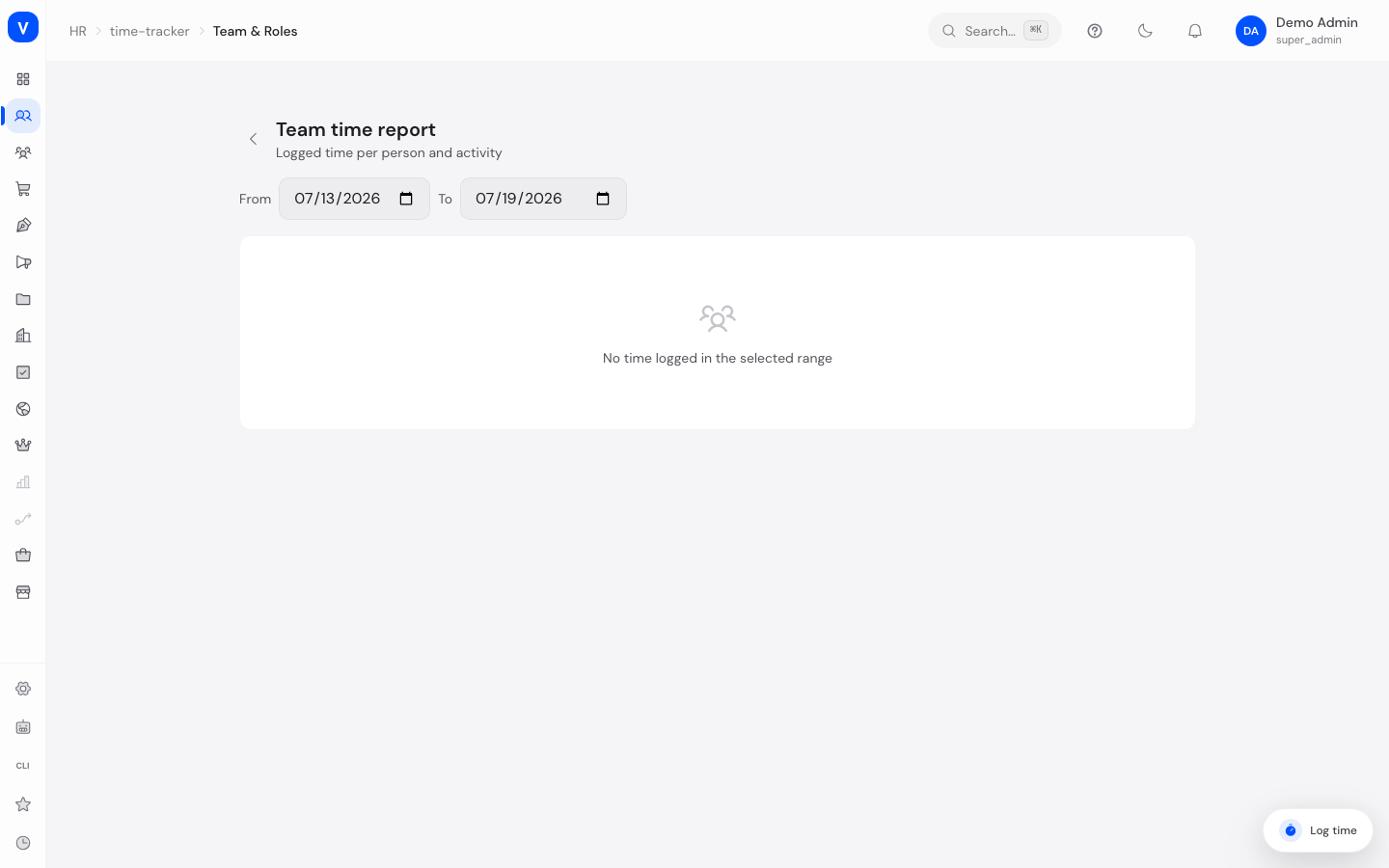
The team report shows managers how the time their team recorded in the Time Tracker is distributed across the different activity types — as a table with one row per person and one column per activity type.
/hr/time-tracker/teamWhat can I do here?
- For a freely chosen period (default: the current week), see how many hours each team member logged against tickets, calls, meetings, onboarding, tasks, internal work and other
- See the total per person
- Adjust the period using From/To date fields, and reset back to "This week" with one click
Step by step
- Choose a period: Use the "From" and "To" fields to set the desired range.
- Read the distribution: In the table, read each person's hours per activity type and their total.
- Return to your own day view: Use the back arrow in the top left.
Fields explained
| Field | Meaning | Notes/Effect |
|---|---|---|
| Person | Name of the team member | — |
| Columns per activity type | This person's summed hours for that activity type in the selected period | A dash means 0 hours |
| Total | Sum of all activity types for this person in the period | — |
Values & statuses
See Time Tracker for the list of activity types.
Frequently asked questions
Who can see this report?
Managers see the times for their own team; with the appropriate permission, company-wide reports are also possible.
What do I see if I don't have access or my team has no entries?
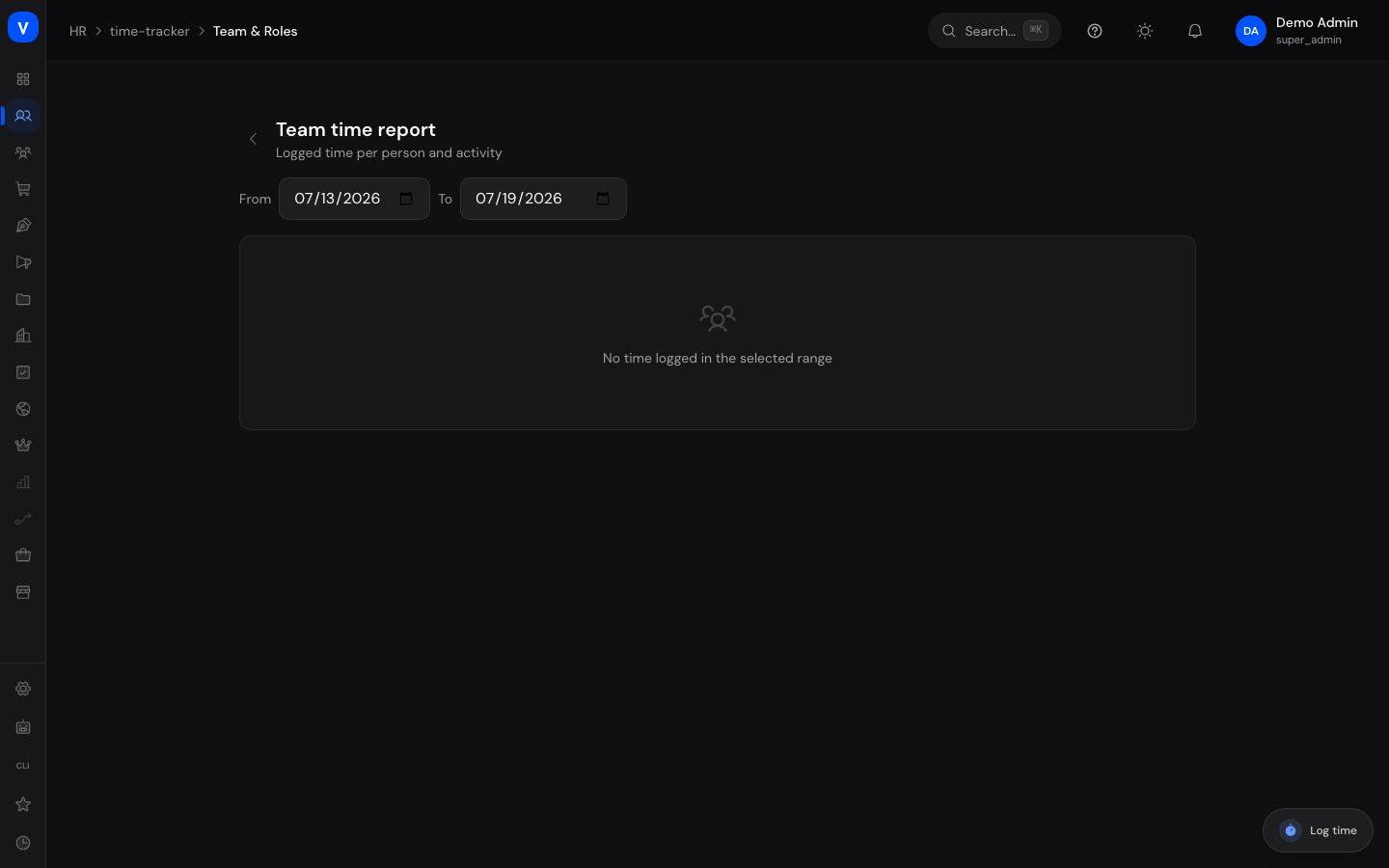
An empty view with an explanatory message instead of the table.