Training & LMS
This page is where you manage your company's training offering: the courses themselves, their scheduled dates (sessions), who is taking part, and how courses are grouped by topic. At a glance you can see which trainings exist, who is enrolled, and who has already completed a course. This view is for HR staff — employees see their own trainings in a separate self-service area.
What can I do here?
- Create, edit, and delete trainings (courses)
- Filter trainings by type and search by keyword
- View a training's sessions (scheduled dates) — location, time period, instructor, status
- View enrollments and filter them by status
- Create and delete categories to group trainings by topic
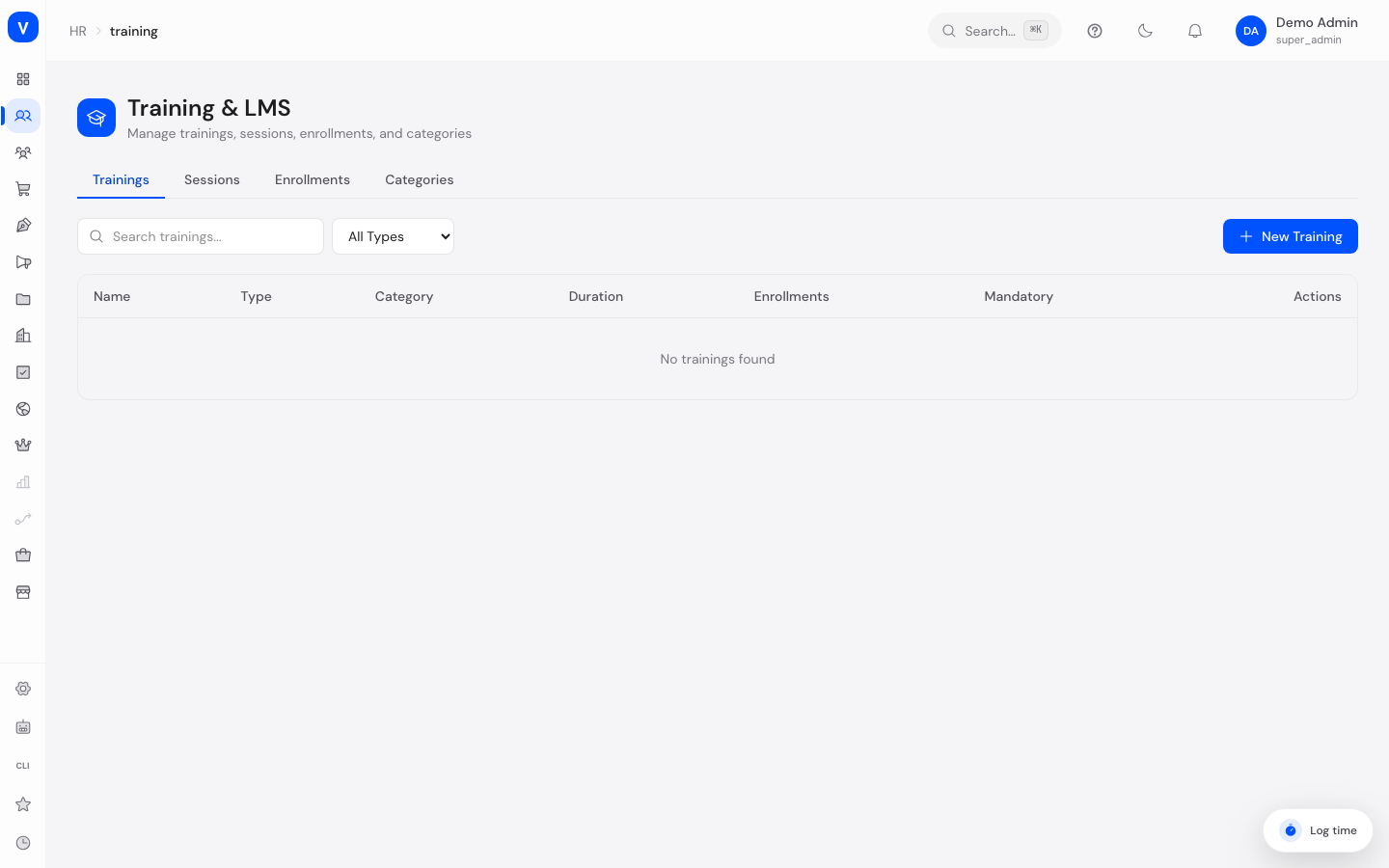
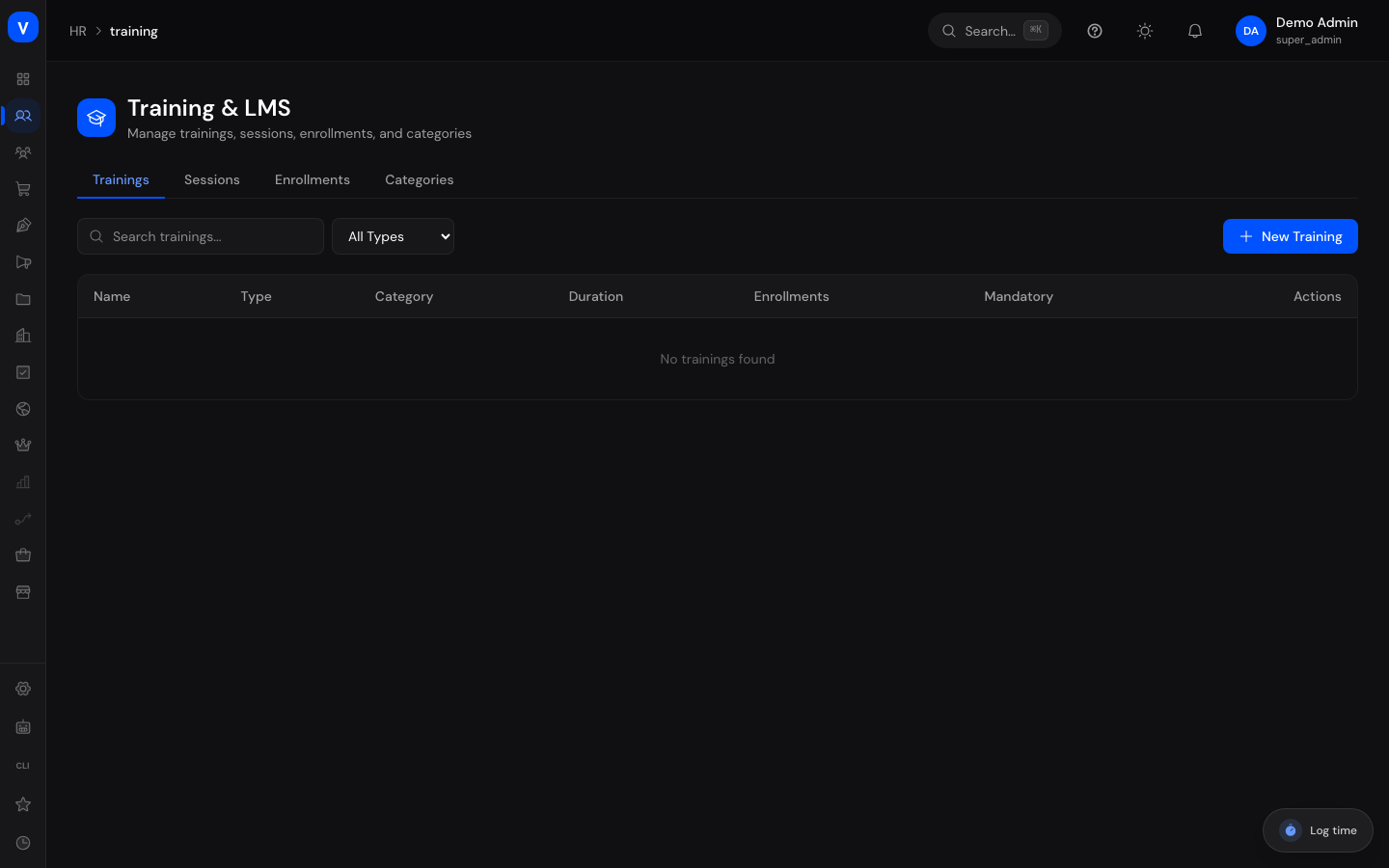
/hr/trainingStep by step
Create a new training
- Open the Trainings tab.
- Click New Training.
- Enter the name, description, category, and type.
- Optionally set the duration (in hours) and maximum number of participants.
- Check Mandatory if the training must be completed by certain employees.
- Click Save.
Edit or delete a training
- Find the training in the Trainings tab — use the search field or the type filter if needed.
- Click the three-dot menu in the row to edit its details, or the trash icon to delete it.
- A confirmation prompt appears when deleting — confirm to proceed.
Manage categories
- Open the Categories tab.
- Click New Category, give it a name, optionally a description and a color for easy recognition.
- Save the category — it will then be available as an option when creating a training.
- Categories no longer needed can be removed using the trash icon.
Check sessions and enrollments
- Open the Sessions tab and pick the training you want from the dropdown to see its scheduled dates (location, start and end date, instructor, status).
- Open the Enrollments tab to see which employees are enrolled in which training, filterable by status.
- For each enrollment you can see the enrollment date, completion date (if any), and the score achieved as a percentage.
Fields explained
| Field | Meaning | Notes/Impact |
|---|---|---|
| Name | Title of the training or category | Required when creating |
| Description | Free text explaining the content | Optional |
| Category | Topic group the training belongs to | Optional; shown as a column in the overview |
| Type | Delivery format of the training | Determines the colored label in the list, see "Values & status" |
| Duration | Time required for the training, in hours | Optional; shown as "Xh", "-" if empty |
| Enrollments | Number of employees currently enrolled | Calculated automatically from enrollments |
| Mandatory | Marks whether the training is compulsory | "Yes" is highlighted visually |
| Max Participants | Upper limit on the number of participants | Only visible in the create/edit form |
| Title (session) | Name of a single scheduled training date | Can be left empty |
| Location | Venue of the session | Optional |
| Start Date / End Date | Time period of the session | Determines when the session takes place |
| Instructor | Person leading the session | Optional |
| Employee | Person taking part in an enrollment | In the "Enrollments" tab |
| Training | Course an enrollment belongs to | In the "Enrollments" tab |
| Status | Current progress state (session or enrollment) | See "Values & status" |
| Enrolled At | Date the employee was enrolled | Set when the enrollment is created |
| Completed At | Date the training was completed | Set automatically once the status changes to "Completed" |
| Score | Result achieved, as a percentage | Only shown if a value has been recorded |
| Order | Sort position of a category in the list | Lower number = higher up |
| Active | Marks whether a category is currently usable | Inactive categories don't appear as an option for new trainings |
| Color | Color marker for a category | Purely for visual recognition |
Values & status
Training type
| Label | Plain-language meaning | What happens then |
|---|---|---|
| Online | Training takes place online | Shown with a blue label in the list |
| Classroom | Training takes place on-site | Shown with a purple label |
| Workshop | Interactive format | Shown with an amber label |
| Certification | Training leads to a certification | Shown with a green label |
| Onboarding | Induction training for new employees | Shown with a pink label |
Session status
| Label | Plain-language meaning | What happens then |
|---|---|---|
| Scheduled | Date is fixed but hasn't started yet | Default status when created |
| In Progress | Session is currently taking place | — |
| Completed | Session has ended | — |
| Cancelled | Session was cancelled | — |
Enrollment status
| Label | Plain-language meaning | What happens then |
|---|---|---|
| Enrolled | Employee is enrolled but hasn't started yet | Starting status of every new enrollment |
| In Progress | Employee is currently taking the training | — |
| Completed | Employee has successfully finished the training | The completion date is automatically set to "now" |
| Failed | Employee did not successfully complete the training | — |
| Cancelled | Enrollment was cancelled | — |
stateDiagram-v2
    [*] --> Enrolled
    Enrolled --> "In Progress"
    "In Progress" --> Completed
    "In Progress" --> Failed
    Enrolled --> Cancelled
    "In Progress" --> Cancelled
FAQ
Can I also enroll employees in a training from here?
This management page only lets you view enrollments and filter them by status. The actual enrollment happens elsewhere in the system.
Why is there no button to create a new session?
The "Sessions" tab lets you view existing scheduled dates for a selected training, but not create new ones directly.
What happens to enrollments when I delete a training?
This view doesn't show that. Check whether active enrollments still exist before deleting a training.
Can a category be deleted while trainings are still assigned to it?
The page doesn't show a warning for this — check the "Trainings" tab beforehand to see which courses belong to the category.
What is the "Mandatory" field for?
It marks trainings that certain employees are required to complete, and highlights them visually in the list.