Warehouse
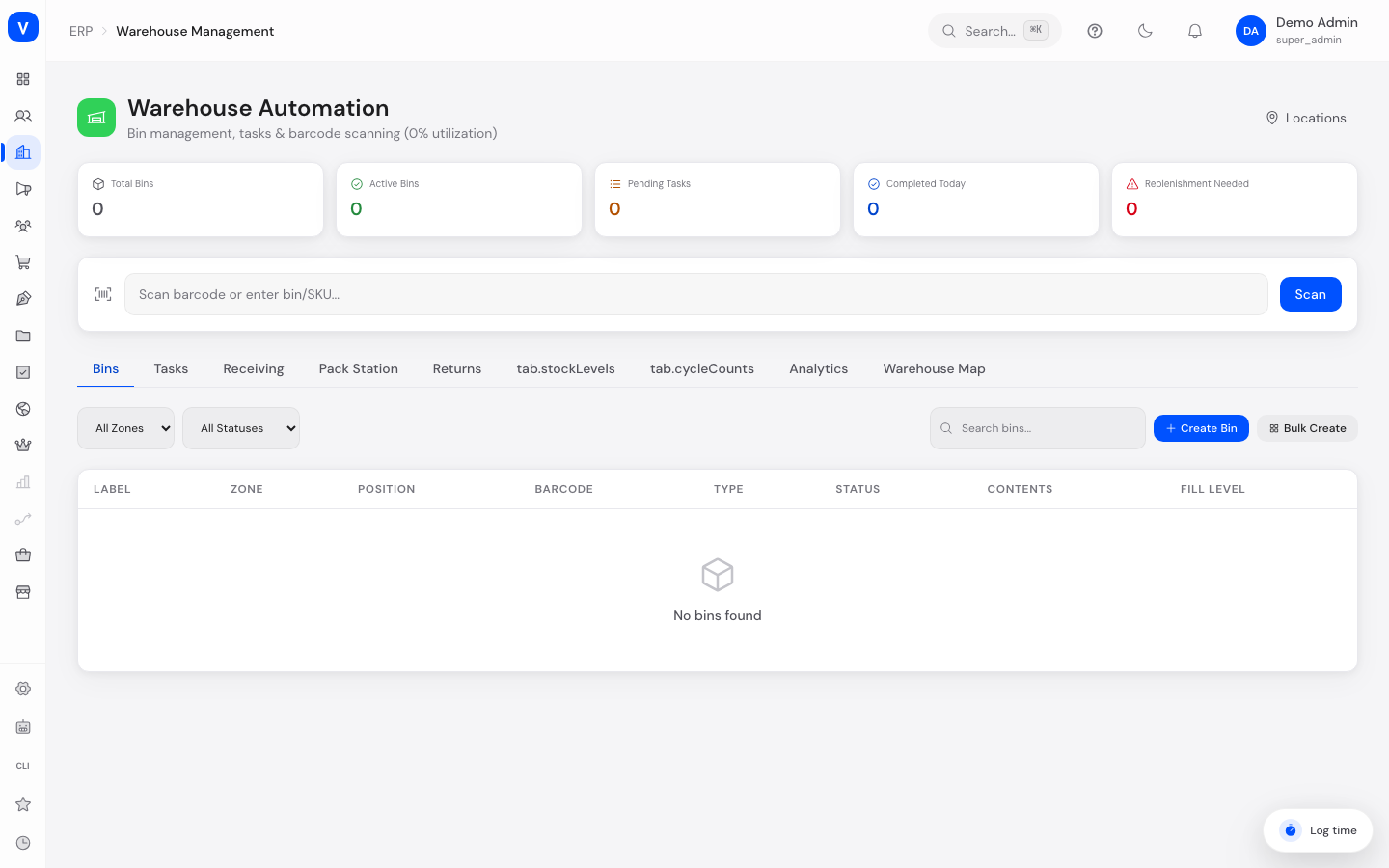
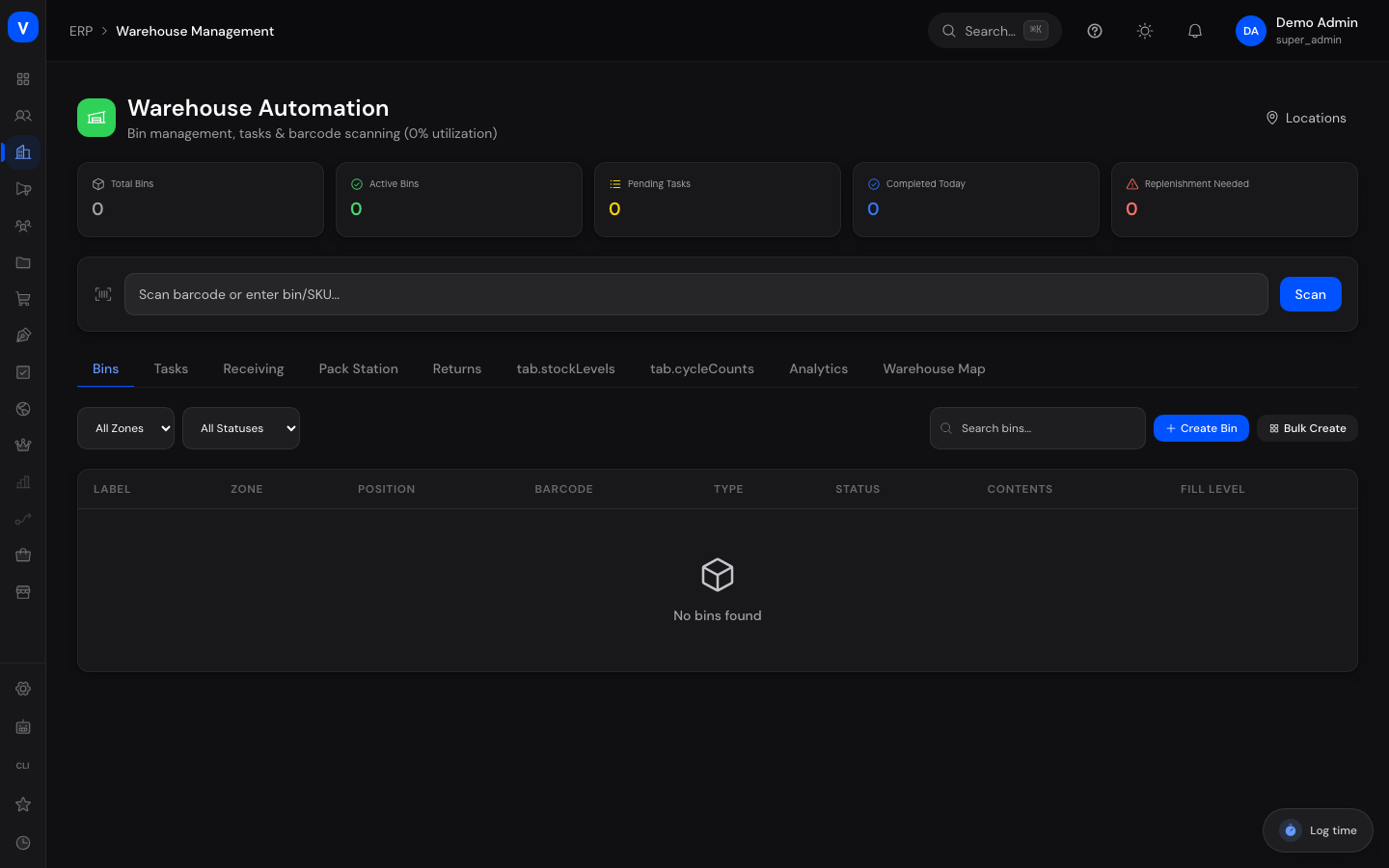
This is the operational control center for your warehouse: manage storage bins, assign tasks like put-away or picking, record goods receipts and returns, pack orders, and keep an eye on warehouse performance metrics.
/erp/warehouseWhat can I do here?
- Create storage bins one at a time or in bulk, and assign products to them
- Scan a barcode or bin/SKU to instantly see what's stored there
- Create, assign, start, and complete warehouse tasks (put-away, pick, relocate, replenish, cycle count)
- Start goods receipts (GRNs) and record line items with quantity and condition
- Pack orders at the pack station: scan items, choose a box, record weight
- Receive and inspect returns, then decide their disposition (restock or discard)
- View stock per bin, adjust it manually, and review the movement history
- Plan cycle counts (by bin or zone) and record actual quantities
- Review metrics on picks, put-aways, packing, accuracy, and utilization
- View bin occupancy as a map, grouped by zone and fill level
Step by step
- Create storage bins — Open the "Bins" tab → "Create Bin" for a single bin or "Bulk Create" for a whole aisle/shelf range → enter location, zone, aisle, shelf, bin, barcode, and bin type → Save.
- Work through a task — Open the "Tasks" tab → assign an open task → start it → confirm with "Complete" once done, optionally by scanning the barcode at the bin.
- Record a goods receipt — Open the "Receiving" tab → "Start Receiving" → choose a location and, optionally, a purchase order or transfer reference → for each delivered item, record the product, received quantity, condition, and target bin → complete the receipt.
- Inspect a return — Open the "Returns" tab → "New Return" with an RMA number and location → for each returned item, record its condition and disposition (e.g. restock, quarantine, dispose) → complete the return receipt.
Fields explained
| Field | Meaning | Notes/Effect |
|---|---|---|
| Zone / Aisle / Shelf / Bin | Position of a storage bin in the warehouse | Determines the bin ID and its order on the map view |
| Barcode | Unique scan code for the bin | Used to identify the bin when scanning |
| Label | Free-text label for the bin | Optional, makes recognition easier |
| Bin Type | Kind of storage bin | See value list below |
| Max Weight / Max Volume | Capacity limits for the bin | Optional, used for capacity planning |
| Pick-by-Light | Identifier for a connected pick-by-light system | Optional |
| Sort Order (Route) | Order in which bins are visited on a picking route | Optional |
| Task Type | Kind of warehouse task | See value list below |
| Source/Target Bin | Origin or destination bin of a task | Relevant for relocate/replenish |
| Priority | Urgency of a task | Affects ordering in the task list |
| Assignee | Employee working on the task | Set when the task is assigned |
| GRN Number | Receipt number of a goods receipt | Assigned automatically when started |
| Expected/Received/Rejected Qty | Expected, actually received, and rejected quantity per line item | Discrepancies are recorded on the receipt |
| Condition | State of a received or returned item | See value lists below |
| RMA Number | Reference number of the return authorization | Links the inspection to the original return |
| Disposition | Decision on what happens to an inspected return | See value list below |
| Order / Order Number | Order being packed at the pack station | Recorded when a packing session is started |
| Box Size | Packaging size chosen for shipping | From the list of configured box sizes |
Values & statuses
Bin type
| Value | Meaning | What happens |
|---|---|---|
| Standard | Normal storage bin | Suitable for most items |
| Bulk | Bin for large-volume quantities | For pallet/block storage |
| Cold Storage | Temperature-controlled bin | For items requiring refrigeration |
| Hazmat | Bin for hazardous materials | Subject to special handling requirements |
| Pick Face | Bin in the active picking area | Preferred for fast-moving items |
Bin status
| Value | Meaning | What happens |
|---|---|---|
| Active | Bin is ready for use | Can be stocked and picked from |
| Blocked | Bin has been blocked | No new stock in or out |
| Maintenance | Bin is out of service | No new stock in or out |
| Full | Bin has reached its capacity limit | Shown in red on the map view |
Task type
| Value | Meaning | What happens |
|---|---|---|
| Put-away | Goods are booked into a bin after receiving | Increases stock at the target bin |
| Pick | Goods are pulled from a bin for an order | Decreases stock at the source bin |
| Relocate | Goods are moved between two bins | Moves stock from the source to the target bin |
| Replenish | Goods are moved from reserve storage to a pick face | Often triggered by low stock at the pick face |
| Cycle Count | Physical count of a bin or zone | Compares actual against expected stock |
Task status
| Value | Meaning | What happens |
|---|---|---|
| Pending | Task was created but not yet assigned | Waits in the queue |
| Assigned | Task was assigned to an employee | Can now be started |
| In Progress | Task has been started | Currently being worked on |
| Completed | Task was finished | Stock was booked accordingly |
| Cancelled | Task was cancelled | No stock change |
Priority
| Value | Meaning |
|---|---|
| Low | No rush |
| Normal | Standard priority |
| High | Handle preferentially |
| Urgent | Handle immediately |
Receiving status
| Value | Meaning | What happens |
|---|---|---|
| In Progress | Receipt was started, line items are being recorded | Not yet completed |
| Completed | All line items were recorded and booked | Stock was increased |
| Cancelled | Receipt was discarded | No stock change |
Condition (receiving)
| Value | Meaning |
|---|---|
| Good | Item is in perfect condition |
| Damaged | Item is damaged |
| Expired | Item is past its best-before/expiry date |
Condition (returns)
| Value | Meaning |
|---|---|
| Like New | Item appears unused |
| Opened | Packaging was opened |
| Damaged | Item shows damage |
| Defective | Item does not work |
| Wrong Item | Returned item does not match the order |
Disposition (returns)
| Value | Meaning | What happens |
|---|---|---|
| Restock | Item is added back to sellable stock | Stock increases |
| Quarantine | Item is held back for now | No immediate stock release |
| Refurbish | Item needs to be repaired/reconditioned before a further decision is made | Not added to sellable stock until refurbishment is complete |
| Return to Supplier | Item is sent back to the supplier | Not added to own stock |
| Dispose | Item is discarded | Not added to stock |
| Pending | No disposition has been decided for the item yet | No stock change until a decision is made |
Frequently asked questions
Where can I see how many bins are still free?
On the "Map" tab — every bin is color-coded by fill level per zone (available, near full, full, blocked).
Do I have to assign a task before I can start it?
Yes, a task moves through the stages assigned → in progress → completed.
What's the difference between receiving and return receiving?
Receiving books in newly delivered goods (e.g. from a supplier purchase order). Return receiving inspects goods sent back by customers and decides, item by item, what happens to them next.
What happens to items marked "Quarantine"?
They are not added back to sellable stock until a further inspection takes place.