Payment Dashboard
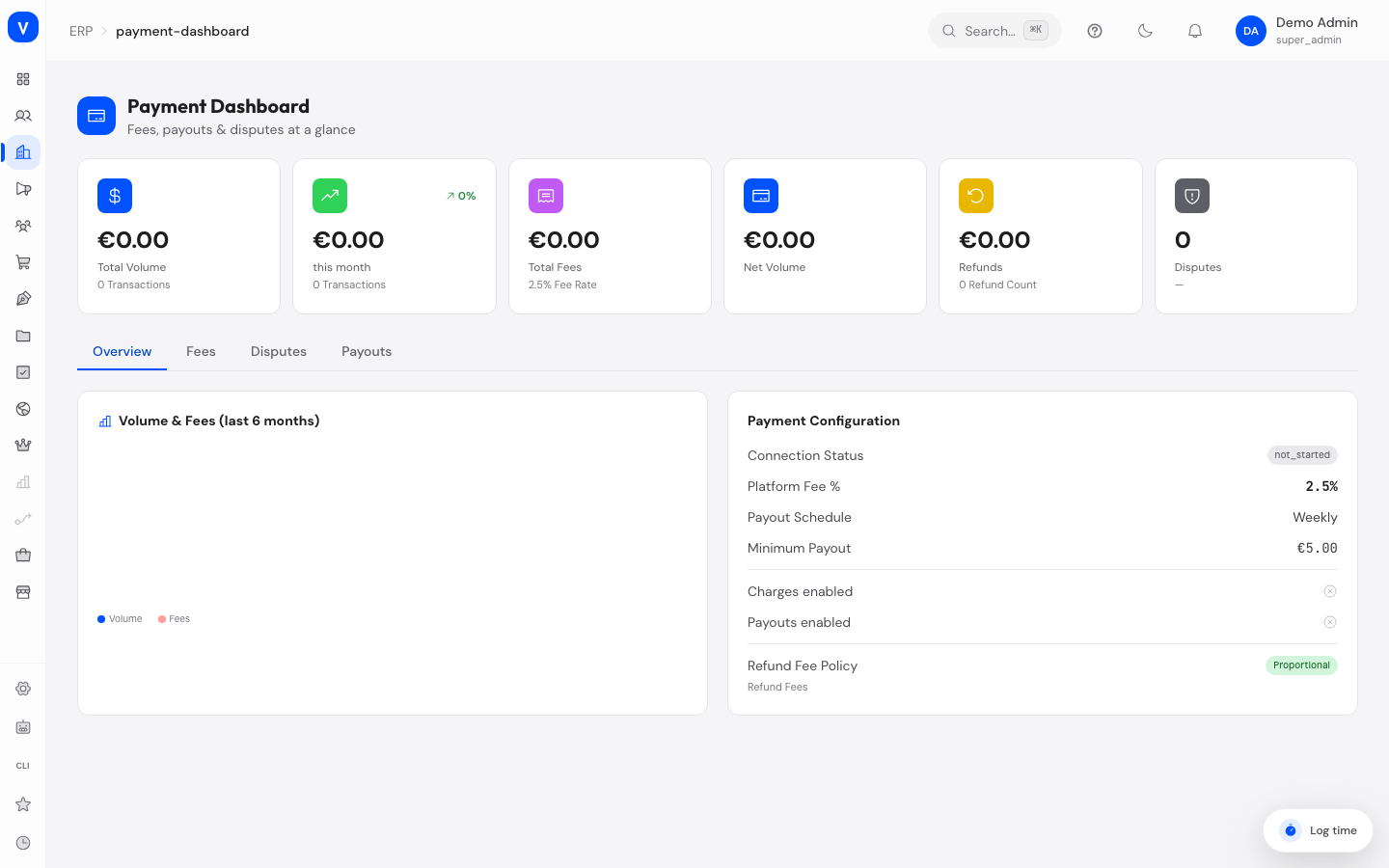
The Payment Dashboard gives you an overview of the online payments your customers make through SCS: how much revenue flows through card payments, what fees are charged along the way, whether there are any disputes (chargeback claims raised by a card issuer), and how your payouts (transfers of collected money to your bank account) are configured.
What can I do here?
- See key figures at a glance: total volume, this month's revenue including the change versus last month, total fees, net volume, refunds, and open disputes
- Use the "Overview" tab to see a bar chart of volume and fees over recent months, plus the current payment configuration
- Use the "Fees" tab to review the fee log for individual transactions
- Use the "Disputes" tab to review open and resolved disputes along with their deadlines
- Use the "Payouts" tab to view and edit the payout configuration (schedule, minimum amount, currency)
Step by Step
- Open the Payment Dashboard and review the KPIs and the volume/fees chart on the "Overview" tab.
- Switch to the "Fees" tab to trace individual transactions with their amount and calculated fee.
- Switch to the "Disputes" tab to check whether any open disputes have an evidence deadline coming up.
- Switch to the "Payouts" tab, click "Edit Configuration", adjust the schedule, minimum amount, or currency, and save with "Save".
/erp/payment-dashboardFields Explained
| Field / Element | Meaning | Notes/Impact |
|---|---|---|
| Total Volume | Sum of all card payments processed so far | KPI tile on the dashboard's landing view |
| this month | Revenue and transaction count for the current month, with the percentage change versus last month | Green up arrow for growth, red down arrow for a decline |
| Total Fees | Sum of all fees calculated by the system | Also shows the current fee rate |
| Net Volume | Total volume minus refund fees | Calculated automatically from the other KPIs |
| Refunds | Sum of refund fees and the number of refunds | KPI tile on the dashboard's landing view |
| Disputes (KPI) | Number of open disputes and their total amount | Highlighted in red whenever at least one dispute is open |
| Volume & Fees (chart) | Bar chart of recent months showing total volume and the fees contained within it | Only visible on the "Overview" tab |
| Connection Status | Status of the connection to the payment processor | See the "Values & Status" section |
| Platform Fee % | Percentage that SELLERLOGIC Commerce Services retains per transaction as a platform fee | Used as the basis for calculating total fees |
| Payout Schedule | How often collected money is transferred to you | Editable on the "Payouts" tab |
| Minimum Payout | Minimum amount that must have accumulated before a payout is made | Editable on the "Payouts" tab |
| Charges enabled / Payouts enabled | Shows whether card charges or payouts are generally enabled for your account | Display only, not editable here |
| Refund Fee Policy | Describes how a refund affects fees that were already charged | Currently set to "Proportional" |
| Order / Type / Order Amount / Fee / Fee % / Date (Fee Log) | Columns of the transaction table on the "Fees" tab: related order, transaction type, order amount, calculated fee, fee rate, and date | Newest entries appear at the top |
| Evidence due | Deadline by which evidence must be submitted for a dispute | Highlighted in red when the deadline is less than three days away |
| Evidence submitted | Number of evidence items already submitted for a dispute | Display only |
| Payout Schedule (edit) | Choice between daily, weekly, and monthly | Changed via "Edit Configuration" on the "Payouts" tab |
| Minimum Payout (EUR) | Input field for the new minimum amount in euros | Converted to cents when saved |
| Payout Currency | Choice of payout currency (EUR, USD, GBP, CHF) | Changed via "Edit Configuration" on the "Payouts" tab |
Values & Status
Connection Status
| Label | Meaning | What Happens Next |
|---|---|---|
| complete | The connection to the payment processor is fully set up | Charges and payouts can be processed normally |
| pending | Setup has started but is not yet finished | Some features may be limited until setup is complete |
| not_started | No connection to the payment processor has been set up yet | Charges/payouts are typically not yet active |
Transaction Type (Fee Log)
| Label | Meaning | What Happens Next |
|---|---|---|
| charge | A regular card payment from a customer | Counted in Total Volume and Total Fees |
| refund | A refund of a previous payment | Counted in the "Refunds" KPI |
| chargeback | A payment reversed by the customer's bank | Reflected in Total Volume and considered in the disputes view |
Dispute Status
| Label | Meaning | What Happens Next |
|---|---|---|
| open | The dispute is open and awaiting handling | Counted in the "Disputes" KPI on the landing view |
| under_review | The dispute is currently being reviewed by the payment processor/card issuer | Evidence has typically already been submitted |
| won | The dispute was decided in your favor | No money is lost |
| lost | The dispute was decided against you | The disputed amount is lost |
Payout Schedule
| Label | Meaning | What Happens Next |
|---|---|---|
| Daily | Payouts happen every day | Provided the minimum amount has been reached |
| Weekly | Payouts happen once a week | Provided the minimum amount has been reached |
| Monthly | Payouts happen once a month | Provided the minimum amount has been reached |
Frequently Asked Questions
What is the platform fee?
It is the percentage that SELLERLOGIC Commerce Services retains per card payment as a fee for processing the transaction. It is shown in the "Payment Configuration" section.
What does the arrow next to "this month" mean?
It shows whether this month's revenue has increased (green up arrow) or decreased (red down arrow) compared to last month, along with the percentage change.
What is the difference between Total Volume and Net Volume?
Total Volume covers all processed card payments. Net Volume subtracts refund fees from that, showing the amount that actually remains.
What should I pay attention to with an open dispute?
Check the evidence due date. If the deadline is less than three days away, it is highlighted in red on the dashboard so it doesn't get missed.
Can I change the payout schedule at any time?
Yes, on the "Payouts" tab via "Edit Configuration". The change applies to future payouts.
What does "Proportional" mean for the refund fee policy?
When a refund is issued, the previously charged fee is adjusted proportionally to the refunded amount, rather than staying unchanged or being fully waived.