Smart Categorization
Smart Categorization automatically suggests suitable product categories based on AI-powered analysis (AI = Artificial Intelligence) of the product title, description, and attributes. Instead of manually categorizing every product one by one, you review the suggestions and accept or reject them — very confident suggestions can also be applied automatically.
What can I do here?
- Have a single product analyzed by its product ID
- Have all products analyzed at once
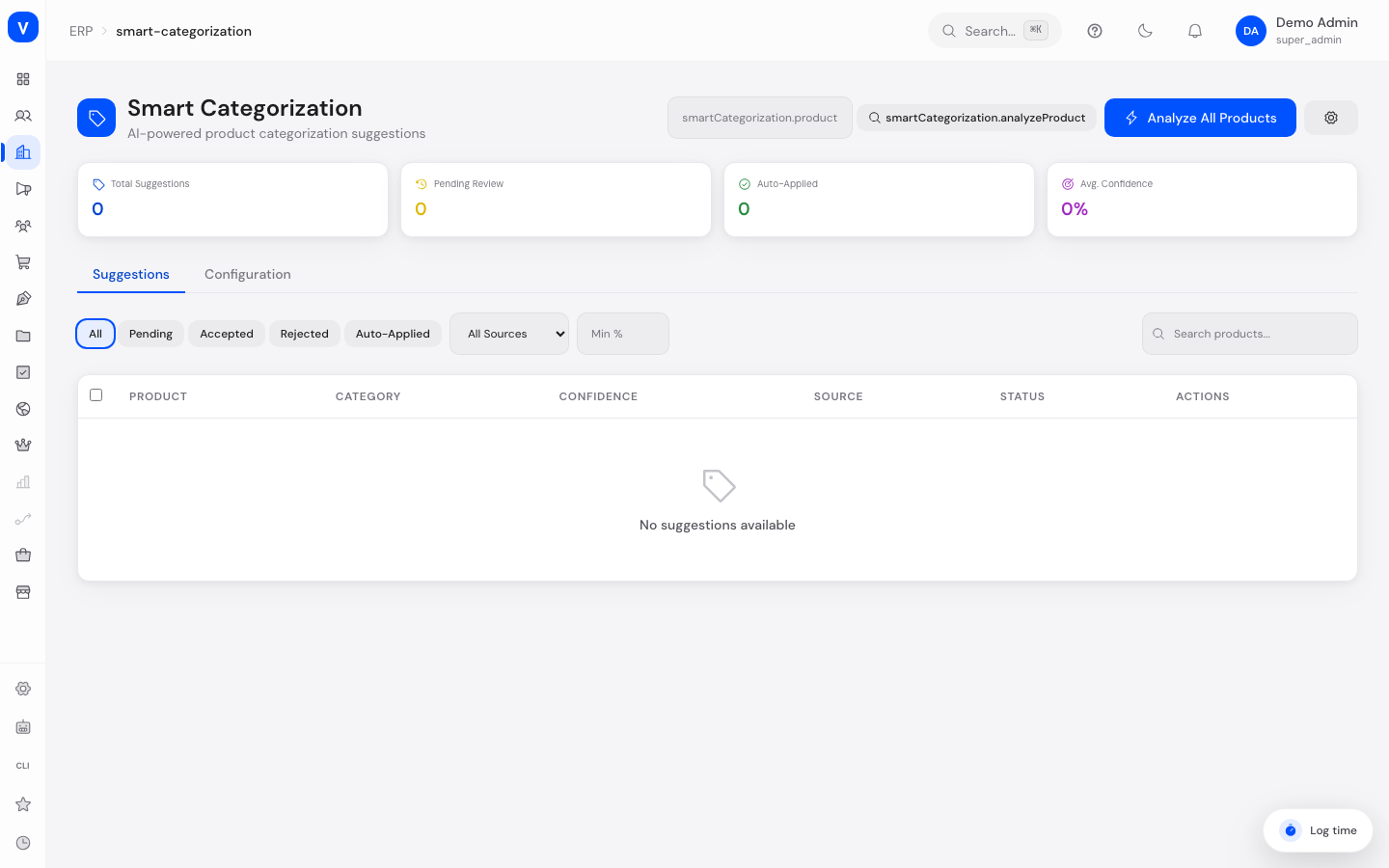
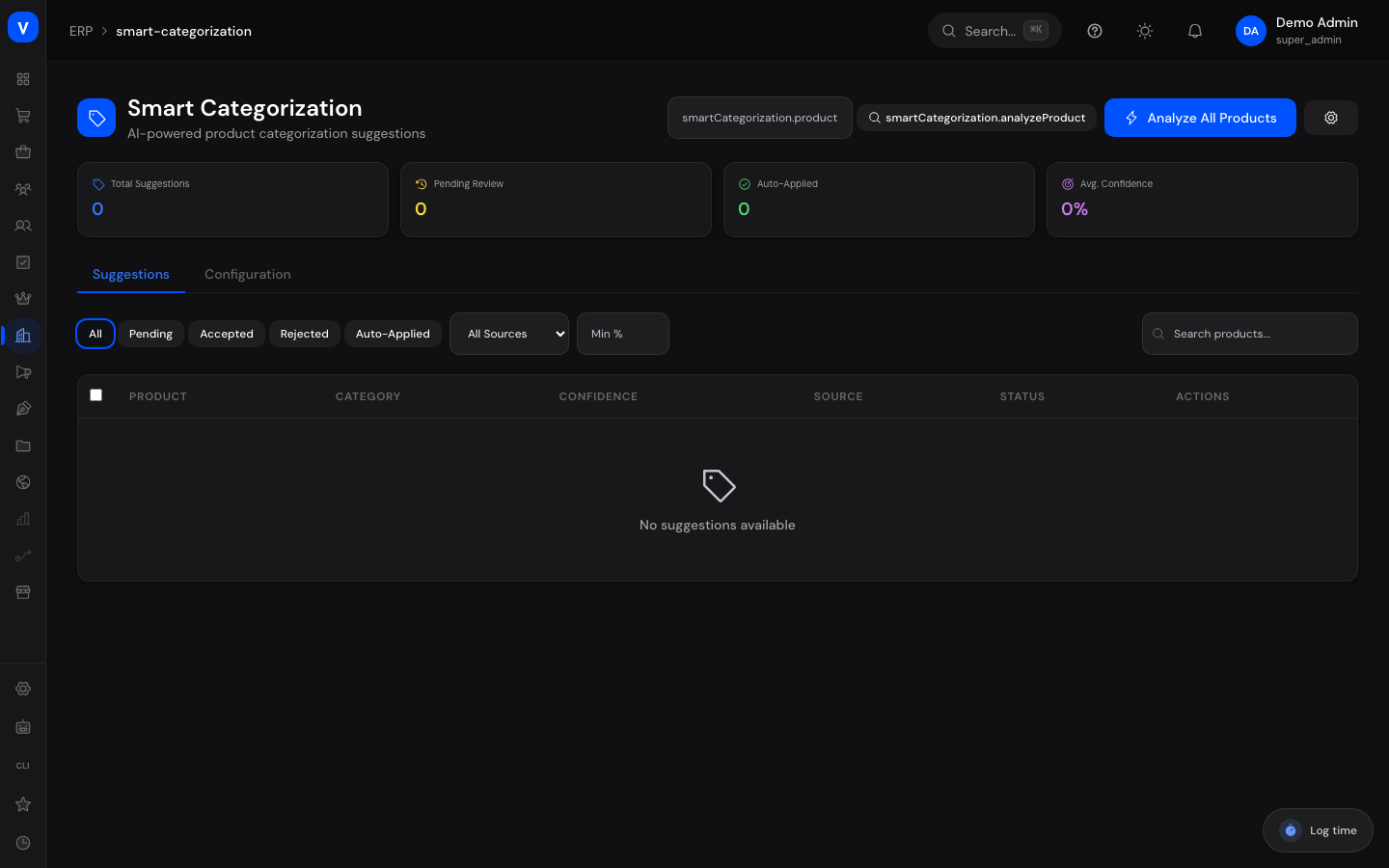
- View suggested categories, filter by status, source, minimum confidence, or search term
- Accept or reject individual suggestions
- Accept or reject multiple selected suggestions at once
- In the configuration, set the confidence level above which suggestions are applied automatically, and which analysis sources are active
/erp/smart-categorizationStep by Step
- Start an analysis: Click "Analyze All Products" to check all products at once, or enter a single product ID (product UUID) in the field next to it and click the analyze button to check only that one product.
- Review suggestions: Switch to the "Suggestions" tab. Each row shows the product, the current category (if any), the suggested category, the confidence (how sure the suggestion is, as a percentage), the source of the suggestion, and its status.
- Review individually: For a suggestion with status "Pending", use the checkmark or X button to accept or reject it directly.
- Review multiple at once: Select several pending suggestions using the checkboxes and click "Accept All" or "Reject All" to process them together.
Optionally, in the "Configuration" tab (gear icon) you can adjust the auto-apply threshold and the active analysis sources — suggestions with a confidence above the threshold are then applied automatically without requiring your manual confirmation.
Fields Explained
| Field | Meaning | Notes/Impact |
|---|---|---|
| Product | Name of the analyzed product | — |
| Current Category | Category the product is currently assigned to | May be empty if the product has no category yet |
| Suggested Category | New category suggested by the analysis | Becomes the product's new category if accepted |
| Confidence | How confident the suggestion is, as a percentage | The higher the value, the more reliable the suggestion; above the configured threshold, it is applied automatically |
| Source | Analysis method that produced this suggestion | See "Source" section below |
| Status | Review status of the suggestion | See "Status" section below |
| Product ID (input field) | UUID of the product for single-product analysis | Only needed for analyzing one specific product |
| Auto-Apply Threshold (configuration) | Confidence percentage above which suggestions are applied automatically | Default is 90% |
| Enabled Sources (configuration) | Which analysis methods are used to produce new suggestions | Disabled sources produce no new suggestions |
Values & Status
Status
| Label | Plain-language meaning | What happens next |
|---|---|---|
| Pending | The suggestion is waiting for your decision | Can be accepted or rejected individually or in bulk |
| Accepted | The suggestion has been confirmed | The suggested category is applied to the product |
| Rejected | The suggestion has been discarded | The product's current category remains unchanged |
| Auto-Applied | The suggestion had a confidence above the configured threshold and was applied without manual review | No further action needed, but it can still be reviewed afterward |
Source
| Label | Plain-language meaning | What happens next |
|---|---|---|
| AI Model | Suggestion based on an AI-powered analysis | Reviewed like any other suggestion |
| Rule-Based | Suggestion based on fixed assignment rules | Reviewed like any other suggestion |
| Similarity | Suggestion based on similarity to already-categorized products | Reviewed like any other suggestion |
| Sales Pattern | Suggestion based on patterns in sales behavior | Reviewed like any other suggestion |
Frequently Asked Questions
What does "Confidence" mean for a suggestion?
It's a percentage indicating how confident the analysis is in its category suggestion. Higher values mean a more reliable assessment.
Why are some suggestions already marked "Auto-Applied" even though I haven't reviewed them?
Suggestions with a confidence above the configured threshold (default 90%) are applied automatically without requiring manual confirmation.
Can I change the auto-apply threshold?
Yes, on the "Configuration" tab using the "Auto-Apply Threshold" slider.
What happens if I reject a suggestion?
The product's current category remains unchanged, the suggestion is marked "Rejected", and is no longer applied.
What's the difference between "Analyze Product" and "Analyze All Products"?
"Analyze Product" checks only a single product specified by its product ID. "Analyze All Products" triggers analysis for all products at once.