DATEV Export
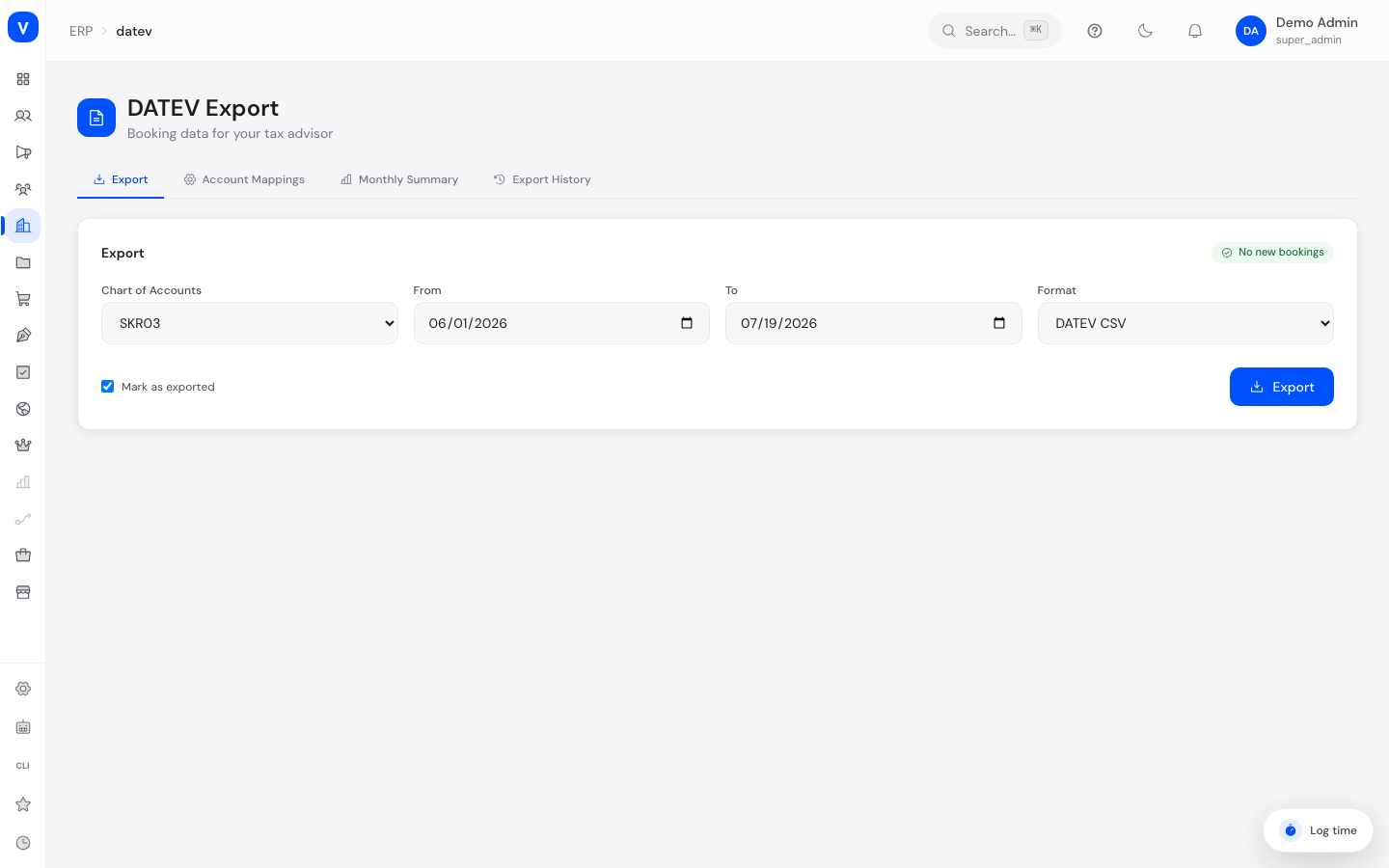
DATEV Export prepares your booking data (orders, returns, payment fees) so your tax advisor can bring it straight into DATEV. DATEV is accounting software widely used by tax offices in Germany to prepare bookkeeping and annual financial statements. You choose the period and format you want to export, and download a ready-made file at the end.
What can I do here?
- Export booking data for any date range as a DATEV CSV file or as DATEV Online format (JSON)
- Choose between the SKR03 and SKR04 charts of accounts (the two common German chart-of-accounts standards)
- See how many new, not-yet-exported bookings are waiting
- View and edit the account mapping — i.e. which accounting accounts are used for which purpose (e.g. revenue, PayPal, shipping costs)
- View a monthly summary with revenue, refunds, net revenue, fees, and record count
- View the history of past exports
- Reset an already-exported period so it can be exported again
Step by step
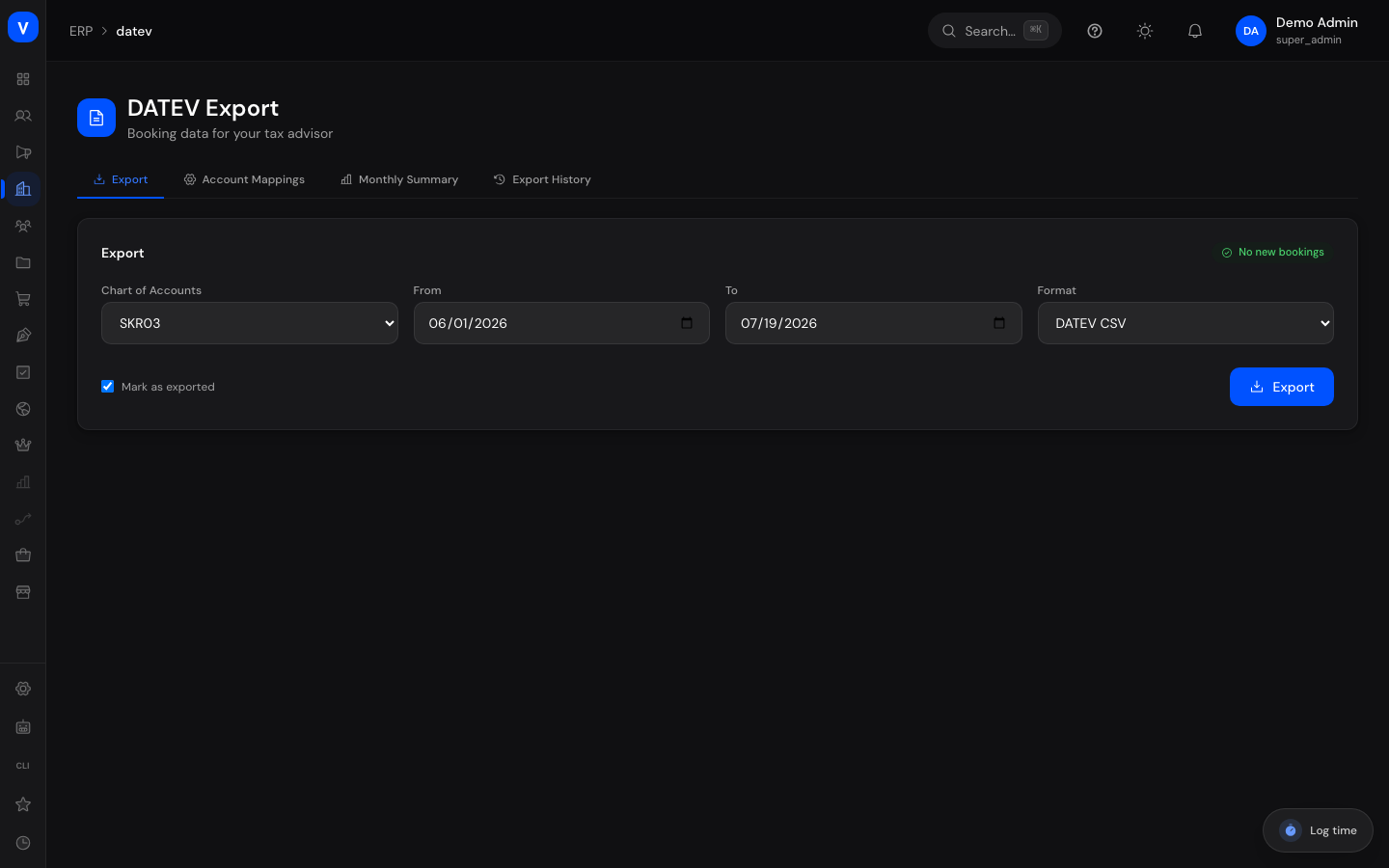
- Open the "Export" tab. Choose the chart of accounts (SKR03 or SKR04), the period ("From"/"To"), and the format (DATEV CSV or DATEV Online).
- Check the badge in the top right for how many new bookings are ready to export.
- Decide whether exported bookings should automatically be marked as "exported" (the "Mark as exported" checkbox), then click "Export". The file downloads.
- If needed, check the month's figures in the "Monthly Summary" tab or review past exports in the "Export History" tab. If an export needs to be repeated, click "Re-Export" on that entry — the associated bookings become open again.
flowchart LR
    A[Choose period + format] --> B[Start export]
    B --> C[File downloads]
    C --> D{Mark as exported?}
    D -->|Yes| E[Bookings marked as exported]
    D -->|No| F[Bookings remain open]
    E --> G[Re-Export possible if needed]
/erp/datevFields explained
| Field | Meaning | Notes/Impact |
|---|---|---|
| Chart of Accounts | Choice between SKR03 and SKR04 — two common German systems for numbering accounting accounts | Determines which account numbers are used in the export file |
| From / To | Start and end date of the period to export | Only bookings within this range are included |
| Format | DATEV CSV or DATEV Online (JSON) | CSV is meant for classic import into DATEV desktop software, DATEV Online for the cloud interface |
| Mark as exported | When enabled, exported bookings are flagged as "already exported" | Prevents the same booking from being included twice in a later export |
| {count} new bookings | Shows the number of not-yet-exported bookings | A green checkmark appears when there are no new bookings |
| Purpose (account mapping) | The accounting purpose of an account, e.g. revenue or PayPal | Defines what an account is used for in bookings |
| SKR03 Account / SKR04 Account | The account number for the selected chart of accounts | Can be adjusted per purpose if your tax advisor uses different accounts |
| Description (account mapping) | Short explanation of the account's purpose | For orientation only, not part of the export |
| Month / Year (monthly summary) | Selection of the reporting month | Controls which figures are shown |
| Revenue | Sum of order bookings for the selected month | Gross amount from orders |
| Refunds | Sum of refund bookings for the selected month | Subtracted from revenue to get net revenue |
| Net Revenue | Revenue minus refunds | Key figure on the monthly summary |
| Fees | Sum of payment fees (e.g. PayPal, Stripe) for the selected month | A separate booking category |
| Records | Total number of booking entries for the selected month | Sum of exported and open bookings |
| Exported / Open | Number of bookings already exported vs. still open for the month | Highlighted in a different color when open bookings remain |
| Batch ID | Unique identifier of a completed export run | Used to identify the entry in the export history |
| Date (history) | Time the export was performed | Shows when the file was generated |
| Record Count (history) | Number of booking entries included in that export | — |
| Period (history) | From-to date range of the bookings included in that export | — |
| Re-Export | Resets the bookings of an export back to "open" | They can then be exported again |
Values & statuses
Chart of Accounts
| Label | Meaning | What happens next |
|---|---|---|
| SKR03 | "Process-structure" chart of accounts — commonly used by smaller and mid-sized businesses | The export uses the SKR03 account numbers from the account mapping |
| SKR04 | "Financial-statement-structure" chart of accounts — also widely used, aligned with balance sheet structure | The export uses the SKR04 account numbers from the account mapping |
Export Formats
| Label | Meaning | What happens next |
|---|---|---|
| DATEV CSV | The classic DATEV "Buchungsstapel" (booking batch) file in CSV format (semicolon-separated) | File downloads for direct import into DATEV desktop software |
| DATEV Online (JSON) | Structured data output for the DATEV Online interface | File downloads as JSON |
Export Status of a Booking
| Label | Meaning | What happens next |
|---|---|---|
| Exported | The booking has already been included in an export file | Not included again in future exports unless re-exported |
| Open | The booking has not yet been exported | Will be included the next time a matching export is run |
Record Type (accountingRecordType)
| Value | Meaning |
|---|---|
| order | Order |
| refund | Refund/return |
| fee | Payment fee |
| payout | Payout |
| correction | Correction booking |
Currently the system automatically generates only the "Order", "Refund/return", and "Payment fee" record types. "Payout" and "Correction booking" are supported by the system but not yet created automatically.
Frequently asked questions
What is DATEV?
DATEV is accounting software widely used by tax advisors in Germany. The export gives you a file your tax office can load directly into its DATEV software, instead of re-entering your bookings by hand.
What's the difference between SKR03 and SKR04?
Both are common systems for numbering accounting accounts in Germany. Ask your tax advisor which one their office uses.
What does "Mark as exported" do?
When enabled, the system remembers which bookings have already been exported so they aren't accidentally included twice in a later export.
I exported the wrong file — what now?
Open the export history and click "Re-Export" on the relevant entry. The associated bookings become open again and can be exported once more.
Can I adjust the account numbers to match my tax office?
Yes, in the "Account Mappings" tab you can edit the SKR03 and SKR04 account number for each booking purpose.