Batch Tracking
Batch tracking lets you record goods that are delivered in batches (lots) that share a production and/or expiry date — for example food, cosmetics, or pharmaceutical products. This gives you an overview of how much of a batch is still available and which batches are expiring soon.
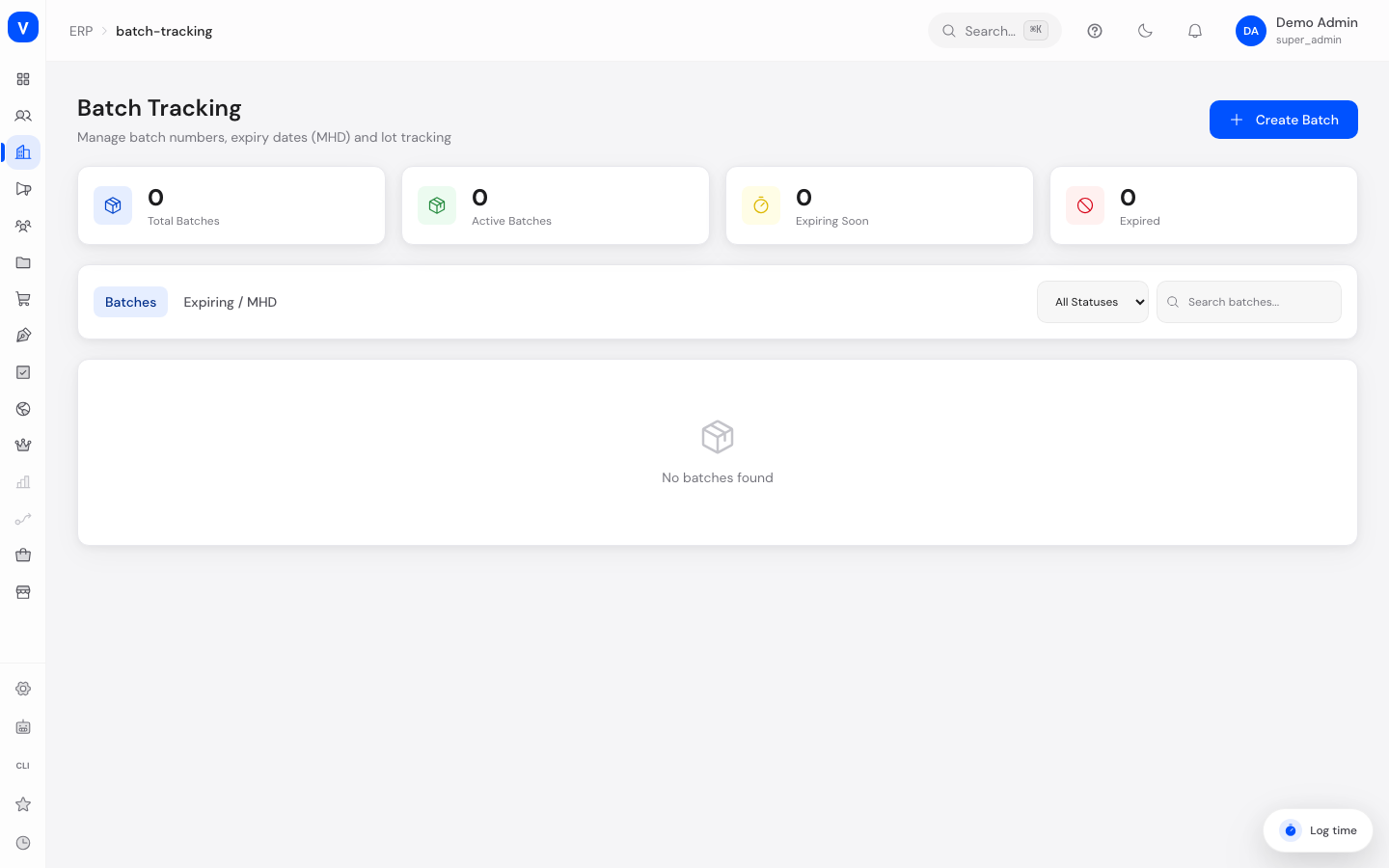
/erp/batch-trackingWhat can I do here?
- View all batches with quantity, location, best-before/expiry date, and status
- Search by batch number or product and filter by status
- View soon-expiring batches in a dedicated tab (selectable window: 7/14/30/60/90 days)
- Create a new batch (batch number, product, location, quantity, manufactured/expiry date, cost per unit, notes)
- Adjust the quantity of an existing batch (with a reason)
- See key figures for total, active, soon-expiring, and expired batches at a glance
Step by step
- Create a new batch: Click "Create Batch", enter batch number, product ID, location ID, and quantity (required), optionally add manufactured date, expiry date, cost per unit, and notes, then save.
- View batch details: Click a batch in the list — the detail view shows batch number, status, product, location, current quantity relative to the initial quantity, and dates.
- Adjust the quantity: In the detail view, under "Adjust Quantity", enter a positive or negative value and optionally a reason, then confirm.
- Check soon-expiring batches: Open the "Expiring Soon" tab and choose the desired window (e.g. 30 days) to see all batches whose expiry date falls within it.
Fields explained
| Field | Meaning | Notes/Effect |
|---|---|---|
| Batch Number | Identifier of the batch (lot) | Required |
| Product | Associated product | Required |
| Location | Storage location of the batch | Required |
| Quantity / Initial Quantity | Currently available vs. originally created quantity | Quantity changes with adjustments and sales |
| Manufactured Date | Date of production | Optional |
| Expiry Date | Best-before / expiry date of the batch | Drives color coding and the "Expiring Soon" list |
| Cost per Unit | Purchase/production cost per piece | Optional |
| Notes | Free text about the batch | Optional |
Values & statuses
Status (batch_status)
| Value | Plain-language meaning | What happens |
|---|---|---|
| active | Active | Batch is available and considered for sales |
| quarantine | Quarantine | Batch is temporarily blocked, e.g. pending inspection |
| expired | Expired | Expiry date has been passed |
| depleted | Depleted | Quantity has reached 0; set automatically once an adjustment brings quantity to 0 |
Frequently asked questions
How do I see which batches are expiring soon?
Use the "Expiring Soon" tab — choose the desired window (e.g. 30 days) to see all batches whose expiry date falls within it. In the batch list, the expiry date is also color-coded (red = already expired or very soon, yellow = medium-term, green = not urgent).
What happens if I reduce a batch's quantity to 0?
The status automatically switches to "Depleted".
Can I delete a batch?
The detail view offers no delete option — batches are managed through quantity adjustments, not removed.