Payment Calendar
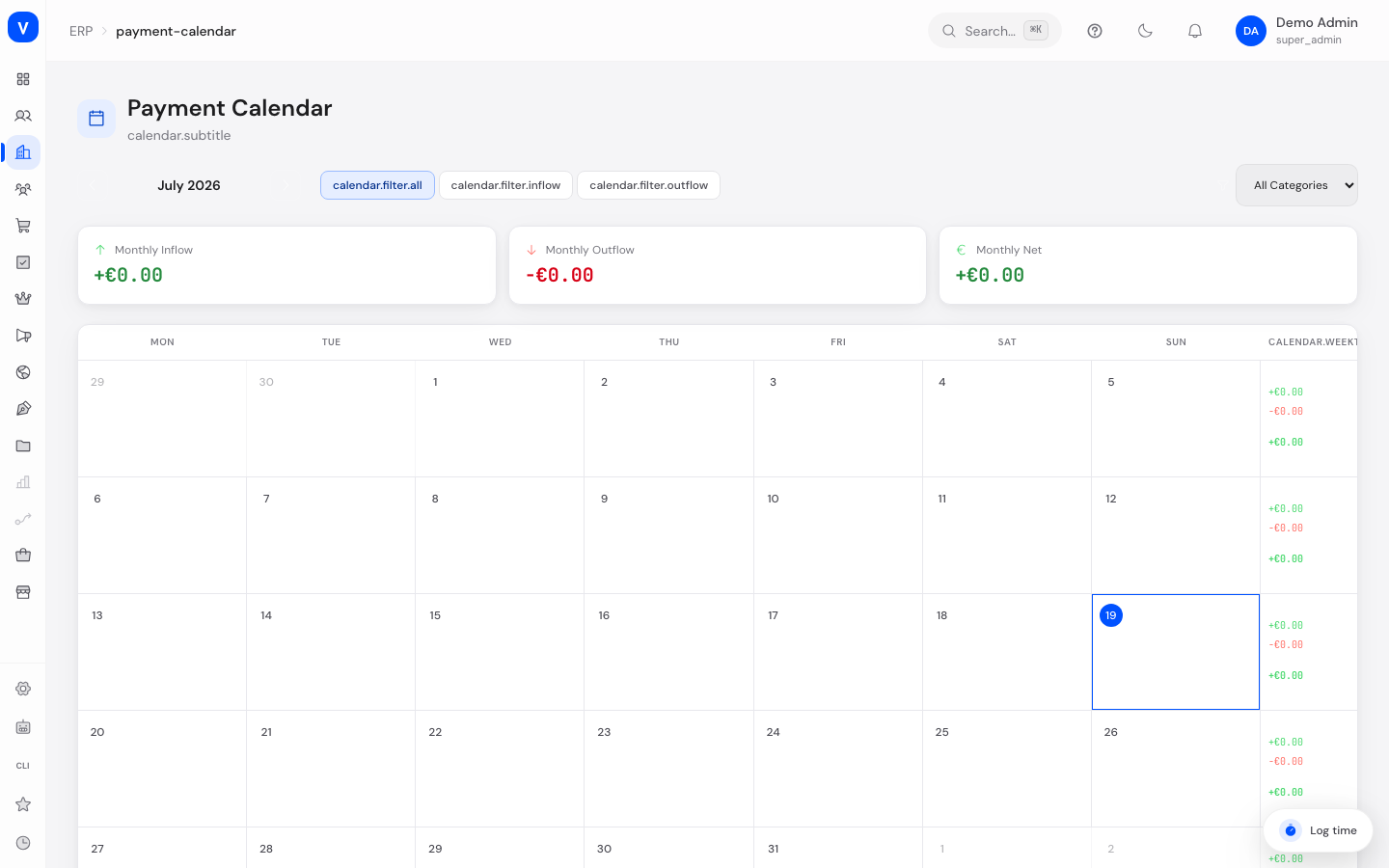
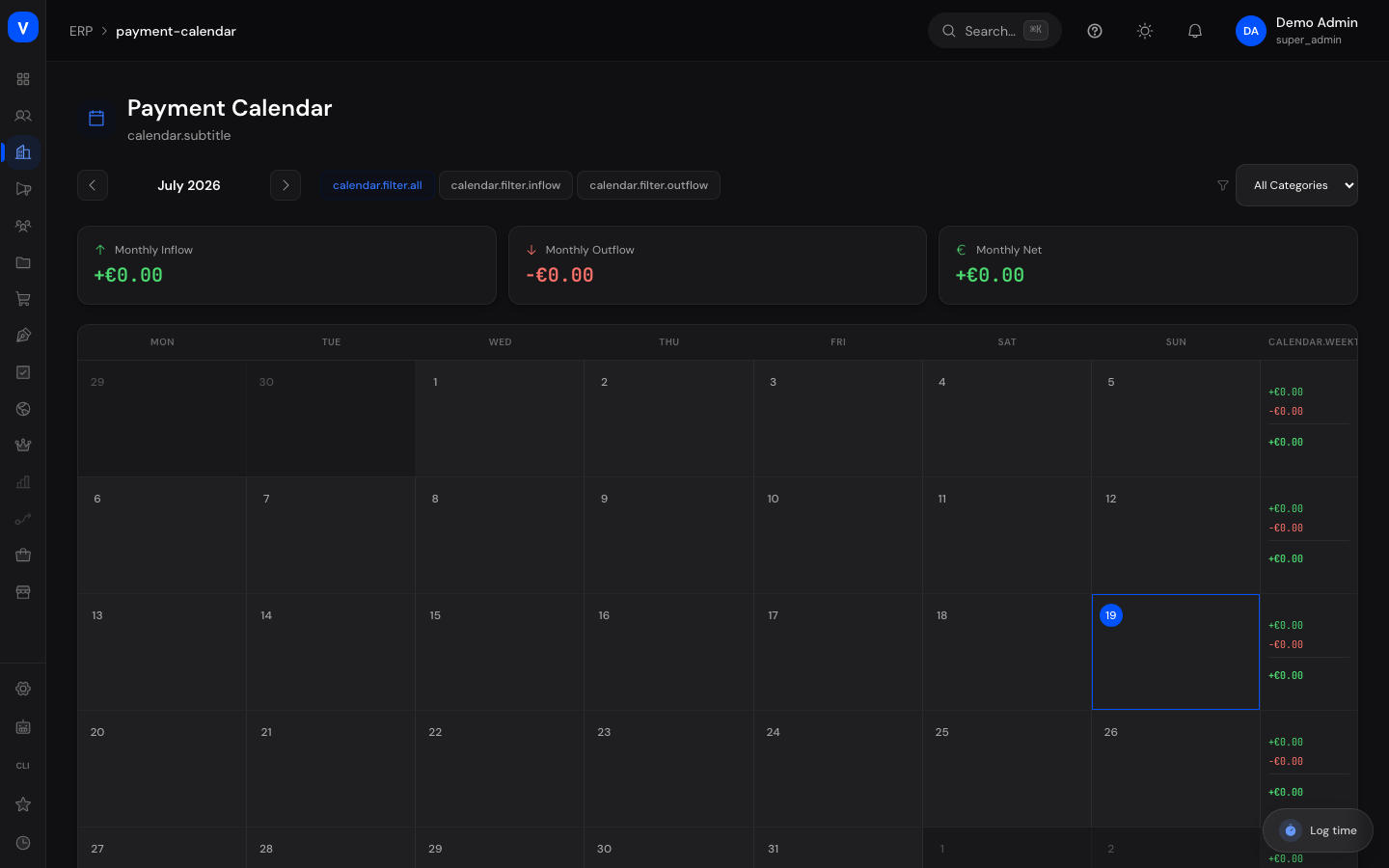
The Payment Calendar shows all planned and recorded payments (cash flow entries, e.g. invoices, salaries, taxes, or rent) laid out in a monthly calendar view. At a glance you can see which days money is expected to come in, and which days money is expected to go out.
What can I do here?
- Move backward and forward between months
- Filter payments by direction: all, inflows only, or outflows only
- Filter payments by category (e.g. sales, purchases, salary, tax)
- View the monthly totals for inflow, outflow, and net result
- See individual payments per day with amount and direction (up to three shown directly in the calendar, with a note for any additional ones)
- View the weekly total (inflow, outflow, net) at the end of each calendar week
- Click a day to open a detail view (drawer) listing all payments for that day, with daily totals
- Add a new payment entry for that date directly from the day detail view
Step by Step
- Choose a month: Use the arrows to the left and right of the month label to move to the desired month.
- Filter (optional): Above the calendar, choose the payment direction (all/inflow/outflow) and, if needed, a category from the dropdown.
- Check a day: Click any calendar day to see all payments due or recorded that day, including amount, counterparty, category, and status.
- Add a new entry: In the opened day detail view, click "Add Entry" to record a new payment for that date.
/erp/payment-calendarFields Explained
| Field / Element | Meaning | Notes/Impact |
|---|---|---|
| Month label | Shows the month and year currently displayed in the calendar | The arrows next to it move to the previous or next month |
| Payment direction filter | Restricts the displayed payments to "all", "inflows only", or "outflows only" | Affects both the calendar view and the totals |
| "All Categories" filter | Dropdown to narrow the payments down to a single category | See the "Values & Status" section for the category list |
| Monthly Inflow | Sum of all inflows in the displayed month, taking the active filters into account | KPI tile above the calendar |
| Monthly Outflow | Sum of all outflows in the displayed month, taking the active filters into account | KPI tile above the calendar |
| Monthly Net | Difference between monthly inflow and outflow | Shown in green when positive, red when negative |
| Calendar day | A single day of the month showing up to three visible payment amounts | A "+X more" note appears if a day has more than three payments; today's date is visually highlighted |
| Weekly total | Sum of inflow, outflow, and net result for that calendar week | Right-hand column of each calendar row |
| Day detail view (drawer) | Opens when you click a day; shows daily totals for inflow, outflow, and net, plus the list of individual payments for that day | Includes description, counterparty, category, amount, and status for each payment |
| "Add Entry" | Opens the entry form for cash flow entries, pre-filled with the clicked date | Leads into the Cash Flow Entries area |
| "Cancel" | Closes the day detail view again | No changes are saved |
Values & Status
Payment Direction
| Label | Meaning | What Happens Next |
|---|---|---|
| Inflow (upward arrow, green) | Money that is expected or has been received, e.g. from a sale | Counted as a positive amount in the daily, weekly, and monthly totals |
| Outflow (downward arrow, red) | Money that is due or has already been paid, e.g. for a purchase or salaries | Counted as a negative amount in the daily, weekly, and monthly totals |
Category
| Label | Meaning | What Happens Next |
|---|---|---|
| Sales | Income from sales/orders | Can be used as a category filter |
| Refund | Refunds paid to customers or received from suppliers | Can be used as a category filter |
| Purchase | Expenses for purchasing goods, e.g. from suppliers | Can be used as a category filter |
| Salary | Payroll/salary costs | Can be used as a category filter |
| Tax | Tax payments | Can be used as a category filter |
| Rent | Rent payments | Can be used as a category filter |
| Other | Any payment that does not fit another category | Can be used as a category filter |
Payment Status
| Label | Meaning | What Happens Next |
|---|---|---|
| Projected | The payment is planned but not yet finally confirmed | Shown in the calendar with a dashed border |
| Pending | The payment is due but not yet marked as paid | Shown in the calendar slightly faded |
| Paid | The payment has been made or received | Counted in the confirmed totals |
| Overdue | The payment was not settled by its due date | Should be reviewed promptly |
| Cancelled | The payment was withdrawn | No longer shown in the default calendar view |
Frequently Asked Questions
What is a payment calendar?
It shows all planned and recorded incoming and outgoing payments for a month, placed on the day they are due — so you always know when money is expected or will flow out.
How do I record a new payment?
Click the desired day in the calendar and choose "Add Entry" in the detail view that opens. The date is already pre-filled.
What is the difference between "Projected", "Pending", and "Paid"?
"Projected" means the payment is planned but not yet fully confirmed (shown with a dashed border in the calendar). "Pending" means the payment is due but not yet marked as settled (shown slightly faded). "Paid" means the payment has actually been made or received.
Why do the monthly totals change when I set a filter?
The inflow, outflow, and net KPIs only take into account the payments that match the currently selected filter (direction and category).
Can I also view past months?
Yes, use the arrows next to the month label to move backward and forward as far as you like.
What does the "+X more" note on a calendar day mean?
The calendar only shows the first three payments directly on a given day. If there are more, a note below shows the additional count. Open the day to see all of them.