Scenario Planning
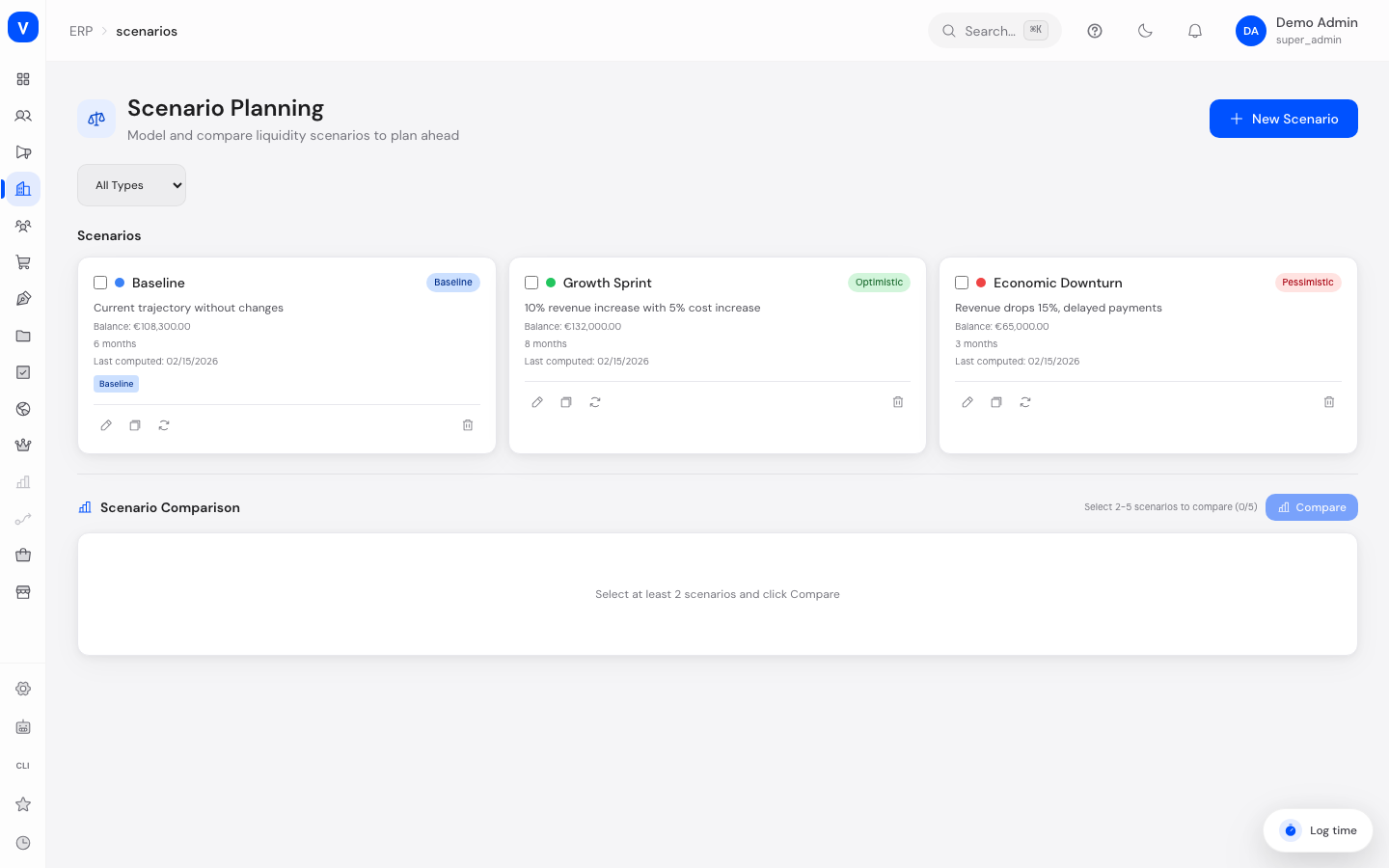
Scenario Planning helps you play through different possible developments of your liquidity (the cash available to your business) before they actually happen. You set assumptions — for example "revenue grows by 10%" or "payments are delayed by 14 days" — and immediately see how that would affect your balance and your runway (how long the money would last). This lets you compare several scenarios side by side before making decisions.
What can I do here?
- Create new scenarios with a name, description, and type (Baseline, Optimistic, Pessimistic, Custom)
- Set assumptions for each scenario: inflow adjustment, outflow adjustment, and payment delay in days
- Edit existing scenarios
- Duplicate a scenario to quickly create a variant
- Recompute a scenario so the forecast reflects current data
- Delete scenarios
- Filter by scenario type
- Select up to 5 scenarios and compare them side by side in a bar chart and a table
Step by Step
- Create a new scenario: Click "New Scenario" in the top right. Give it a name and optionally a description and a type.
- Set assumptions: In the "Parameters" section, use the sliders to set the Inflow Adjustment (%) and Outflow Adjustment (%), and enter a payment delay in days if needed. Click "Create".
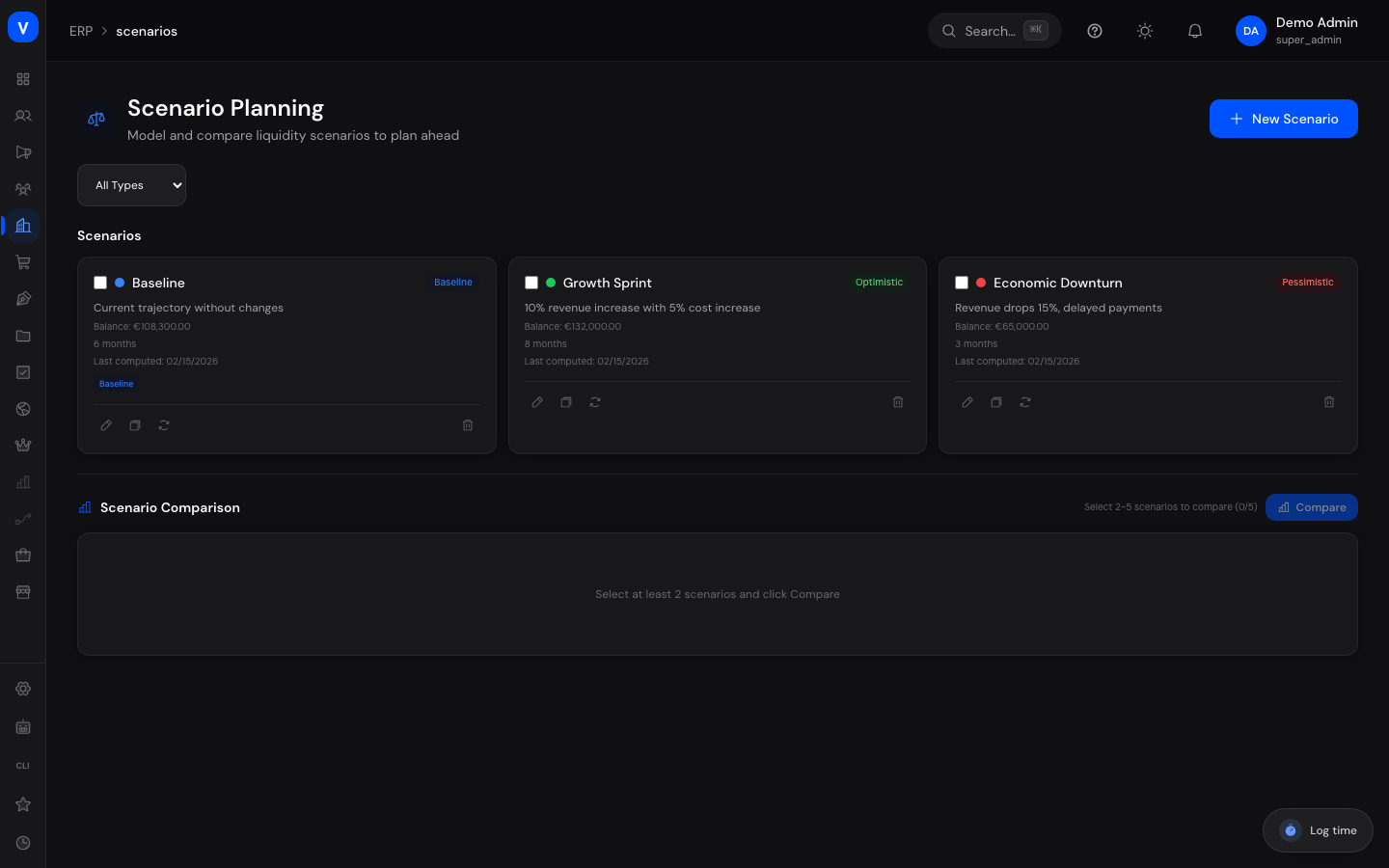
- Compare scenarios: Use the checkboxes to select 2 to 5 scenarios in the list, then click "Compare". You'll see a bar chart and a table with the projected balance per month for each scenario.
- Update a scenario: If your underlying data has changed, click "Recompute" on a scenario to refresh its forecast.
/erp/scenariosFields Explained
| Field | Meaning | Notes/Impact |
|---|---|---|
| Name | The scenario's label | Required |
| Description | Free text describing the scenario in more detail | Optional, shown as a short hint in the overview |
| Type | The scenario's category (Baseline, Optimistic, Pessimistic, Custom) | Determines the badge color and is used as a filter criterion |
| Parameters | Umbrella term for the assumptions that drive the scenario | Only shown while creating/editing |
| Inflow Adjustment % | Percentage change in expected inflows compared to the current trajectory (−50% to +50%) | Higher values improve the forecast, negative values worsen it |
| Outflow Adjustment % | Percentage change in expected outflows compared to the current trajectory (−50% to +50%) | Positive values increase outflows and worsen the forecast |
| Payment Delay (Days) | Number of days by which incoming payments are assumed to be delayed in this scenario (0–90) | Higher values worsen the short-term projected balance |
| Balance | The projected balance (Saldo, forecast account balance) at the end of the projection period | Only shown once the scenario has been computed |
| Runway (months) | How many months the money is projected to last under this scenario | Calculated from the projected runway in days |
| Last computed | Timestamp of the scenario's last computation | Shows "Never" if it has not been computed yet |
| All Types (filter) | Restricts the scenario list to a specific type | Only affects the list, not the comparison |
| Compare | Opens the comparison for the selected scenarios | Requires selecting at least 2, at most 5 scenarios |
Values & Status
Scenario Type
| Label | Meaning | What happens next |
|---|---|---|
| Baseline | The current, unchanged trajectory without additional assumptions | Also marked with a dedicated badge in the list |
| Optimistic | A scenario with more favorable assumptions than the current trajectory | Used to compare against more realistic or pessimistic scenarios |
| Pessimistic | A scenario with less favorable assumptions than the current trajectory | Helps identify risks early |
| Custom | A freely configured scenario without a fixed classification | For individual what-if questions |
Frequently Asked Questions
What is a scenario?
A scenario is a "what-if" calculation: you set assumptions about inflows, outflows, and payment delays, and see how your balance would likely develop as a result — without changing any of your actual payments.
Why don't I see a balance for a new scenario yet?
The balance (projected account balance) is only calculated once you save the scenario or click "Recompute".
How do I compare multiple scenarios?
Check the checkboxes for 2 to 5 scenarios in the list and click "Compare". A bar chart and a table with each selected scenario's monthly balance appear below.
What happens when I duplicate a scenario?
A copy is created with the same assumptions, which you can then adjust independently without changing the original scenario.
When should I recompute a scenario?
Whenever your actual figures (e.g. new invoices or incoming payments) have changed and you want the forecast to reflect those changes.