Fulfillment
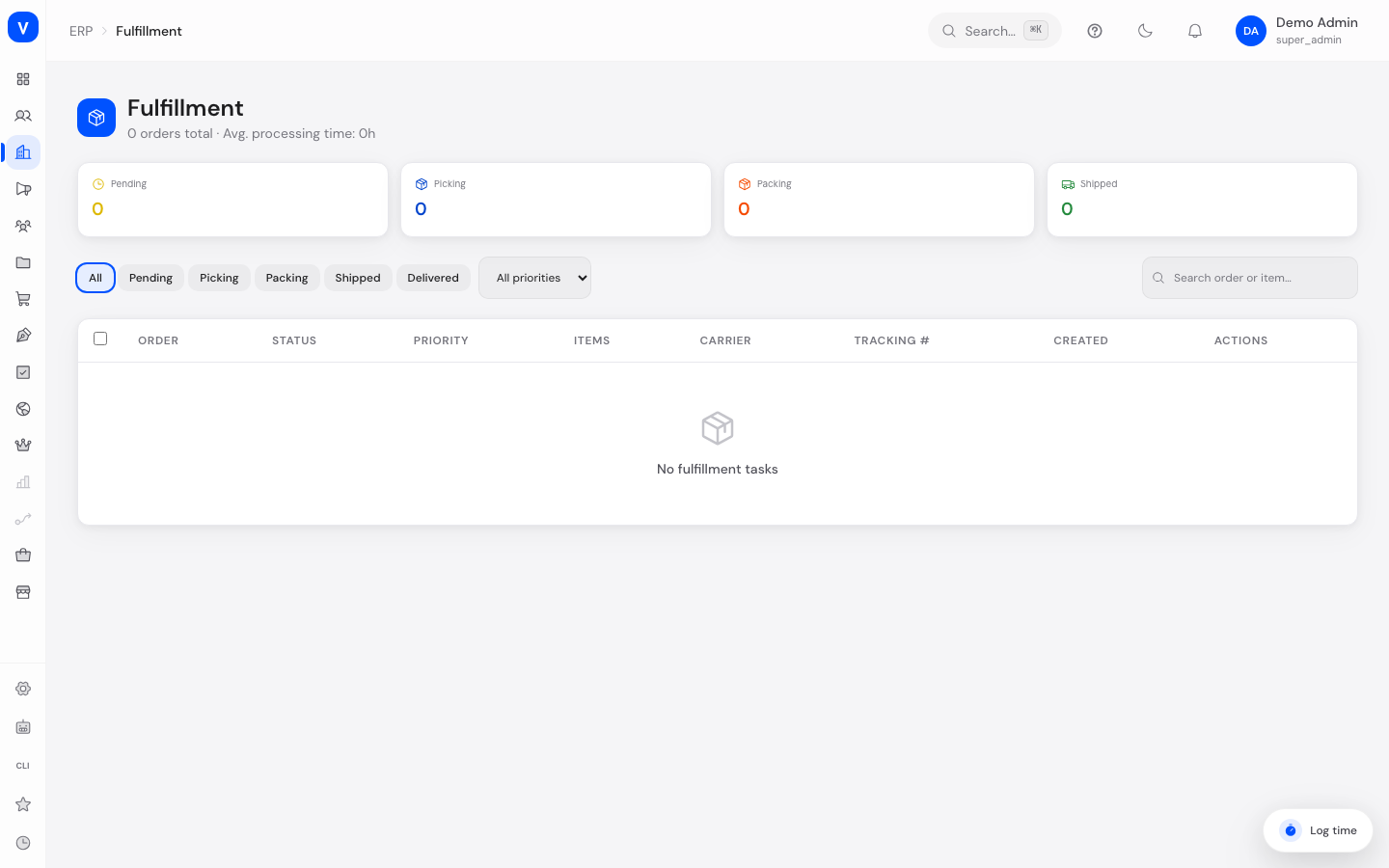
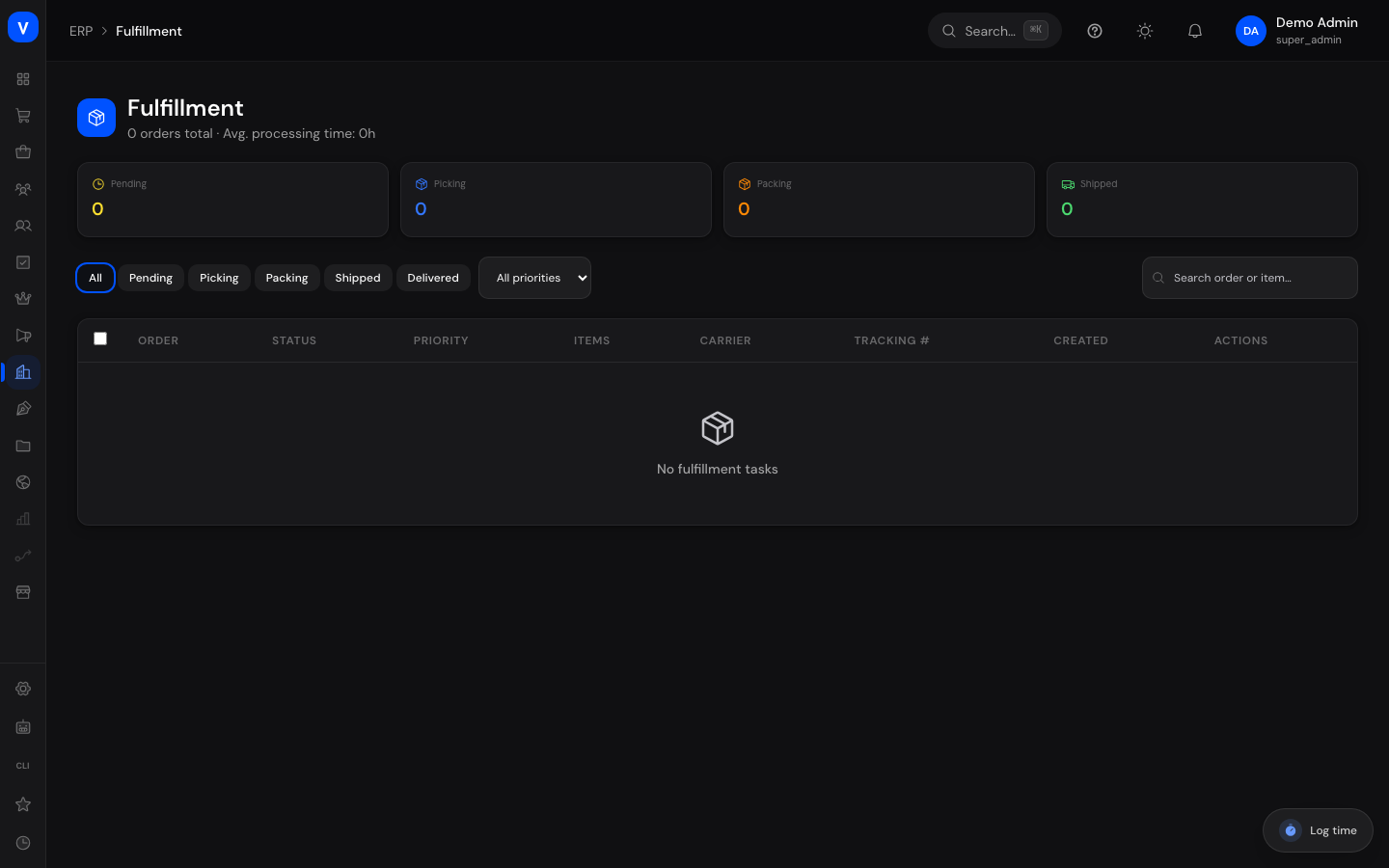
Fulfillment shows you all orders that still need to be made ready for shipping — from picking to packing to shipping. You can check off individual items, work on several orders together, and print packing slips and picking lists.
/erp/fulfillmentWhat can I do here?
- View key figures for pending, picking, packing, and already shipped orders, plus the average processing time
- Filter orders by status and priority and search by keyword (e.g. order number)
- Advance an order to the next processing stage with one click (Pending → Picking → Packing → Shipped)
- Expand an order to see its individual items and check off the picked quantity per item
- Record a tracking number and carrier for an order
- Work on several selected orders together (start picking, mark as packed/shipped, cancel)
- Generate and print a combined picking list for selected orders
- View and print a packing slip for a single order
Step by step
- Advance an order to the next stage: Click the arrow ("Advance") in the order's row — the status automatically moves to the next stage (e.g. from "Pending" to "Picking").
- Pick items individually: Click the order number to expand the row. For each item with status "Not Picked", click "Pick" — the storage location is shown alongside.
- Record a tracking number: Click the pencil icon on an order in packing/shipping, enter the carrier and tracking number, and confirm.
- Work on several orders together: Check the boxes of several orders, then choose a batch action (start picking, mark as packed, mark as shipped, cancel), or generate and print a combined picking list.
- Print a packing slip: Click the receipt icon on an order — the packing slip with customer, shipping address, items, carrier, and weight opens for printing.
- Order
- ORD-2026-0001
- Status
- Packing
- Carrier
- Example Shipping
- Tracking #
- TRK-2026-000188
- Priority
- Normal
| Item | Items | Bin |
|---|---|---|
| Example screw M6 | 20 | A-01-04 |
| Example nut M6 | 20 | A-01-05 |
/erp/fulfillmentFields explained
| Field | Meaning | Notes/Effect |
|---|---|---|
| Order | Order number the fulfillment task belongs to | — |
| Status | Current processing stage of the shipment | See values below |
| Priority | Urgency of the order | See values below; urgent orders are highlighted |
| Items | Number of distinct products and total piece count | Shown in detail when expanded |
| Storage Location (per item) | Where the item is to be picked from | Needed when picking |
| Carrier | Carrier chosen for shipping | Recorded manually |
| Tracking Number | Shipment tracking number | Recorded manually once available |
| Assigned To | Employee working the order | Optional |
Values & statuses
Status (fulfillment_status)
| Value | Plain-language meaning | What happens |
|---|---|---|
| pending | Pending | Order is waiting to be processed |
| picking | Picking | Items are being retrieved from the warehouse |
| packing | Packing | Goods are being packed |
| shipped | Shipped | Shipment has left the warehouse |
| delivered | Delivered | Shipment has been delivered to the customer |
| returned | Returned | Shipment was sent back |
| cancelled | Cancelled | Order was cancelled |
Priority (fulfillment_priority)
| Value | Plain-language meaning |
|---|---|
| normal | Normal priority |
| high | High priority |
| express | Express — should be handled preferentially |
Frequently asked questions
How do I move an order from "Pending" to "Shipped"?
Use the advance arrow in the order's row — each click moves the order one stage forward (Pending → Picking → Packing → Shipped).
Can I change a tracking number afterward?
Yes, the pencil icon lets you edit the recorded tracking number at any time.
What's the difference between the picking list and the packing slip?
The picking list combines the items of several selected orders, sorted by storage location, so picking in the warehouse can be done efficiently. The packing slip relates to a single order and contains customer, address, and shipping data for packing.
What does it mean when an item is marked "Not Picked"?
The quantity for this item has not yet been retrieved from the warehouse; it is only marked as done after clicking "Pick".