Banking
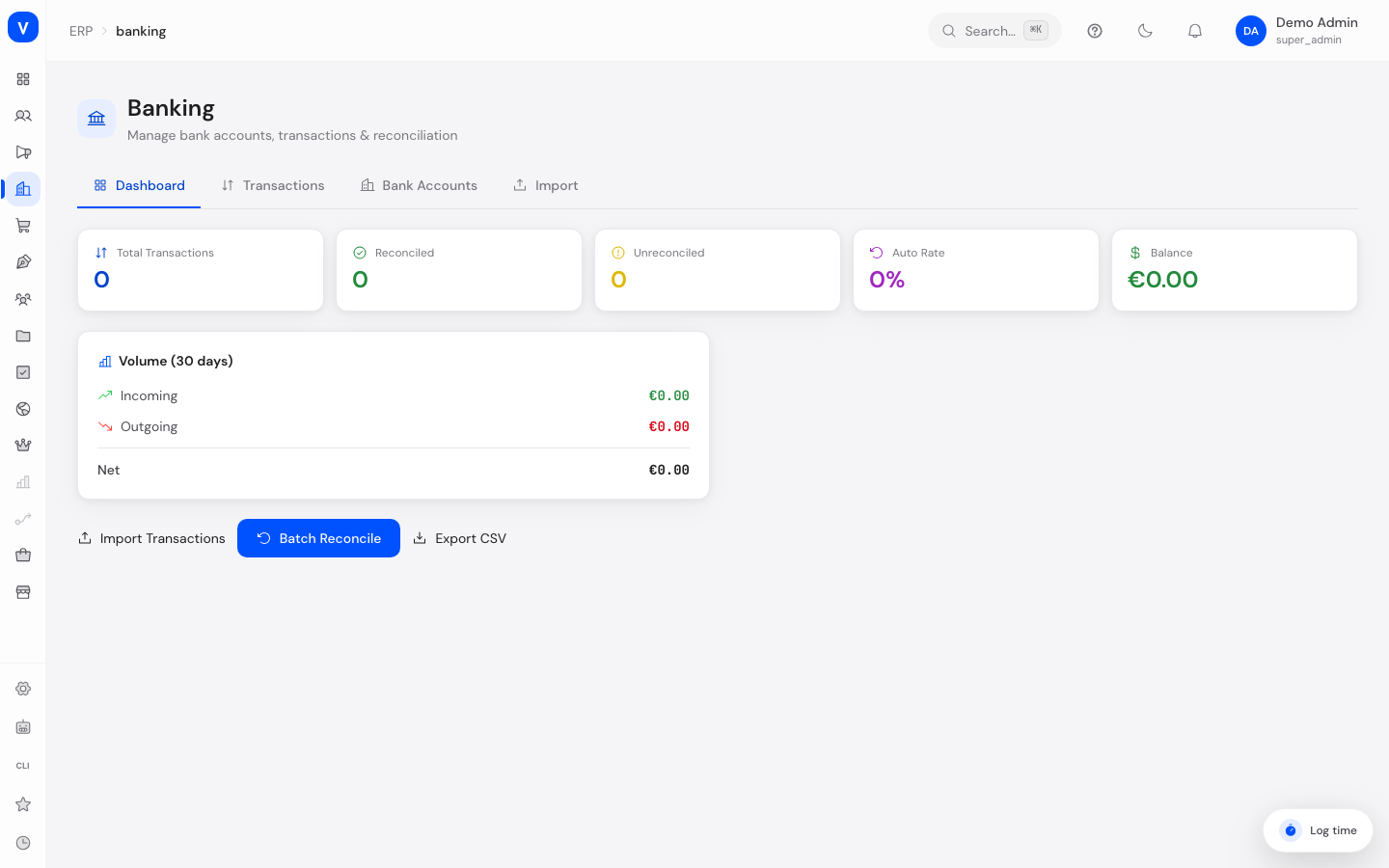
The Banking area shows your saved bank accounts and all account movements (transactions) in one place. You can import bank statements, match incoming and outgoing payments to orders and invoices automatically or by hand (this matching is called "reconciliation"), and keep track of which payments are already booked and which are still open.
What can I do here?
- View a 30-day overview: number of transactions, reconciled and open transactions, balance
- Create, edit, and delete bank accounts (account name, IBAN, BIC, bank name)
- Check the current balance and transaction count of an account
- Upload or paste bank statements in CSV, MT940, or CAMT.053 format (common bank file formats)
- Filter, sort, and page through transactions by account, date range, status, and search term
- Match a single transaction to an order or invoice — automatically from suggestions, or manually by entering an ID
- Undo a match on a transaction so it becomes open again
- Automatically match all open transactions of an account in one step (batch reconcile)
- Export the transaction list as a CSV file
Step by Step
- Create a bank account: Open the "Bank Accounts" tab and click "Add Account". Enter an account name, IBAN (International Bank Account Number), and optionally the BIC (Bank Identifier Code) and bank name, then save with "Create".
- Import a bank statement: Switch to the "Import" tab, choose the bank account and the file format (CSV, MT940, or CAMT.053), drag the file into the drop zone or paste the data into the text field, and click "Start Import". The result shows how many transactions were imported, how many were skipped as duplicates, and how many were auto-reconciled.
- Match a transaction manually: Open the "Transactions" tab, find an open transaction, and click the link icon. In the panel that opens you see match suggestions with a confidence score (how well the suggestion fits). Click a suggestion, or enter an order ID or invoice ID manually, then confirm with "Assign".
- Use batch reconcile: On the overview page click "Batch Reconcile" to have all open transactions checked automatically. Only suggestions with a high confidence are applied automatically.
flowchart LR
    A[Import bank statement] --> B[New transactions are saved]
    B --> C{Automatic match<br/>possible?}
    C -->|High confidence| D[Auto-reconciled]
    C -->|No reliable match| E[Marked as open]
    E --> F[Match manually<br/>or batch reconcile]
    F --> D
/erp/bankingFields Explained
| Field | Meaning | Notes/Impact |
|---|---|---|
| Transactions Total | Number of account movements in the last 30 days | KPI on the overview page |
| Reconciled | Number of transactions already matched to an order or invoice | Increases automatically or after manual matching |
| Unreconciled | Number of transactions without a match | Should be checked and worked through regularly |
| Auto | Share of reconciled transactions that were matched automatically (without manual work) | The higher, the less manual effort |
| Balance | Difference between incoming and outgoing amounts over the last 30 days | A snapshot only, not the full account balance |
| Volume (30 days) — Incoming/Outgoing/Net | Sum of incoming and outgoing amounts and their difference | For a quick read on payment activity |
| Reconciliation Rate | Share of all transactions (not only the last 30 days) that are already matched | Shown as a progress bar on the overview |
| Avg. Confidence | Average match confidence of the automatically reconciled transactions | The closer to 100%, the more certain the automatic match |
| Account Name | Freely chosen name for a bank account | Used only for display inside SELLERLOGIC Commerce Services |
| IBAN | The bank account's International Bank Account Number | Stored encrypted and validated for correctness when the account is created |
| BIC | Bank Identifier Code | Optional, uniquely identifies the bank |
| Bank Name | Name of the account-holding bank | Optional, display only |
| Last Sync | Time of the account's last data sync | Shown when available |
| Date | Value date of the transaction | Determines the list's default sort order |
| Counterparty | Name of the payment partner (sender or recipient) as stated on the bank statement | Comes from the imported bank data |
| Purpose | Free-text booking reference from the bank, e.g. an order number | Also used by the automatic matching |
| Amount | Transaction amount; positive = incoming, negative = outgoing | Shown in green/red for quick reading |
| Format (Import) | File format of the bank statement: CSV, MT940, or CAMT.053 (common bank export formats) | Must match the actual file content, otherwise the import fails |
| Match Suggestions | Orders/invoices the system proposes as a likely match for an open transaction | Shown sorted by confidence |
| Order ID / Invoice ID (manual match) | Unique identifier of an order or invoice used for a manual match | Only needed when no suitable suggestion is available |
Values & Status
Transaction Status
| Label | Meaning | What happens next |
|---|---|---|
| Reconciled | The transaction has been successfully matched to an order or invoice | Counts as "Reconciled" on the overview; the match can be undone if needed |
| Unreconciled | The transaction has not yet been matched to an order or invoice | Appears in the list of open transactions and can be resolved manually or via batch reconcile |
Import Formats
| Label | Meaning | What happens next |
|---|---|---|
| CSV | A simple table file with columns such as date, recipient, amount, IBAN | Read line by line |
| MT940 | The classic SWIFT bank-statement format used by many banks | Read according to the bank standard |
| CAMT.053 | A more modern XML-based ISO 20022 bank-statement format | Read according to the bank standard |
Frequently Asked Questions
What does "reconciled" or "matched" mean for a transaction?
It means a payment on your bank account has been linked to a specific order or invoice in SCS, so you can see at a glance which payments have already been booked.
How does automatic matching work?
During import and batch reconcile, the system checks every open transaction for possible matches with orders or invoices. Only a high-confidence match is applied automatically; lower-confidence matches stay open for manual review.
What is the IBAN, and is it stored securely?
The IBAN is the internationally standardized account number. In SCS it is stored encrypted and automatically validated when you create an account.
Can I undo an incorrect match?
Yes. Open the transaction and click the "undo match" icon. The transaction is then marked as open again.
Which file formats can I use for import?
CSV, MT940, and CAMT.053 — common export formats offered by most banks for statements.