Receipt Capture
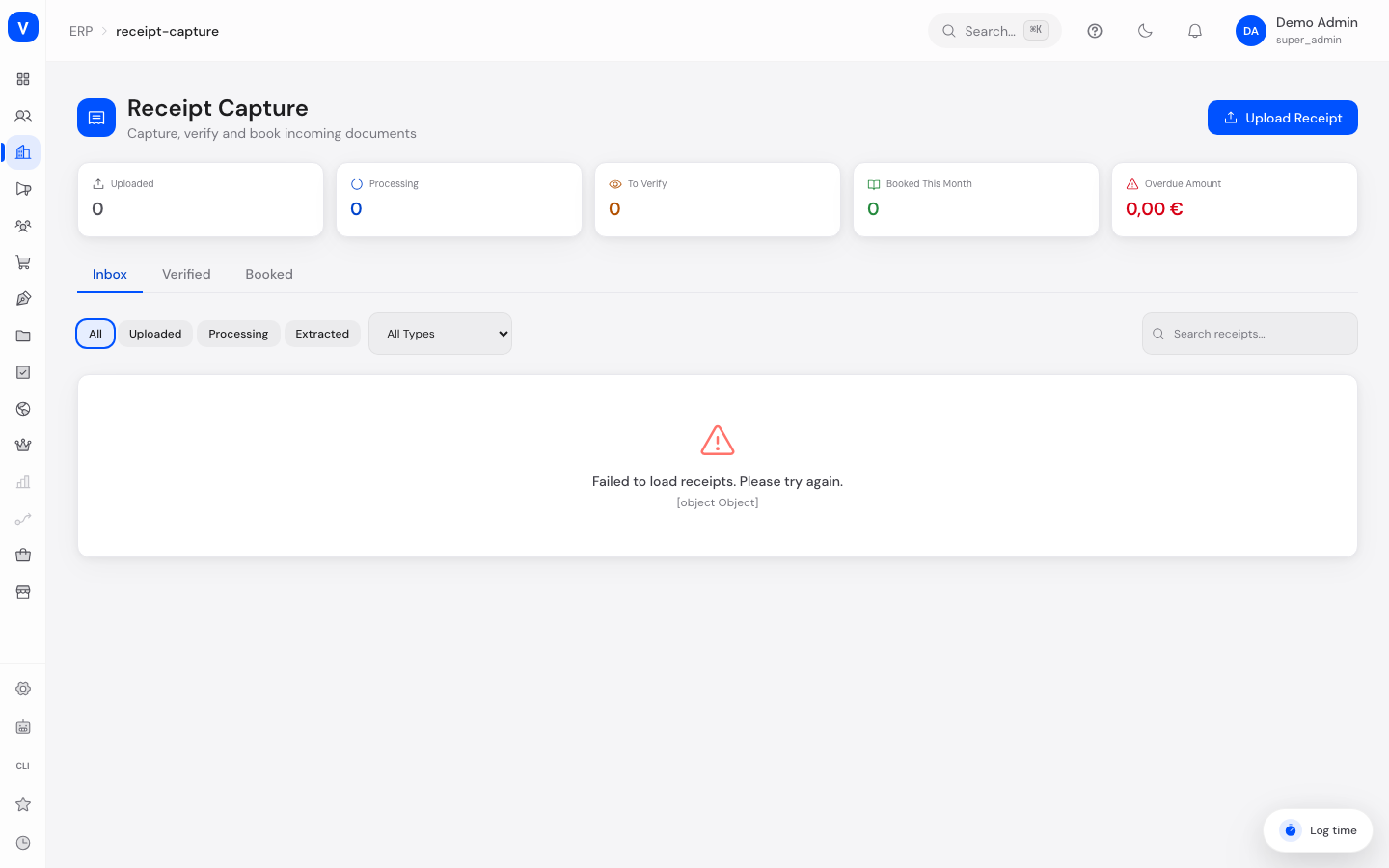
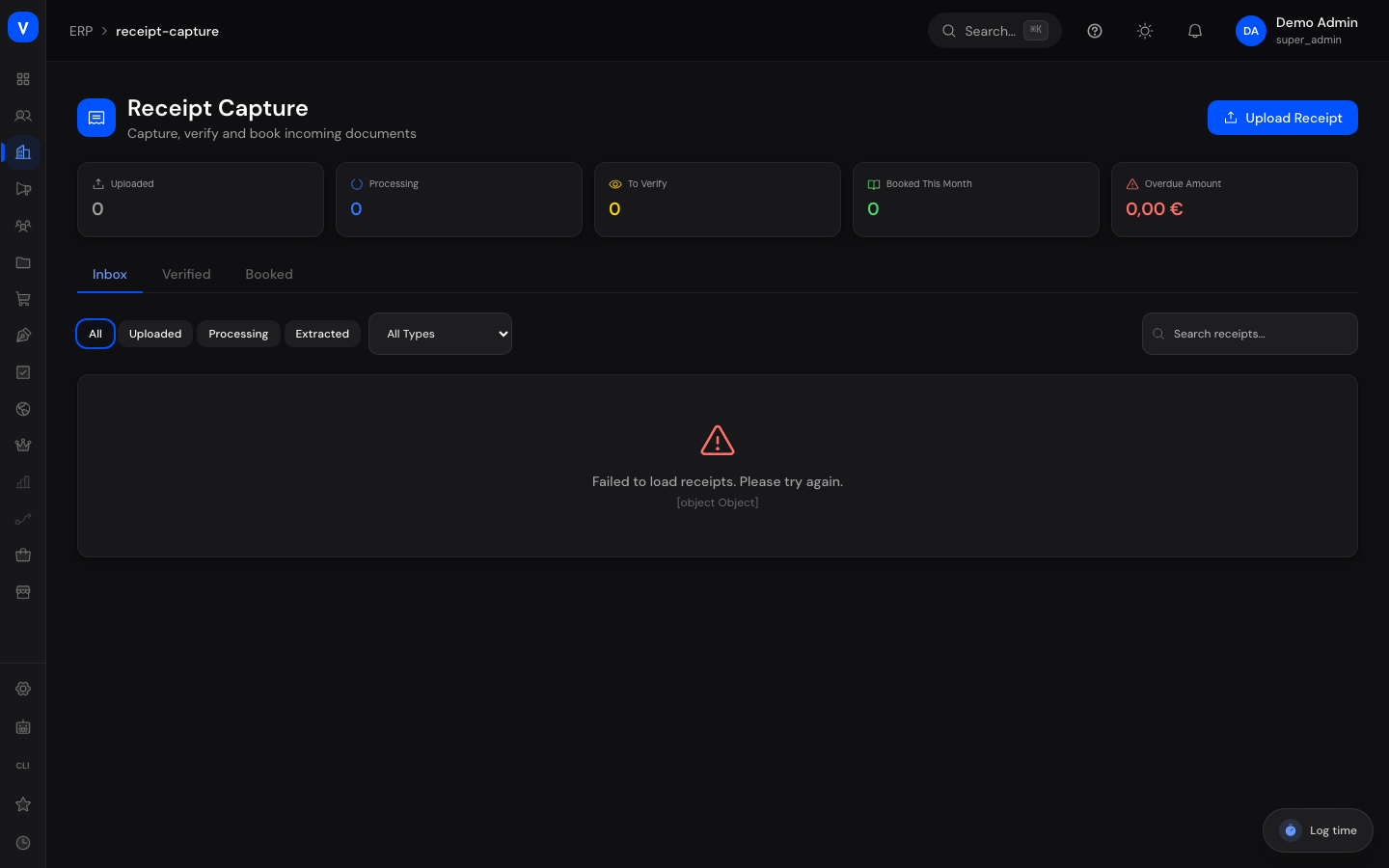
Receipt Capture helps you digitize incoming invoices, delivery notes, and credit notes, verify their data, and book them. You upload a document, the system automatically reads the key details using AI-powered text recognition (OCR = Optical Character Recognition, i.e. automatically reading text from photos or PDF files), and you confirm the recognized values before the receipt is booked.
What can I do here?
- Upload new receipts (invoice, delivery note, credit note, or other)
- Trigger automatic data recognition (OCR) for an uploaded receipt
- Review recognized data and correct it if needed before the receipt is booked
- View, add, or remove individual line items (e.g. individual items on an invoice)
- Have a receipt matched against an existing purchase order
- Mark a verified receipt as booked, or reject it
- Filter by status, receipt type, or search term, and switch between the "Inbox", "Verified", and "Booked" tabs
/erp/receipt-captureStep by Step
flowchart LR
    A["Upload receipt"] --> B["Extract data (OCR)"]
    B --> C["Review & verify data"]
    C --> D["Book receipt"]
    C -.-> E["Reject receipt"]
    B -.-> E
- Upload a receipt: Click "Upload Receipt", choose the document type (invoice, delivery note, credit note, other), enter the file name and file URL, and optionally any known details such as supplier, document number, or amount. The receipt then appears in the "Inbox" tab with status "Uploaded".
- Extract data: From the list or the detail view, click "Extract" (lightning icon). The system automatically reads document number, date, supplier, and amounts from the file. Status changes to "Processing" and then to "Extracted".
- Review data (verify): Open the receipt and click "Verify". Check the automatically recognized fields (document number, date, supplier, amounts) and correct them if needed. Only after this confirmation is the receipt considered "Verified".
- Book: Click "Book" to finalize the verified receipt. Optionally enter a booking reference, or match the receipt to a suitable purchase order (the "Match to Purchase Order" button shows likely matches based on supplier and amount). The receipt then appears in the "Booked" tab.
Fields Explained
| Field | Meaning | Notes/Impact |
|---|---|---|
| Document Type | Type of document: invoice, delivery note, credit note, or other | Determines the color coding in the list |
| File Name | Name of the uploaded file | Shown in the overview list |
| File URL | Storage location of the file | Use the link in the detail view to open the original file |
| Supplier | Name of the supplier/invoice issuer | Can be auto-recognized or entered/corrected manually |
| Supplier ID | Internal identifier of the supplier in the system | Only relevant if the supplier is already set up in the system |
| Tax ID | Tax identifier of the supplier | Recognized by OCR if present on the document |
| Document Number | Invoice or document number from the supplier | Required when verifying |
| Document Date | Date the document was issued | Required when verifying |
| Due Date | Date by which the receipt should be paid | Optional |
| Net Amount | Amount excluding VAT | Calculated from the recognized values |
| Tax Amount | VAT amount | Optional when verifying |
| Total Amount | Gross amount of the receipt | Required when verifying |
| Currency | Currency of the amount (e.g. EUR) | Defaults to EUR |
| OCR Confidence | How confident the automatic text recognition is in the recognized values, shown as a percentage | Low values suggest possible recognition errors — check values carefully before verifying |
| Booking Reference | Free-text reference for the booking, e.g. an internal document number | Optionally set when booking |
| Matched PO | Linked purchase order | Suggested via "Match to Purchase Order" |
| Line Items | Individual item/service lines of the receipt with quantity, unit price, total price, and tax rate | Can be added or removed manually as long as the receipt is not booked or rejected |
| Notes | Free-text field for internal remarks | Optional |
Values & Status
Status (Receipt Status)
| Label | Plain-language meaning | What happens next |
|---|---|---|
| Uploaded | The receipt has been uploaded but not yet read | Can be processed via "Extract" |
| Processing | Automatic text recognition is currently running | Automatically changes to "Extracted", or back to "Uploaded" on error |
| Extracted | Data has been automatically read out | Still needs to be reviewed and confirmed via "Verify" |
| Verified | A staff member has reviewed and confirmed the data | Can now be booked or rejected |
| Booked | The receipt has been finally booked | Can no longer be edited or rejected |
| Rejected | The receipt has been discarded | No further actions possible |
Document Type
| Label | Plain-language meaning | What happens next |
|---|---|---|
| Invoice | Incoming invoice from a supplier | Default type for most receipts |
| Delivery Note | Document about delivered goods without an invoice amount | Captured and reviewed like other document types |
| Credit Note | Invoice correction in the company's favor | Captured and reviewed like other document types |
| Other | All other document types | For documents that don't fit any other category |
Frequently Asked Questions
What does "OCR Confidence" mean?
It's a percentage indicating how confident the automatic text recognition is in the values it read. At low values, you should check the fields especially carefully against the original document before verifying.
Can I still change a receipt that has already been booked?
No. Once a receipt is booked, its fields, line items, and status can no longer be edited.
What happens if the automatic recognition reads a field incorrectly?
You can manually correct any field during the "Verify" step. Only the values you confirm are used for the booking.
What is "Match to Purchase Order" for?
It searches for matching, already-captured purchase orders based on supplier and amount, so you can link the receipt directly to the correct purchase order.
Can I reject a receipt at any time?
Yes, as long as it hasn't been booked yet. A rejected receipt is considered closed and is not processed further.