Inventory Management
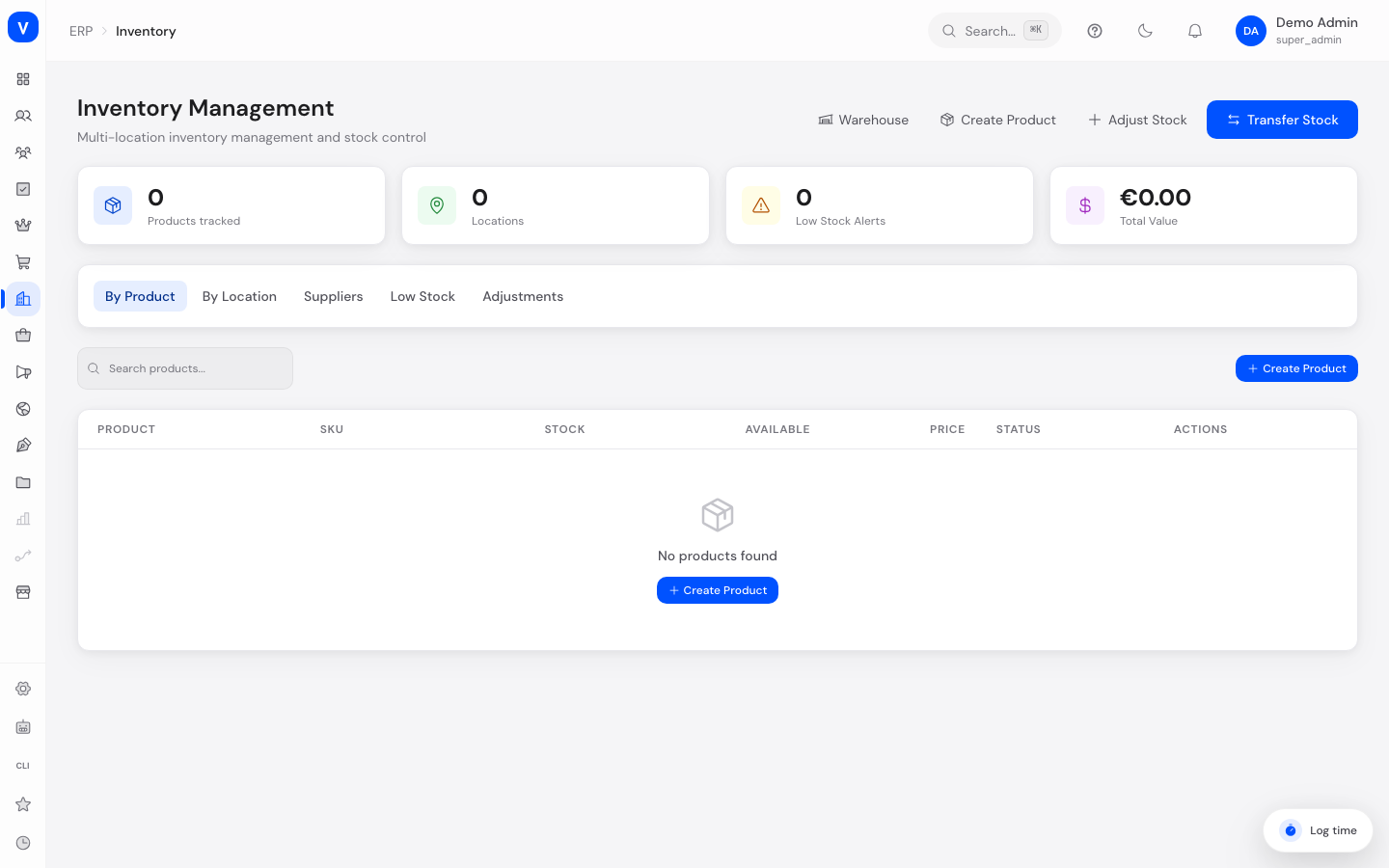
Here you can see at a glance how much of each product is in stock at every location. You can correct stock levels, move stock between locations, create new products, and check which suppliers deliver which product.
/erp/inventoryWhat can I do here?
- View stock for each product across all locations
- Search stock at a specific location
- Find products that are low on stock (at or below the safety stock) at a glance
- Review the history of all stock bookings
- Manually adjust stock (add/subtract) or set it to a fixed value
- Transfer stock between two locations
- Create, edit, or delete products and assign them to locations
- View the supplier catalog: which supplier delivers which product at what price
Step by step
- Manually adjust stock — Click "Adjust Stock" → enter the product and location ID → choose a mode: "Delta (+/-)" adds or subtracts a quantity, "Set absolute" overwrites the available stock with a fixed value → optionally enter a reason (e.g. "Stocktake", "Goods received") → Confirm.
- Transfer stock between locations — Click "Transfer Stock" → enter the product ID, source and destination location, and quantity → Confirm Transfer. Stock is deducted at the source location and credited at the destination; if there isn't enough available at the source, the transfer is rejected.
- Create a new product and assign stock — Click "Create Product" → fill in product title, SKU, EAN, price, tax rate, initial stock, status, and dimensions & weight → Save → then, in edit mode, use the "Locations" section to select a location and set an initial stock quantity there.
- Check low stock — Open the "Low Stock" tab: it lists every product/location combination where available stock has reached or fallen below its safety stock, along with the deficit.
/erp/inventory| Location | Stock | Committed | Available |
|---|---|---|---|
| Berlin main warehouse | 420 | 60 | 360 |
| Store Mitte | 35 | 5 | 30 |
/erp/inventoryFields explained
| Field | Meaning | Notes/Effect |
|---|---|---|
| Available | Quantity that can currently be sold freely | Changed directly by adjustments, transfers, and sales |
| Committed | Quantity already assigned to an order but not yet shipped | No longer available for new sales |
| Incoming | Quantity expected (e.g. from an open purchase order) | Not yet available, but planned |
| Damaged | Quantity marked as damaged | Does not count toward sellable stock |
| Safety Stock | Minimum quantity that should always be on hand | At or below this level triggers a low-stock alert |
| Deficit | Available minus Safety Stock | A negative value shows how far stock is below target |
| Product Title | Display name of the product | Required |
| SKU | Internal item number | Required, should be unique |
| EAN | European Article Number (barcode) | Optional |
| Price / Tax Rate | Selling price and its associated tax rate | Tax rates come from the shop settings |
| Initial Stock | Stock recorded when the product is created | Extended afterwards via location assignment |
| Status | Visibility/sales status of the product | The dialog offers 4 values, but only Active/Inactive is actually stored — see value list below |
| Dimensions & Weight | Weight plus width, height, length with unit | Needed for shipping calculations |
| Reason | Free-text note documenting a booking | Optional, shown in the booking history |
Values & statuses
Product status
The create/edit dialog offers four values to choose from. Only a simple on/off switch is actually stored, though: both "Draft" and "Archived" are saved as "Inactive" and can no longer be told apart afterwards — the product list and inventory view likewise only distinguish between "Active" and "Inactive".
| Value (selectable in the dialog) | Meaning | What is actually stored/shown |
|---|---|---|
| Draft | Product is not yet fully set up | Stored as "Inactive" — not visible in the shop |
| Active | Product is released | Visible and purchasable in the shop |
| Inactive | Product was temporarily deactivated | Not visible in the shop, data is retained |
| Archived | Product is meant to no longer be maintained | Stored as "Inactive" — indistinguishable from "Draft" |
Booking type (stock history)
| Value | Meaning | What happens |
|---|---|---|
| Set absolute | Available stock was set to a fixed value | Overwrites the previous value |
| Delta | Stock was increased or decreased by a quantity | Available stock changes by the given amount |
| Transfer in | Stock arrived at this location via a transfer | Increases available stock |
| Transfer out | Stock was deducted here via a transfer to another location | Decreases available stock |
| Received | Goods were booked in (e.g. delivery received) | Increases available stock |
| Sold | Stock was deducted through a sale | Decreases available stock |
| Returned | Stock was booked back in through a customer return | Increases available stock |
| Damaged | Goods were marked as damaged | Decreases available stock, increases damaged stock |
| Correction | Manual correction of a counting error | Changes available stock by the given amount |
Frequently asked questions
Why can't I deduct stock even though something is still shown?
The deduction is rejected if the quantity would become negative afterward. Check the currently available stock at the selected location.
What's the difference between "Delta" and "Set absolute"?
"Delta" adds or subtracts a quantity to/from the existing stock (e.g. +10 or -5). "Set absolute" replaces the available stock entirely with the entered value, regardless of the previous level.
Why does a product appear in the low stock list?
Because available stock at at least one location has reached or fallen below the safety stock configured there.
Where can I see which supplier delivers a product?
In the "Suppliers" tab on this page — it shows the supplier, vendor SKU, purchase price, lead time, and whether the supplier is marked as preferred.
Can I see how a stock level came about?
Yes, the "Adjustments" tab lists every change with date, type, previous and new stock, and the reason given.