Wave Picking
Wave picking groups several items to be picked from open orders into a single "wave" that can then be worked through efficiently in one pass through the warehouse. This saves walking distance compared to picking each order individually.
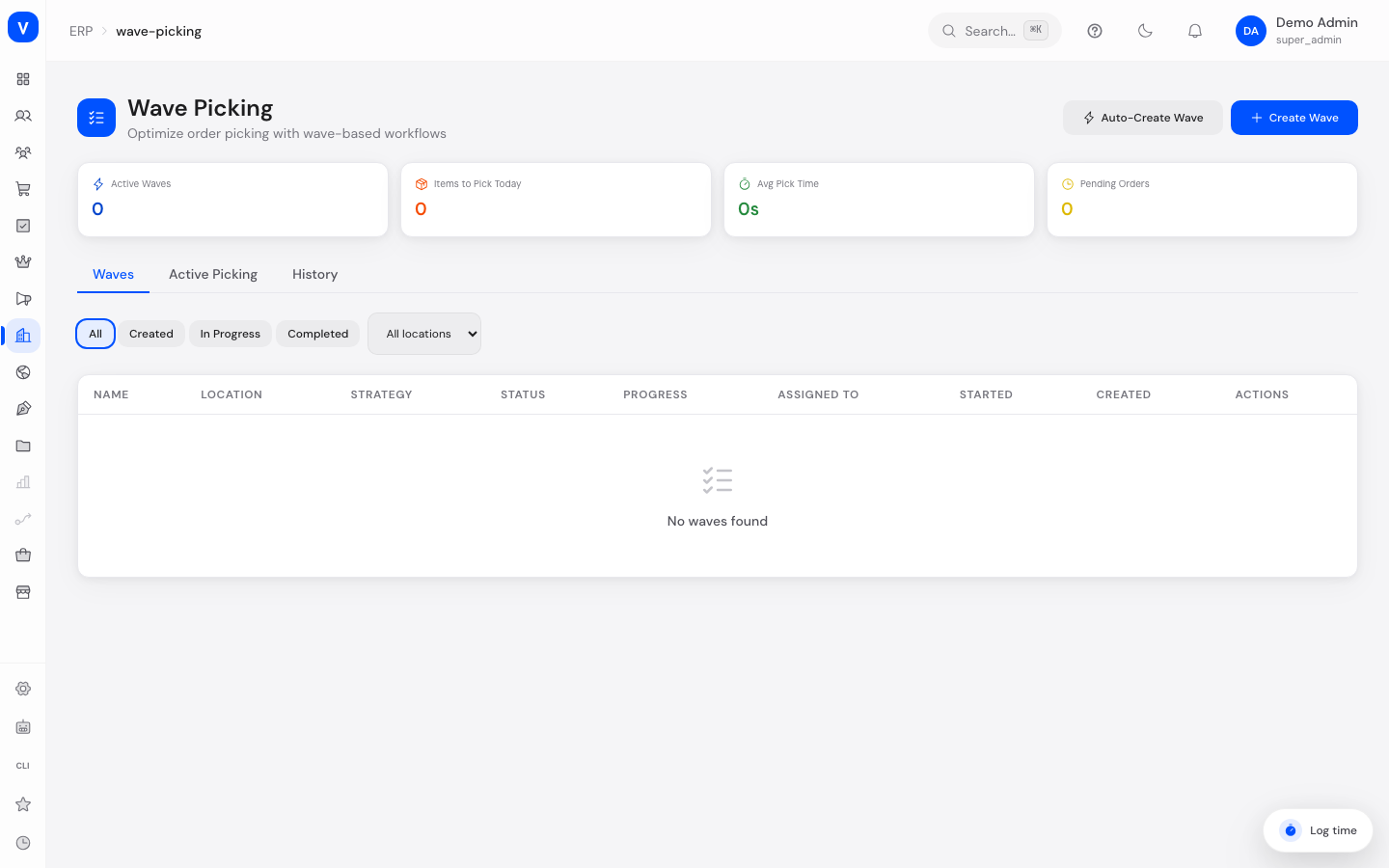
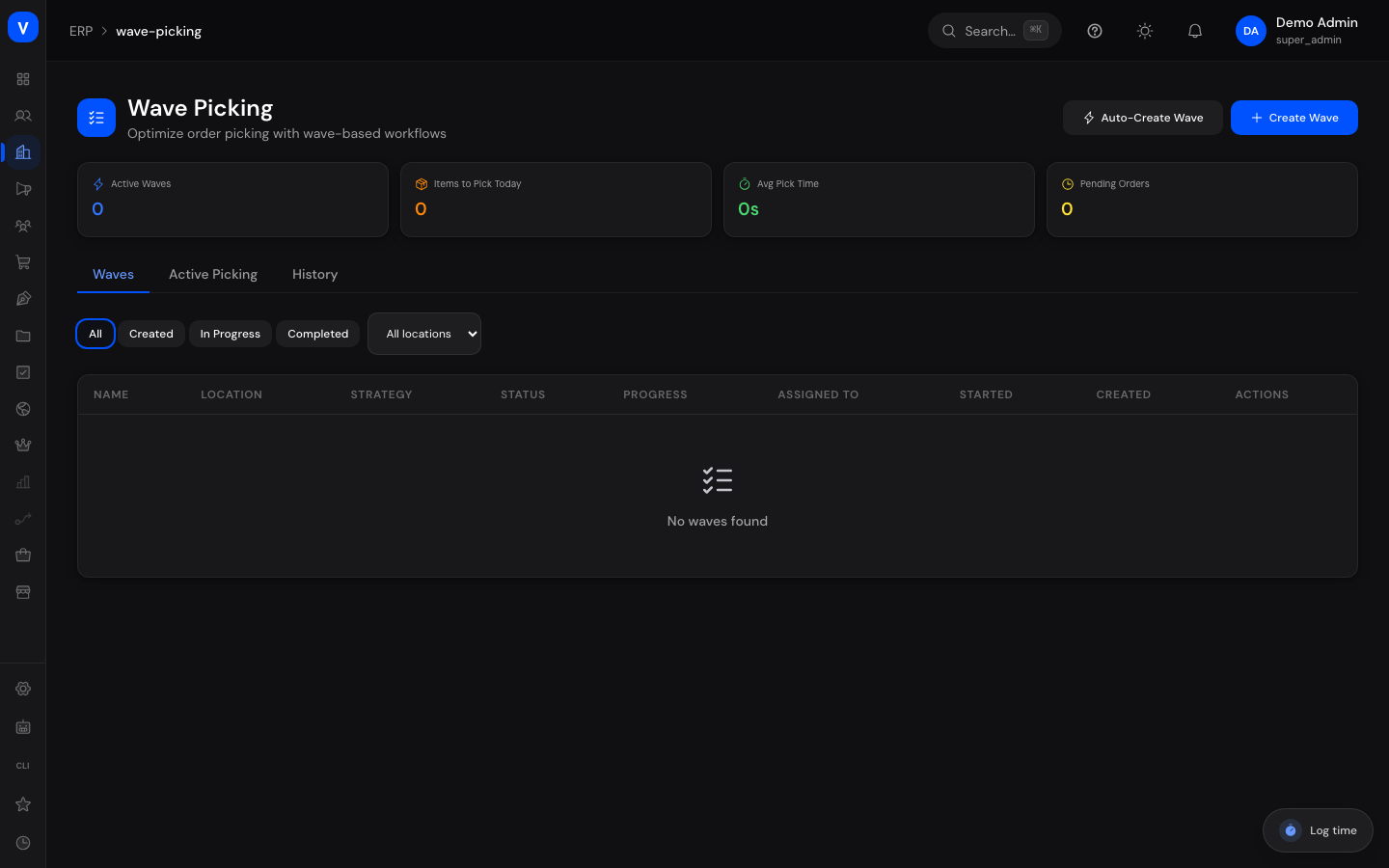
/erp/wave-pickingWhat can I do here?
- View key figures for active waves, items to pick today, average pick time, and pending orders
- View all waves with status, strategy, and progress; filter by status and location
- Manually create a new wave (name, location, strategy)
- Have a wave automatically generated from open orders (location, maximum number of items, priority filter)
- Start a planned wave
- Pick items one by one within the active wave (check them off)
- End a wave in progress via "Complete" or "Cancel" (completion normally happens automatically once the last item is picked — the button is just a manual fallback)
- View completed and cancelled waves with duration in the history
Step by step
- Create a wave manually: Click "Create Wave", choose a name, location, and strategy (single order, multi order, zone-based), then save. The wave starts in status "Created".
- Auto-generate a wave: Click "Auto-Create", specify a location, maximum number of items, and optionally a priority filter (e.g. only urgent orders) — the system assembles the wave from matching open orders.
- Start a wave: In the wave list, click the start icon on a wave with status "Created" — the status changes to "In Progress".
- Pick items: In the "Active" tab, open the running wave and check off the items in order (sorted by zone, aisle, shelf, bin) using "Pick".
- Complete the wave: Once the last item is picked, the system completes the wave automatically — clicking "Complete" is normally not necessary. The button stays visible as a manual fallback. A running wave can be ended at any time via "Cancel".
- Name
- Morning wave 1
- Strategy
- Zone Based
- Location
- Berlin main warehouse
- Status
- In Progress
- Progress
- 8 / 12
- Started
- 17 Aug 2026, 06:30
| Product | Storage Location | Quantity | Order | Status |
|---|---|---|---|---|
| Example screw M6 | A-01-04 | 20 | ORD-2026-0001 | ✓Completed |
| Example nut M6 | A-01-05 | 20 | ORD-2026-0001 | ✓Completed |
| Example gasket | B-03-11 | 5 | ORD-2026-0007 | iIn Progress |
/erp/wave-pickingFields explained
| Field | Meaning | Notes/Effect |
|---|---|---|
| Name | Name of the wave | Required |
| Location | Warehouse location the wave is created for | Required |
| Strategy | How items are grouped into a wave | See values below |
| Max Items | Upper limit for auto-generated waves | Only used for auto-creation |
| Priority Filter | Restricts auto-creation to orders of a certain priority | Only used for auto-creation |
| Progress | Number of picked items relative to the total | Updated live |
| Storage Location (per item) | Where the item is to be picked from | Determines the picking order |
| Assigned To | Employee working the wave | Optional |
| Duration | Time between start and completion of a wave | Only shown in history |
Values & statuses
Wave status (wave_status)
| Value | Plain-language meaning | What happens |
|---|---|---|
| created | Created | Wave has been created but not started |
| in_progress | In Progress | Items can be picked |
| completed | Completed | All items have been picked |
| cancelled | Cancelled | Wave was ended without completion |
Strategy (wave_strategy)
| Value | Plain-language meaning |
|---|---|
| single_order | Single Order — each wave contains only one order |
| multi_order | Multi Order — several orders are picked together |
| zone_based | Zone-Based — items are grouped by warehouse zone |
Priority filter (wave_priority_filter, auto-creation only)
| Value | Plain-language meaning |
|---|---|
| all | All priorities |
| express | Express orders only |
| high | High-priority orders only |
| normal | Normal-priority orders only |
Frequently asked questions
What's the difference between manual and automatic wave creation?
With manual creation, you set the name, location, and strategy yourself. With automatic creation, the system selects matching open orders itself based on location, maximum item count, and an optional priority filter.
Why are the items shown in a particular order?
Items are sorted by zone, aisle, shelf, and bin so picking can be done with as little walking distance in the warehouse as possible.
Can I complete a wave if not all items have been picked yet?
No, the Complete button is only available once all items in the wave are marked as picked. If completion isn't desired, the wave can be cancelled instead.