Liquidity Dashboard
The Liquidity Dashboard gives you an overall view of your company's liquidity (the money actually available to you). You can see your current bank balance, how long that money is expected to last, how quickly customers pay you and how quickly you pay suppliers, and automatic alerts when key figures reach critical levels. You can also match bank transactions against the payments you have recorded.
What can I do here?
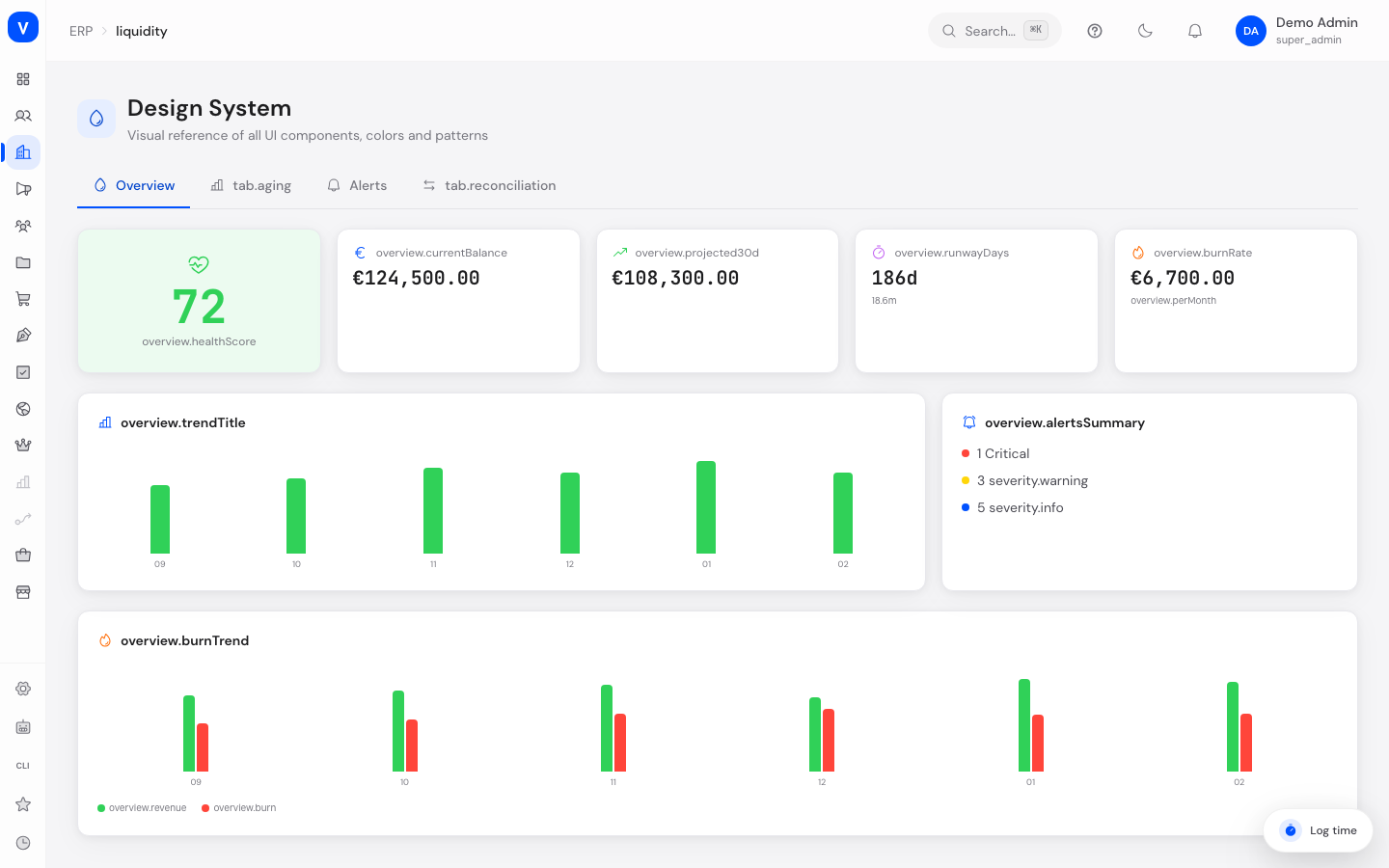
- See your liquidity health score alongside current balance, 30-day forecast, runway, and burn rate at a glance
- Review the trend of your balance over time and the number of alerts by severity (critical/warning/info)
- View the burn trend (spending compared to revenue) across several months
- See open receivables (money customers owe you) and payables (money you owe suppliers) grouped by how overdue they are
- Take an aging snapshot to save the current state for later comparison
- Track the trend of how quickly customers pay you (DSO) and how quickly you pay suppliers (DPO) over several months
- View your largest counterparties by outstanding amount
- Create, edit, and delete alert rules that notify you automatically when a metric crosses a threshold
- Review triggered alerts and acknowledge them individually or all at once
- Manually trigger evaluation of alert rules
- Automatically or manually match bank transactions against your cashflow entries (reconciliation)
- Confirm or reject suggested matches and review unmatched entries
Step by Step
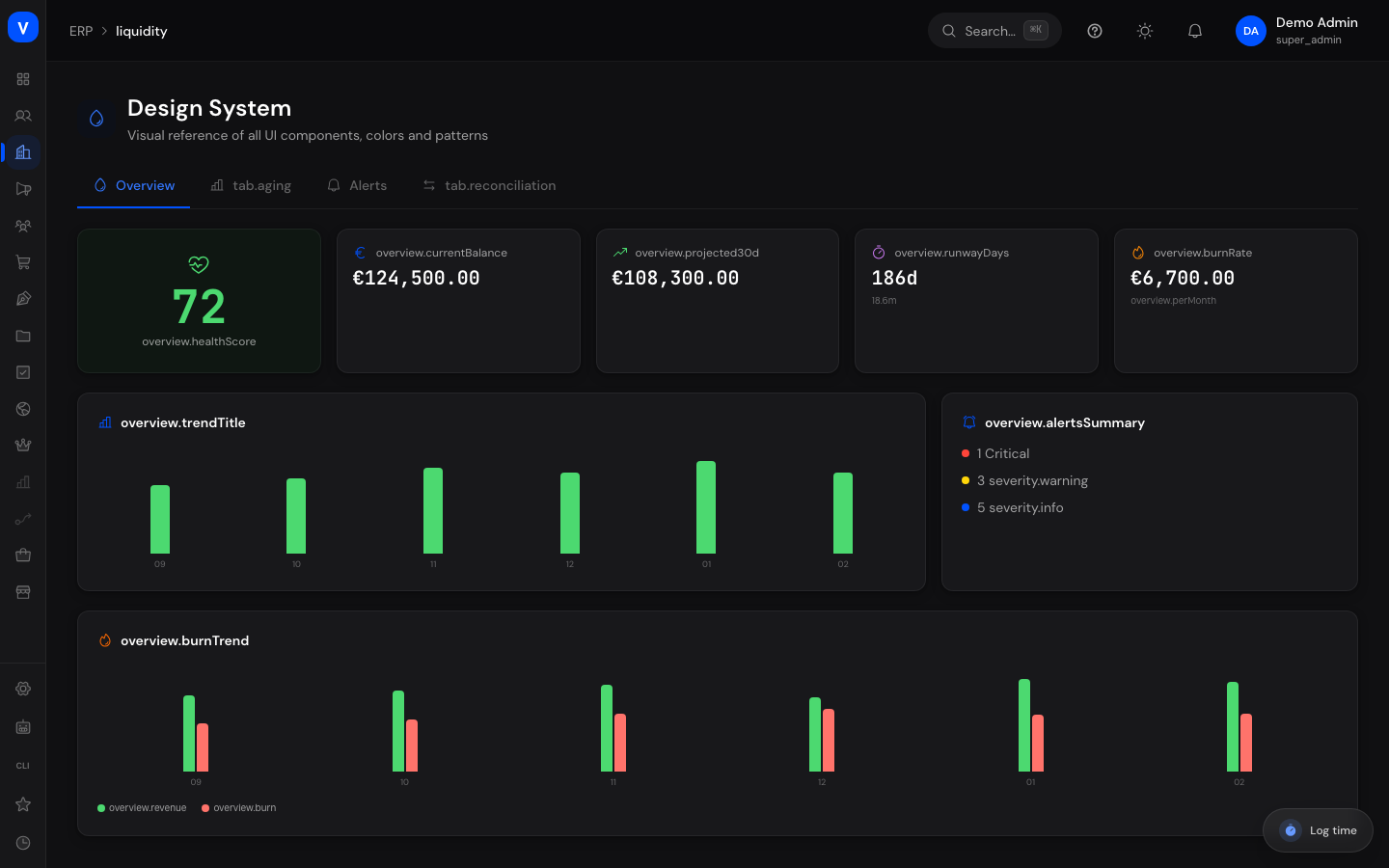
- Get an overview: Open the "Overview" tab to see the health score, current balance, forecast, runway, and burn rate, plus the number of open alerts.
- Check aging: Switch to the "Aging Analysis" tab, choose "Receivables" or "Payables," and see how much money is outstanding for each time bucket (current, 1-30, 31-60, 61-90, 90+ days). Click "Take Snapshot" to save the current state.
- Create an alert rule: Open the "Alerts" tab, click "Add Rule," give it a name, choose a metric, a comparison operator, a threshold, and a severity, then save the rule.
- Reconcile bank transactions: Open the "Reconciliation" tab, set the desired minimum confidence (how certain the automatic match must be), and click "Run Auto-Match." Then review the suggested matches and confirm or reject them.
/erp/liquidityFields Explained
| Field / Element | Meaning | Notes/Impact |
|---|---|---|
| Health Score | A single figure summarizing how healthy your overall liquidity position is | Shown in green above 70, yellow between 41-70, red at 40 or below |
| Current Balance | The actual money currently available | Base figure for all other calculations |
| Projected (30d) | The expected balance in 30 days, factoring in planned inflows and outflows | Helps you spot upcoming shortfalls early |
| Runway (Days) | How many days your current money will last at the current spending rate | Also shown converted into months |
| Burn Rate | The average amount of money spent per month | Used to calculate the runway |
| Trend Chart | Bar chart of the balance over recent months | Green bars = positive balance, red bars = negative balance |
| Alerts Summary | Number of open alerts by severity (critical/warning/info) | Click through to the "Alerts" tab for details |
| Burn Trend | Comparison of revenue and spending per month as a bar chart | Green = revenue, red = burn |
| Receivables/Payables toggle | Switches the aging analysis between open customer receivables and open supplier payables | Affects all figures and tables on this tab |
| "Take Snapshot" | Saves a point-in-time capture of the current aging data | Enables later trend review |
| Total Outstanding | Sum of all open amounts in the selected view (receivables or payables) | Shown above the aging time buckets |
| Aging buckets | Groups the outstanding amounts by age: current, 1-30, 31-60, 61-90, 90+ days | The older the bucket, the more urgent the follow-up |
| DSO/DPO Trend | Trend of the average time it takes customers to pay you (DSO) and you to pay suppliers (DPO), over several months | Blue = DSO, purple = DPO |
| Top Counterparties | Table of customers or suppliers with the highest outstanding amount, including average days and item count | Helps prioritize collections or payments |
| Rule Name | Free-text name for an alert rule | Required before a rule can be saved |
| Metric | The monitored figure, e.g. current balance, 30-day forecast, runway, burn rate, DSO, DPO, or match rate | Determines which value is compared against the threshold |
| Operator | Comparison type between the metric and the threshold (less than, greater than, less/equal, greater/equal, equal) | Determines when the rule fires |
| Threshold | The numeric value that triggers the rule when crossed | Combined with the operator, decides when an alert fires |
| Severity | How urgent a triggered alert is (critical, warning, info) | Determines the color coding of the alert |
| Active toggle | Controls whether a rule is currently being evaluated | Inactive rules never trigger alerts |
| Last Triggered | The last time a rule produced an alert | Shows "-" if the rule has never fired |
| "Evaluate Rules" | Immediately checks all active rules against current values | Can be run manually at any time, independent of automatic checks |
| "Acknowledge All" | Marks all open alerts as acknowledged | Acknowledged alerts remain visible but are flagged as reviewed |
| Min Confidence slider | Minimum certainty percentage required before an automatic match is suggested during reconciliation | Higher values mean fewer but more reliable suggestions |
| "Run Auto-Match" | Starts automatic matching of bank transactions to cashflow entries | Results appear as suggestions in the matches table |
| Confidence column | Percentage certainty score of a suggested match | Green from 90%, yellow from 70%, red below that |
| "Confirm" / "Reject" | Accepts or discards a suggested match | Only available for matches still in "suggested" status |
| Unmatched Bank/Cashflow entries | Lists bank transactions or cashflow entries for which no matching counterpart has been found | Can be reviewed and matched manually |
Values & Status
Alert Severity
| Label | Meaning | What Happens Next |
|---|---|---|
| Critical | The monitored metric has reached a threshold classified as highly urgent | Marked in red and should be reviewed immediately |
| Warning | The monitored metric has reached a threshold that needs attention but is not immediately critical | Marked in yellow |
| Info | The monitored metric has reached a threshold that is purely informational | Marked in blue |
Aging Buckets (Receivables and Payables)
| Label | Meaning | What Happens Next |
|---|---|---|
| Current | The amount is not yet overdue | No immediate action needed |
| 1-30 Days | The amount has been overdue for 1 to 30 days | Worth keeping an eye on |
| 31-60 Days | The amount has been overdue for 31 to 60 days | Follow-up recommended |
| 61-90 Days | The amount has been overdue for 61 to 90 days | Higher priority for follow-up or payment |
| 90+ Days | The amount has been overdue for more than 90 days | Highest priority — consider collections or clarify with the counterparty |
Reconciliation Match Status
| Label | Meaning | What Happens Next |
|---|---|---|
| Suggested | The system found a possible match between a bank transaction and a cashflow entry, but it is not yet confirmed | Can be decided via "Confirm" or "Reject" |
| Confirmed | You confirmed the match as correct | Treated as finally reconciled |
| Rejected | The suggested match was discarded as incorrect | The transaction remains unmatched |
Frequently Asked Questions
What does "Runway (Days)" mean?
It's the number of days your current money will last at the current rate of spending. The higher the number, the more financial breathing room you have.
What's the difference between receivables and payables?
Receivables are open amounts customers still owe you (money that will flow to you). Payables are open amounts you still owe suppliers or other counterparties (money that will flow out from you).
What are alert rules for?
Alert rules automatically monitor key figures like balance, runway, or payment speed, and notify you as soon as a threshold you defined is crossed — so you don't have to constantly check the dashboard manually.
What happens when I acknowledge an alert?
The alert is marked as "acknowledged" and stays visible for tracking purposes. Acknowledging doesn't change the underlying figures — it just records that you've reviewed the alert.
What does reconciliation do?
It automatically compares imported bank transactions with your recorded cashflow entries and suggests matches based on amount, date, and other characteristics. You make the final call on whether a suggestion is correct.
Why do I see some entries under "Unmatched"?
These bank transactions or cashflow entries could not (yet) be matched to a corresponding counterpart, for example because no matching amount or timeframe was found. You can try to match them manually or wait until a matching entry is recorded.