Serial Tracking
Serial tracking lets you record individual, uniquely identifiable units of a product — for example electronics with a warranty. Each serial number is tracked individually: which location it is at, which batch it belongs to, whether a warranty applies, and which order it was sold in.
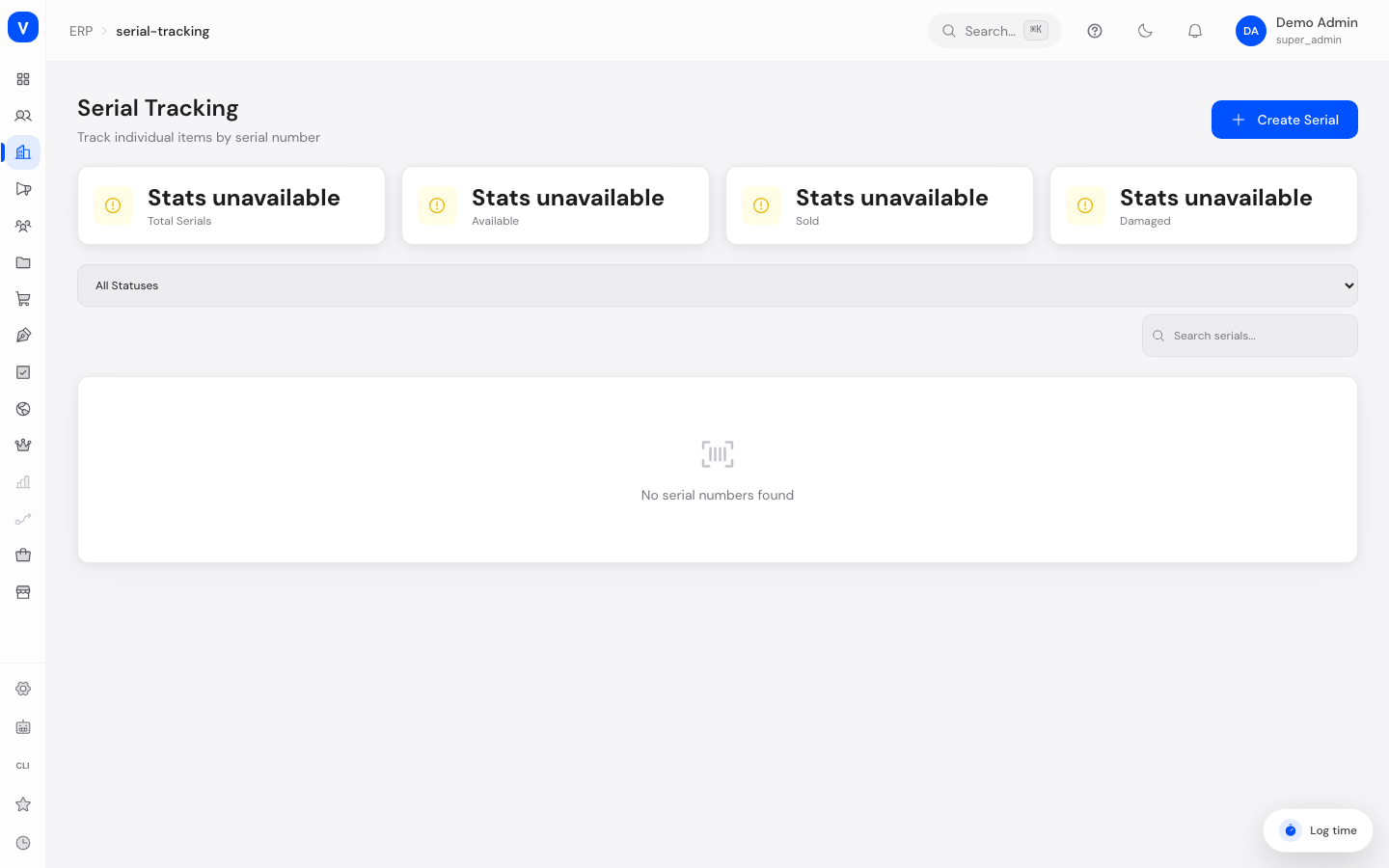
/erp/serial-trackingWhat can I do here?
- View all recorded serial numbers with product, location, and status
- Search by serial number or product and filter by status
- Create a single serial number, or import several serial numbers at once from a text list (bulk creation)
- Optionally link a serial number to a batch and record a warranty end date
- Manually change the status of a serial number
- See in the detail view which order a serial number was sold in
Step by step
- Create a single serial number: Click "Create Serial", choose "Single" mode, enter the serial number, product ID, and location ID, optionally add a batch ID and warranty end date, then save.
- Create several serial numbers at once: In the same dialog, choose "Bulk" mode and enter the serial numbers one per line in the text field; product ID, location ID, and the optional batch ID/warranty apply to all entered numbers together.
- Link a serial number to an order: Open the details of a serial number — once it has been sold via an order, the associated order number is shown.
- Change status: In the detail view, select the desired new status; the change is applied immediately.
Fields explained
| Field | Meaning | Notes/Effect |
|---|---|---|
| Serial Number | Unique identifier of the individual unit | Required |
| Product | Associated product | Required |
| Location | Current storage location of the unit | Required |
| Batch | Link to a batch (if applicable) | Optional, see Batch Tracking |
| Warranty Until | Date until which warranty applies to this unit | Optional |
| Order | Order in which the unit was sold | Shown automatically once a sale has occurred |
Values & statuses
Status (serial_status)
| Value | Plain-language meaning | What happens |
|---|---|---|
| available | Available | Can be used for a sale |
| reserved | Reserved | Earmarked for an order but not yet sold |
| sold | Sold | Has been assigned to an order |
| returned | Returned | Came back via a return |
| damaged | Damaged | No longer sellable |
| scrapped | Scrapped | Permanently removed from stock |
Frequently asked questions
What is bulk creation for?
It lets you create several serial numbers at once (e.g. from a delivery) without entering each one individually through the form — just enter them one per line in the text field.
Do I always have to link a serial number to a batch?
No, the batch link is optional and only relevant if the product is also managed through batch tracking.
How do I see which order a device was sold in?
The serial number's detail view shows the associated order number once the status is "Sold".