Invoices
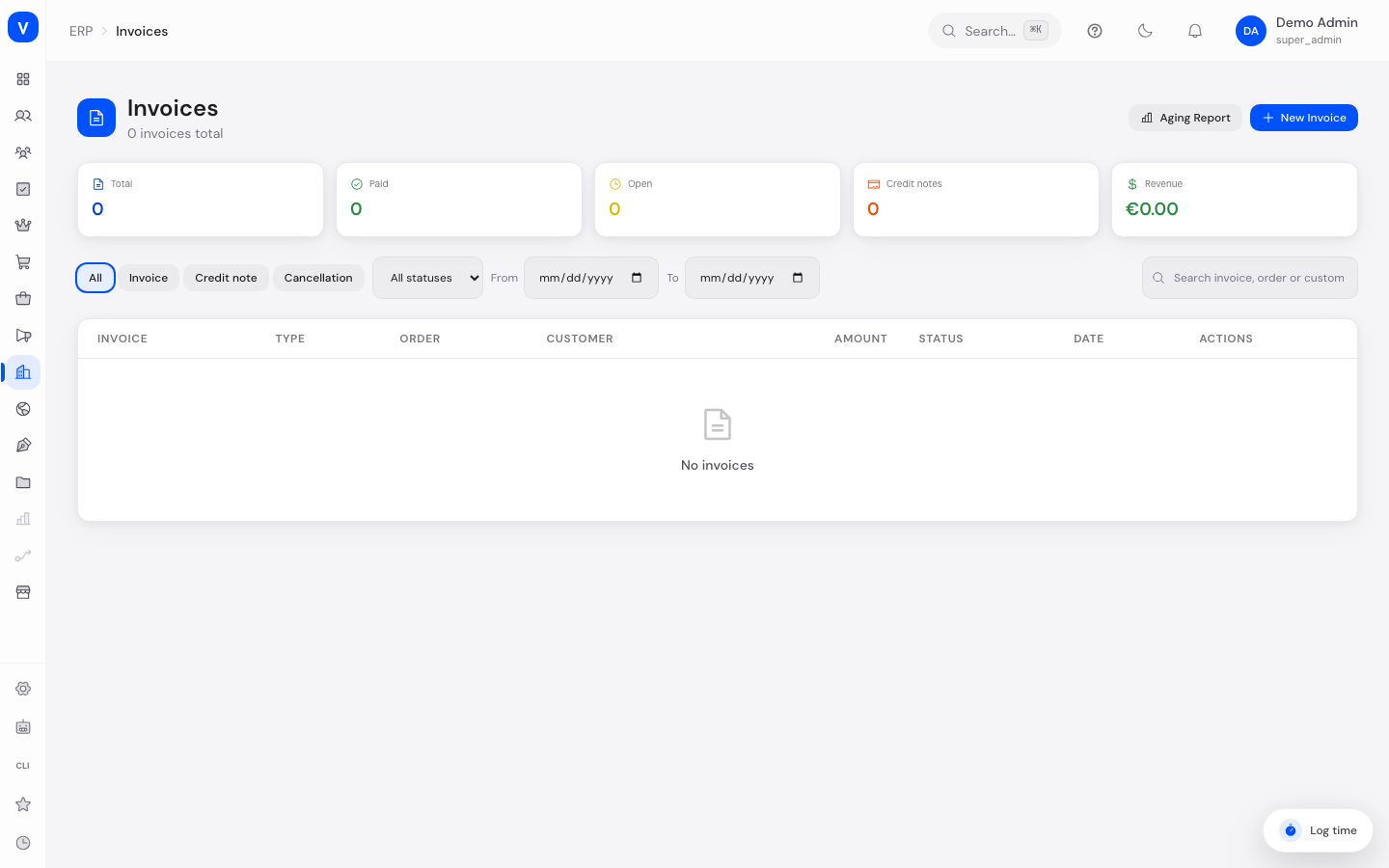
Here you manage all invoices, credit notes, and cancellations created for your orders. You can create new invoices, track payment status, download documents, and record payments.
What can I do here?
- Filter all invoices by type, status, date range, or search term
- Manually create a new invoice (starting as a draft)
- Finalize, send, mark as paid, or cancel an invoice
- Record a payment against an invoice
- Download invoices as PDF or as XRechnung (a standardized electronic invoice format for government and B2B use)
- View the aging report, which groups open invoices by age
- View an invoice's line items, tax breakdown, and recorded payments in detail
Step by Step
- Create a new invoice: Click "New Invoice", optionally select a customer, fill in the billing recipient and line items, and save as a draft.
- Finalize an invoice: Open the draft and click "Finalize" — the invoice then receives a permanent invoice number and can no longer be edited.
- Send an invoice: For a finalized, open invoice, click "Send" to deliver it to the customer.
- Record a payment: Click "Record Payment", enter the amount, payment method, and reference, and confirm — the remaining balance updates automatically.
- Cancel an invoice: For an incorrect, already finalized invoice, click "Cancel" — a cancellation invoice with reversed amounts is generated.
/erp/invoices- Invoice
- RE-202608-00042
- Customer
- Example Ltd
- Order
- ORD-2026-0001
- Due
- 14 Sep 2026
- Status
- Finalized
| Product | Qty | Unit price | VAT | Total |
|---|---|---|---|---|
| Example screw M6 | 200 | EUR 1.60 | 19 % | EUR 380.80 |
| Example nut M6 | 200 | EUR 0.40 | 19 % | EUR 95.20 |
- Net
- EUR 400.00
- Tax
- EUR 76.00
- Gross
- EUR 476.00
- Paid
- EUR 200.00
- Remaining
- EUR 276.00
/erp/invoicesFields Explained
| Field | Meaning | Notes/Impact |
|---|---|---|
| Invoice | Invoice number, also the link to expand the line items | Drafts may not yet have a final number |
| Type | Whether it's an invoice, credit note, or cancellation | See Values & Status |
| Order | Number of the associated order | Reference to the order the invoice originates from |
| Customer | Name of the billing recipient | From the stored billing address |
| Amount | Gross total of the invoice | Negative amounts (e.g. credit notes) are highlighted in orange |
| Status | Current processing state | See Values & Status |
| Date / Due | Creation date and payment due date | Highlighted in red for overdue, unpaid invoices |
| Line Items (detail view) | Individual items/services with quantity, unit price, total, and VAT | Expanded by clicking the invoice number |
| Net / VAT / Gross (detail view) | Tax breakdown of the invoice | Shows VAT separately per tax rate |
| Paid / Remaining (detail view) | Payments already recorded and the outstanding balance | Updates with every recorded payment |
Values & Status
Invoice Type
| Label | Meaning | What happens next |
|---|---|---|
| Invoice | Regular invoice for an order | Normal invoicing flow |
| Credit Note | Refund of an amount to the customer | See Credit Notes |
| Cancellation | Full reversal of an already finalized invoice | Automatically generated with reversed amounts when an invoice is cancelled |
Status
| Label | Meaning | What happens next |
|---|---|---|
| Draft | The invoice has been created but not yet finalized | Can still be edited |
| Finalized | The invoice has received a permanent number | Can no longer be changed, only sent, paid, or cancelled |
| Sent | The invoice has been delivered to the customer | Awaiting payment |
| Paid | The full invoice amount has been recorded | Completed process |
| Overdue | The due date has passed and the invoice is not yet paid | Marked in red in the list; can be the starting point for a dunning process |
| Cancelled | The invoice has been reversed | No further actions possible except viewing |
Tax Scenario (selectable when creating)
| Label | Meaning | What happens next |
|---|---|---|
| Standard | Regular domestic VAT rate | Usual VAT calculation |
| Reverse Charge | Tax liability lies with the invoice recipient (typical for certain B2B cases) | The invoice shows a corresponding note, no VAT is charged |
| Intra-Community | Delivery to a business in another EU country | Tax-exempt, with a corresponding note |
| Third-Country Export | Delivery to a country outside the EU | Tax-exempt, with a corresponding note |
| Small Business | Issuer uses the German small-business tax exemption (§19 UStG) | No VAT is shown |
| Tax Exempt | Other statutory tax exemption | No VAT is shown |
Frequently Asked Questions
Why can't I edit a finalized invoice anymore?
Finalized invoices are immutable for legal reasons (principle of proper bookkeeping). For corrections, create a credit note instead, or cancel the invoice.
What is the difference between "Cancel" and a credit note?
A cancellation fully reverses an invoice. A credit note instead refunds a (possibly partial) amount without invalidating the original invoice.
What is an XRechnung?
XRechnung is a standardized electronic invoice format required in Germany for, among other things, invoices to government agencies. You can download it via the icon next to the PDF function.
Why is an invoice shown as "Overdue" even though its status is "Sent"?
The displayed "Overdue" status is calculated automatically once the due date has passed and the invoice is not yet fully paid — regardless of the originally set status.
Who may send an invoice?
Since August 2026 sending needs a permission of its own - Send invoices, separate from Edit invoices. Anyone who may only edit can change and finalize the draft but gets a "No access" message on sending. Roles that could send before still can; the new permission was handed to them automatically. It is granted under Staff & Roles.
What happens if I click send twice, or the connection drops?
The invoice still goes out only once. Sending, finalizing and recording a payment now carry a repeat marker: if the same operation is submitted a second time - because the answer got lost on the way or the network stuttered - the system answers with the result of the first attempt instead of repeating the action. The invoice then shows one dispatch, not two; an invoice number is not drawn twice and a payment is not booked twice. Deliberately sending an invoice a second time is still possible - that is a new operation, not a repeated one.