Template Store
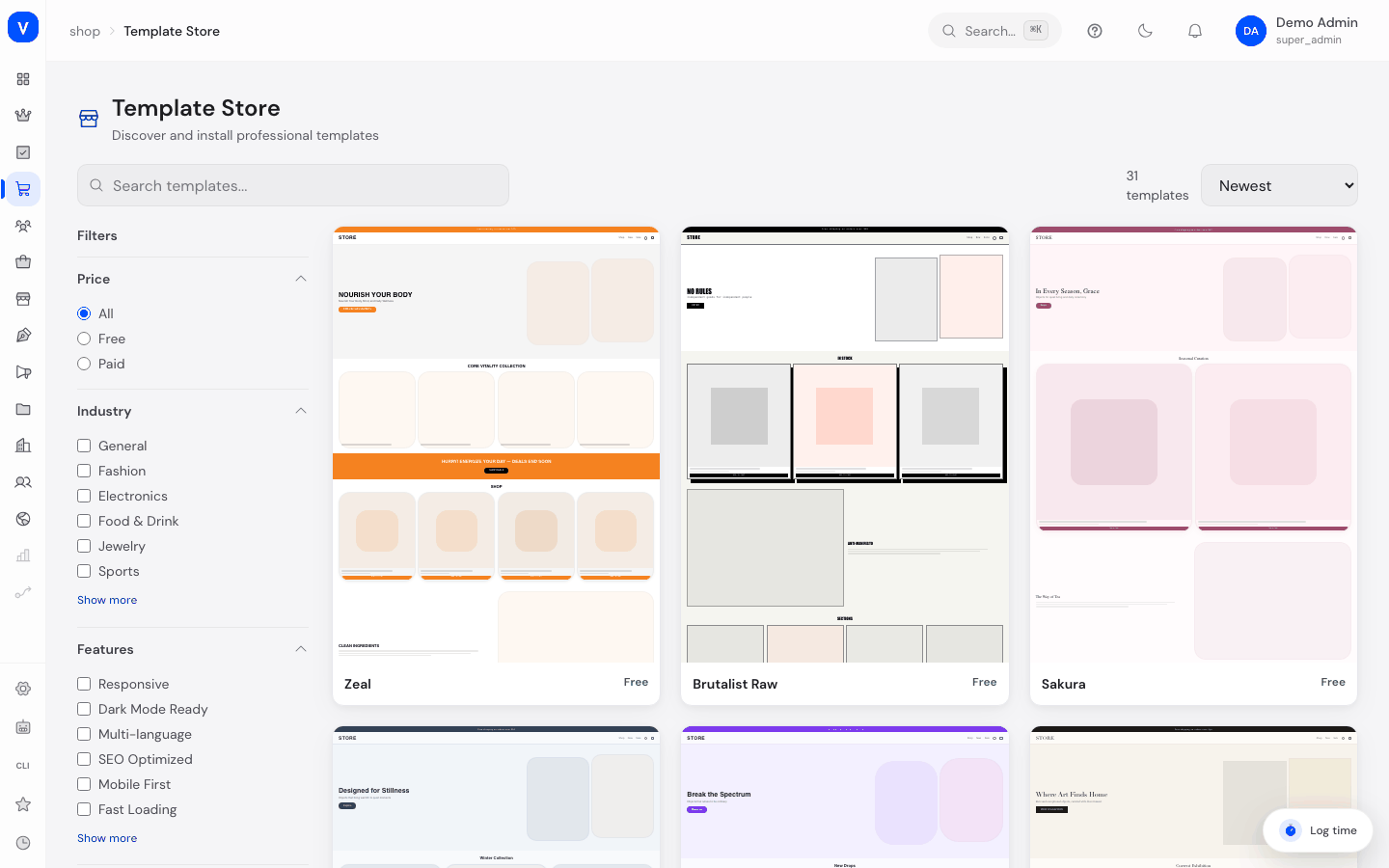
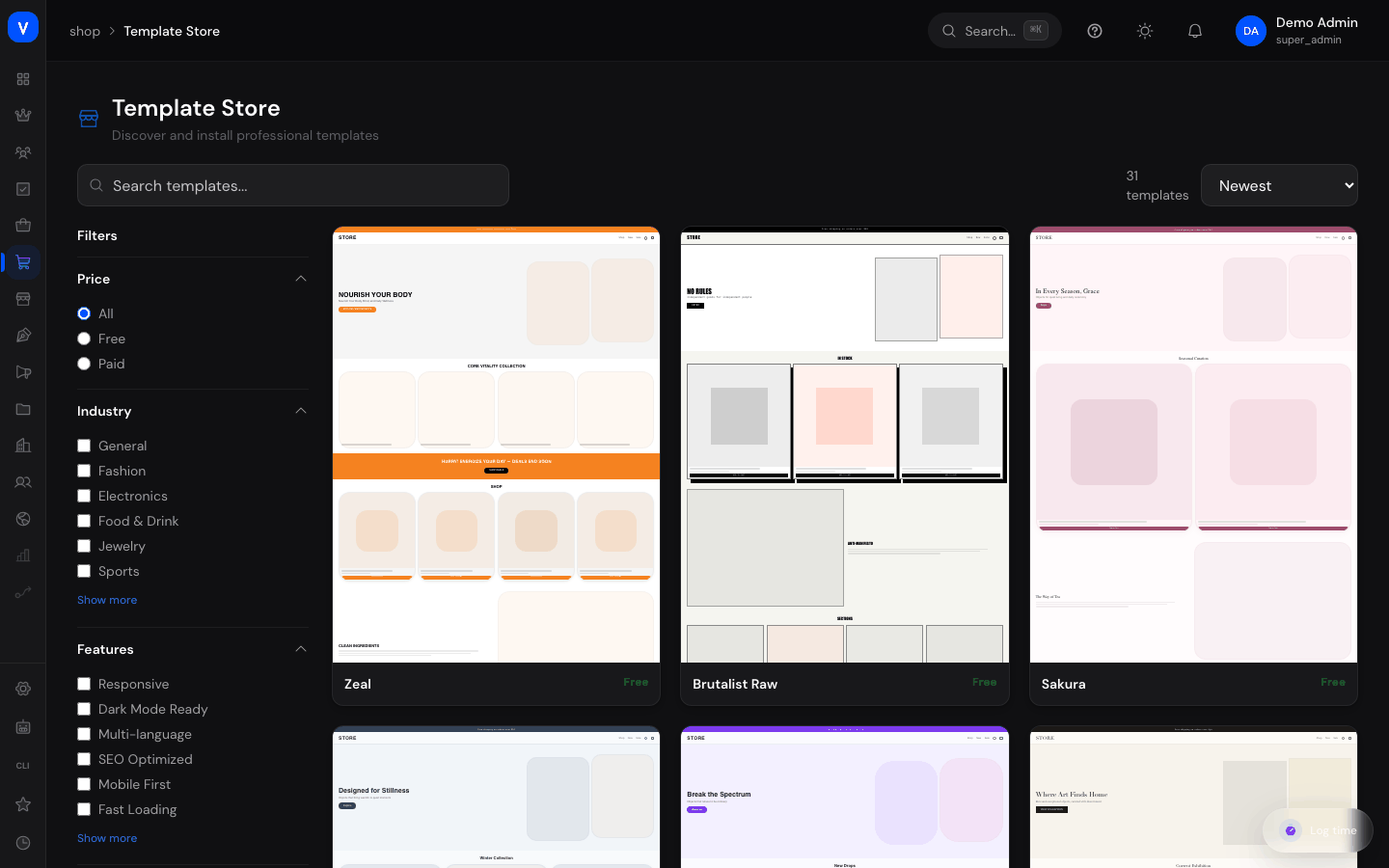
The Template Store is the overview of ready-made design templates (themes) for your shop. Here you browse available templates, filter them by price, industry and feature set, and install a suitable template for your shop.
What can I do here?
- Browse available design templates and search by name
- Filter by price (free/paid), industry and features
- Sort templates by newest, most popular or highest rated
- View details of a single template and install it
Step by step
- Search for a template: Use the search and the filter sidebar (price, industry, features) to find suitable templates.
- View template details: Click a template to go to its detail page.
- Install a template: Click "Install" on the detail page and confirm the notice dialog. The template is added to your installed templates but does not yet replace the active template in your shop.
- Activate a template: For an already installed template, click "Activate" to make it the active template for your storefront. This automatically deactivates whichever template was previously active — only one template can be active at a time.
- Preview a template: On the detail page, use the image gallery or the "Try theme" link (if available) to take a closer look before installing.
/shop/template-store- By
- SCS Themes
- Type
- Built-in
- Version
- 3.1
- Rating
- 4.8 / 5
- Installs
- 3,450
- Price
- 49.00 EUR
/shop/template-store/:slugFields explained
| Field | Meaning | Notes/Effect |
|---|---|---|
| Name | Name of the design template | — |
| Description | Short summary shown on the card in the overview | — |
| Long description | Longer description text on the detail page | Only shown on the detail page |
| Price | Free, or a fixed amount in the configured currency | Paid templates show the price instead of "Free" |
| Industries | Assignment to one or more industries (e.g. fashion, electronics) | Used as a filter criterion in the overview |
| Features | Feature building blocks included in the template (e.g. mega menu, newsletter section) | Used as a filter criterion in the overview |
| Version | Version number of the template | Shown on the detail page as "v…" |
| Type | "Built-in" (provided by SELLERLOGIC Commerce Services) or "Community" | Informational only |
| Installs | Number of shops that have installed this template | Incremented automatically on each installation |
| Rating | Average star rating and number of reviews | Calculated from the template's reviews |
| Preview images | Image gallery for the template | If images are missing, a live preview is rendered from the theme's colors instead |
| Demo URL | Optional link to an external live demo | Opens in a new tab |
| Sort | Order of results in the overview | Newest, most popular, or highest rated |
Values & statuses
Price filter (template_store_price_filter)
| Value | Meaning |
|---|---|
| All | Shows both free and paid templates |
| Free | Shows only templates priced at 0 |
| Paid | Shows only templates priced above 0 |
Sort (template_store_sort)
| Value | Meaning |
|---|---|
| Newest | Most recently added templates first |
| Popular | Templates with the most installs first |
| Rating | Templates with the best average rating first |
Installation status (template_installation_status)
| Value | Meaning | What happens |
|---|---|---|
| Not installed | The template hasn't been added to this shop yet | The "Install" button is available on the detail page |
| Installed | The template has been added, but is not the active storefront template | Its customizations are stored separately; an "Activate" button is shown |
| Active | The template is currently served on the storefront | Only one template can be active at a time; activating another template automatically deactivates this one |
Frequently asked questions
What's the difference between "Install" and "Activate"?
"Install" only adds a template to your available templates — it doesn't change your live shop yet. Only "Activate" makes the template the one currently served on your storefront.
Can I have several templates active at the same time?
No, only one template can be active at a time. Activating a template automatically deactivates whichever template was previously active.
Do I lose my customizations when I switch to a different template?
No. Each installed template stores its own customizations (colors, layout, header/footer) separately. If you switch back to a previously installed template, its customizations are still there.
Where do I customize the colors, layout, and content of an installed template?
That doesn't happen in the Template Store itself — it happens under Theme, where you'll find the full editor for the active template.
How do I sort by the most popular or best-rated templates?
Use the sort dropdown in the top right of the overview and choose "Popular" or "Rating".
Why doesn't a template come with ready-made headings and copy?
A template decides how your shop is put together: which sections appear in which order, with how many columns, at which height, in which colors and fonts. It deliberately does not bring the visible copy along. It used to, but only in English, so a German-language shop showed "Trending Now" instead of "Gerade beliebt" after activation and switching languages changed nothing. As long as you enter nothing of your own in the theme editor, every section shows its translated default in your visitor's language. Your own text always beats that default.
Why does my template no longer have an announcement bar above the header?
Nine templates came with a pre-filled announcement that promised something your shop had never promised - free shipping above a certain amount, for instance, or free returns. Those pre-filled bars are gone. You can set up an announcement in your own words at any time under Theme.
Related topics
The actual design, customization and activation of design templates is described in detail under Theme — there you'll find details on colors, layout blocks, and the preview/publish function.