Domains
This is where you manage which internet addresses (domains) your shop is reachable under — e.g. a custom domain like "shop.mycompany.com" — and set up redirects from old to new page addresses.
What can I do here?
- Add, edit and delete custom domains
- Set a domain as the primary domain
- View the DNS records that need to be set with your domain provider
- Trigger the DNS check and renew the SSL certificate status
- Create and manage URL redirects (e.g. from an old to a new page address)
- See how often a redirect has been used
Step by step
- Add a domain: Switch to the "Domains" tab, click "Add Domain", enter the domain name and choose the domain type.
- Set up DNS: Click the "DNS Records" icon on the new domain to see the technical values you need to set with your domain provider (registrar). Copy the values using the copy icon.
- Check DNS: Once you've set the records, click "Verify DNS" so SELLERLOGIC Commerce Services can verify the domain.
- Renew the SSL certificate: If the DNS check succeeded but the certificate isn't active yet, click "Renew SSL".
- Set the primary domain: Click the star icon on a verified domain to make it the primary domain.
- Create a redirect: Switch to the "Redirects" tab, click "Create Redirect", and enter the source and target path plus the status code.
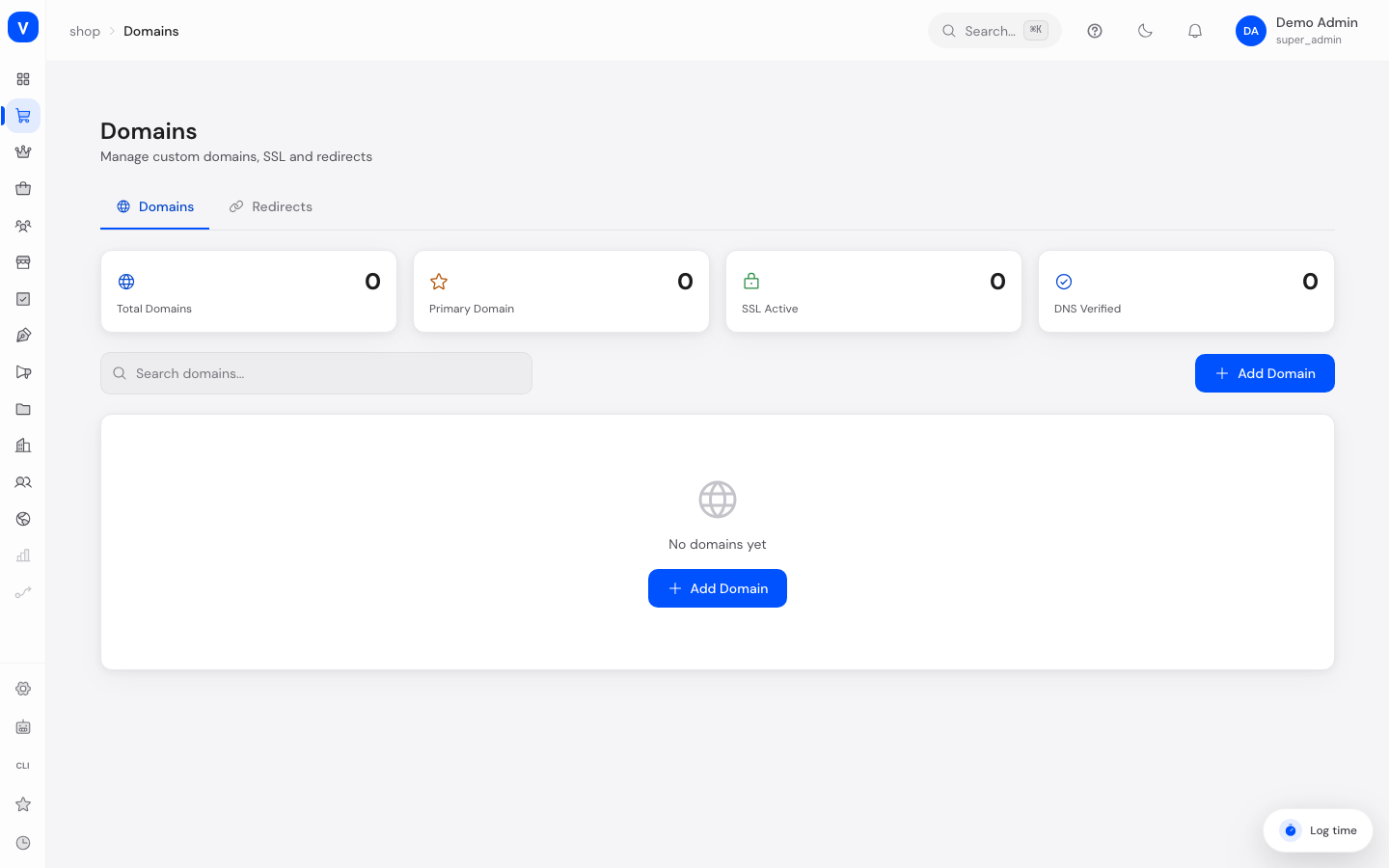
/shop/domainsIllustration
DNS Records
iAdd these DNS records at your domain provider to verify your domain.
| Type | Name | Value |
|---|---|---|
| TXT | _scs-verify | scs-domain-verification=8f3ac2e1d9b74a0c |
| A | @ | 203.0.113.10 |
| CNAME | www | example.com |
Verify DNSClose
/shop/domainsFields explained
| Field | Meaning | Notes/Effect |
|---|---|---|
| Domain | The internet address itself (e.g. shop.example.com) | Required |
| Domain Type | Custom domain or redirect domain | See values below |
| DNS Verified | Whether the technical DNS records are set correctly | Required for an active SSL certificate |
| SSL Status | Status of the security certificate for HTTPS | See values below |
| Primary Domain | Marks the primary domain in use | Cannot be deleted while it is the primary domain |
| From Path / To Path | Original and new page path of a redirect | Required |
| Status Code | HTTP status code of the redirect | 301 (permanent) or 302 (temporary) |
| Hits | Number of times the redirect has been used | Informational only |
| Last Hit | Time of the redirect's last use | Informational only |
Values & Status
Domain type (domain_type)
| Value | Meaning |
|---|---|
| Primary | The primary address of the shop |
| Custom | Additional custom domain pointing to the shop |
| Redirect | Domain that automatically redirects to another domain |
SSL status (ssl_status)
| Value | Meaning | What happens |
|---|---|---|
| Pending | Certificate is being requested/issued | Domain not yet securely reachable via HTTPS |
| Active | Certificate is valid and active | Domain is securely reachable via HTTPS |
| Failed | Issuance failed | Check DNS records and retry |
| Expired | Certificate is no longer valid | Must be renewed |
Redirect status code (redirect_status_code)
| Value | Meaning |
|---|---|
| 301 (permanent) | Tells search engines and browsers the address has moved permanently |
| 302 (temporary) | Indicates a temporary redirect only |
Frequently asked questions
Why isn't my SSL certificate becoming active?
Usually the DNS records at your domain provider are not yet correctly set or fully propagated. Check the DNS records and re-trigger the DNS check.
Can I delete my primary domain?
No, set another domain as primary first before you can delete the current one.
When should I use 301 instead of 302 for a redirect?
Use 301 when a page has permanently moved to a new address (good for search engines). 302 is suited for temporary redirects, e.g. during maintenance.