Customers
Here you manage everyone who has an account in your shop or has placed a guest order. Each customer has their own detail page with contact information, addresses, marketing consents, tags, internal notes, and order history.
/shop/customers- Account type
- Business
- Company
- Beispiel Handel GmbH
- VAT ID
- DE123456789
- anna.beispiel@example.com
- Phone
- +49 30 1234567
- Status
- ✓Active
- Tags
- VIP, B2B
/shop/customers/1What can I do here?
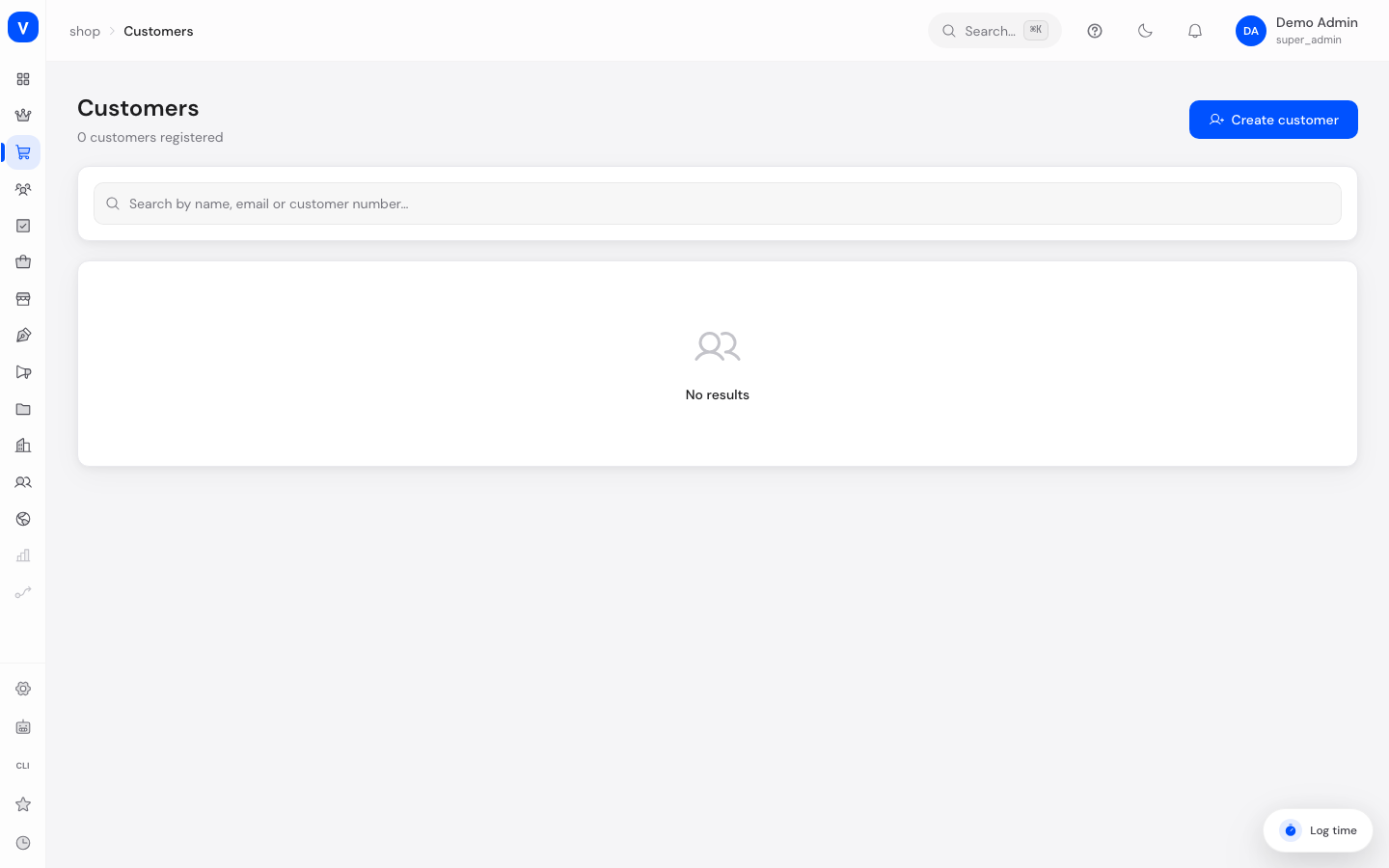
- Search all customers (by name, email, or customer number) and page through the list
- Manually create a new customer (first name, last name, email, password)
- View and edit a customer's full profile: contact details, account type, VAT ID, status
- View and toggle email and SMS marketing consent, and review the consent history
- Add, edit, and delete a customer's addresses (deleting asks first and names the address concerned)
- Assign tags to a customer (e.g. "VIP", "B2B", "Regular") and remove them again
- Add, edit, and delete internal notes on a customer
- View a customer's order history plus total spend and order count
- Delete a customer (GDPR-compliant anonymization)
- Verify a business customer's VAT ID
Step by step
- Find a customer: Use the search field to search by name, email, or customer number.
- Create a new customer: Click "Create customer", fill in first name, last name, email, and password, and confirm.
- Edit a customer profile: Open a customer from the list, click "Edit", change the desired fields, and save.
- Change marketing consent: Open the customer profile, click the email or SMS icon in the "Marketing consent" section to toggle between subscribed and unsubscribed. Click "Show history" to see all past changes.
- Delete a customer: Open the customer profile, click "Delete", and confirm the warning. The customer is anonymized in a GDPR-compliant way; this step cannot be undone.
Fields explained
List view
| Field | Meaning | Notes/Effect |
|---|---|---|
| Customer | Name and email | Click opens the customer profile |
| Customer no. | Automatically assigned customer number | — |
| Status | Active / Inactive / Guest | See "Values & Status" below |
| Tags | Freely assignable labels | "VIP" and "B2B" are highlighted with color |
| Orders | Number of past orders | — |
| Total spent | Sum of all the customer's order values | — |
| Customer since | Registration date | — |
Customer profile
| Field | Meaning | Notes/Effect |
|---|---|---|
| Account type | Private or Business | "Business" requires a company name |
| Company name / VAT ID | Details for business customers | The VAT ID can be verified via a button |
| Salutation | Mr / Mrs / Diverse / not specified | — |
| Email, Phone | Contact details | — |
| Newsletter | Simple newsletter checkbox on the customer record | Independent from the more granular marketing consent (email/SMS) |
| Marketing consent Email / SMS | Current consent status per channel | See "Values & Status" below |
| Addresses | One or more saved shipping/billing addresses | One address can be marked as the default address |
| Tags | Freely assignable labels on the customer | New tags can be created directly while assigning |
| Notes | Internal notes visible only to admins | — |
| Orders / Total spent / Customer since | Metric tiles at the top of the profile | Orders = count, Total spent = sum of all order values |
| Order history | List of this customer's orders | Links to the respective order details |
Values & Status
Customer status
| Value | Plain-language meaning | What happens next |
|---|---|---|
| Active | The customer has a regular, active account | Can log in and place orders |
| Inactive | The account has been deactivated | Can no longer log in normally |
| Guest | The customer placed an order without registering | No login account exists |
Account type
| Value | Plain-language meaning |
|---|---|
| Private | Customer orders as an individual |
| Business | Customer orders as a company; company name and VAT ID are relevant |
Marketing consent (Email / SMS)
| Value | Plain-language meaning | What happens next |
|---|---|---|
| Subscribed | The customer has agreed to be contacted through this channel | May be contacted with marketing emails/SMS via this channel |
| Pending | Consent has been requested but not yet confirmed | No active consent yet |
| Unsubscribed | The customer has opted out | Must not be contacted via this channel anymore |
| Not specified | No consent information is on file | Should be treated like "Unsubscribed" |
Frequently asked questions
What exactly happens when I delete a customer?
The customer is anonymized in a GDPR-compliant way instead of being technically deleted — personal data is removed, while the order history is kept in anonymized form for accounting reasons. This step cannot be undone.
What's the difference between the "Newsletter" checkbox and marketing consent?
The newsletter field is a simple yes/no on the customer record. The marketing consent in the profile is more granular: it distinguishes between the email and SMS channel and logs a history of every change — relevant for legally sound proof of consent.
Why do some customers show no login, just "Guest"?
These customers ordered at checkout without registering. They have a record for their address and order history, but no login account of their own.
How do I verify a business customer's VAT ID?
Open the customer profile, switch the account type to "Business" (or open the contact details of an existing business customer), and use the Verify button next to the VAT ID field.