Navigation Menus
Here you manage your shop's navigation menus, for example the main header menu or the footer menu. A menu consists of individual items that can point to pages, categories, products, or external links, and can be nested as needed.
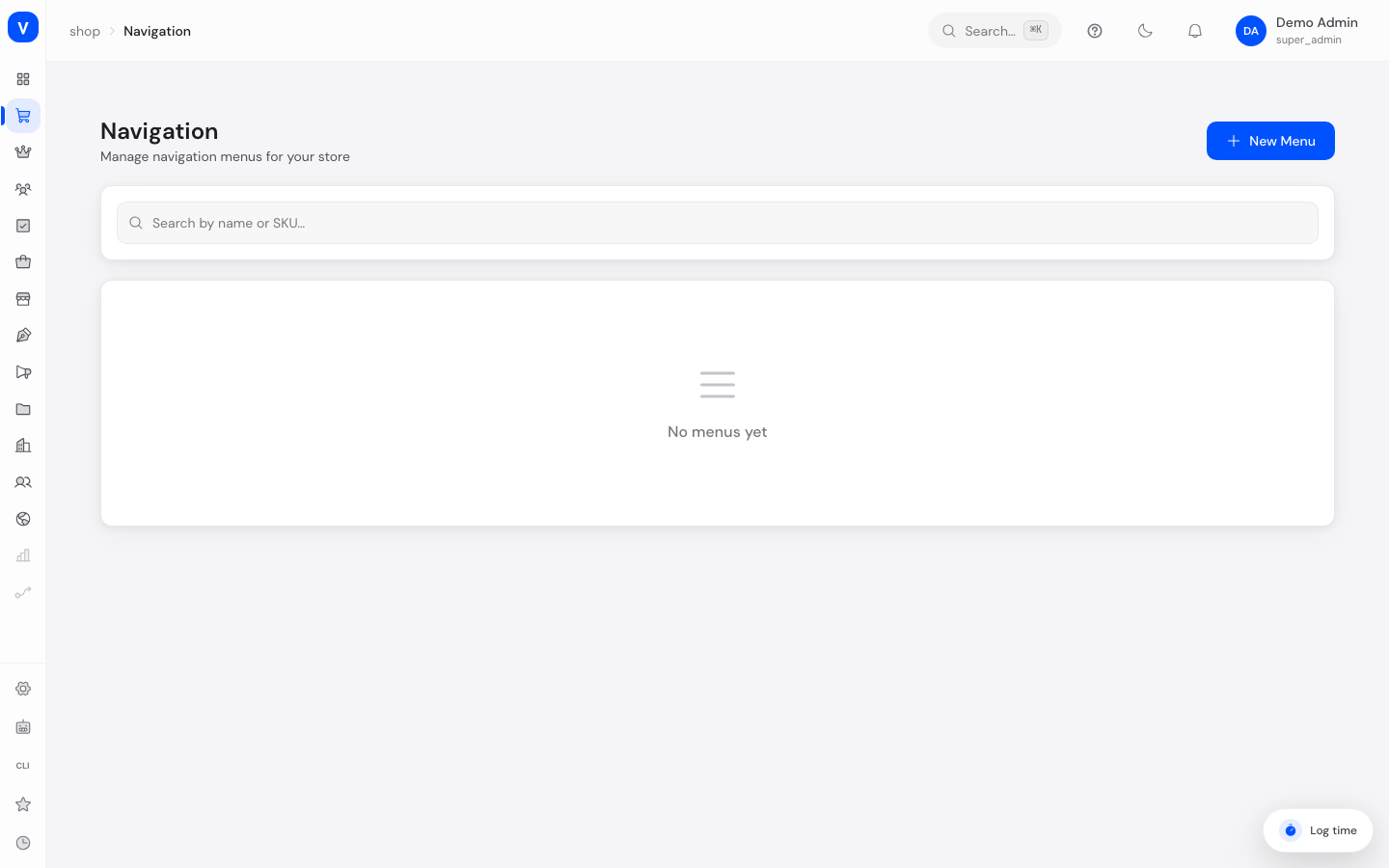
/shop/menusWhat can I do here?
- Create new menus (e.g. main navigation, footer)
- Add and remove menu items
- Activate/deactivate menus
- Edit and delete menus
- Search by menu name
Step by step
- Create a new menu: Click "Create menu", give it a name, and optionally a handle (unique identifier, e.g.
mainorfooter). - Add menu items: In the form, enter a label and URL for a menu item, choose the type (e.g. Link, Category, Page, Product, External) and click the plus icon to add it to the list.
- Activate and save: Check "Active" so the menu is used in the shop, then save with "Create"/"Save".
- Edit or delete a menu: Expand a menu in the overview to see its items, and use the three-dot menu to edit or delete it.
Fields explained
| Field | Meaning | Notes/Effect |
|---|---|---|
| Menu name | Displayed name of the menu | For your own orientation in the admin area |
| Handle | Unique technical identifier | Examples: main, footer |
| Active | Turns the menu on/off | Only active menus are used in the shop |
| Menu items | List of individual navigation entries | Can be nested (sub-items) |
| Label | Displayed text of a menu item | What customers see in the menu |
| URL | Target address of the menu item | Internal path or external link |
| Type | Kind of target (see value list) | Determines the displayed icon |
Values & status
Menu item type
| Value | Plain-language meaning |
|---|---|
| Link | General internal link |
| Category | Points to a product category |
| Page | Points to a CMS page |
| Product | Points to a single product |
| External | Points to an external web address |
Menu status
| Value | Plain-language meaning | What happens |
|---|---|---|
| Active | Menu is switched on | Shown in the shop |
| Inactive | Menu is switched off | Not shown in the shop, but kept saved |
Frequently asked questions
How do I add a link to a category in my main menu?
Open the relevant menu for editing, enter a label and the category's URL, choose the type "Category" and add the item.
Why doesn't my new menu appear in the shop?
Check whether "Active" is checked. Only active menus are displayed.
Can I nest menu items (submenus)?
Yes, menu items can contain sub-items, shown indented in the overview.
How do I remove a single menu item again?
While editing a menu, you can remove individual items from the local list using the X icon before saving.