Products
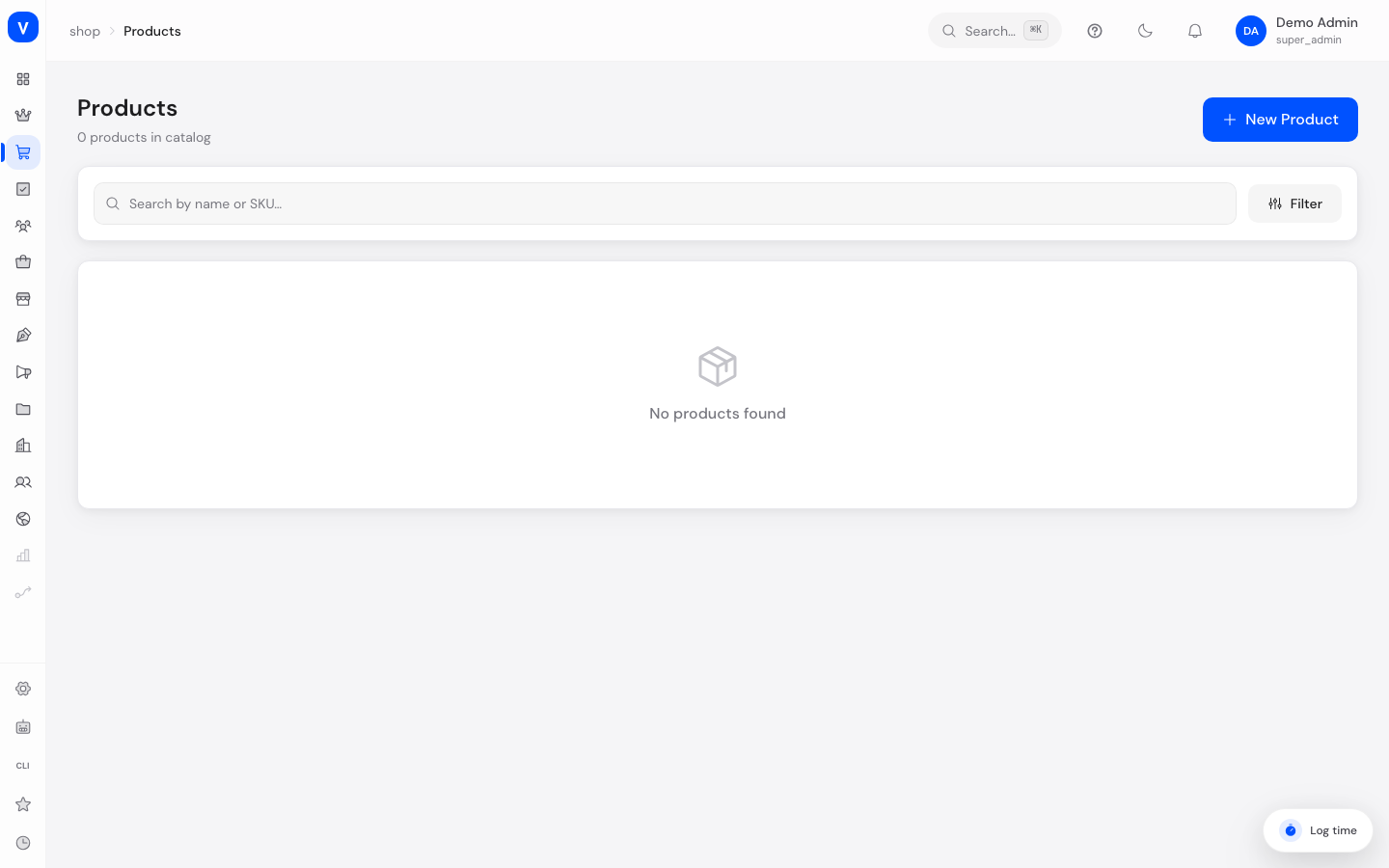
This is where you manage your entire shop catalog: every item customers can buy. From here you create new products, maintain prices, images, descriptions and variants, and decide whether an item is visible in the shop at all.
What can I do here?
- Search, filter and sort all products
- Create new products and edit existing ones
- Maintain prices, tax rates, stock and shipping details
- Upload product images and videos
- Assign products to categories and tag them
- Generate variants (e.g. color/size) from property groups
- Auto-generate SEO title and description, or edit them by hand
- Add frequently asked questions (FAQ) to a product
- Edit several products at once (status, price, compare-at price, stock, tags, delete)
Step by step
- Create a new product: Click "New Product" in the product list. Fill in at least the product name and SKU, choose the product type (Physical, Digital or Bundle) and enter a selling price. Then save.
- Complete the product: Open the saved product again to upload images, assign categories, generate variants and check the SEO fields. Only then is the product fully set up.
- Publish the product: Change the status in the top right from "Draft" to "Active" so the product becomes visible in the shop.
- Edit several products at once: Select multiple products in the product list using the checkboxes. An action bar appears at the bottom that lets you change status, price, compare-at price, stock or tags for all selected products at once, or archive them.
- Search and filter products: Use the search (name or SKU) or open the filter panel to narrow down by status, category or price range. Your chosen filters stay in the address bar and can be shared as a link.
/shop/products/shop/products/:idFields explained
| Field | Meaning | Notes/Effect |
|---|---|---|
| Product Name | Name shown in the shop and in the admin | Required |
| SKU | Unique internal item number | Required, also used for stock and variants |
| Brand | Manufacturer brand of the product | Optional; links to all products of the same brand |
| EAN / GTIN | Standardized barcode | Optional, e.g. for price-comparison portals and Google Shopping |
| Barcode | Alternative barcode (e.g. ISBN, UPC) | Optional |
| Vendor | Supplier or manufacturer | Optional, used for internal categorization |
| Product Type | Physical, Digital or Bundle | Determines whether stock/shipping fields are shown |
| Selling Price (gross) | Price including tax that customers pay | Required |
| Compare-at Price | Struck-through comparison price, e.g. for sales | Optional |
| Cost Price | Internal purchase price | Optional, used for margin calculation only, not shown in the shop |
| Tax Rate | VAT rate applied | e.g. 19% regular, 7% reduced, 0% tax-free |
| Inventory | Available quantity | Physical/Bundle products only |
| Requires Shipping | Flags whether the product is shipped physically | If "No", dimensions/weight fields are hidden |
| Shipping Template | Predefined shipping profile (cost/rules) | Empty = default template is used |
| Country of Origin | ISO-2 country code of manufacture | For customs/compliance purposes |
| HS Code | Code for international shipping/customs | Optional |
| Weight / Dimensions (L/W/H) | Used for shipping cost calculation | Physical products only |
| Unit Price (PAngV) | Price per reference quantity (e.g. "per 100 g") | Mandatory for packaged goods under German pricing law |
| Categories | Assignment to one or more product categories | Drives navigation/filters in the shop |
| Tags | Freely assignable keywords, comma-separated | Used for internal filtering and search |
| Variants | Variations such as color/size, generated from property groups | Only available after the first save |
| Meta Title / Meta Description | Title/text shown by search engines | Can be auto-generated from product data |
| Images & Videos | Product media | First image can be marked as the cover image |
| Status | Visibility of the product | See values below |
Values & Status
Product status (product_status)
| Value | Meaning | What happens |
|---|---|---|
| Draft | Product is created but not yet finished | Not visible in the shop |
| Active | Product is complete and released | Visible and purchasable in the shop |
| Inactive | Product temporarily disabled | Not visible in the shop, but preserved |
| Archived | Product permanently removed from the active range | Not visible in the shop; also set by bulk delete instead of a true delete |
Product type (product_type)
| Value | Meaning | What happens |
|---|---|---|
| Physical | Real product that is shipped | Stock, shipping and dimension fields are shown |
| Digital | Digital download (software, e-books, music) | No stock/shipping needed; downloads are provided automatically after payment |
| Bundle | Combination of physical and digital products | Shows both the shipping and the downloads section |
Weight unit (weight_unit)
| Value | Meaning |
|---|---|
| g | Grams — default unit, pre-selected automatically for new products |
| kg | Kilograms |
| lb | Pounds (imperial) |
| oz | Ounces (imperial) |
Frequently asked questions
Why can't I see my new product in the shop?
The status is probably still set to "Draft" or "Inactive". Set it to "Active" to make the product visible to customers.
What is the difference between selling price and compare-at price?
The selling price is what customers actually pay. The compare-at price (RRP) is optionally shown struck through next to it to highlight a discount.
Why do I need a unit price?
For many packaged goods, German pricing law (PAngV) requires the price per unit of measure (e.g. "per 100 g" or "per liter") to also be shown. Enable "Show unit price" and enter the sales quantity and reference quantity.
Can I delete several products at once?
Yes, via multi-select in the product list. Note: "Delete" archives the products rather than permanently removing them.
Where do I set up variants like size or color?
Save the product once first. The "Variants" section then appears, where you can generate variants from previously created property groups (see Properties).