CMS Pages
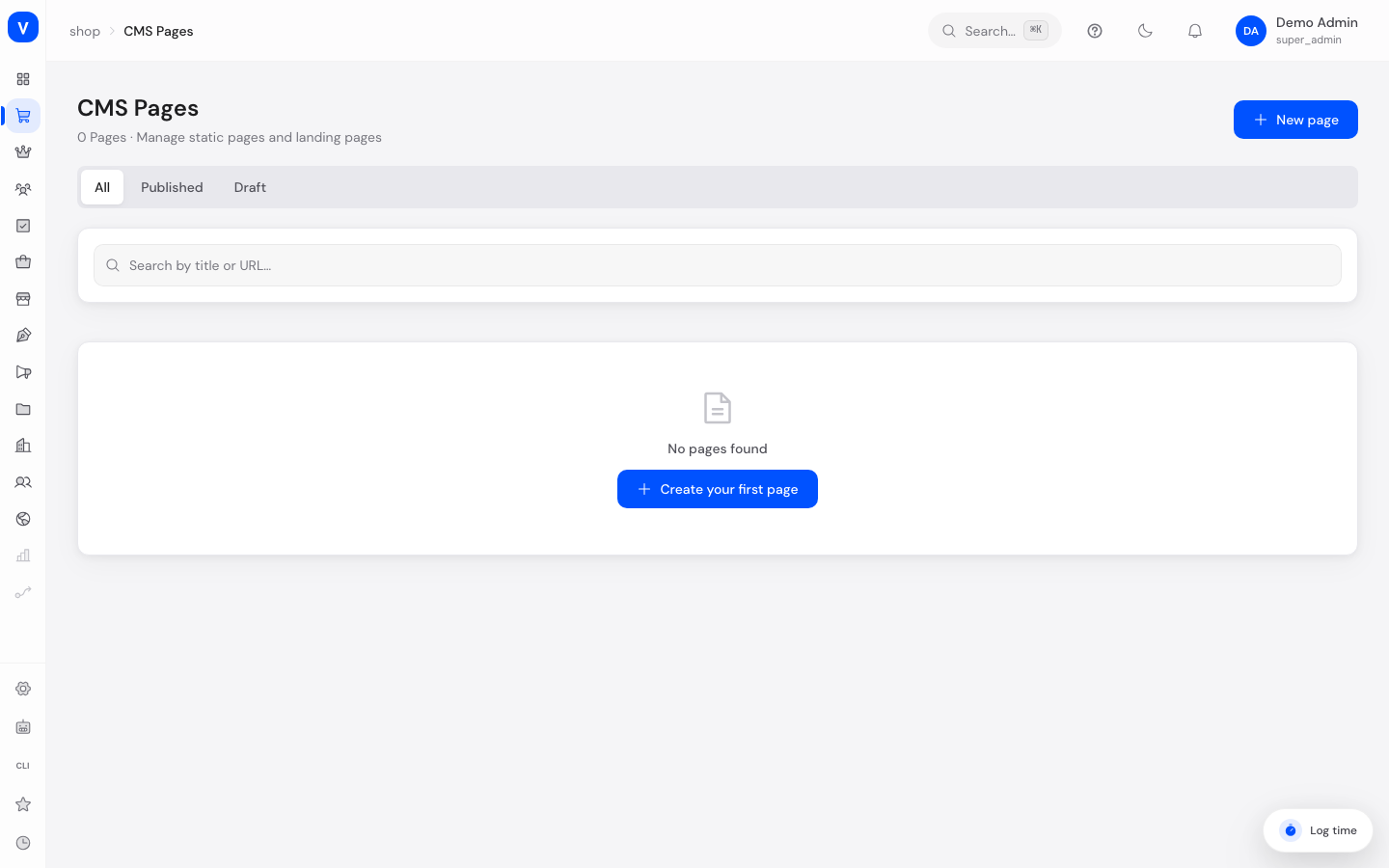
CMS pages let you build and maintain freely designed pages for your shop — for example a homepage, an "About us" page, promotional landing pages, or form pages. You assemble every page from individual building blocks (sections and blocks), no coding required.
/shop/cmsWhat can I do here?
- Create new pages and assign them a URL path
- Design pages in the visual editor using sections and blocks
- Publish pages or pull them back into draft mode
- Duplicate pages to quickly create variants
- Delete pages
- Search by title or URL path and filter by status
Step by step
- Create a new page: Click "New page", enter a page title (the URL path is generated automatically but can be adjusted) and choose a page type. Confirm with "Create".
- Design the page: Open the page via "Edit" to enter the split-pane editor with the block list on the left and a live preview on the right. Add sections from the block list (e.g. hero banner, text, product slider) and adjust their settings.
- Save and publish: Click "Save" to store your progress. "Publish" makes the page live in the shop; "Unpublish" takes it offline again without losing the content.
- Duplicate or delete a page: In the page overview, use the three-dot menu on a card to duplicate a page (handy as a template for similar pages) or delete it permanently.
flowchart LR
    A[Create new page] --> B[Design in editor]
    B --> C[Save]
    C --> D{Publish?}
    D -- Yes --> E[Page is live in the shop]
    D -- No --> F[Stays as draft]
    E --> G[Can be unpublished]
Fields explained
| Field | Meaning | Notes/Effect |
|---|---|---|
| Page title | Internal/displayed name of the page | Used e.g. as the basis for the browser title |
| URL path | Address at which the page is reachable in the shop | Lowercase letters, numbers and dashes only; must be unique |
| Page type | Defines what the page is for (see value list) | Affects e.g. how it appears in the blog area |
| Layout | Basic frame of the page (default, sidebar left, full width, blog) | Determines e.g. whether a sidebar is shown |
| Sections | The content building blocks of the page, in any order | Each section can contain its own blocks |
| Custom CSS | Extra styling code only for this page | Intended for experienced users |
| Meta title / Meta description | Title/description for search engines | Not shown directly on the page |
| Active | Turns the page on/off in general | Independent of the publish status |
| Version | Running version number of the page | Increases with every save |
Available sections and blocks in the editor
The visual editor offers, among others: Hero Banner, Text, Image + Text, Product Slider, Category Grid, Image Gallery, Video, Feature Grid, Testimonials, Call to Action, Accordion/FAQ, Newsletter signup, Custom HTML, Spacer and Divider. Each block has its own individually adjustable options (e.g. heading, image, button text).
Values & status
Page type
| Value | Plain-language meaning | What happens |
|---|---|---|
| Shop page | Normal content page in the shop | Can be linked in the shop menu/footer |
| Landing page | Standalone promotional/campaign page | Usually intended without standard navigation |
| Blog post | Article-style page | Can be displayed using the "Blog" layout |
| Form | Page containing a form block | For contact or inquiry forms |
Publish status
| Value | Plain-language meaning | What happens |
|---|---|---|
| Draft | Page is saved but not publicly visible | Only viewable in the admin area |
| Published | Page is live and reachable in the shop | Customers can open the page via its URL |
| Archived | Page is inactive/removed from the active set | Marked separately in the overview |
Layout
| Value | Plain-language meaning |
|---|---|
| Default | Standard page layout with nothing special |
| Sidebar left | Extra column to the left of the content |
| Full width | Content uses the entire screen width |
| Blog | Layout optimized for blog articles |
Frequently asked questions
How do I create a new page for a promotion?
Click "New page", enter a title and choose the page type "Landing page". Then design the page in the editor with fitting blocks like a hero banner and a call to action.
Why can't customers see my new page?
New pages start as a draft. Only once you click "Publish" does the page become publicly visible in the shop.
Can I take a page offline temporarily without deleting it?
Yes. Use "Unpublish" — the page is kept, but is no longer publicly reachable until you publish it again.
What happens when I duplicate a page?
A copy is created with the same sections and settings, but as a draft and with an adjusted URL path. This lets you quickly create, for example, seasonal variants.
Where do I set the colors and fonts that apply to every page?
The overall look (colors, fonts, spacing) is managed centrally in the Theme editor, not on the individual CMS page.
Can I add my own HTML or CSS?
Yes, via the "Custom HTML" block within a section, or via the "Custom CSS" field in the page settings. This is intended for experienced users.