Subscriptions (Shop)
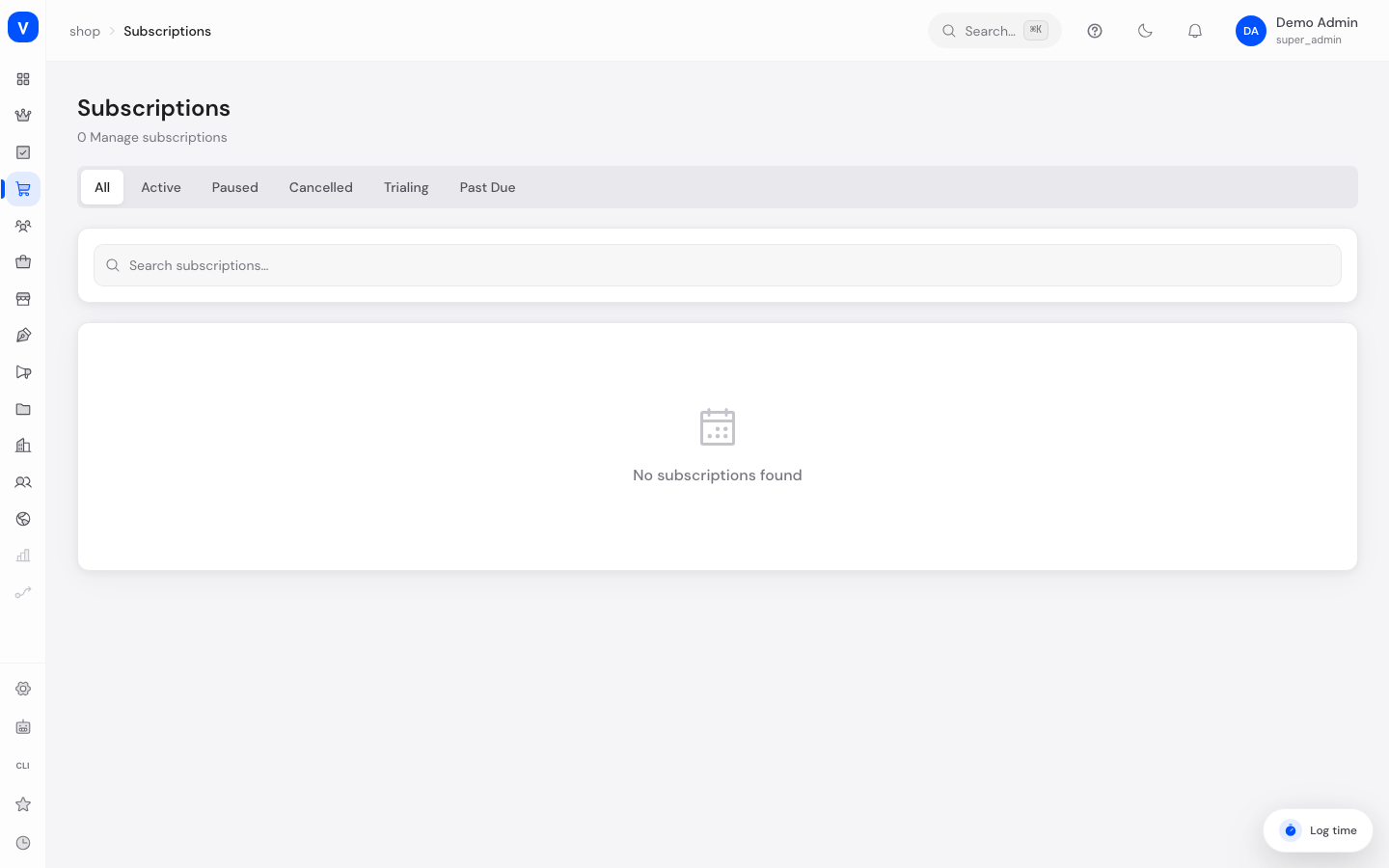
Here you see and manage all your customers' running subscriptions — orders that automatically repeat at fixed intervals (e.g. a monthly refill subscription). You can change the status of individual subscriptions and view their billing history.
/shop/subscriptionsWhat can I do here?
- Search all subscriptions and filter by status
- View subscription details: customer info, plan, current/total cycles, next payment, included items
- View a subscription's billing cycles (already billed and upcoming payments)
- Pause, resume, or cancel a subscription
Step by step
- Search for a subscription: Use the search field to search by customer name or email, optionally combined with the status tabs (Active, Paused, Cancelled, Trial, Past Due).
- View details: Click a row in the table to open a detail view with customer info, plan, status, billing cycles, and included items.
- Pause a subscription: In the detail view, for an active or trialing subscription, click "Pause" and confirm.
- Resume a subscription: For a paused subscription, click "Resume" in the detail view. The next charge is then scheduled for the following day, not for the original date. If you need a pause that does not shift the payment, keep an eye on that date.
- Cancel a subscription: In the detail view, click "Cancel" and confirm. This is available for active, paused, and trialing subscriptions.
Fields explained
| Field | Meaning | Notes/Effect |
|---|---|---|
| Customer | Name and email address of the customer | — |
| Plan | The underlying subscription plan (see Subscription Plans) | Determines interval, trial period, and discount |
| Status | Current state of the subscription | See values below |
| Next payment | Date of the next scheduled charge | Empty if no further payment is due (e.g. after cancellation) |
| Current cycle / total cycles | Which billing cycle is currently running, relative to the plan's maximum cycle count | Empty "total cycles" = unlimited duration |
| Items | Products that are part of this subscription, including quantity and unit price | — |
| Billing cycles | List of past and upcoming charges with amount and status | Per-cycle status e.g. "paid" or "pending" |
Values & statuses
Subscription status (subscription_status)
| Value | Meaning | What happens |
|---|---|---|
| Trialing | Subscription is in the plan's free/discounted trial period | The first regular charge only happens once the trial ends |
| Active | Subscription runs normally and is billed regularly | Can be paused or cancelled |
| Paused | Subscription is temporarily halted | No charges occur; can be resumed or cancelled at any time |
| Cancelled | Subscription has been ended | No further charges. Final state, reactivation is not provided for |
| Expired | Subscription reached the plan's maximum cycle count | Ends automatically, no further action needed |
| Past due | The last charge attempt failed | Payment problem on the customer's side; may need manual follow-up |
Frequently asked questions
What's the difference between "Paused" and "Cancelled"?
A paused subscription can be reactivated at any time. Note that on resuming, the next charge is set to the following day, so the subscription does not pick the old rhythm back up to the day. A cancelled subscription is permanently ended and cannot be reactivated; to continue, the customer signs up for a new subscription.
Why is a subscription marked "Past due"?
The most recent scheduled payment couldn't be charged successfully, e.g. due to an expired card. The subscription isn't cancelled automatically but should be monitored.
How can I see which payments have already been made for a subscription?
Open the subscription by clicking its row in the table — the "Billing cycles" section shows all past and upcoming cycles with amount, date, and status.
Can I edit a subscription directly here (e.g. change quantity)?
No, on this page you can only change the status (pause/resume/cancel). Included items are shown for reference only.