Email Delivery Issues (Bounces)
Not every email arrives: addresses can be misspelled, mailboxes full, or recipients no longer reachable. This area shows you how many emails fail for this reason, which addresses were automatically blocked (suppressed) as a result, and which contacts are affected — so you can keep track of your delivery quality.
/settings/email/bouncesWhat can I do here?
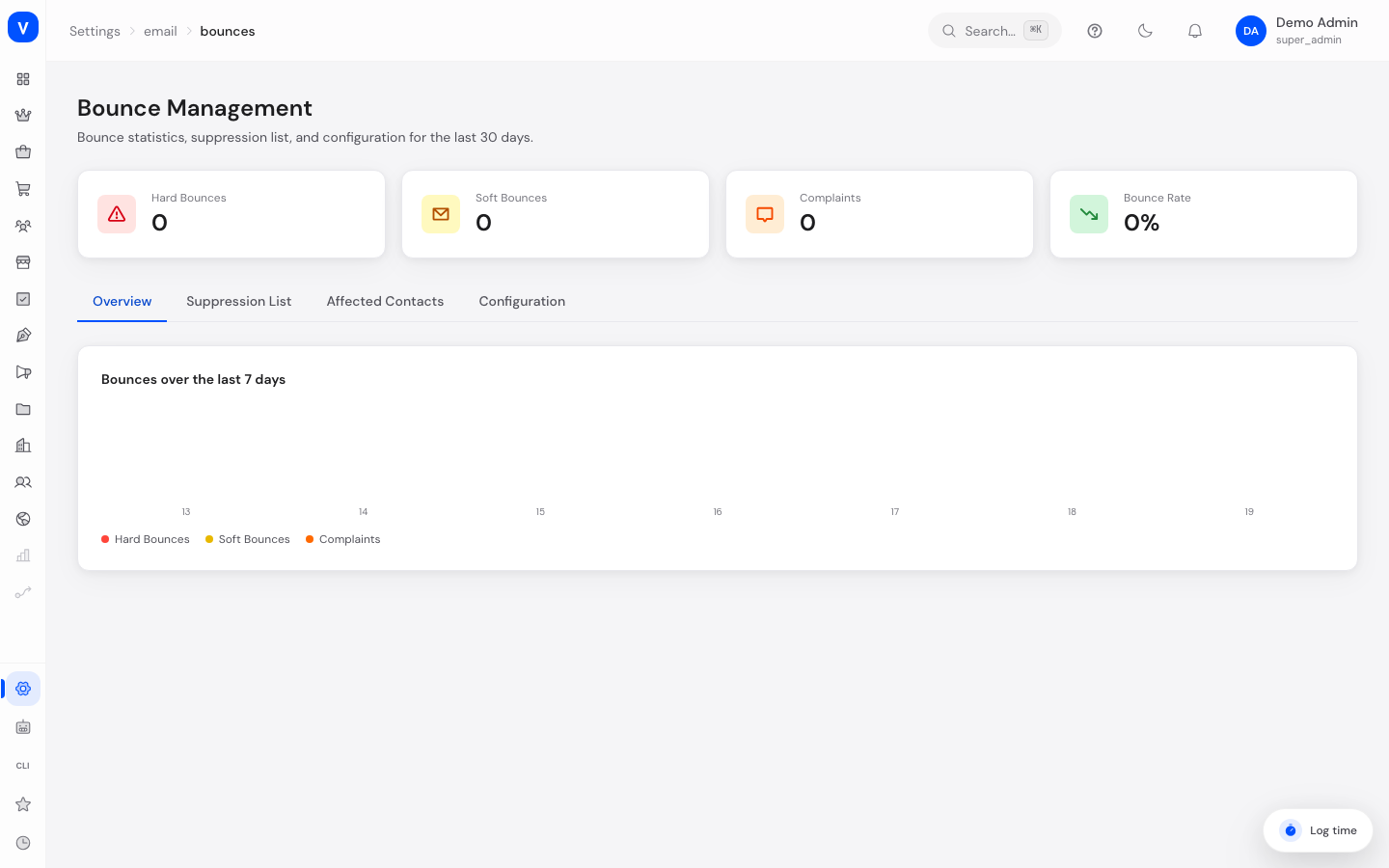
- In the Overview tab, see the number of hard/soft bounces and complaints, plus the bounce rate over recent days as a trend
- In the Suppression List tab, see all email addresses automatically excluded from further sending due to delivery issues, and release them again if needed
- In the Affected Contacts tab, see which CRM contacts are affected by delivery issues, with a direct link to the contact
- In the Configuration tab, set how many soft bounces trigger an automatic block, how long a temporary block lasts, and whether addresses are automatically released again
Step by step
- Regularly check the bounce rate in the "Overview" tab — a sharp increase points to a problem with your address data or your delivery provider.
- Open the "Suppression List" tab to see which addresses currently no longer receive emails.
- If an address was blocked incorrectly (e.g. after a temporary issue at the recipient was resolved), click "Release" on that entry.
- Check the "Affected Contacts" tab to see if important CRM contacts are affected, and update their contact data there if needed.
- If needed, adjust the thresholds in the "Configuration" tab for when an address is automatically blocked.
Fields explained
| Field | Meaning | Notes/Effect |
|---|---|---|
| Hard Bounces | Number of permanently failed deliveries | Address doesn't exist / is permanently unreachable |
| Soft Bounces | Number of temporarily failed deliveries | E.g. mailbox full — address is only blocked after several failed attempts |
| Complaints | Number of cases where a recipient reported the email as spam | Leads to immediate blocking |
| Bounce Rate | Share of failed deliveries among all sent emails | Values above 5% are considered noteworthy |
| Email Address (Suppression List) | The blocked address | Sometimes shown masked for privacy reasons |
| Count | How many times this address triggered a bounce | |
| Last Bounce | Time of the most recent delivery issue | |
| Source | Where the bounce information came from | |
| Soft Bounce Threshold | Number of soft bounces after which an address is automatically blocked | Configurable |
| Days to Release | How long a temporary block lasts before it's automatically lifted | |
| Auto-Release | Toggles whether addresses are automatically released again after the deadline passes |
Values & status
Bounce type
| Value | Meaning | What happens |
|---|---|---|
| Hard Bounce | Permanent delivery failure (e.g. address doesn't exist) | Address is immediately blocked permanently |
| Soft Bounce | Temporary delivery failure (e.g. mailbox full) | Address is only blocked once the configured threshold is reached |
| Complaint | Recipient marked the email as spam | Address is blocked immediately to protect your sender reputation |
Frequently asked questions
Why was an email address automatically blocked?
Either due to a permanent delivery failure (hard bounce), too many temporary failures (soft bounce above the threshold), or because the recipient reported the email as spam.
How do I lift a block?
Open the "Suppression List" tab, find the address, and click "Release".
What does a high bounce rate mean for my account?
A persistently high bounce rate can hurt the deliverability of all your emails, since delivery providers and mailbox providers treat it as a warning sign. Check your address quality in that case.
Are blocked addresses released automatically?
Only if "Auto-Release" is enabled in Configuration — then after the configured number of days. For hard bounces and complaints, a manual review is more sensible.
How the bounce rate is calculated
The bounce rate is not a stored number — it is recalculated from your email log every time you open the overview.
- Time window: always the last 30 days. Older sends no longer count — so the rate "recovers" on its own once a bad phase is more than 30 days in the past.
- Formula: (hard bounces + soft bounces + complaints) ÷ all emails sent in the window × 100.
- Example: 30 failed deliveries out of 1,000 emails sent = 3.00%.
- Display: rounded to two decimal places (e.g.
3.00%). If no emails were sent in the window,0%is shown. - All three failure types count equally toward the numerator — a hard bounce, a soft bounce, and a spam complaint each affect the rate the same way.
- Trend chart: the trend above the numbers covers the last 7 days, split by hard/soft bounces and complaints per day.
- Guideline: values above 5% are considered noteworthy and should be reviewed.
How to improve your bounce rate
The lower the rate, the better your deliverability. The most effective levers — ordered by impact:
- Remove invalid addresses. Hard bounces usually come from misspelled or made-up addresses. Clean your recipient lists and validate new addresses at entry.
- Don't release the suppression list too quickly. Only release an address once the recipient-side problem is demonstrably fixed. Repeated attempts to dead addresses drive the rate up.
- Take complaints seriously. A spam complaint counts as heavily as a bounce and additionally harms your sender reputation. Only send to recipients who opted in, and offer a clear unsubscribe.
- Set a sensible soft-bounce threshold. By default an address is temporarily blocked after 3 soft bounces within 72 hours (auto-released after 7 days). Too high a threshold keeps problematic addresses in the send flow too long.
- Let time work. Since only the last 30 days count, a high rate falls on its own after you fix the cause — as long as no new bounces are added.