App Store
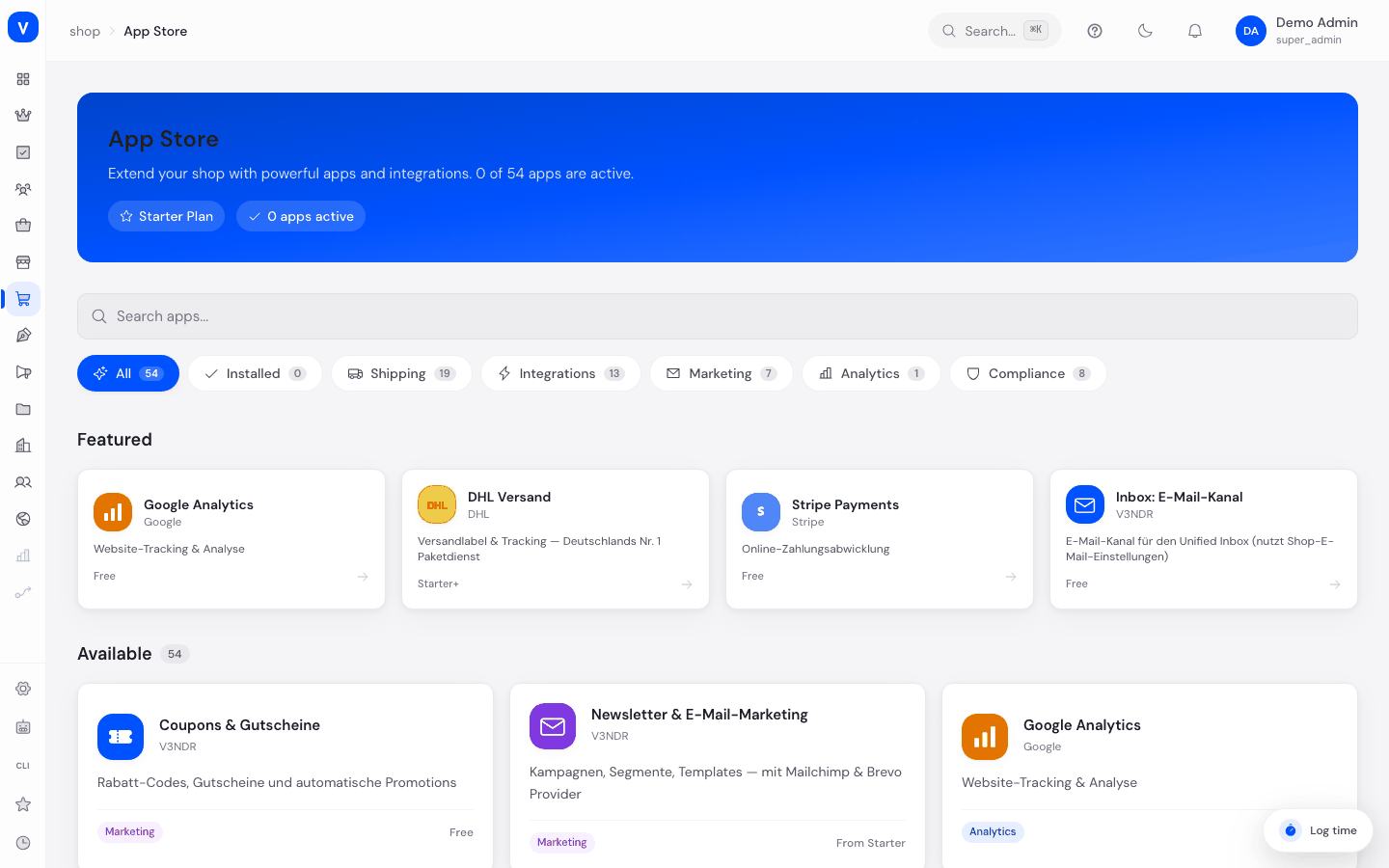
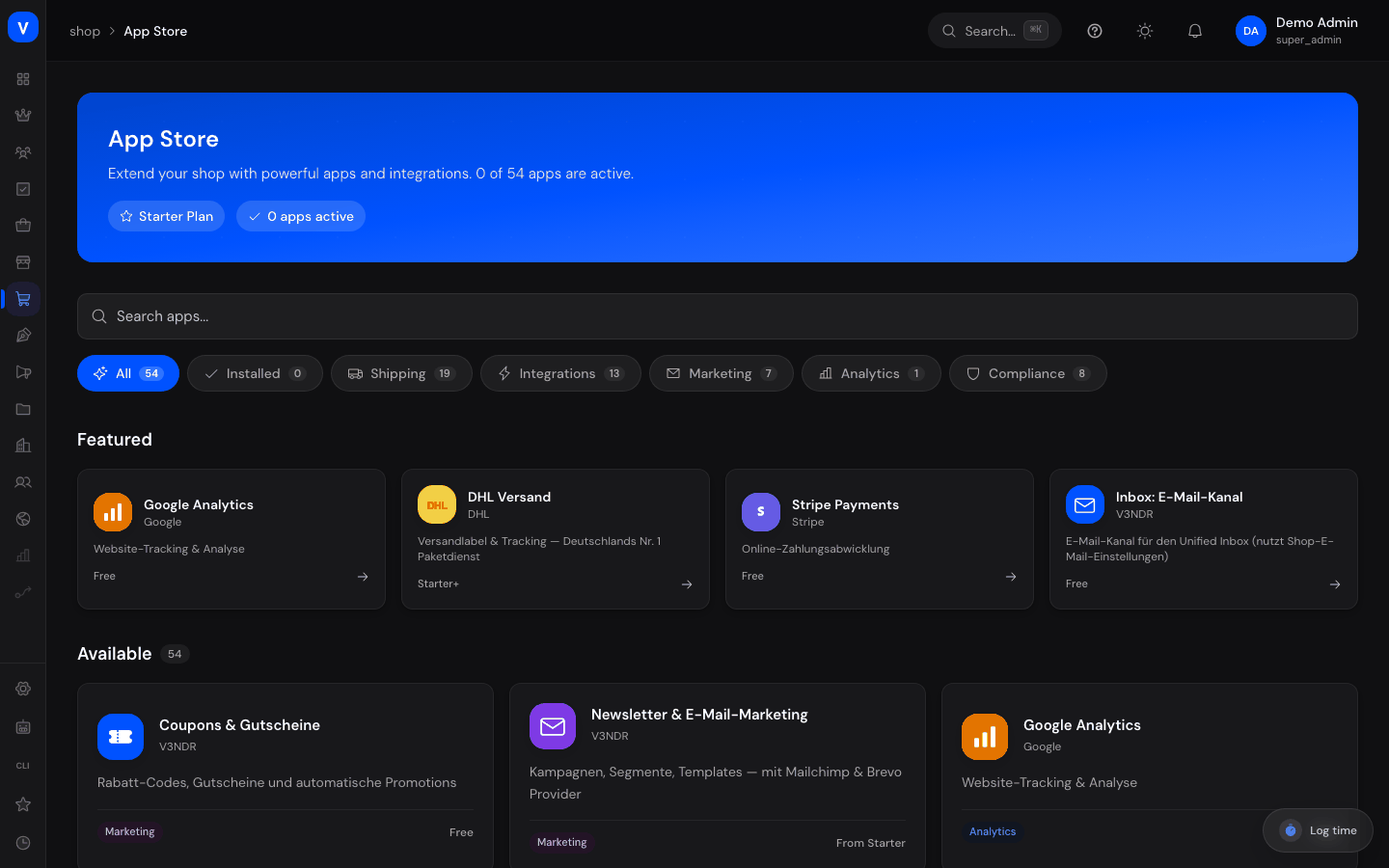
The App Store is the catalogue of ready-made extensions (apps) for your shop, for example connections to payment providers, shipping carriers or marketing tools. You install, configure and remove apps without any development work. The catalogue is curated by SELLERLOGIC; you cannot upload your own apps.
Installing costs nothing extra. Whether an app is available to you depends solely on your plan, not on any separate billing.
Before you start
| What you want to do | Permission needed |
|---|---|
| Browse the catalogue and detail pages | settings:read |
| Install, activate, deactivate, remove or configure apps | settings:write |
What can I do here?
- Browse available apps and filter by category
- Tell installed apps apart from available ones (the "Installed" filter)
- View details: description, ratings, install count, screenshots, features, changelog and required permissions
- Install an app and then configure it
- Activate, deactivate or remove an app
- See which plan an app becomes available with
Step by step
- Find an app: Use the search or the category filters on the left. Featured apps are also highlighted on the home view. The chosen filter is part of the page address, so you can bookmark or share the view.
- View app details: Click an app tile. The detail page holds the description, ratings, screenshots and the Overview, Features, Changelog and Permissions tabs.
- Check dependencies: Some apps require other apps. Check this before installing, otherwise the installation aborts with an error message (see below).
- Install an app: Click the install button on the detail page. If the app is locked for your plan, the required minimum plan is shown instead.
- Configure an app: After installation, open the side settings panel via "Configure" and enter the app's own details, such as the provider's credentials.
- Manage an app: On the detail page you can deactivate an installed app (settings are kept) or remove it entirely.
/shop/app-store- Developer
- Nordwind Software GmbH
- Category
- Shipping
- Current Version
- 2.4.0
- Rating
- 4.6 / 5
- Installs
- 1,240
- Minimum Plan
- Professional
/shop/app-store/:appIdFields explained
| Field | Meaning | Notes/Effect |
|---|---|---|
| Name | Name of the app | |
| Author | Publisher of the app | |
| Description | Short description of the function | |
| Category | Topic area of the app | See values below |
| Rating | Average star rating from other shops | Informational only |
| Installs | Number of shops that have installed the app | Informational only |
| Minimum Plan | Smallest plan the app is usable with | Installation fails if your plan is lower |
| Dependencies | Apps that must be installed first | Blocks both installing and removing, see below |
| Permissions | Access rights the app needs | A plain list to read. There is no consent dialog you have to confirm |
| Screenshots | Sample images of the app's interface | Informational only |
| Status | Installed/Active, Installed/Inactive, or not installed | See values below |
Values & Status
Category (app_category)
| Value | Meaning |
|---|---|
| Core | Platform fundamentals. These apps are built in and cannot be removed or switched off |
| Marketing | Tools for email marketing, advertising and similar |
| Analytics | Reporting and statistics tools |
| Compliance | Tools for legal requirements |
| Shipping | Connections to shipping carriers |
| Integration | General technical connections to external systems |
| Marketplace | Features for multi-vendor (marketplace) operation |
| AI | Extensions using machine language or image processing |
| Custom | Extensions provided specifically for your shop |
App status (app_status)
| Value | Meaning | What happens |
|---|---|---|
| Not installed | The app is available but not set up yet | Can be added via "Install" |
| Installed/Active | The app is set up and running | The app's function takes effect in the shop |
| Installed/Inactive | The app is set up but switched off | The function is paused, the configuration is kept |
Dependencies between apps
Some apps build on others. This cuts both ways and is the most common reason an action aborts:
- When installing: if a required app is missing, the installation aborts. Install the named app first, then try again.
- When removing: as long as another installed app builds on this one, it cannot be removed. Remove the dependent app first.
- Core apps can never be removed or deactivated.
Connecting through a sign-in window (OAuth)
Some apps are not connected with a key but by signing in with the provider - Google, for example. The configuration panel of such an app has a Sign in tab for this.
- Store the credentials: Enter the provider's Client ID and Client Secret once. The redirect address shown (
…/oauth/callback) must be registered with the provider as an allowed redirect, otherwise it will refuse the sign-in. - Sign in: "Sign in with …" opens a small window at the provider. Sign in there and confirm the access.
- Return: The window returns to SCS, reports "Successfully connected" and closes by itself. The configuration panel then shows the app as Connected, along with the email address used.
- Disconnect: "Disconnect" removes the connection again. The credentials you stored are kept.
If the return does not work: the window shows a message instead of the confirmation.
| Message | Cause | What to do |
|---|---|---|
| "No connection attempt is in progress." | The window was opened without a preceding start, or the browser discarded the data belonging to the attempt | Start the sign-in again from the configuration panel |
| "This response does not belong to the current connection attempt and was rejected." | The response does not match the sign-in you started - this is what prevents someone else's account from being slipped in | Start the sign-in again and leave the window open until it finishes |
| "Connection failed" | You cancelled the consent at the provider, or the provider refused it | Repeat the process and grant consent |
Security note: The return address briefly carries a one-time token from the provider. SCS removes it from the address bar immediately after processing; it appears neither in your browser history nor in the access logs.
Error messages
Messages appear as a toast at the edge of the screen and come straight from the server, so they are in English:
| Message | Cause | Remedy |
|---|---|---|
App "…" requires tier N, current tier is M |
Your plan is too low for this app | Upgrade the plan or pick an app with a lower minimum |
Missing dependencies: … |
A required app is not installed | Install the named apps first |
Cannot uninstall: … depend on this app |
Other installed apps build on this one | Remove the named apps first |
| App "must be installed before it can be activated" | Activation without a prior installation | Install it first |
Frequently asked questions
Why is an app greyed out or locked?
The app requires a higher plan than the one you currently have. The required minimum is shown on the app tile.
Where do I enter credentials for an app, for example a payment provider's key?
After installation, via "Configure" in that app's settings panel. There is no place for it before installation.
What happens to my settings when I remove an app?
Removing only undoes the installation. The configuration you entered stays stored. If you install the same app again later, your entries are still there. If you only want to switch the function off temporarily, "Deactivate" is the better route anyway.
Do I have to consent to an app's permissions?
No. The "Permissions" tab lists what the app accesses so you can read it before installing. No consent dialog appears; installation starts directly.
Can I publish my own app?
No. The catalogue is curated centrally. For your own integrations, use the interface instead, see API Documentation, OAuth Clients and Webhooks (Shop).