Automatic Discounts
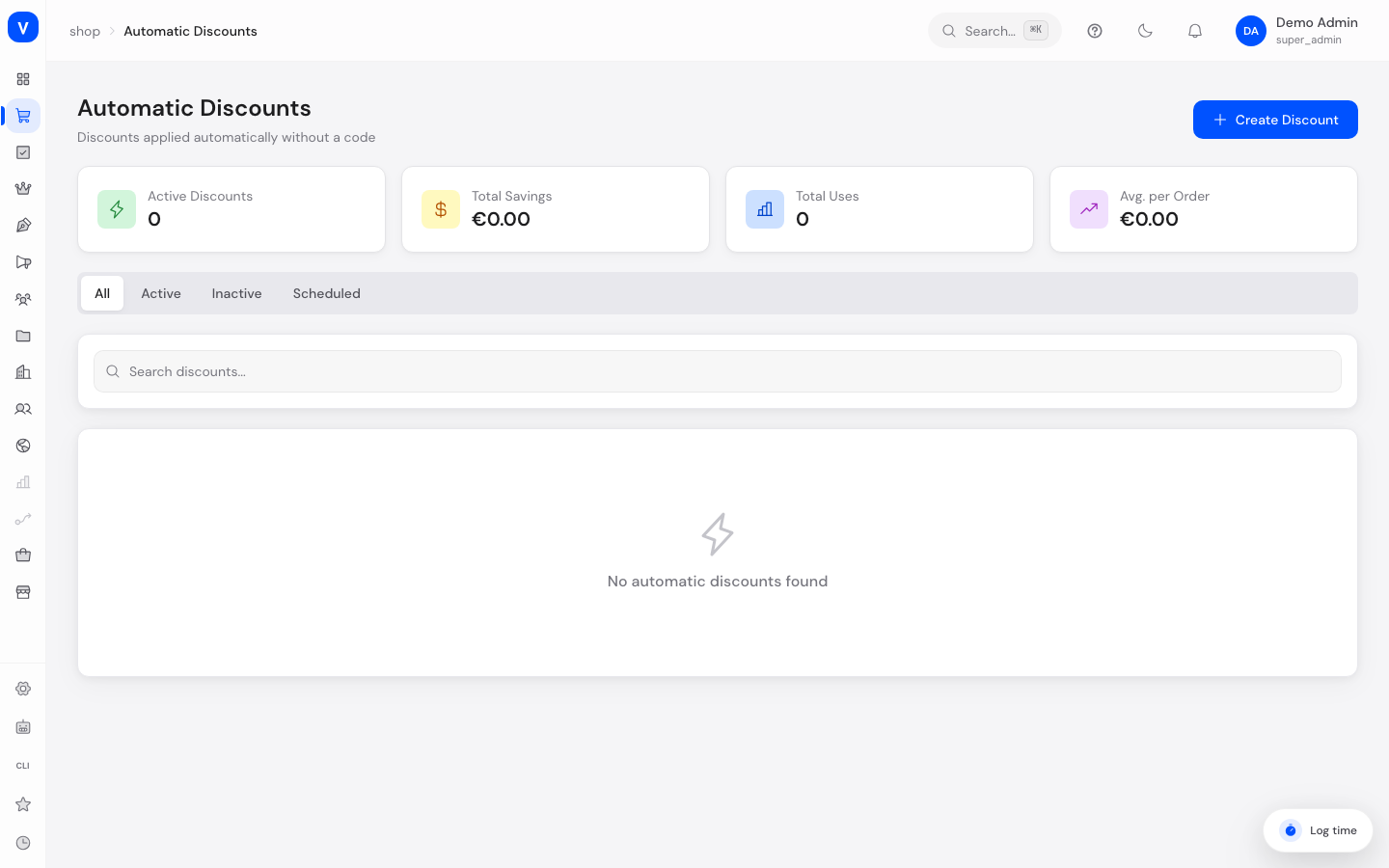
Automatic discounts are applied without a code, directly in the cart or checkout, as soon as the configured conditions are met, for example "10% off orders over €100". Technically an automatic discount is the same record as a promotion under Promotions & Discounts, just with the code type "Automatic". This page shows those codeless promotions only and hides every promotion that needs a code.
Before you start
| What you want to do | Permission needed |
|---|---|
| View the list and details | promotion:read |
| Create, edit, activate/deactivate discounts | promotion:write |
| Delete discounts | promotion:delete |
If you lack a permission the buttons are still visible, but saving fails with an error message. Permissions are granted by someone with access to user management.
What can I do here?
- Create, edit, activate/deactivate and delete automatic discounts
- Define one to twenty discount rules per discount (Percentage, Fixed amount, Fixed price, Fixed unit price, Buy X Get Y)
- Link a customer, cart or order rule as a condition
- Set a validity period, priority (0 to 9999) and usage limits
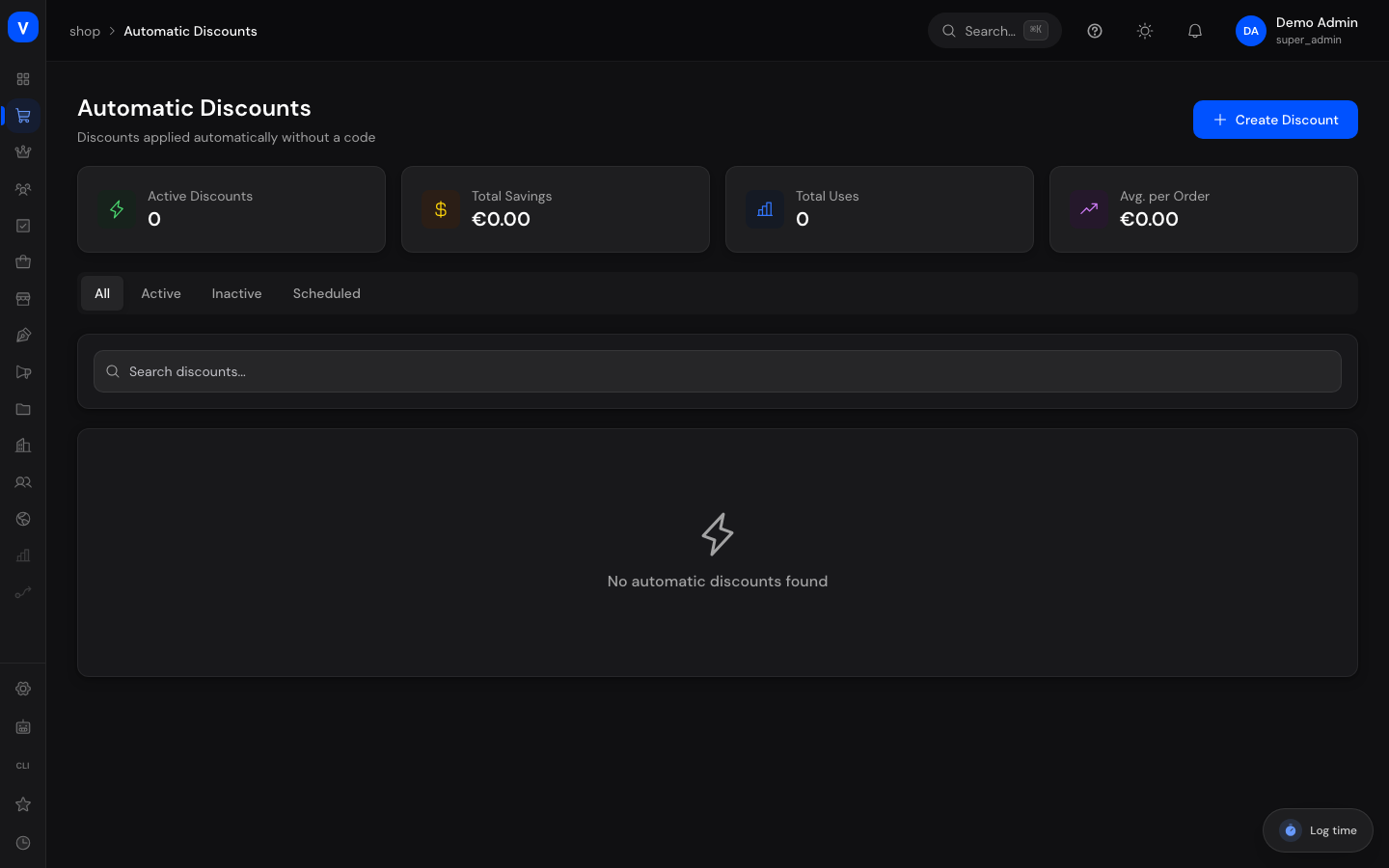
- Filter through the "All", "Active", "Inactive" and "Scheduled" tabs and search by name
- View metrics: active discounts, total savings, total uses, average per order
Step by step
- Create a new automatic discount: Click "Create Discount" in the top right. On the "General" tab, enter a name (required, 255 characters maximum) and set priority, validity period and usage limits.
- Define the discount: Switch to the "Discounts" tab. At least one discount rule is required, otherwise the discount cannot be saved. Example for free shipping: scope "Shipping" plus discount type "Percentage" with the value 100. The list then labels this discount "Free shipping".
- Set combinability: On the "Combination" tab, decide which other promotions this discount can combine with and which customers are eligible.
- Activate/deactivate a discount: Use "Activate"/"Deactivate" in the three-dot menu to switch a discount on or off without deleting it.
- Filter by status: Use the tabs at the top to find discounts in a specific state.
The "Buy X Get Y" tab only appears once the discount has been saved. Create the discount first, then reopen it to configure the offer there.
/shop/automatic-discountsFields explained
| Field | Meaning | Notes/Effect |
|---|---|---|
| Name | Internal display name of the discount | Required, 1 to 255 characters |
| Description | Short explanatory text | Optional, 2000 characters maximum |
| Priority | Order when several discounts match at the same time | Whole number from 0 to 9999, default 0. The higher value is evaluated first |
| Valid From / Valid Until | Period during which the discount can apply | Without "Valid Until" it has no end date. "Valid From" must be earlier than "Valid Until" |
| Usage Limit (total) | Maximum redemptions across all customers | Empty = unlimited. Once the limit is reached the discount simply stops applying in the cart |
| Limit Per Customer | Maximum redemptions per customer | 0 = unlimited |
| Prevent Combination | The discount is applied on its own | Outweighs every setting on the "Combination" tab, see below |
| Customer Rule / Cart Rule / Order Rule | Linked rule checked as a condition | Optional. Without a rule the discount applies to every cart |
| Discount Rules | Type, amount and scope of the discount | At least 1, at most 20 rules |
| Status | Active, Inactive or Scheduled | See values below |
Values & Status
Display status (automatic_discount_status)
The status is not a field of its own. It is derived from "Valid From" and the active switch, and the date takes precedence:
| Value | When it is shown | What happens |
|---|---|---|
| Scheduled | "Valid From" is in the future | The discount does not apply yet. Note: "Scheduled" says nothing about the active switch. If the discount is also deactivated, it will not apply after the "Valid From" date either |
| Active | "Valid From" has been reached (or is empty) and the discount is switched on | Applied automatically when the conditions are met |
| Inactive | "Valid From" has been reached (or is empty) and the discount is switched off | Not applied, but kept with all its settings |
Discount type
| Value | Meaning | Notes |
|---|---|---|
| Percentage | Percentage deduction | 100 at most. A higher value is rejected on save |
| Fixed amount | Fixed deduction in cents | |
| Fixed price (total) | Sets the total price of the line to a fixed value | Only selectable when the scope is "Specific products" |
| Fixed unit price | Sets the unit price to a fixed value | Only selectable when the scope is "Specific products" |
| Buy X, Get Y | Above a minimum quantity, a further quantity is discounted or free | Configured on its own tab, which appears only after saving |
When a discount does not apply
Discounts that fail their conditions are skipped silently during cart calculation. Nothing in the shop explains why. This order gets you to the cause fastest:
- Check the status. A discount showing "Inactive" or "Scheduled" does not apply. A "scheduled" discount is not switched on automatically if the active switch is off.
- Check the validity period. A "Valid Until" date in the past rules the discount out.
- Check the usage limits. Once the total limit is used up, the discount drops out of the calculation. The same applies to the per-customer limit for that particular customer.
- Check the linked rules. A customer, cart or order rule that does not match blocks the discount entirely. Open the rule and compare its conditions against the test cart.
- Look for another discount with "Prevent Combination". As soon as any matching discount has that box ticked, only that one is applied and all others are dropped, including ones with a higher priority.
Error messages when saving
Messages appear as a toast at the edge of the screen and come straight from the server, so they are in English:
| Message | Cause | Remedy |
|---|---|---|
Percentage discount value must be between 0 and 100 |
A percentage discount is above 100 | Reduce the value to 100 or less |
Invalid promotion configuration |
Catch-all message: usually "Valid From" is not before "Valid Until" | Check the two dates; the message does not name the field at fault |
A promotion with code "…" already exists |
A fixed code is already taken | Only affects promotions with a code, see Promotions & Discounts |
Frequently asked questions
What's the difference from the promotions under "Promotions & Discounts"?
They share the same data. Promotions lists every promotion, including those with a fixed or individual code; this page lists only the codeless ones. A discount you create here therefore also shows up in the promotions list.
Which discount wins when two match at once?
First: the discount with the higher priority is evaluated first. Whether both are granted together depends on combinability. If one of the matching discounts has "Prevent Combination" set, only that one is applied, regardless of whether another discount has a higher priority.
What are customer, cart and order rules for?
They link the discount to a reusable rule, for example "cart value at least €50". Without a linked rule the discount applies to every cart that meets the other conditions. The benefit: the same rule can be reused across several discounts and only has to be maintained in one place.
Why can't I see the "Buy X Get Y" tab?
It only appears after the discount has been saved once. Create it first with any discount rule, then reopen it for editing.
How do I set up free shipping?
Free shipping is not a discount type of its own but a combination: scope "Shipping" plus discount type "Percentage" with the value 100. The list then labels such discounts "Free shipping".