Orders
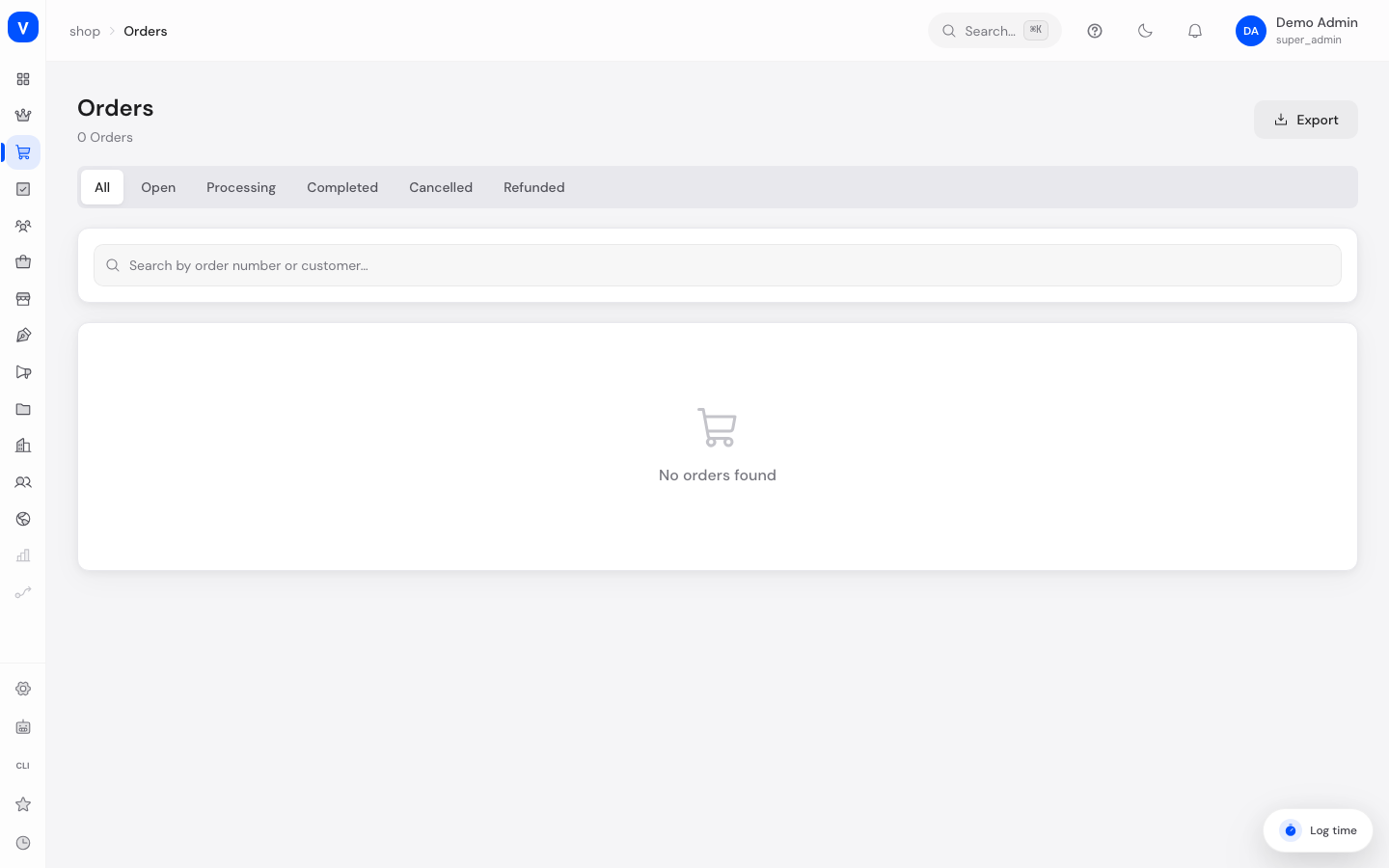
Here you can see every order customers have placed in your shop — from payment through shipping to completion or a refund. Each order has its own detail page with line items, addresses, payment and shipping status, and a full history.
/shop/orders/shop/orders/1Before you start
| What you want to do | Permission needed |
|---|---|
| View orders, notes and history | order:read |
| Change status, cancel, edit line items and notes | order:manage |
| Capture a payment | payment:capture |
What can I do here?
- Search orders by order number, filter by status (Open, Processing, Completed, Cancelled, Refunded), and download the displayed page as a CSV file
- Open a single order in detail: line items, amounts, shipping and billing address, order history
- Move the order, payment, and shipping status forward through the guided steps (order progress)
- Capture an authorized payment in full or in part, or void an authorization
- Cancel an order while it is still open or processing
- Edit line items on an open order: change quantity, add or remove a line item
- Add, edit, pin, or delete internal notes on an order; view the customer's comment left at checkout
- Assign tags to an order (e.g. "Urgent", "VIP", "Express")
- View the automated fraud-risk assessment of an order and record an approve/decline decision
- For intra-community EU B2B deliveries, see the tax-exempt status and the customer's VAT ID
- Jump to the customer profile linked to the order
Step by step
- Find an order: Use the status tabs or the search box. Search matches order numbers only, even though the placeholder text in the field suggests otherwise: a customer name or email address returns nothing. In that case search under Customers and jump to the order from there. Click the order number to open the detail page.
- Edit an order: Open the order, click "Edit order" and change quantity, price, or line items. Click "Done" to finish editing. Cancelled or refunded orders can no longer be edited.
- Capture a payment: If a payment is only authorized but not yet captured, open the "Capture payment" dialog from the order progress bar. Choose the full amount or a partial amount and confirm.
- Change status / cancel: Use the order progress steps at the top of the detail page to move the order, payment, or shipping status to the next allowed state. An open or processing order can be cancelled at any time via the "Cancel" button.
Fields explained
List view
| Field | Meaning | Notes/Effect |
|---|---|---|
| Order | Order number, links to the detail page | — |
| Customer | Name of the customer who placed the order | For guest orders, the name entered at checkout is shown |
| Status | Order status | See "Values & Status" below |
| Payment | Payment status | See "Values & Status" below |
| Shipping | Shipping status | See "Values & Status" below |
| Amount | Order grand total (gross) | — |
| Date | Time the order was placed | — |
Detail page
| Field | Meaning | Notes/Effect |
|---|---|---|
| Line items | Purchased items with quantity, unit price, VAT rate, and total price | In edit mode, items can be changed, added, or removed |
| Subtotal / Shipping / Discount / VAT / Total | Price breakdown of the order | — |
| Shipping address / Billing address | Addresses provided by the customer | — |
| Order history | Chronological list of automatic and manual events (e.g. status changes) | Read-only |
| Edit history | Log of manual line-item/price changes made by admins | Read-only |
| Customer | Customer name with a link to the customer profile | Linked for registered customers, not for guests |
| Fraud risk | Automated risk assessment with score, individual signals, and admin decision | See "Frequently asked questions" |
| Withdrawal waiver (digital products) | Shows whether and when the customer waived their right of withdrawal when buying digital products, including the IP address | Legally relevant evidence |
| Promotion codes | Coupon/discount codes redeemed at checkout | — |
| Tags | Freely assignable labels on the order | Enter as a comma-separated list |
| Notes | Internal notes visible only to admins, including pinning individual notes | The customer's checkout comment is shown separately and is read-only |
| Withdrawal deadline notice | Shows the remaining days of the statutory 14-day right-of-withdrawal period, or that it has expired | Links to the Withdrawals area |
Values & Status
Order status
flowchart LR
  Open -->|Start processing| Processing
  Processing -->|Complete| Completed
  Open -->|Cancel| Cancelled
  Processing -->|Cancel| Cancelled
  Completed -->|Refund| Refunded
| Value | Plain-language meaning | What happens next |
|---|---|---|
| Open | The order has come in but is not yet being processed | Can be cancelled or moved to processing |
| Processing | The order is currently being worked on (e.g. picked) | Can be completed or cancelled |
| Completed | The order has been fully fulfilled | Can still be refunded |
| Cancelled | The order was aborted | Final state, no further status changes possible |
| Refunded | The purchase amount was refunded to the customer | Final state, no further status changes possible |
Payment status
| Value | Plain-language meaning | What happens next |
|---|---|---|
| Pending | No successful payment has been received yet | Can be authorized, marked paid directly, or marked failed |
| Authorized | The payment was reserved but not yet captured | Must be captured via "Capture payment" before the amount reaches the merchant |
| Captured | The authorized amount has been collected | Can be (partially) refunded |
| Paid | The payment has been received in full | Can be (partially) refunded |
| Partial refund | Part of the amount has been refunded | Can still be refunded in full |
| Refunded | The full amount has been refunded | Final state |
| Failed | The payment could not be completed | Can be set back to "Pending" |
| Voided | An authorization was released without capture | Final state |
| Cancelled | The payment process was aborted | Final state |
Shipping status
| Value | Plain-language meaning | What happens next |
|---|---|---|
| Pending | The goods have not been shipped yet | Can be marked shipped or cancelled |
| Shipped | The goods are on their way to the customer | Can be marked delivered or returned |
| Delivered | The goods were delivered to the customer | Can still be marked returned |
| Returned | The goods were sent back to the merchant | Final state |
| Cancelled | Shipping was called off | Final state |
Not every one of these values is reachable through the guided steps. The order progress bar only offers the next sensible step; the remaining values are set through the manual status selection on the detail page.
Fraud risk level (fraud_risk_level)
| Value | Score range | Meaning |
|---|---|---|
| Low | 0–24 points | No elevated risk detected |
| Medium | 25–49 points | Slightly elevated risk, worth a closer look |
| High | 50–74 points | Significantly elevated risk; manual approve/decline recommended |
| Critical | 75–100 points | Very high risk; review especially carefully before processing the order |
Frequently asked questions
What does "authorized" mean for a payment, and why don't I see the money yet?
An authorization only reserves the amount on the customer's payment method — it has not been collected yet. Open "Capture payment" to actually charge the full or a partial amount.
Can I still change an order that has already been completed?
Line items can only be changed on orders that are open or processing. Cancelled and refunded orders are locked.
Why is a status change refused?
The permitted transitions are fixed (see the diagram above). An invalid transition is rejected, the order stays unchanged, and a message in the form Cannot transition order from 'completed' to 'cancelled' appears, naming the source and target state in plain text. The most common case: trying to cancel a completed order. That is not possible; from "Completed" the only route is to "Refunded".
Does the "Refund" step actually return money?
No. The step sets the order's or payment's status to "Refunded" and records the event. It does not instruct your payment provider to return anything. Trigger the actual refund in your payment provider's own portal, then record it here.
Is stock restored on cancellation or refund?
No. Stock is reduced when the order comes in. Cancelling or refunding does not book it back automatically; correct the stock by hand under Products if needed.
Is the customer emailed about a status change?
Only in two cases, and neither is triggered from this page: the order confirmation when checkout completes, and the shipping notification raised by the fulfilment process. Moving an order to "Cancelled" or "Refunded" sends the customer no message; tell them yourself.
What does the fraud-risk assessment show me?
For every order you can trigger an automated risk analysis that shows an overall score plus individual signals (e.g. address mismatch, order velocity, email risk). For medium risk or higher, you can manually approve or decline the order and leave a comment.
What is the difference between the order history and the edit history?
The order history shows automatic and manual events such as status changes. The edit history logs only manual admin changes to line items, quantities, or prices.
Why do some orders show a note about "intra-community supply"?
This applies to orders from business customers in other EU countries with a valid VAT ID, where the delivery is exempt from VAT. The note documents the tax-exempt status and the verified VAT ID.
How order totals and fraud risk are calculated
Two of the most important numbers on an order are computed, not entered by hand — they follow automatically from the line items and from risk signals.
Order total (price breakdown) — recalculated on every change to the line items:
- Line total = unit price × quantity (per line, kept separately gross and net).
- Subtotal = sum of all line totals.
- VAT = subtotal gross − subtotal net (it therefore results from the tax rates stored per line, and is not added on separately).
- Total = subtotal + shipping − discount. The result is never negative (floored at 0).
- If you change a quantity or price in edit mode, all these values run through again immediately — you never have to sum anything by hand.
Fraud-risk score — a value from 0 to 100, weighted from five individual signals:
| Signal | Weight | What it stands for |
|---|---|---|
| Address mismatch | 25% | Shipping and billing address differ (country, zip, city) |
| Order velocity | 25% | Unusually many orders from the same customer within 24 hours |
| Amount | 20% | Order value deviates strongly from the customer's previous average |
| Email risk | 15% | Suspicious/disposable email address |
| Geo | 15% | Delivery to a region rated as higher-risk |
- Overall score = (address mismatch × 0.25) + (velocity × 0.25) + (amount × 0.20) + (email × 0.15) + (geo × 0.15), rounded and capped at 100.
- The score maps to a level: 0–24 = Low, 25–49 = Medium, 50–74 = High, 75–100 = Critical (see "Values & Status").
- The score is calculated once per assessment and stored; it does not change on its own — only when the risk analysis is run again.
How to reduce an order's fraud risk
The score is a hint, not a verdict — it helps you review suspicious orders first. Ordered by impact:
- Decide flagged orders manually. For level High or Critical, make a documented approve/decline decision with a comment — that is the actual purpose of the assessment.
- Clarify address mismatches. Because differing shipping/billing addresses carry the most weight (25%), a quick contact or check is worthwhile for this signal before you ship.
- Watch order velocity. Several orders from the same customer in a short time drive the score up — check whether it's a legitimate repeat purchase.
- Put unusual amounts in context. An amount far from the customer's average is a signal, not proof; compare it against the customer's order history.
- Re-run the analysis after changes. Since the score stays stored, it reflects the state of the last check. Trigger the risk analysis again when relevant data has changed.