OAuth Clients
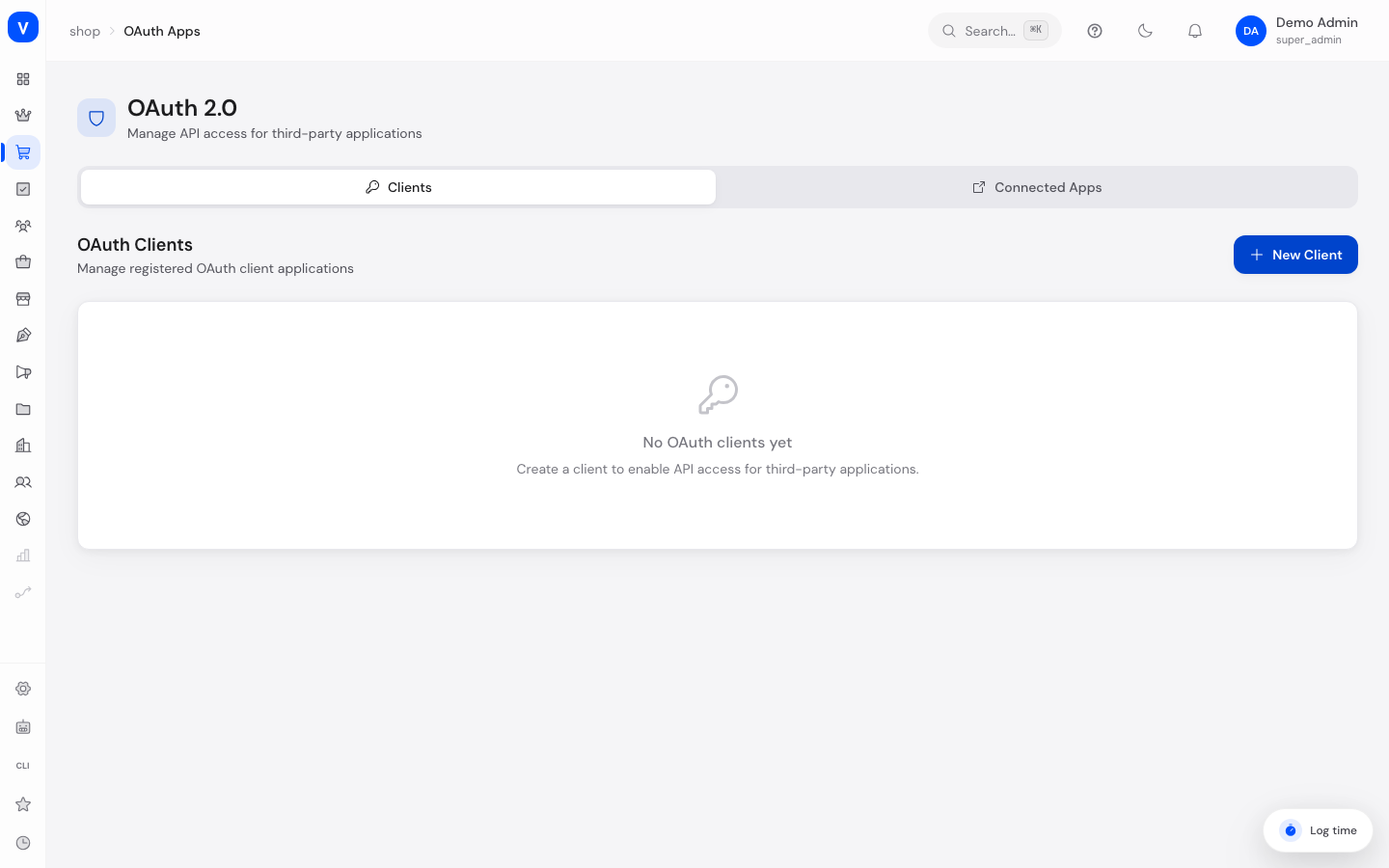
This is where you manage which external applications are allowed to connect to your shop through a secure sign-in process (OAuth) — for example, an app that needs to access shop data on behalf of customers. You can also see which apps have already been granted access and revoke that access at any time.
What can I do here?
- Create, edit and delete new OAuth clients (access permissions for external applications)
- Decide which areas (permissions/"scopes") a client may access
- Set redirect URIs that users are sent to after signing in
- Rotate the secret key (client secret) of a confidential client
- View already connected apps and revoke their access
Step by step
- Create a new client: On the "Clients" tab, click "New Client", give it a name and at least one redirect URI.
- Choose the client type: When creating, decide between "Confidential" (for server applications that can securely store a secret) and "Public" (for applications that cannot keep a secret safe, e.g. mobile apps).
- Set permissions (scopes): Select at least one permission, e.g. "read:products" or "write:orders".
- Save the secret key: After creating a confidential client, the secret key is shown once. Copy it immediately — it will not be shown again later.
- Rotate the secret key: If needed (e.g. suspected misuse), click the rotate icon to generate a new secret. The old key becomes invalid.
- Review connected apps: Switch to the "Connected Apps" tab to see which applications already have access, and revoke access via "Revoke" if needed.
/shop/oauth-clients/shop/oauth-clientsFields explained
| Field | Meaning | Notes/Effect |
|---|---|---|
| Name | Display name of the application | Required |
| Description | Short explanatory text | Optional |
| Redirect URIs | Addresses users are sent to after successful sign-in | At least one required |
| Client Type | Confidential or Public | See values below; only selectable at creation |
| Scopes | Areas the client is allowed to access | At least one required |
| Grant Types | Technical methods used by the client to authenticate | Pre-filled, adjustable if needed |
| Client ID | Public identifier of the client | Assigned automatically, can be copied |
| Client Secret | Secret key of a confidential client | Only visible once, at creation/rotation |
| Logo URL / Homepage URL / Privacy Policy URL | Additional information about the application | Optional |
| Status | Active or Inactive | Inactive clients can no longer sign in |
Values & Status
Client type (oauth_client_type)
| Value | Meaning |
|---|---|
| Confidential | For server-side applications that can securely store a secret |
| Public | For applications with no secure place to store secrets, e.g. mobile or single-page apps |
Grant types (oauth_grant_type)
| Value | Meaning |
|---|---|
| authorization_code | Standard sign-in flow with a redirect via a callback address |
| client_credentials | Direct sign-in without user interaction, e.g. for server-to-server connections |
| refresh_token | Allows automatically renewing an expired access without signing in again |
Frequently asked questions
What do I do if I lost the client secret?
The secret is only shown once. Rotate it via the rotate icon — this generates a new secret and invalidates the old one.
What's the difference between "Confidential" and "Public"?
Confidential clients receive a client secret that must be securely stored on a server. Public clients don't get one, since they couldn't protect it safely (e.g. mobile apps).
How do I revoke an app's access?
Switch to the "Connected Apps" tab and click "Revoke" on the relevant app.