Tags
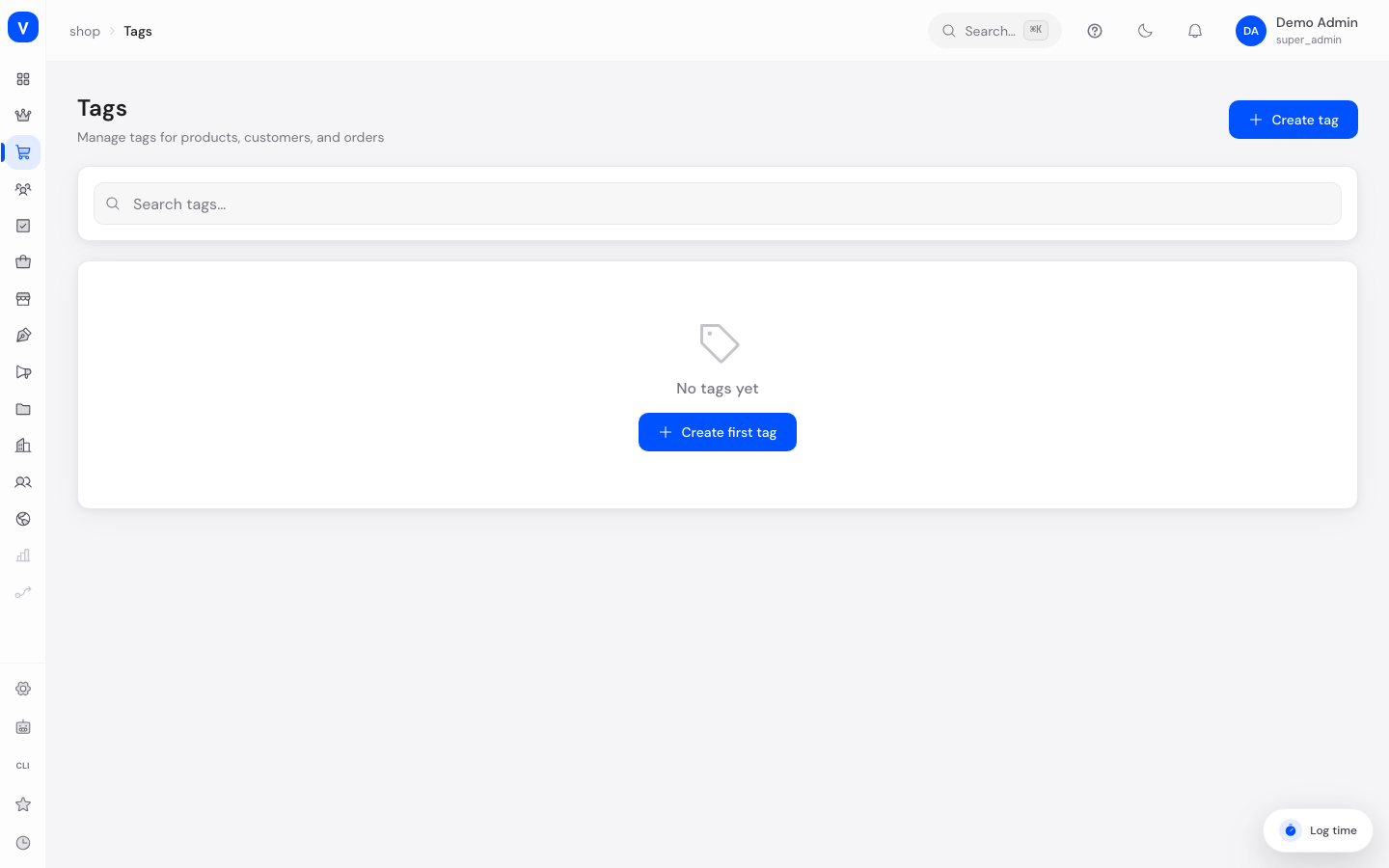
Tags are freely assignable, colored labels you can use to mark products, customers and orders across the shop — independent of the fixed category structure. A tag like "Bestseller" or "VIP" can, for example, be attached to both products and customers at the same time.
What can I do here?
- Create, edit and delete tags
- Assign a color to each tag so it's visually recognizable
- See how often a tag is currently used on products, customers and orders
- Search tags
- Add translations for tag names
Step by step
- Create a new tag: Click "Create Tag", give it a name and pick one of the preset colors. Confirm with "Create".
- Edit a tag: Click the pencil icon next to the tag in the list, change the name or color, and save.
- Delete a tag: Click the trash icon. If the tag is still in use somewhere, you'll be warned beforehand how many usages are affected.
- Assign a tag to a product: This happens directly on the product page, in the "Tags" section — see Products.
/shop/tagsFields explained
| Field | Meaning | Notes/Effect |
|---|---|---|
| Name | Display text of the tag | Required |
| Color | Color used to display the tag throughout the system | Chosen from preset colors |
| Products | Number of products this tag is assigned to | Informational only |
| Customers | Number of customers this tag is assigned to | Informational only |
| Orders | Number of orders this tag is assigned to | Informational only |
Frequently asked questions
What's the difference between tags and categories?
Categories form a fixed, hierarchical structure (e.g. for shop navigation). Tags are flexible, freely combinable labels without hierarchy, and can be assigned to customers and orders as well as products.
What happens if I delete a tag that's still in use?
The tag is removed from all products, customers and orders it was assigned to. The system warns you beforehand with the number of affected usages.
How do I change a tag's color afterwards?
Open the tag for editing and choose a new color from the palette.