Ticket Templates
Ticket templates are pre-written response building blocks that let support agents answer recurring requests faster and more consistently. Instead of typing every reply from scratch, an agent picks a matching template, replaces placeholders like the customer's name, and sends the message.
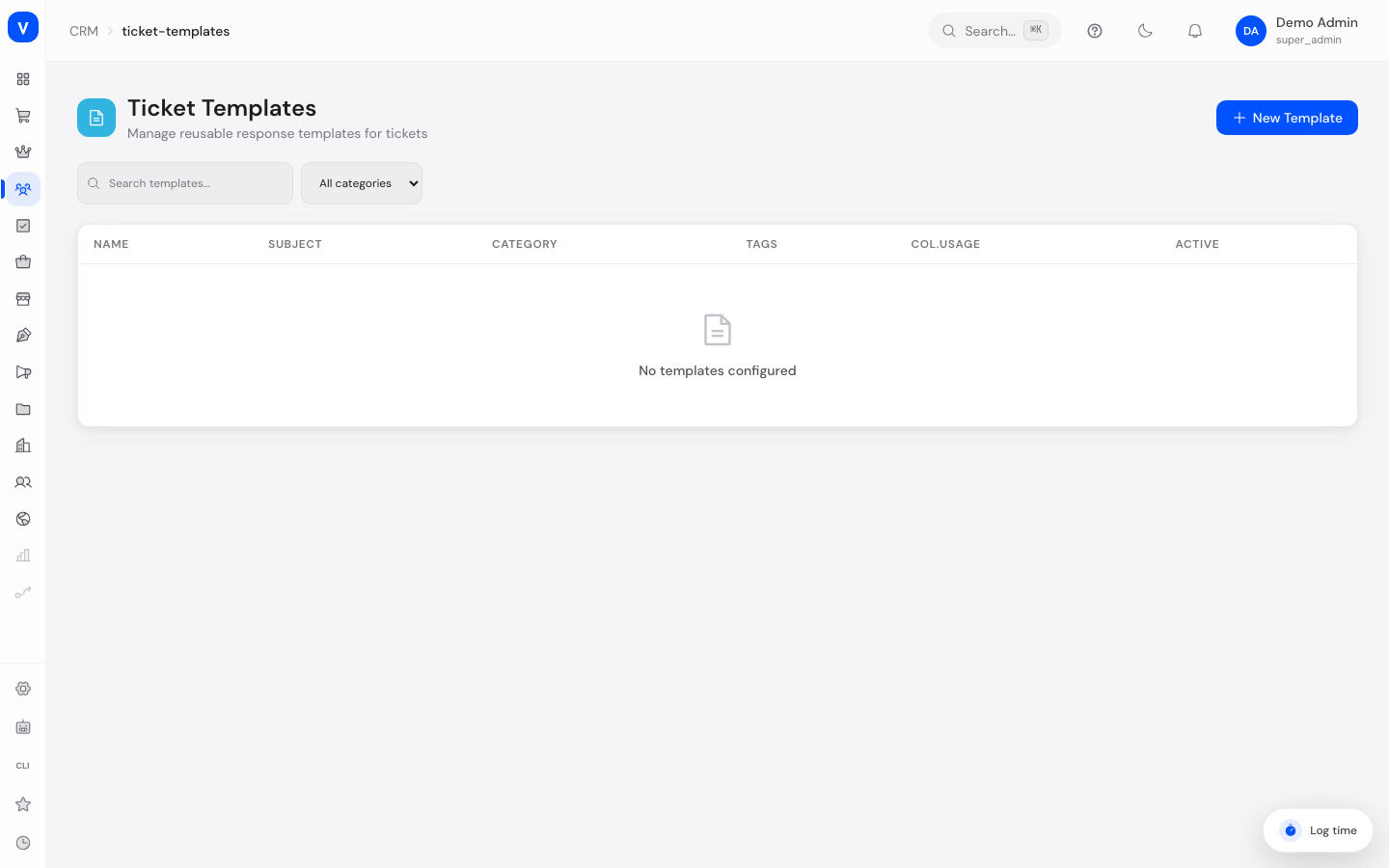
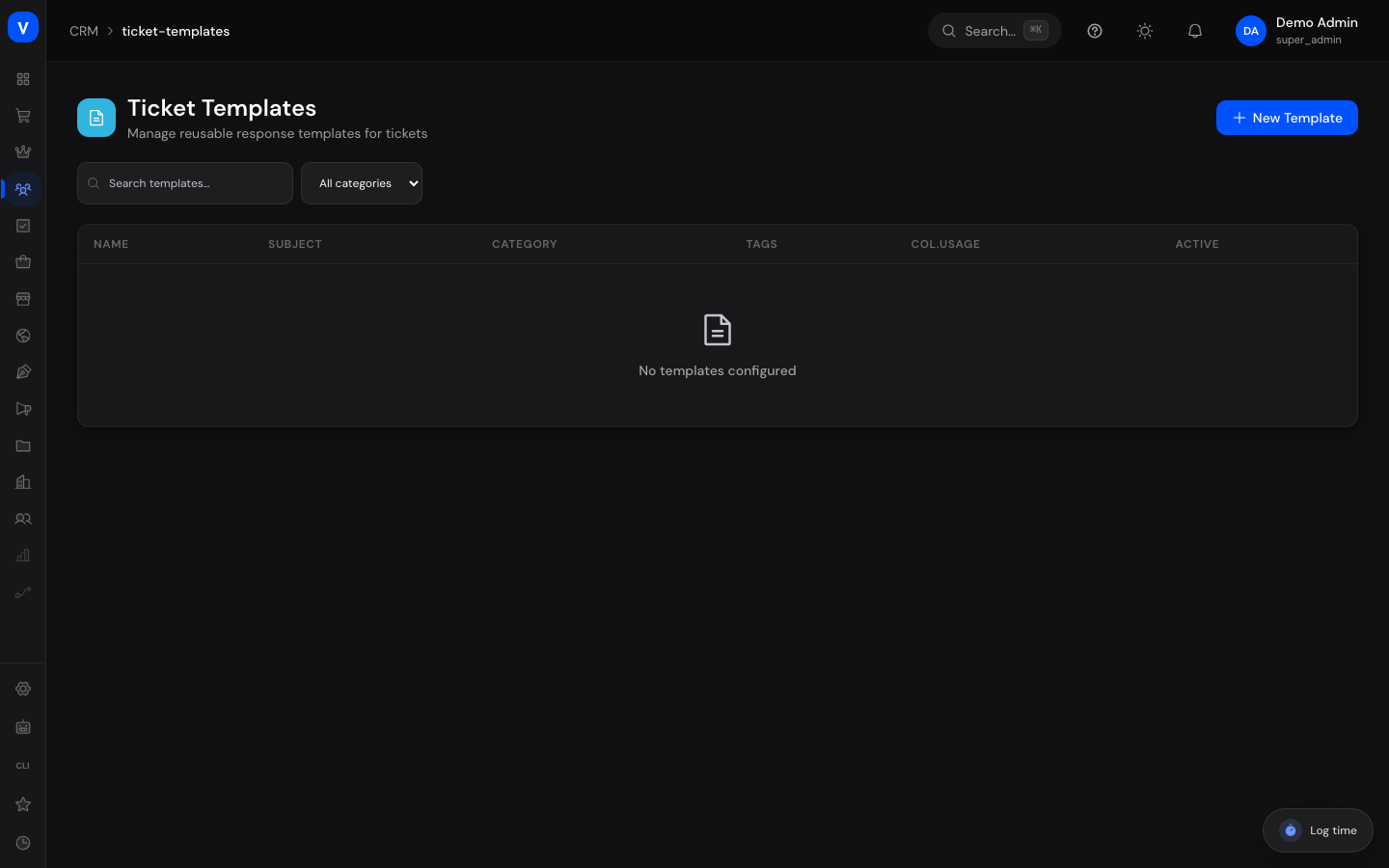
/crm/ticket-templatesWhat can I do here?
- Browse all existing response templates and filter by category
- Create a new template with subject, body, category, and tags
- Preview a template with sample values before using it
- Edit or delete a template
- Copy a template's text to the clipboard to use it in a reply
Step by step
- Create a new template: Click "Create Template" → enter a name, description, subject, and body → optionally set category and tags → save. Placeholders such as
{{customer_name}},{{order_id}},{{ticket_number}},{{agent_name}}, or{{company_name}}can be used directly in the subject and body. - Check a template in preview: Click a template in the list → switch to "Preview" in the detail panel → placeholders are replaced with sample values so you can see what the finished message will look like.
- Use a template for a reply: Click "Use" in the detail panel to copy the subject and body to your clipboard, then paste them into a ticket reply.
- Maintain a template: Click "Edit" in the detail panel to adjust the content, or "Delete" when the template is no longer needed (with a confirmation prompt).
/crm/ticket-templates- Subject
- Your order 10042 is on its way
- Body
- Hello A. Example, your order has left our warehouse.
- Variables Used
- Customer name, order number
- Tags
- shipping, order
/crm/ticket-templatesFields explained
| Field | Meaning | Notes/Effect |
|---|---|---|
| Name | Internal title of the template | Used only for recognition in the list |
| Description | Short note on what the template is for | Optional |
| Subject | Pre-written subject line | Can contain placeholders |
| Body | Pre-written message text | Can contain placeholders, supports multi-line text |
| Category | Topic grouping | Freely chosen, e.g. Billing, Technical, Shipping, Returns, General |
| Tags | Free-form labels | Used for additional filtering |
| Usage count | How often the template has been used | Automatically incremented on each use |
| Created At | Date the template was created | — |
Values & statuses
Placeholders (variables)
| Value | Meaning |
|---|---|
{{customer_name}} |
Customer's name |
{{order_id}} |
Order number |
{{ticket_number}} |
Ticket number |
{{agent_name}} |
Name of the replying agent |
{{company_name}} |
Customer's company name |
Status
| Value | Meaning | What happens |
|---|---|---|
| Active | Template is ready to use | Shown in the selection when replying |
Frequently asked questions
Are the placeholders automatically filled in when I use a template on a ticket?
The preview on this page replaces placeholders with sample values for testing purposes only. When actually used on a ticket, the values need to be inserted or adjusted depending on the case.
Can I restore a deleted template?
No, deletion is permanent — that's why a confirmation prompt appears beforehand.
What is the usage count for?
It shows how often a template has already been used, helping you distinguish frequently used templates from unused ones.
Can I create my own categories?
Yes, any category entered when creating a template automatically appears in the filter afterward, in addition to the default categories.