Customer Satisfaction (CSAT)
After a ticket is resolved or closed, a short satisfaction survey can be sent to the customer automatically — with a star rating and optional additional questions. This page shows the evaluation of all responses, manages the surveys themselves, and lists individual customer responses.
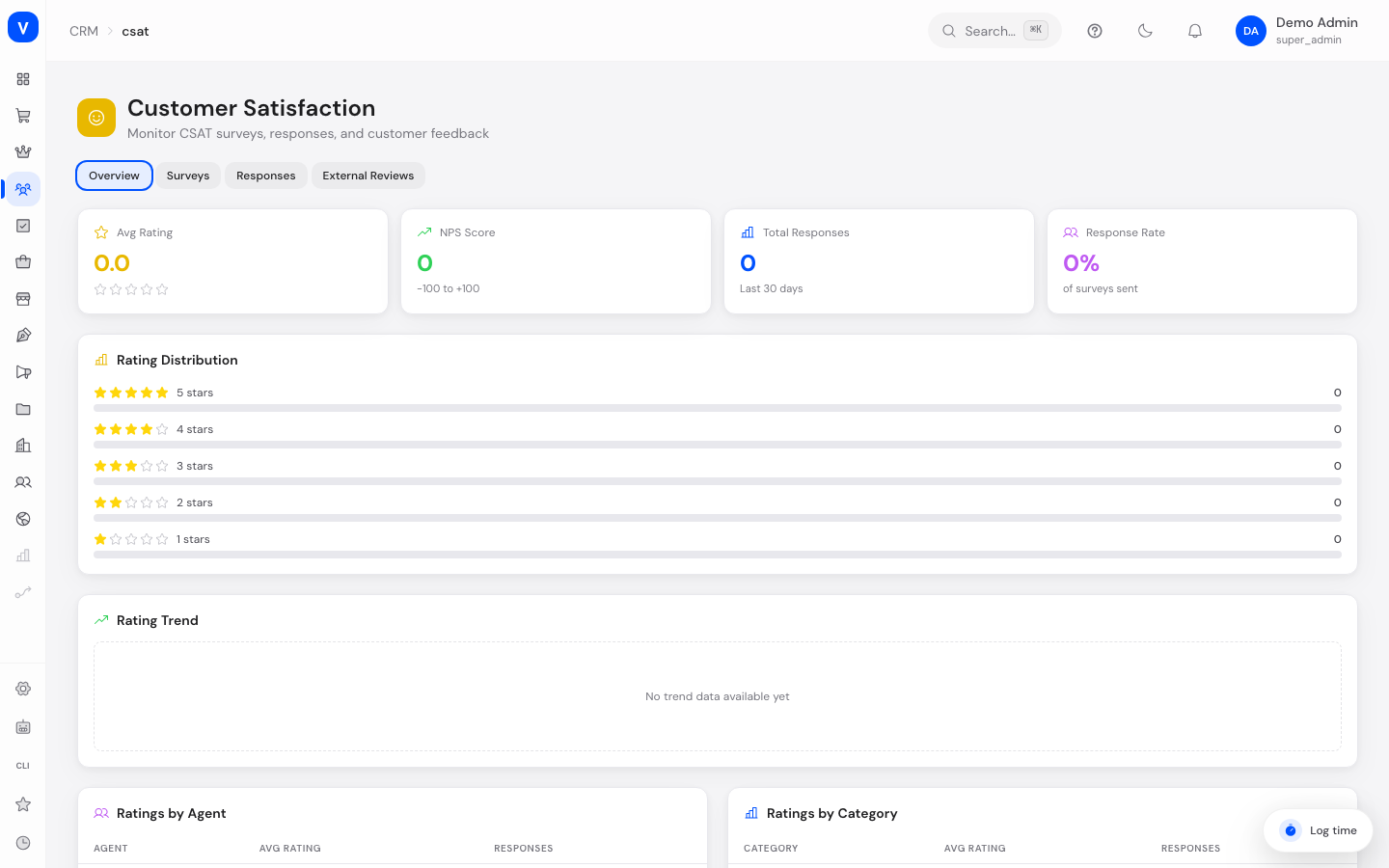
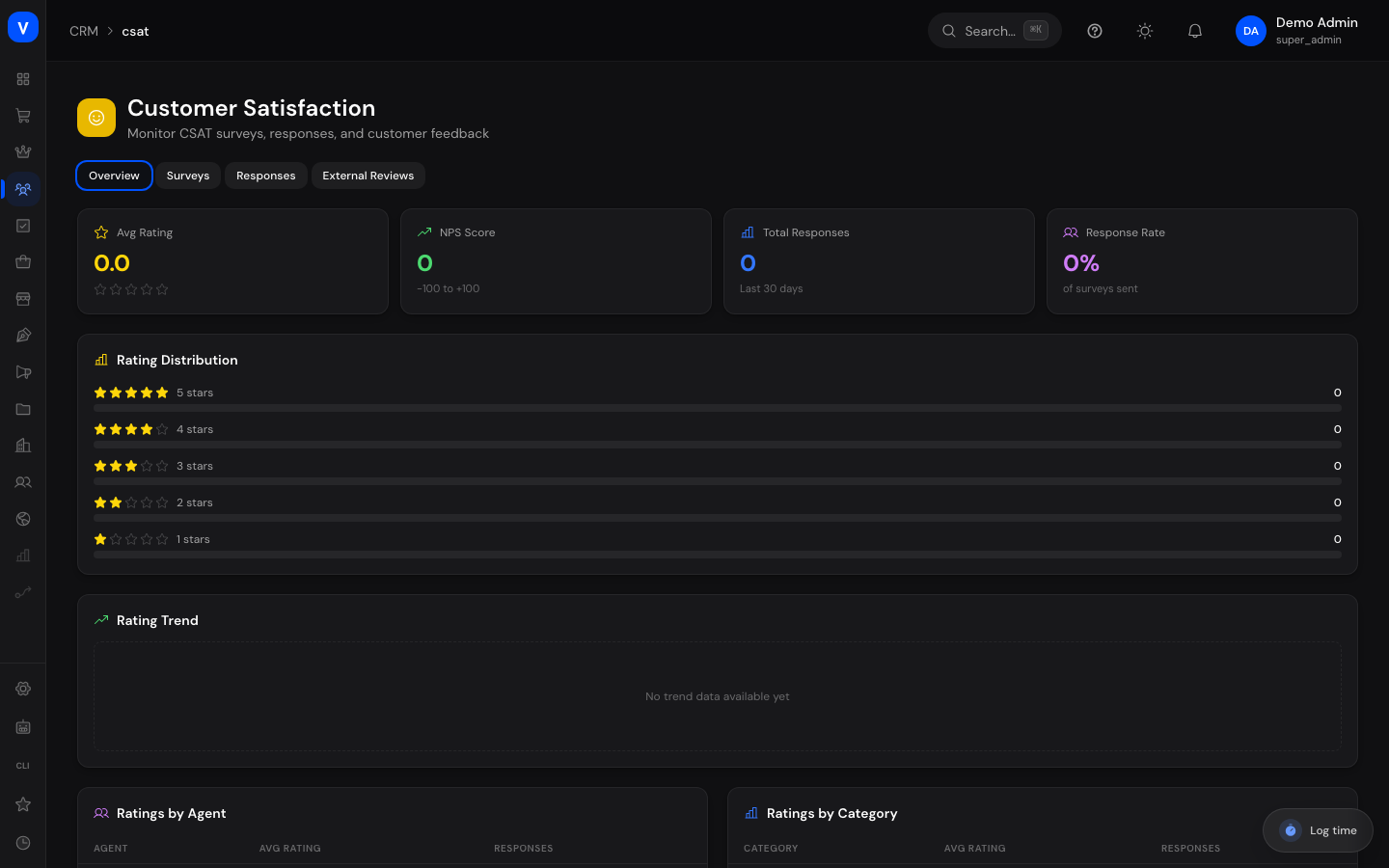
/crm/csat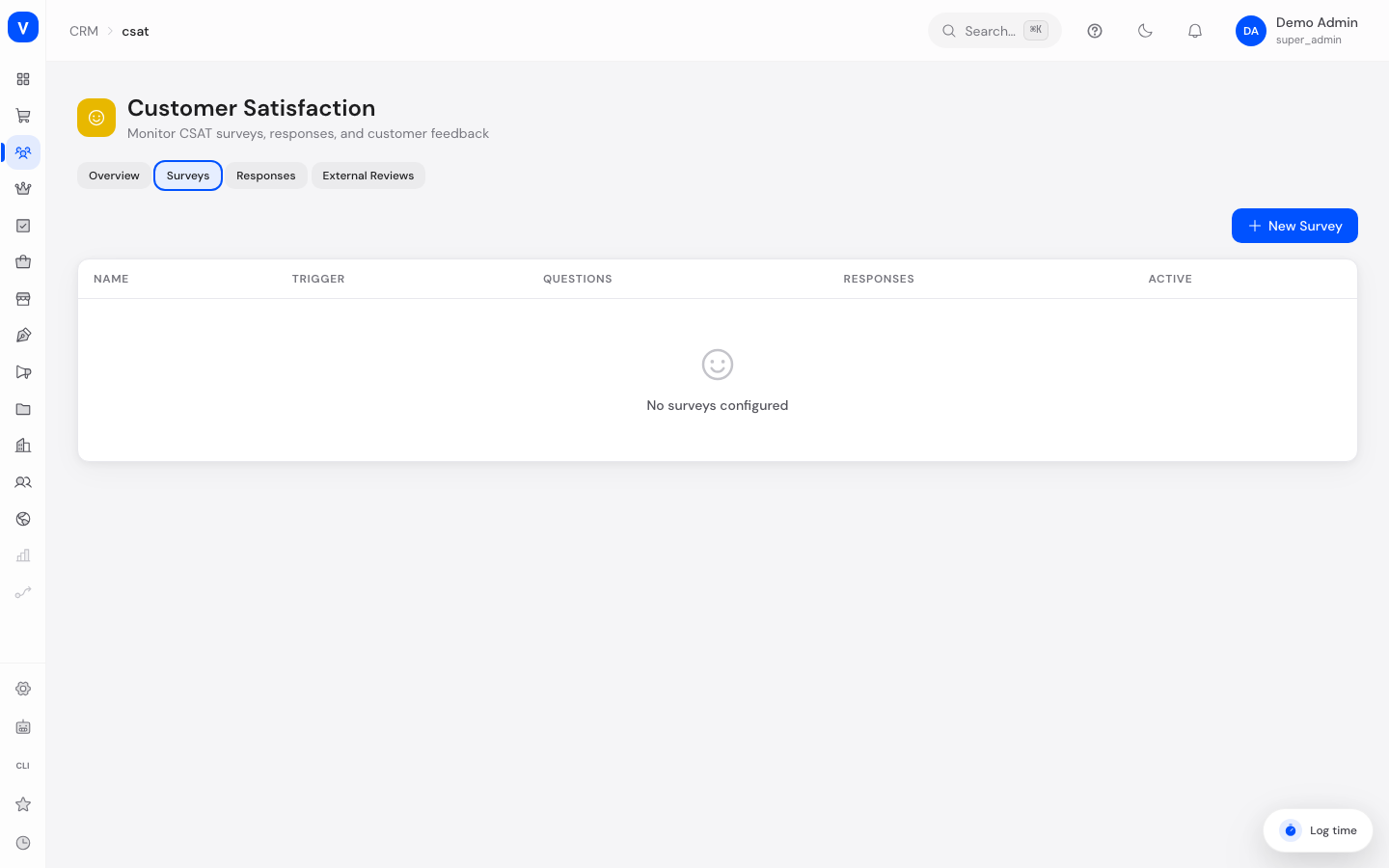
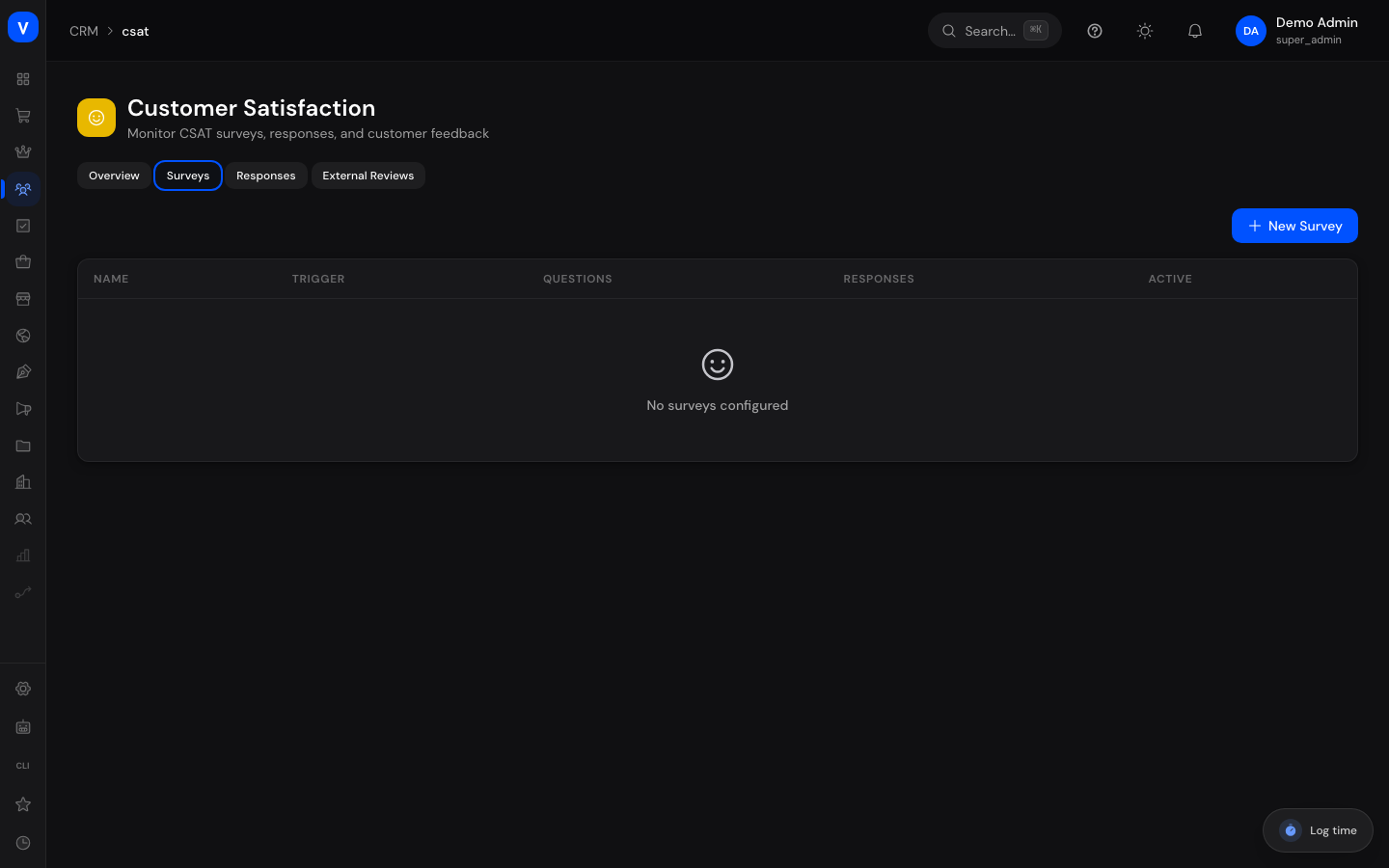
/crm/csat?tab=surveys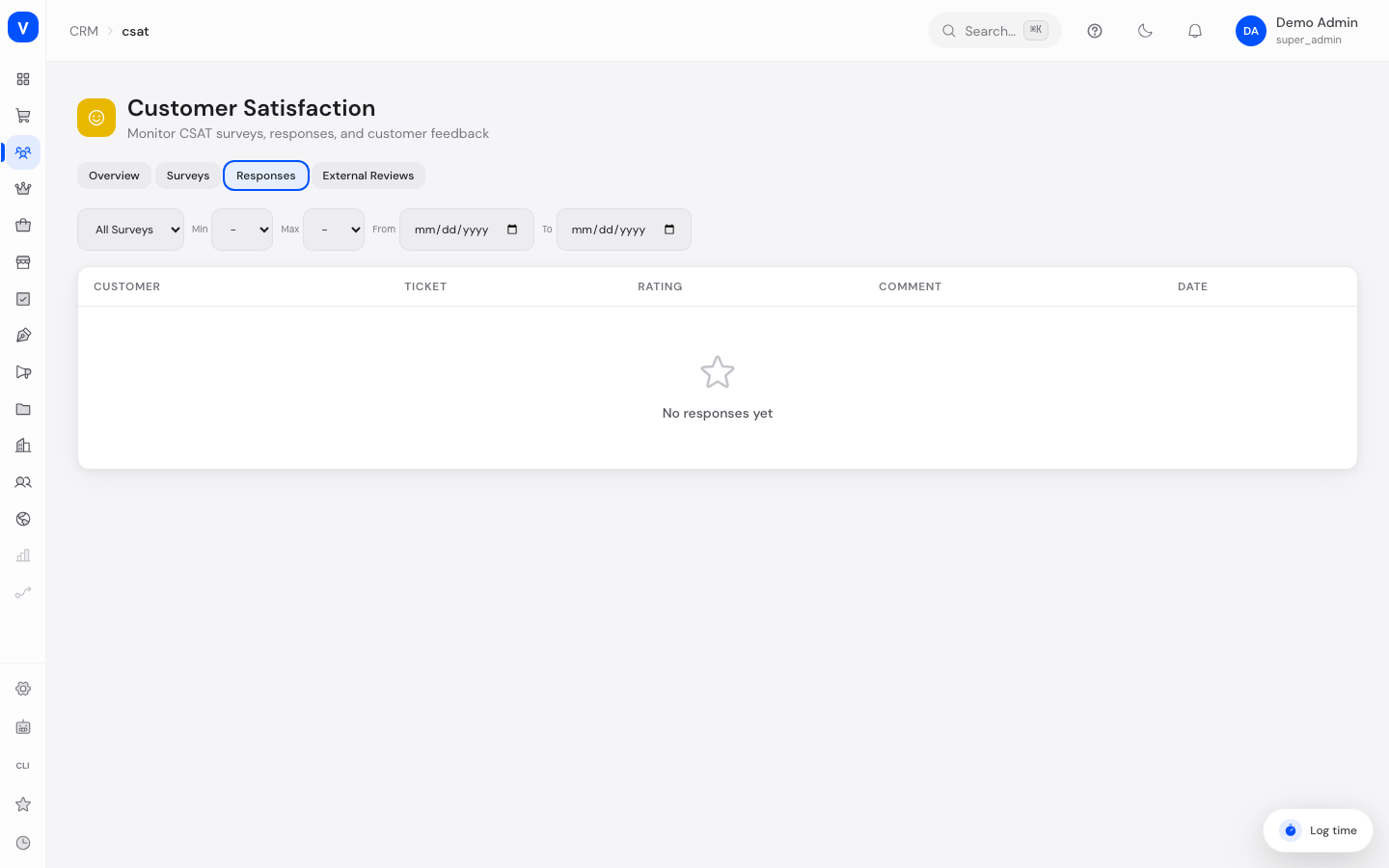
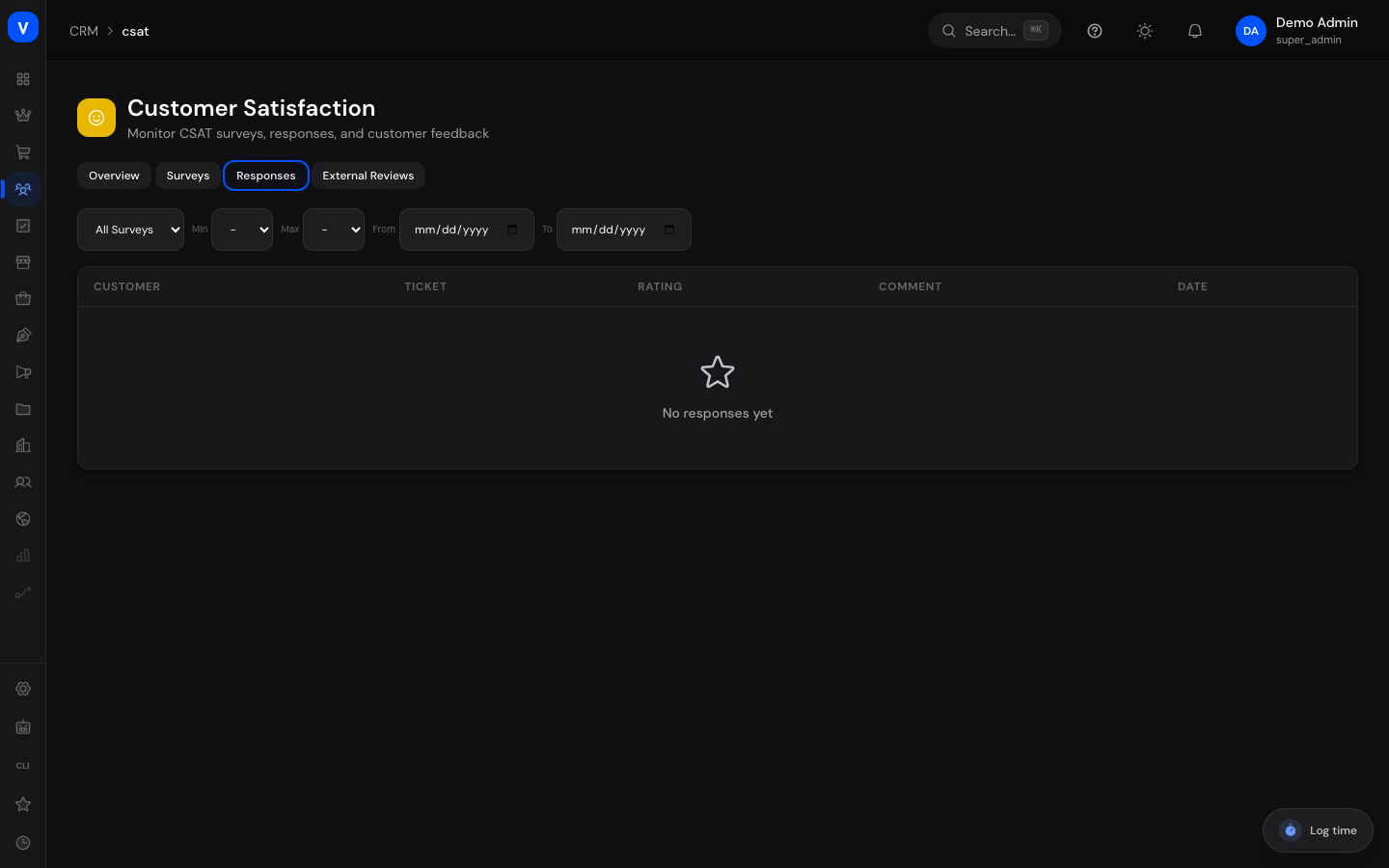
/crm/csat?tab=responsesWhat can I do here?
- See average rating, NPS score, total responses and response rate at a glance
- View the rating distribution (1–5 stars) and the rating trend over time
- View a breakdown by agent and by category
- Create, edit and delete surveys with custom questions
- Decide when a survey is sent automatically (on resolve, on close, or manually only)
- Search, filter and view individual customer responses in detail (including the linked ticket)
- Switch over to external reviews (Trustpilot, Google, Amazon)
Step by step
- Create a new survey: open the "Surveys" tab → "New Survey" → set a name, description and trigger event → add at least one question (rating, text or choice) → set "Active" → Save.
- Review responses: open the "Responses" tab → optionally filter by survey, rating range or date range → click a row to see details including all answers and the linked ticket, if any.
- Change a survey's trigger: open the "Surveys" tab → open the desired survey → edit → change the trigger event to "On Resolve", "On Close" or "Manual" → Save.
- Review the overview: open the "Overview" tab to check KPI cards, rating distribution, trend, and the breakdown by agent/category.
Fields explained
| Field | Meaning | Notes/Effect |
|---|---|---|
| Name (survey) | Name of the survey | Only visible internally |
| Description | Short description of the survey | Shown in the survey's detail panel |
| Trigger Event | Timing of the automatic send | See values table below |
| Questions | List of questions in this survey | Each question has a type (rating/text/choice) |
| Question type "Rating" | Star scale (1–5) | Feeds into the average rating and distribution |
| Question type "Text" | Free-text answer field | Shown as a comment in the response detail view |
| Question type "Choice" | Predefined answer options (entered comma-separated) | The customer picks one of the options |
| Active (survey) | Whether the survey can currently be sent | Inactive surveys are never triggered automatically |
| Avg Rating (KPI) | Average star rating across all responses | Core customer-satisfaction metric |
| NPS Score (KPI) | Net Promoter Score, scale −100 to +100 | Higher value = more willingness to recommend |
| Total Responses (KPI) | Number of responses received (last 30 days) | Shows response volume |
| Response Rate (KPI) | Share of answered vs. sent surveys | Shows how well the survey is being adopted |
| Customer (response) | Name/email of the responding customer | Stored encrypted for privacy |
| Ticket (response) | Linked support ticket, if any | Lets you jump to the ticket context |
Values & statuses
Trigger event
| Value | Meaning | What happens |
|---|---|---|
| On Resolve | Sent right after the ticket status is set to "Resolved" | Customer receives the survey shortly after resolution |
| On Close | Sent right after the ticket is permanently closed | Customer receives the survey only after the grace period has passed |
| Manual | No automatic send | The survey must be triggered explicitly |
Question type
| Value | Meaning | What happens |
|---|---|---|
| Rating | Star scale 1–5 | Feeds into the numeric evaluation |
| Text | Free text field | Shown only as a comment, not in numeric metrics |
| Choice | Fixed option list | The customer picks exactly one option |
Frequently asked questions
What happens on a very negative rating (1–2 stars)?
Such a response automatically triggers an internal escalation notification, so a negative customer experience can be followed up on quickly.
Why isn't a survey sent for some tickets?
The survey is only sent if an active survey exists for the relevant trigger event, the ticket runs through a Gmail mailbox, and the customer hasn't already responded.
Can the same customer respond to the same survey multiple times?
No, only one response per ticket and survey is counted — if one already exists, no further send is triggered.
What's the difference between this page and "External Reviews"?
This page shows the internal satisfaction survey that SELLERLOGIC Commerce Services sends itself after a ticket is completed. "External Reviews" instead collects public reviews from platforms like Trustpilot, Google or Amazon — independent of individual tickets.
How is the NPS score calculated?
The NPS score is derived from the rating responses and shown as a value between −100 and +100; a positive value indicates more satisfied than dissatisfied customers.
How the metrics are calculated
All KPI cards are computed live each time the page opens, from the responses received — there are no cached values. The basis is solely the overall star rating (1–5) of each response.
Average rating
The plain average of all star ratings in the selected period, rounded to two decimals. With no responses it shows 0. The overview's default period is the last 30 days (switchable to 7 / 30 / 90 days or "all").
NPS score
SCS maps the 1–5 star scale onto the Net Promoter Score as follows:
- Promoters = 4 or 5 stars
- Detractors = 1 or 2 stars
- Passives = 3 stars (count only toward the total, not toward the score)
Formula: NPS = (share of promoters − share of detractors) × 100, rounded, range −100 to +100. Example: with 10 responses (six 5s, one 3, three 1s), (6 − 3) / 10 × 100 = +30.
Total responses
The number of responses received in the period (default: 30 days).
Response rate
Responses received divided by the number of all tickets already resolved or closed, as a percentage. Because the denominator includes every completed ticket, the response rate is on the conservative side.
Distribution, trend, breakdown
The rating distribution counts responses per star level (1–5). The trend groups by day/week/month and shows the average per period. The breakdown by agent or category averages the ratings of responses with a linked ticket.
Automatic escalation
As soon as a response with 1 or 2 stars arrives, SCS immediately raises an internal escalation notification for the affected ticket — independently of the metrics above.
How to improve CSAT and NPS
- Follow up on negative ratings immediately. The 1–2 star escalation is your cue — every recovered rating shifts a detractor toward a promoter.
- Resolve quickly and finally. Satisfaction depends heavily on short response and resolution times (see Support quality).
- Increase survey response. A fitting trigger event and short surveys raise the response rate and thus the significance.
- Take 3-star responses seriously. They don't count as promoters — targeted follow-up lifts them to 4–5 stars.