Agent Groups
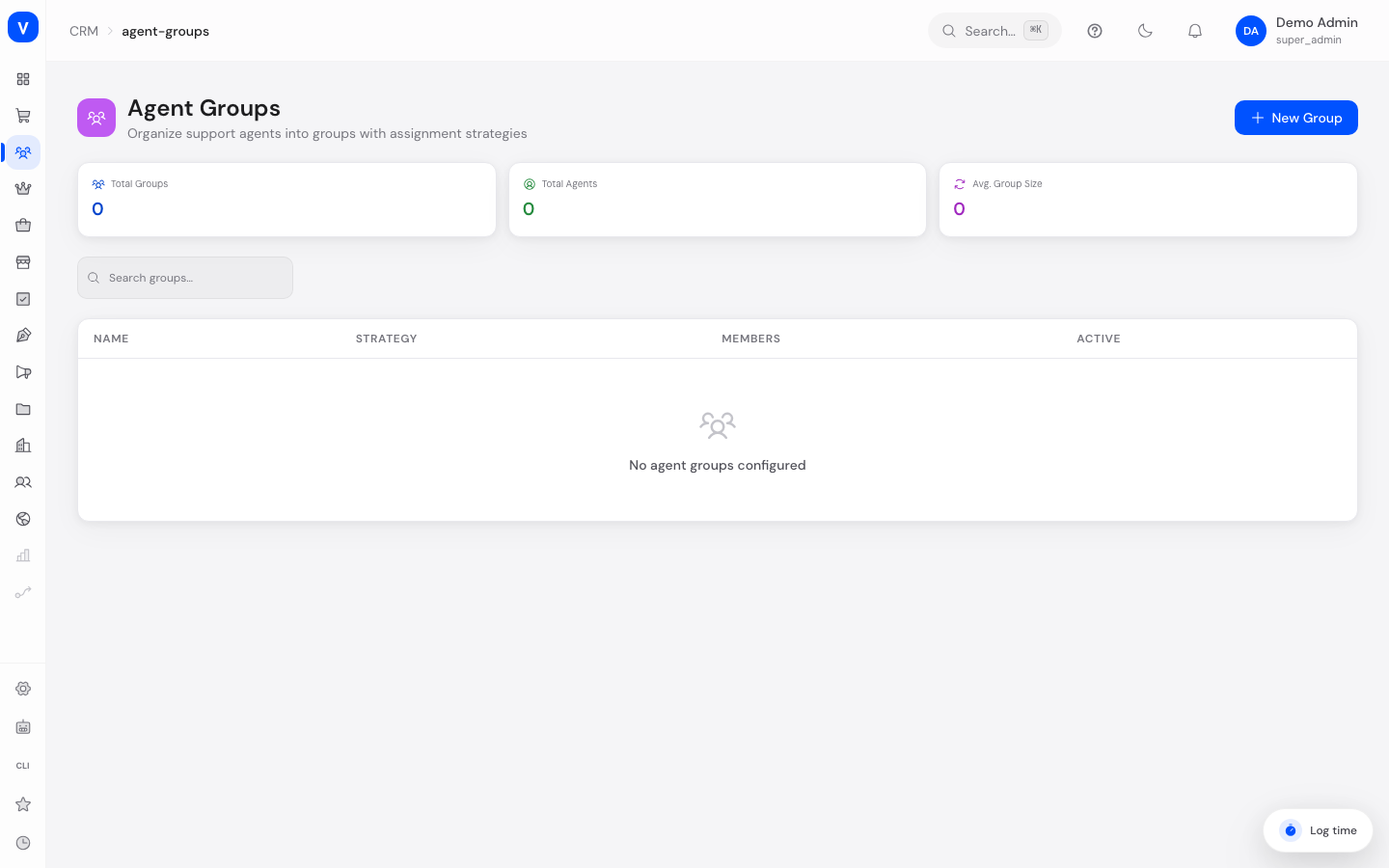
Agent groups bundle your support staff into teams, for example "Technical Support" or "Billing". Each group defines the rule by which new tickets are automatically distributed to its members. Agent groups are also the foundation for escalation policies: there you can define which group gets notified or which group a ticket gets reassigned to when it stays open too long.
/crm/agent-groupsWhat can I do here?
- Create and name new agent groups
- Set an assignment strategy (how new tickets get distributed within the group)
- Add or remove members from a group
- Give members the role "Lead" or "Member"
- Edit, deactivate, or delete groups
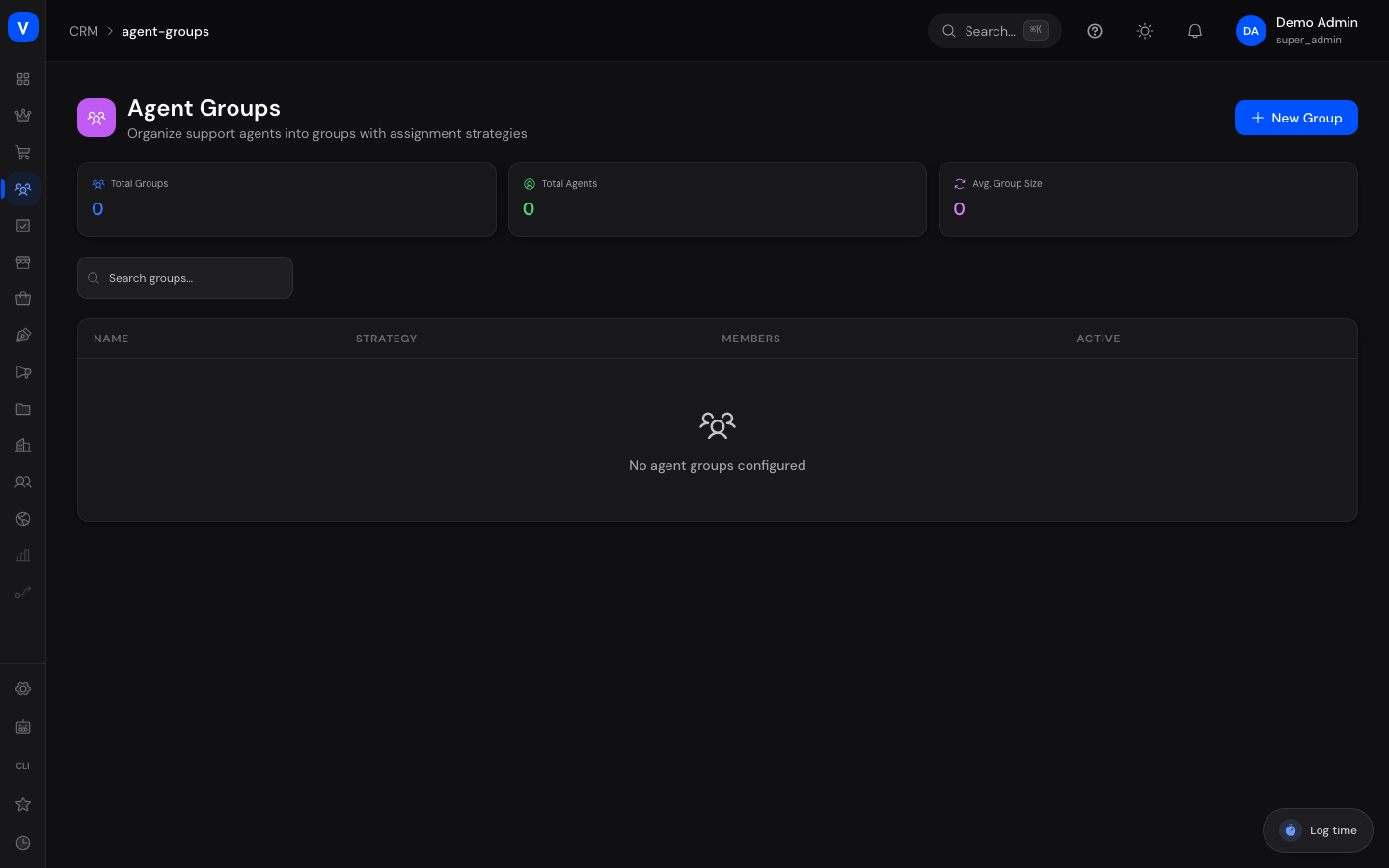
- Get an overview of group size and total support headcount
Step by step
- Create a new group: Click "New Group" in the top right. Enter a name, an optional description, and choose an assignment strategy. Save the group.
- Add members: Open a group by clicking its row in the table. In the detail panel, click "Add Member", enter the email address, and select the role.
- Edit a group: Open the group and click "Edit" to change the name, description, or assignment strategy.
- Delete a group: Open the group and click "Delete" in the detail panel. The group is deactivated (not permanently removed from the database) and no longer appears in selection lists afterwards.
/crm/agent-groups- Description
- First point of contact for technical questions
- Assignment Strategy
- Round Robin
- Created
- 04 Feb 2026
| Email address | Role | Open Tickets |
|---|---|---|
| a.beispiel@beispiel.de | Lead | 3 |
| m.muster@beispiel.de | Member | 5 |
| t.beispiel@beispiel.de | Member | 2 |
/crm/agent-groupsFields explained
| Field | Meaning | Notes/Effect |
|---|---|---|
| Name | Display name of the group | Must be unique; also shown for selection in escalation policies |
| Description | Free text explaining the group's purpose | Optional, shown under the name in the table |
| Assignment Strategy | Rule used to distribute new tickets within the group | See value list below |
| Active | Whether the group is currently usable | Deactivated groups can no longer be selected for assignment/escalation |
| Members | Support staff assigned to this group | A staff member can belong to multiple groups |
| Role (per member) | "Lead" or "Member" | Informational only, reflects team structure |
| Email (per member) | Member's contact for notifications | Used e.g. for escalation emails |
| Created | Timestamp the group was created | Informational only |
Values & Status
Assignment Strategy
| Value | Meaning | What happens |
|---|---|---|
| Round Robin | Tickets are distributed to group members in turn | The system remembers who last received a ticket and assigns the next ticket to the following member |
| Least Busy | Tickets go to the member with the fewest open tickets | The system counts each member's currently open/in-progress tickets and picks the least loaded member |
| Manual | Tickets are assigned manually | No automatic suggestion is made; a support lead assigns tickets themselves |
Role
| Value | Meaning | What happens |
|---|---|---|
| Lead | Member with team leadership function | Label only in the member list, no additional permissions on this page |
| Member | Regular group member | Default role when adding a member |
Status
| Value | Meaning | What happens |
|---|---|---|
| Active | Group is in use | Shown in selection lists for assignment and escalation |
| Inactive | Group was deleted/deactivated | Kept for history but no longer selectable |
Frequently asked questions
What happens when I remove a member from a group?
The member is removed from the group (deactivated) but remains in the system as a support staff member. They can be re-added later if needed.
Can a staff member belong to multiple groups?
Yes, a support staff member can be a member of several agent groups at the same time.
How do I choose the right assignment strategy?
Use "Round Robin" when all members have similar experience and work should be distributed fairly. Use "Least Busy" when members work at different speeds and you want to avoid overloading individuals. Use "Manual" when a team lead wants to personally assign every ticket.
What happens to a deleted group?
It gets deactivated and disappears from all selection lists. Existing references (e.g. escalation policies pointing to this group) may then have no effect — review affected policies before deleting.
Where can I see how busy a member currently is?
A per-member workload overview is not shown on this page; it is calculated internally only for the "Least Busy" assignment strategy.